
XINDADA HW S11
XINDADA HW S11 Smartwatch User Manual
Model: HW S11
1. Kupu Whakataki
The XINDADA HW S11 Smartwatch is a versatile device designed for communication, navigation, and activity tracking. Featuring a 2.02-inch HD display, Android 8.1 operating system, and a powerful quad-core processor, it supports independent calls, video calls, GPS positioning, and a wide range of applications.

Whakaahua 1.1: Ka mutuview of the HW S11 Smartwatch highlighting key features such as 4G video calls, GPS, music control, and access to popular apps.
2. He aha kei roto i te Pouaka
Tena koa tirohia nga mea kei roto i te kete i runga i te wetewete pouaka:
- XINDADA HW S11 Smartwatch
- Charging Cable (Magnetic Wireless)
- Pukapuka Kaiwhakamahi
3. Tatūnga Tuatahi
3.1 Te Whakataki i te Maataki Ataata
Before first use, fully charge your smartwatch. Connect the magnetic wireless charging cable to the charging points on the back of the watch and to a compatible USB power source. The watch has a 700 mAh battery.
3.2 Whakauru Kaari SIM
The HW S11 Smartwatch supports an independent SIM card for cellular connectivity. Locate the separate SIM card slot on the side of the watch. Carefully insert a Nano-SIM card into the slot, ensuring correct orientation.

Image 3.1: Detail of the smartwatch showing the 180° swivel camera and the dedicated SIM card slot for independent cellular connectivity.
3.3 Hiko / Whakaweto
- Hei Whakahiko: Press and hold the power button (usually on the side) until the screen lights up.
- Hei Whakaweto: Patohia me te pupuri i te paatene hiko, ka kowhiri i te 'Power Off' i runga i te mata.
3.4 Whirihoranga Tuatahi
Upon first power-on, follow the on-screen prompts to select your language, set the time and date, and connect to a Wi-Fi network if desired.
4. Nga Tohutohu Whakahaere
4.1 Te whakatere i te Atanga
The smartwatch features a 2.02-inch HD touchscreen. Swipe left, right, up, or down to access different menus, notifications, and quick settings. Tap to select items and press the side button to return to the home screen or go back.
4.2 Te Waea me te Whiwhi Waea
With a SIM card installed, you can make and receive calls directly from your smartwatch. Access the 'Phone' application, dial a number, or select a contact to initiate a call. Incoming calls will display on the screen, allowing you to answer or reject.
4.3 Video Calls
The HW S11 supports HD video calls. Utilize the built-in 180° swivel telescopic camera for video communication. Ensure you have a stable internet connection (Wi-Fi or cellular data) and a compatible video calling application installed.
4.4 Te Tūnga GPS
The smartwatch integrates GPS, Beidou, and LBS Wi-Fi for precise real-time positioning. This feature allows for tracking your location, recording historical trajectories, and indoor positioning in large public spaces like malls or airports.
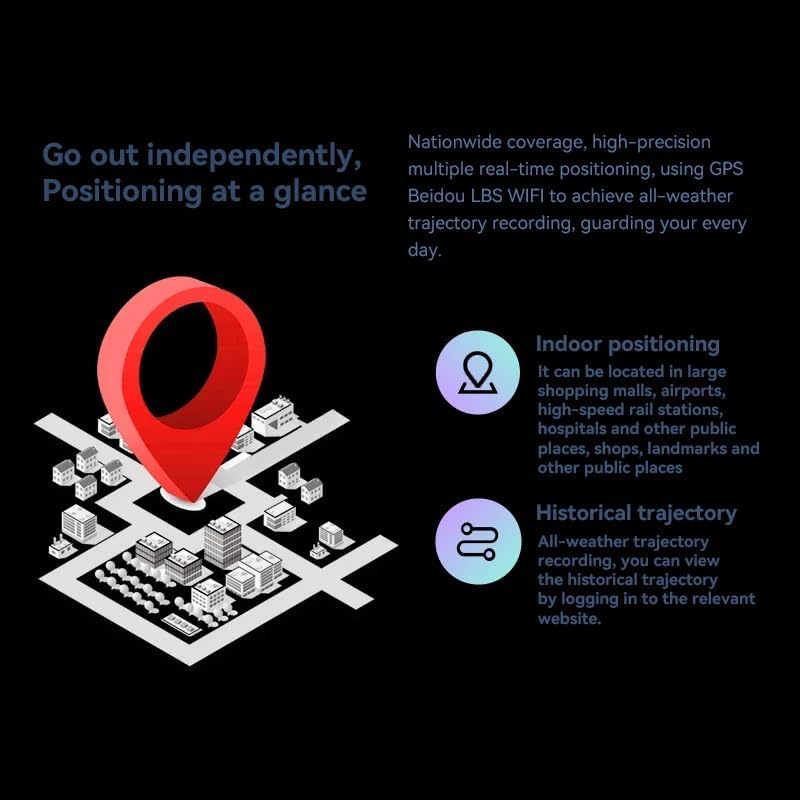
Image 4.1: Visual representation of the smartwatch's GPS and multi-location tracking features, including indoor and historical trajectory capabilities.
4.5 Application Usage
Running on Android 8.1 with 2GB RAM and 16GB internal storage, the smartwatch allows you to download and use various applications from its integrated app store. Popular apps like WeChat, TikTok, YouTube, and games are supported.

Image 4.2: The smartwatch interface showcasing a selection of popular applications available for download and use.
4.6 Mana Waiata
Control music playback on your connected smartphone or directly from the smartwatch if music files are stored on its internal memory. Access the music player app to play, pause, skip tracks, and adjust volume.
5. Tiaki
- Te horoi: Wipe the watch screen and body with a soft, dry, lint-free cloth. Avoid using harsh chemicals or abrasive materials.
- Ātete wai: While the device may have some resistance, avoid submerging it in water or exposing it to high-pressure water streams.
- Rokiroki: Whakaorangia te maataki atamai ki te waahi matao, maroke ka kore e whakamahia.
- Tiaki Pūhiko: To prolong battery life, avoid extreme temperatures and do not allow the battery to fully discharge for extended periods.
6. Te Raru
6.1 Watch Does Not Power On
- Me whakarite kua whakakiia te mataaratanga. Honoa ki te rihi mo te iti rawa 30 meneti.
- Try pressing and holding the power button for 10-15 seconds to force a restart.
6.2 Waitohu GPS Kino
- Me mohio kei roto koe i tetahi waahi tuwhera me te maama view o te rangi.
- Avoid areas with tall buildings or dense foliage that can obstruct the signal.
6.3 Apps Not Downloading/Working
- Check your Wi-Fi or cellular data connection.
- Ensure there is sufficient storage space on the device (16GB internal memory).
- Tīmataria anō te mātakitaki atamai.
6.4 Mata Paa Kare e aro
- Horoia te mata hei tango i te paru, i te makuku rānei.
- Tīmataria anō te pūrere. Ki te haere tonu te take, whakapā atu ki te tautoko a te kaihoko.
7. Whakatakotoranga

Whakaahua 7.1: Roto view highlighting the Android 8.1 operating system and the quad-core ASR8601 processor, ensuring smooth operation.
| Āhuahira | Taipitopito |
|---|---|
| Tauira | HW S11 |
| Waitohu | XINDADA |
| Pūnaha Mahi | Android 8.1 |
| Tukatuka | Quad-core (ASR8601) |
| RAM | 2 GB |
| Rokiroki Roto | 16 GB |
| Rahi Whakaatu | 2.02 Inihi |
| Momo Whakaatu | LCD |
| Whakatau | 320 x 390 pika |
| Pūhiko Raukaha | 700 mah |
| Hononga | Bluetooth, Wi-Fi, 4G (SIM card support) |
| GPS | Integrated GPS, Beidou, LBS |
| Kāmera | 180° Swivel Telescopic Camera |
| Ahu | 5 x 5 x 5 cm |
| Taumaha | 100 g |
8. Pūtāhui me te Tautoko
Mō ngā mōhiohio pūtāhui me te tautoko hangarau, tirohia ngā tuhinga i whakaratohia me tō hoko, whakapā atu rānei ki tō kaihokohoko. Puritia tō taunakitanga hoko mō ngā kereme pūtāhui katoa.
Ask a question about this manual
Ask about setup, troubleshooting, compatibility, parts, safety, or missing instructions. Manuals+ will review the question and use this page’s manual context to help answer it.