
1. Kupu Whakataki
The OBSBOT Vox Wireless Microphone system provides high-quality audio capture for various applications, including streaming, podcasting, vlogging, and presentations. This manual provides detailed instructions for setup, operation, and maintenance to ensure optimal performance and help you get the most out of your device.
2. He aha kei roto i te Pouaka
The OBSBOT Vox package includes the following components:
- 2 x Kaituku
- 1 x Kaiwhiwhi
- 1 x Puhi utu
- 2 x Clip Magnets
- 2 x Magnetic Necklaces
- 2 x Magnetic Back Clips
- 2 x Huruhuru Matanui
- 1 x USB-C Tauira Hiko
- 1 x USB-C ki te USB-A Adapter
- 1 x Kaari Rarangi
- 1 x Aratohu Kaiwhakamahi

Image showing the complete contents of the OBSBOT Vox Wireless Microphone package, including two transmitters, one receiver, a charging case, various mounting accessories, cables, and documentation.
3. Nga waahanga matua
- Te herekore Ahokore: Stable signal transmission up to 300m (984ft) with advanced LDS Antenna.
- Studio-Grade Audio Quality: 74dB SNR, 120dB SPL, 48kHz/24-bit resolution, omnidirectional pickup.
- Dual-Channel Recording: Two transmitters to one receiver with separate audio channels.
- Mono & Purei: Instant audio recording by plugging the USB-C receiver and taking transmitters from the charging case.
- Roa te Ora Pūhiko: Up to 11 hours per transmitter, 44 hours total with charging case.
- Kōwhiringa Whakapuru Rawa: Magnetic, neck-mounted, handheld, clip-style.
- OBSBOT Ecosystem Compatibility: Syncs with OBSBOT webcams via OBSBOT Center and Obsbot Live apps.

A close-up image of the OBSBOT Vox microphone, emphasizing its studio-grade audio capabilities with a visual representation of sound waves.

Image showing two people seated at a table, each wearing an OBSBOT Vox transmitter, demonstrating the dual-channel recording feature for interviews or discussions.

A close-up image of the OBSBOT Vox receiver plugged into a mobile phone, indicating its simple plug-and-play setup for immediate use.
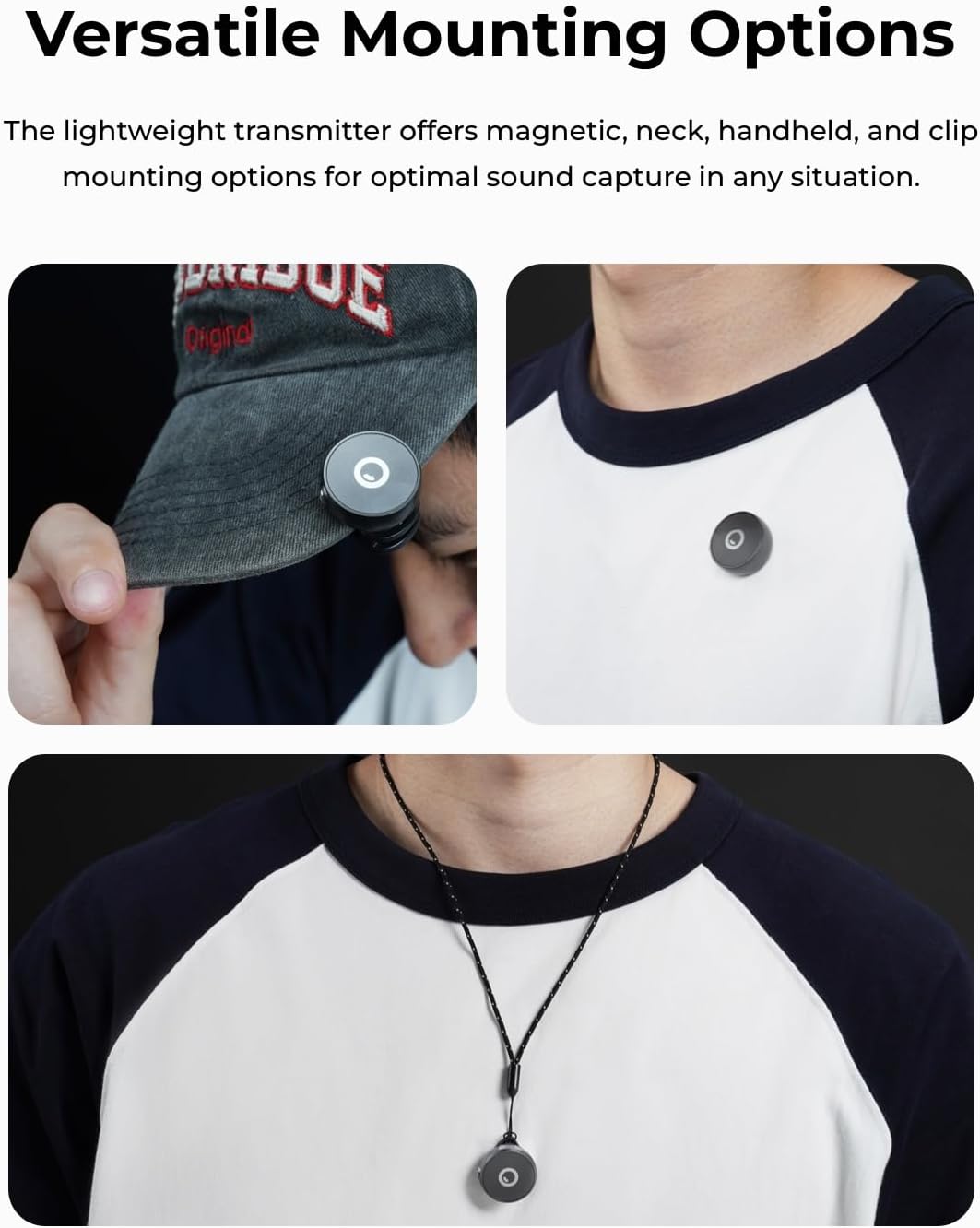
Image of the OBSBOT Vox charging case with transmitters inside, highlighting the 44-hour extended battery life.
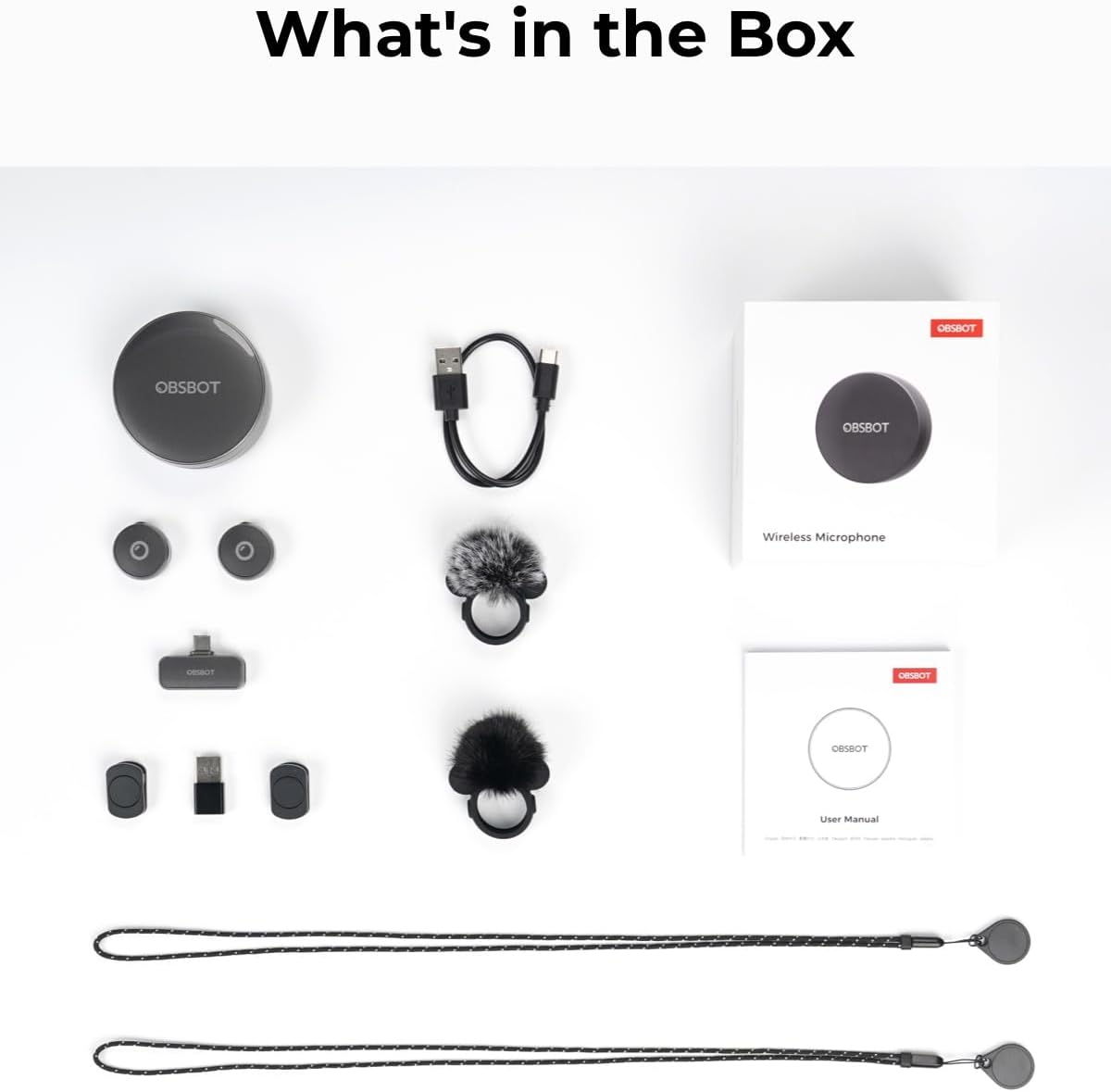
Image demonstrating different ways to wear the OBSBOT Vox transmitter, such as magnetically attached to a cap, clipped to a shirt, and worn around the neck with a magnetic necklace.
4. Tatūnga
- Charge the Transmitters: Place the transmitters into the charging case. Ensure the case is charged via the USB-C port.
- Honoa te Kaiwhiwhi: Plug the USB-C receiver into your recording device (phone, PC, laptop, tablet). Use the included USB-C to USB-A adapter if necessary.
- Hiko Whakawhiti: Take the transmitters out of the charging case. They will automatically power on and attempt to pair with the receiver.
- Takirua (mehemea e hiahiatia ana): If pairing does not occur automatically, press and hold the button on the transmitter for 6 seconds until the indicator light flashes green rapidly. Follow on-screen prompts in the OBSBOT Center software if connecting to a PC.
This video provides a visual guide on how to set up and pair the OBSBOT Vox SE microphone, including connecting the receiver and adjusting settings within the OBSBOT Center software.
5. Nga Tohutohu Whakahaere
Te mau i te Kaituku
The lightweight transmitter offers multiple wearing options for optimal sound capture:
- Topenga aukume: Use the clip magnet or magnetic back clip to secure the transmitter to your collar, lapel, or cap.
- Magnetic Necklace: Wear the transmitter around your neck using the included magnetic necklace.
- Pupuri ringa: Hold the transmitter for direct voice capture.
Audio Input and Settings
When connected to a compatible device, the OBSBOT Vox will function as an audio input. For advanced settings and controls, use the OBSBOT Center or Obsbot Live apps.
- Kōwhiringa Tāuru Ororongo: In your device's audio settings or OBSBOT software, select "OBSBOT Mic" as the audio input.
- Whiwhi Whakatikatika: Adjust the audio input gain to prevent clipping or ensure sufficient volume.
- Aratau Ororongo: Choose between Mono or Stereo mode. Stereo mode is ideal for dual-transmitter setups like interviews.
- Whakaiti Haruru: Enable noise reduction (Weak, Medium, Strong) to minimize background noise.
- Mic Button Function: Configure the click button on the transmitter for functions like Human Tracking, Switch Tracking Mode, Zoom, or Recording (if supported by the connected OBSBOT camera).
- Vibration Alert & LED Light: Toggle vibration alerts and LED indicator lights on/off.
- Whakaweto Aunoa: Set the microphone to automatically power off after a period of inactivity.
6. Hototahi
The OBSBOT Vox Wireless Microphone is compatible with a wide range of devices:
- Computers (PC, Laptop)
- Waea atamai
- Nga papa
Compatible devices must be equipped with USB-C or USB-A interfaces. The receiver's USB-C power input port supports simultaneous charging for connected mobile phones and tablets while in use (not supported for computers).
7. Pūhiko Ora
Each OBSBOT Vox transmitter provides up to 11 hours of continuous runtime. The included 1000mAh charging case extends the total operating time to 44 hours, ensuring prolonged recording sessions without interruption.
8. Te Raru
Nga take noa me nga otinga
- Microphone not connecting:
- Ensure transmitters are powered on and out of the charging case.
- Me manatoko kei te hono pono te kaiwhiwhi ki tō pūrere.
- Attempt manual pairing by holding the transmitter button for 6 seconds.
- Check device audio input settings to ensure "OBSBOT Mic" is selected.
- Poor audio quality / Background noise:
- Adjust gain settings in OBSBOT Center/Live apps.
- Enable or increase noise reduction levels (Weak, Medium, Strong).
- Ensure transmitters are positioned optimally (e.g., center of chest, away from obstructions).
- Check for strong magnetic interference if using magnetic mounts near sensitive electronics.
- Transmitter dislodges during activity:
- Use caution during vigorous exercise. Strong vibrations or sudden motions may cause transmitters to dislodge.
- Ensure mounting accessories (magnets, clips) are securely attached.
- Receiver not charging mobile devices:
- Confirm the connected device is a mobile phone or tablet. Computers are not supported for this function.
- Ensure the USB-C power input port on the receiver is connected to a power source.
9. Whakatakotoranga
| Āhuahira | Taipitopito |
|---|---|
| Waitohu | OBSBOT |
| Ingoa Tauira | OBSBOT Vox |
| Tau tauira | PB2.00037 |
| Tae | Kerei |
| Hangarau Hononga | Ahokore |
| Hangarau Ahokore | Nihokikorangi 5.0 |
| Awhe Tuku | Tae atu ki te 300m (984ft) |
| SNR | 74dB |
| SPL | 120dB |
| Whakataunga Ororongo | 48kHz/24-Bit |
| Tauira Tango | Arohanga katoa |
| Whakawhiti Pūhiko Ora | 11 haora |
| Ka utua te Keehi Pohiko | 44 Hours (with 1000mAh case) |
| Taumaha Tūemi | 0.3 Kirokaramu |
| Rauemi Whakapiri | Kirihou, Silicone |
| Pūrere Hototahi | Computer/Laptop/Smart Phone/Tablets |
| Taumata Atete Wai | Ehara i te wai ātete |
10. Raihana me te Tautoko
Nga korero Whakaputanga
The OBSBOT Vox Wireless Microphone comes with a 1-Year Warranty. Please refer to the included Warranty Card for full terms and conditions.
Tautoko Kiritaki
For further assistance, technical support, or product inquiries, please visit the official OBSBOT webpae or contact their customer service team.