
1. Kupu Whakataki
The KinetCam CAM-A is a 4G LTE cellular security camera designed for monitoring locations without Wi-Fi access. It provides 2K HD video, automatic night vision, and intelligent motion detection, making it suitable for various off-grid environments such as cabins, RVs, barns, and remote properties. This manual provides detailed instructions for setting up, operating, and maintaining your camera.

Image 1.1: KinetCam CAM-A 4G LTE Cellular Security Camera.
2. Ihirangi mokete
Tena koa tirohia te kete mo nga mea e whai ake nei:
- KinetCam CAM-A 4G LTE Cellular Security Camera
- Pre-installed SIM Card (with 100MB trial data)
- Mounting Screw(s)
- Tauira Whakatau USB
- Pukapuka Kaiwhakamahi (tenei tuhinga)

Image 2.1: KinetCam CAM-A camera, highlighting its compact size and 4G SIM card functionality.
3. Hua Neke Atuview
The KinetCam CAM-A features a compact design with essential components for cellular surveillance.
3.1 Waenga Matua
- Arotahi kāmera: Captures 2K HD video.
- Nga LED Infrared: Enable automatic night vision.
- PIR Pūoko: Detects motion from people and pets.
- Mokamoka Kaari SIM: For 4G LTE connectivity.
- Miihini Kaari MicroSD: Ka tautokohia ki te 128GB mo te rokiroki rohe.
- Tauranga Kaihoko USB: Mo te whakahou i te pākahiko o roto.
- Pātene Hiko/Maama Tohu: For device control and status.

Image 3.1: KinetCam CAM-A mounted, illustrating its discreet placement capability.
4. Aratohu Tatūnga
4.1 Whakataki Tuatahi
Before first use, fully charge the camera using the provided USB cable and a standard 5V/1A USB power adapter (not included). The indicator light will show charging status and turn off when fully charged.
4.2 SIM Card Activation and Installation
The camera comes with a pre-installed SIM card and 100MB trial data. This SIM card is compatible with AT&T, T-Mobile, and Verizon networks and will automatically connect to the strongest 4G LTE signal. No manual SIM card installation is typically required for initial setup.
- Ensure the camera is powered off before handling the SIM card slot.
- If replacing the SIM card, carefully insert the new 4G LTE SIM card into the designated slot with the gold contacts facing down.
- After using the trial data, you will need to top up cellular data via the companion mobile application.
4.3 Tāutanga Kāri MicroSD (Whiringa)
For local video storage, a MicroSD card (up to 128GB, not included) can be installed.
- Whakawetohia te kamera.
- Kimihia te mokamoka kāri MicroSD.
- Insert the MicroSD card gently until it clicks into place.
- Format the MicroSD card via the mobile application after powering on the camera for optimal performance.

Image 4.1: Illustration of MicroSD card and SIM card insertion points on the KinetCam CAM-A.
4.4 Mobile Application Download and Pairing
Ki te uru ora view, recordings, and settings, download the KinetCam mobile application from your device's app store.
- Rapua "KinetCam" in the App Store (iOS) or Google Play Store (Android).
- Tikiake me te tāuta i te tono.
- Waihangahia he kaute, takiuru ranei.
- Follow the in-app instructions to add your KinetCam CAM-A device. This typically involves scanning a QR code on the camera or entering its serial number.
4.5 Whakauru i te Kamera
The camera can be placed on a flat surface or mounted using the included mounting screws.
- Kōwhiria he tauwāhi e hiahia ana viewing angle and is within 4G LTE signal range.
- Ensure the camera is positioned to avoid direct sunlight or strong light sources that could affect image quality.
- For wall mounting, use the provided screws to secure the camera bracket.

Image 4.2: KinetCam CAM-A demonstrating flexible placement and mounting options.
5. Nga Tohutohu Whakahaere
5.1 Kei te Hiko / Weto
Press and hold the power button for a few seconds to power the camera on or off. The indicator light will confirm the status.
5.2 Ora View
Open the KinetCam mobile application and select your camera from the device list to access the live 2K HD video feed. You can view the feed remotely via the 4G LTE connection.
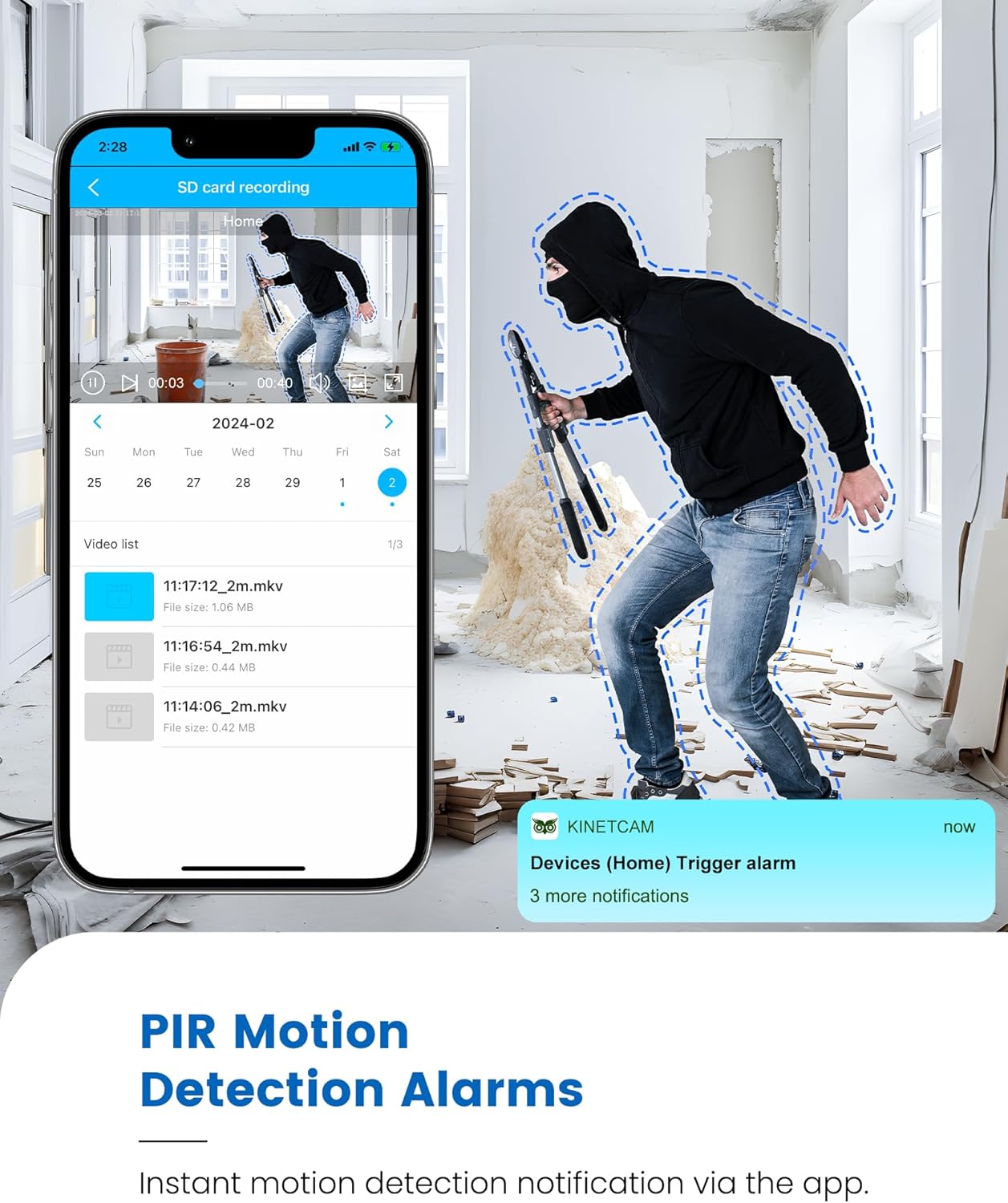
Image 5.1: Live 2K video feed and automatic night vision capability of the KinetCam CAM-A.
5.3 Te Motini me nga Matohi
The camera uses an advanced PIR sensor for accurate motion detection, primarily identifying people and pets.
- Whakahohe/Whakakore: Adjust motion detection sensitivity and enable/disable alerts within the app settings.
- Wā-tūturu Matohi: When motion is detected, the camera sends real-time notifications to your paired smartphone.
- Tuhipoka Nui: PIR sensors do not detect motion through glass. Avoid placing the camera behind windows if motion detection is critical for that area.

Image 5.2: Smartphone displaying a motion detection alert from the KinetCam CAM-A.
5.4 Matakite Po
The camera automatically activates infrared night vision in low-light conditions, providing clear footage tae atu ki te 20 putu.
5.5 Hopu Ataata me te Rokiroki
The KinetCam CAM-A supports two primary storage methods:
- Kāri MicroSD: Ngā rekoatatage directly to an installed MicroSD card (up to 128GB). Recordings can be accessed and managed via the mobile app.
- Rokiroki Kapua: An optional cloud storage service is available for secure off-site backup of your video recordings. Details and subscription options are available within the KinetCam application.
5.6 Whakahaere Pūhiko
The camera features a rechargeable battery offering up to 30 days of standby time with motion-activated recording or 10+ hours of continuous operation. Battery status can be monitored through the mobile application.
Image 5.3: Visual representation of the KinetCam CAM-A's 30-day battery life.
6. Tiaki
6.1 Te horoi
Āta horoia te karāhe me te tinana o te kāmera ki tētahi kakahu ngohengohe, maroke. Āta karohia te whakamahi i ngā matū kino, i ngā rauemi whakakoi rānei ka kino pea te kāmera.
6.2 Tiaki Pūhiko
- Whakautuhia te kāmera i ia wā, ina koa mēnā ka roa te wā e rongoatia ai.
- Kaua e whakaatu i te kāmera ki ngā pāmahana tino kino, ka pā kino hoki tēnei ki te roa o te pākahiko.
6.3 Whakahoutanga Firmware
Periodically check the KinetCam mobile application for available firmware updates. Keeping your camera's firmware updated ensures optimal performance and access to new features.
7. Te Raru
7.1 Camera Not Connecting to 4G LTE
- Ensure the camera is in an area with good 4G LTE signal coverage.
- Check if the SIM card has active data. Top up data via the app if necessary.
- Tīmataria anō te kāmera.
7.2 No Motion Detection Alerts
- Verify that motion detection is enabled and sensitivity settings are appropriate in the app.
- Kia tino mohio te kāmera view e kore e araia.
- Remember that PIR sensors do not detect motion through glass.
- Tirohia ngā tautuhinga whakamōhiotanga taupānga i runga i tō waea atamai.
7.3 Kounga Ataata Kino
- Horoia te arotahi kamera.
- Ensure adequate lighting during the day.
- Check 4G LTE signal strength, as poor signal can affect streaming quality.
7.4 Ka tere te whakaheke o te pākahiko
- Ngā huihuinga kitenga nekehanga auau me te ora tonu viewing will consume more battery. Adjust settings to optimize.
- Me whakarite kua whakakiia te kamera.
- Extreme temperatures can reduce battery efficiency.
8. Whakatakotoranga
| Āhuahira | Taipitopito |
|---|---|
| Ingoa Tauira | CAM-A |
| Hononga | 4G LTE Pūkoro |
| Whakatau Ataata | 2K HD |
| Awhe Tirohanga Po | Tae atu ki te 20 putu |
| Te Motini | AI PIR Sensor |
| Te ora o te Pūhiko (Tutatari) | Tae atu ki te 30 ra |
| Pūhiko Raukaha | 2800mAh |
| Rokiroki rohe | Kaari MicroSD (tae atu ki te 128GB, kaore i whakauruhia) |
| Kapua Rokiroki | Kōwhiringa |
| Ahu | 1.5 x 1.2 x 1.2 inihi |
| Taumaha | 4.2 hekere |
| Mahinga o roto/waho | Roo-roto |
9. Pūtāhui me te Tautoko
KinetCam products are designed for reliability and performance. For specific warranty details, please refer to the warranty card included with your product or visit the official KinetCam webpae.
For technical support, troubleshooting assistance, or any questions regarding your KinetCam CAM-A, please contact KinetCam customer service through the mobile application or the official website. Please have your model number (CAM-A) and purchase information ready when contacting support.