
1. Kupu Whakataki
Thank you for choosing the roborock Q10 S5 Robot Vacuum and Mop Cleaner. This manual provides essential information for setting up, operating, and maintaining your device to ensure optimal performance and longevity. Please read this manual thoroughly before using the product and keep it for future reference.
2. Nga korero haumaru
To reduce the risk of injury, electric shock, fire, or damage, please observe the following safety precautions:
- Ka taea te whakamahi i tenei taputapu e nga tamariki 8 tau, neke atu ranei, me nga tangata he iti te kaha o te tinana, te tairongo, te hinengaro, te kore wheako me te mohiotanga mena kua tukuna ki a ratou te tirotiro me te tohutohu mo te whakamahi i te taputapu i runga i te haumaru me te mohio ki nga aitua e pa ana. .
- Me mataki nga tamariki kia kore ai ratou e takaro ki te taputapu.
- Ko te horoi me te tiaki kaiwhakamahi kaua e mahia e nga tamariki kaore he tirotiro.
- Do not use the robot in areas with open flames or fragile objects.
- Ensure the charging dock is placed on a level surface against a wall.
- Only use the original power adapter provided with the device.
- Do not expose the robot to direct sunlight or moisture.
- Before cleaning, remove power cords, small objects, and fragile items from the floor.
3. Hua Neke Atuview
Familiarize yourself with the components of your roborock Q10 S5 robot vacuum.
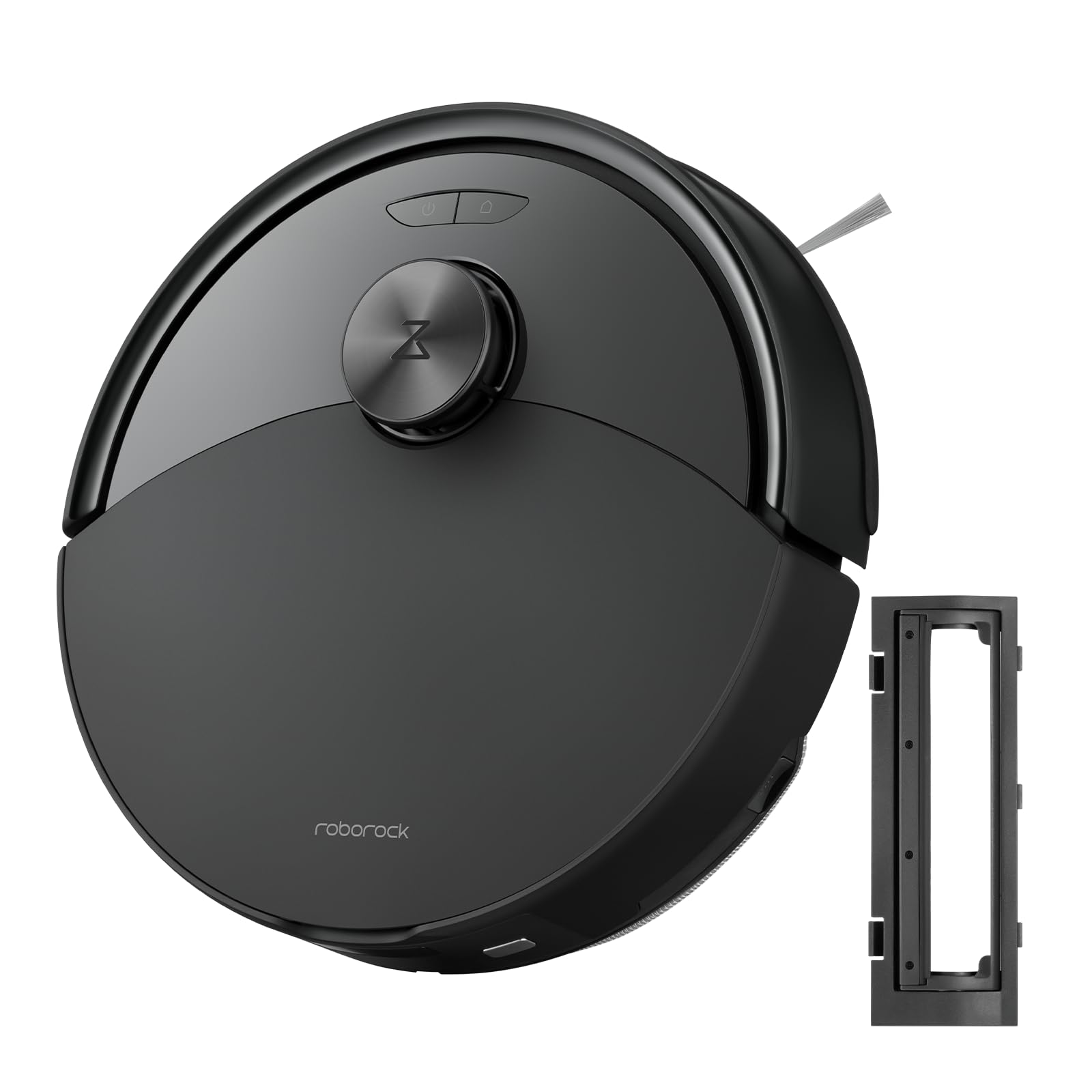
Whakaahua 1: The roborock Q10 S5 Robot Vacuum and Mop Cleaner. This image shows the top view of the robot, highlighting its sleek black design and main control buttons.
Wae karetao:
- Kapau Runga: Lifts to reveal the dustbin and Wi-Fi indicator.
- Patene Hiko/Ma: Press to start/pause cleaning, hold to turn on/off.
- Dock/Spot Clean Button: Press to send the robot back to the dock, hold for spot cleaning.
- LDS Sensor: For navigation and mapping.
- parepare: Ka kitea ngā arai.
- Paraihe Taha: Sweeps debris from edges and corners.
- Paraihe Matua: Collects dirt and debris from floors. Features a floating design for better contact.
- Omnidirectional Wheel: For movement.
- Kei te utu Hoapā: Ka hono atu ki te tauranga utu.
- Pūoko Cliff: Ka aukati i te karetao kia taka ki raro i te arawhata.
- Tāke Wai me te Papa Mopa: For mopping functionality.
Tauranga Whakatau:
- Dock Location Beacon: Helps the robot locate the dock.
- Kei te utu Hoapā: Transfers power to the robot.
- Power Cable Port: Ka hono i te urutau hiko.
4. Tatūnga
- Wewetehia te Robot: Carefully remove the robot and all accessories from the packaging. Remove any protective films or shipping materials.
- Install the Side Brush: Press the side brush onto its post until it clicks into place.
- Whakatakotoria te Tauranga Utu:
- Whakatakotoria te tauranga utu ki runga i tētahi mata mārō, papatahi, ki te taha o te pakitara.
- Ensure there is at least 0.5 meters (1.6 feet) of clear space on both sides and 1.5 meters (4.9 feet) in front of the dock.
- Connect the power cable to the charging dock and plug it into a wall outlet.
- Akona Tuatahi: Place the robot on the charging dock. The robot will automatically turn on and begin charging. For first-time use, fully charge the robot before operation (approximately 4-6 hours). The power indicator light will breathe white during charging and turn solid white when fully charged.
- Tikiake i te Taupānga: Rapua "Roborock" in the App Store or Google Play Store, or scan the QR code on the packaging to download and install the app.
- Tūhono ki Wi-Fi:
- Open the Roborock app and follow the on-screen instructions to add your device.
- Me mohio kei te hono to waea ki te whatunga Wi-Fi 2.4 GHz.
- Patohia me te pupuri i te Tauranga a Mana buttons simultaneously for 3 seconds until you hear the "Resetting Wi-Fi" voice alert.
- Follow the app's instructions to complete the connection.
5. Nga Tohutohu Whakahaere
Ka timata i te horoi:
- Mai i te karetao: Pehia te Mana button once. The robot will start cleaning.
- Mai i te Taupānga: Open the Roborock app and tap the "Clean" button.
Pausing/Resuming/Stopping:
- Okioki: Patohia tetahi paatene i runga i te karetao, pato ranei "Tatari" i roto i te taupānga.
- Anō: Pehia te Mana button or tap "Resume" in the app.
- Aukati: To stop a cleaning cycle, press the Tauranga button to send the robot back to the charging dock, or tap "Stop" in the app.
Mahi Mopi:
- Whakakihia te Taaka Wai: Open the water tank cover, fill with clean water, and close securely.
- Tāpirihia te Mop Pad: Wet the mop pad and wring it out. Slide it into the mop pad slot until it is securely attached.
- Start Mopping: The robot will automatically detect the mop module and switch to mopping mode. You can adjust water flow levels in the app.
Āhuatanga Taupānga:
- Whakahaere Mahere: Create and save maps, set no-go zones, virtual walls, and invisible barriers.
- Te Horoi Rūma Whiriwhiri: Choose specific rooms to clean.
- Whakamaa Whakarite: Set cleaning schedules for different times and days.
- Custom Cleaning Modes: Whakaritehia te kaha momi me te rere o te wai.
- Mana Mamao: Whakahaerehia ā-ringa te nekehanga o te karetao.
6. Tiaki
Regular maintenance ensures your roborock Q10 S5 operates efficiently. Always turn off the robot and unplug the charging dock before performing any maintenance.
Dustbin and Filter (Weekly):
- Hiki ake te taupoki o runga o te karetao.
- Tango i te ipu puehu.
- Whakatuwheratia te taupoki o te ipu para ka ringihia ngā mea o roto ki roto i te ipu para.
- Remove the filter. Tap it gently to remove dust. The filter can be rinsed with water; ensure it is completely dry before reinstallation (allow 24 hours).
- Rinse the dustbin with water if necessary and allow it to dry completely.
- Reinstall the dry filter and dustbin.
Main Brush (Weekly):
- Hurihia te robot.
- Press the tabs to remove the main brush cover.
- Hikitia te paraihe matua.
- Whakamahia te taputapu horoi (mēnā kei te whakaratohia) te kutikuti rānei hei tapahi me te tango i ngā huruhuru, i ngā paru rānei e piri ana ki te paraihe.
- Reinstall the main brush and cover, ensuring it clicks into place.
Side Brush (Monthly):
- Wewetehia te paraihe taha.
- Remove any hair or debris.
- Reattach and tighten the screw.
Sensors and Charging Contacts (Monthly):
- Ūkuia ngā pūoko katoa (pūoko pari, pūoko pakitara, matapihi pūoko LDS) me nga hoapaki utu i runga i te karetao me te ū ki te kakahu ngohengohe, maroke.
Mop Pad (After Each Use):
- Tangohia te papa mop i te tank wai.
- Rinse thoroughly with water and allow it to air dry completely before next use.
7. Te Raru
If you encounter issues with your robot, please refer to the following table before contacting support.
| Raruraru | Take pea | Rongoā |
|---|---|---|
| Kaore te karetao e huri. | He iti te pākahiko, kaore ranei i te utu. | Place the robot on the charging dock and ensure it is charging. |
| Kaore e taea e karetao te hono ki Wi-Fi. | Incorrect Wi-Fi password, 5GHz network, or poor signal. | Ensure correct 2.4GHz Wi-Fi, reset Wi-Fi on robot, move closer to router. |
| Ka mau te karetao i nga wa maha. | Obstacles, tangled cables, or dirty sensors. | Clear floor, clean sensors, use no-go zones in app. |
| He kino te mahi horoi. | Full dustbin, dirty filter, tangled brushes. | Empty dustbin, clean/replace filter, clean main/side brushes. |
| Ka haruru rerekee te karetao. | Debris in main brush, side brush, or wheels. | Tirohia, horoia hoki ngā paraihe me ngā wira katoa mō ngā mea e arai ana. |
If the problem persists, please refer to the Roborock app for more detailed error messages or contact customer support.
8. Whakatakotoranga
| Āhuahira | Taipitopito |
|---|---|
| Tauira | Q10 S5 |
| Ahu | Approx. 353 x 350 x 96.5 mm (13.9 x 13.8 x 3.8 inihi) |
| Taumaha | Approx. 3.7 kg (8.16 lbs) |
| Pūhiko | Lithium-Ion (Capacity not specified, typical for robot vacuums) |
| Te Mana Whakatau | Approx. 60W (Typical for robot vacuums) |
| Te Puehu Puehu | Approx. 470 ml (Typical for robot vacuums) |
| Te kaha o te tank wai | Approx. 300 ml (Typical for robot vacuums) |
| Te Mana Momo | Up to 10,000 Pa (HyperForce Suction Power from feature bullets) |
| Hononga Wi-Fi | 2.4 GHz |
Panui: Ka panoni nga whakaritenga ka kore he panui.
9. Pūtāhui me te Tautoko
roborock products are manufactured to the highest quality standards. For detailed warranty information, please refer to the warranty card included in your product packaging or visit the official roborock website. For technical support, troubleshooting assistance, or to purchase replacement parts, please contact roborock customer service through the app or their official webpae.
Whaimana Webpae: www.roborock.com