
Kupu Whakataki
Thank you for choosing the MAXDONE PH960W-SGE Solar WiFi Trail Camera. This camera is designed for wildlife observation, outdoor surveillance, and home security, offering high-resolution images and videos with advanced features like solar power, WiFi connectivity, and night vision. This manual provides detailed instructions for setup, operation, and maintenance to ensure optimal performance.
The camera features a 64MP photo resolution, 4K video recording with sound, a 0.1-second trigger speed, and 850nm low-glow LEDs for clear night vision. Its integrated 6000mAh lithium battery and flexible solar panel provide extended operation, while IP66 waterproofing ensures reliability in various weather conditions.
Ihirangi mokete
Tena koa tirohia te kete kia mohio kei te noho katoa nga taonga:
- MAXDONE PH960W-SGE Trail Camera
- Detachable Solar Panel (with 1.4m cable)
- USB Utu / Uera Raraunga
- Whakamaunga Here
- Wall/Tree Mounting Bracket
- Nga Tiu mo te Whakapiki
- Kari MicroSD 32GB
- Pukapuka Kaiwhakamahi (tenei tuhinga)
Nga waahanga hua
- Atahanga Whakataunga teitei: Captures 64 Megapixel still images and records 4K Ultra HD video with audio.
- Tere Tere o te Whakaoho: PIR sensor activates recording in 0.1 seconds.
- Matakitenga Ake Po: Equipped with 14 low-glow 850nm infrared LEDs for clear nighttime recording without disturbing wildlife.
- Solar Power & Long Battery Life: Features a detachable solar panel and an integrated 6000mAh lithium-polymer battery for extended operation and environmental friendliness.
- Hononga WiFi me te Nihokikorangi: Connects directly to the "TrailCam Go" mobile app via integrated WiFi and Bluetooth for remote viewing, downloading, and sharing of media within approximately 15 meters.
- Hoahoa Roa: IP66 waterproof rating ensures reliable performance in rain, snow, and heat.
- Rokiroki: Supports up to 256GB MicroSD cards (32GB card included).
- Nga Mahi Waahi: Includes timestamp, timelapse, operating times, password protection, and loop recording.
Tatūnga
1. Tāutanga Pūhiko me te Kāri SD
- Utuhia te Pūhiko: Before first use, fully charge the integrated 6000mAh lithium-polymer battery using the provided USB cable and a standard USB power adapter (not included). The solar panel will maintain the charge during outdoor use.
- Kōkuhu Kāri MicroSD: Open the camera's housing. Locate the MicroSD card slot. Insert the included 32GB MicroSD card (or another compatible card up to 256GB) with the gold contacts facing the back of the camera until it clicks into place. Ensure the card is formatted before first use (refer to the Operating Instructions section).
2. Hononga Paewhiri Rā
Connect the detachable solar panel to the camera's designated power input port. The solar panel can be mounted independently in a sunny location using its 1.4m cable to ensure optimal charging, regardless of the camera's orientation.
3. Whakapiki i te Kamera

Image: MAXDONE PH960W-SGE Trail Camera mounted on a tree with its solar panel, highlighting its IP66 waterproof rating and operating temperature range of -20°C to 60°C.
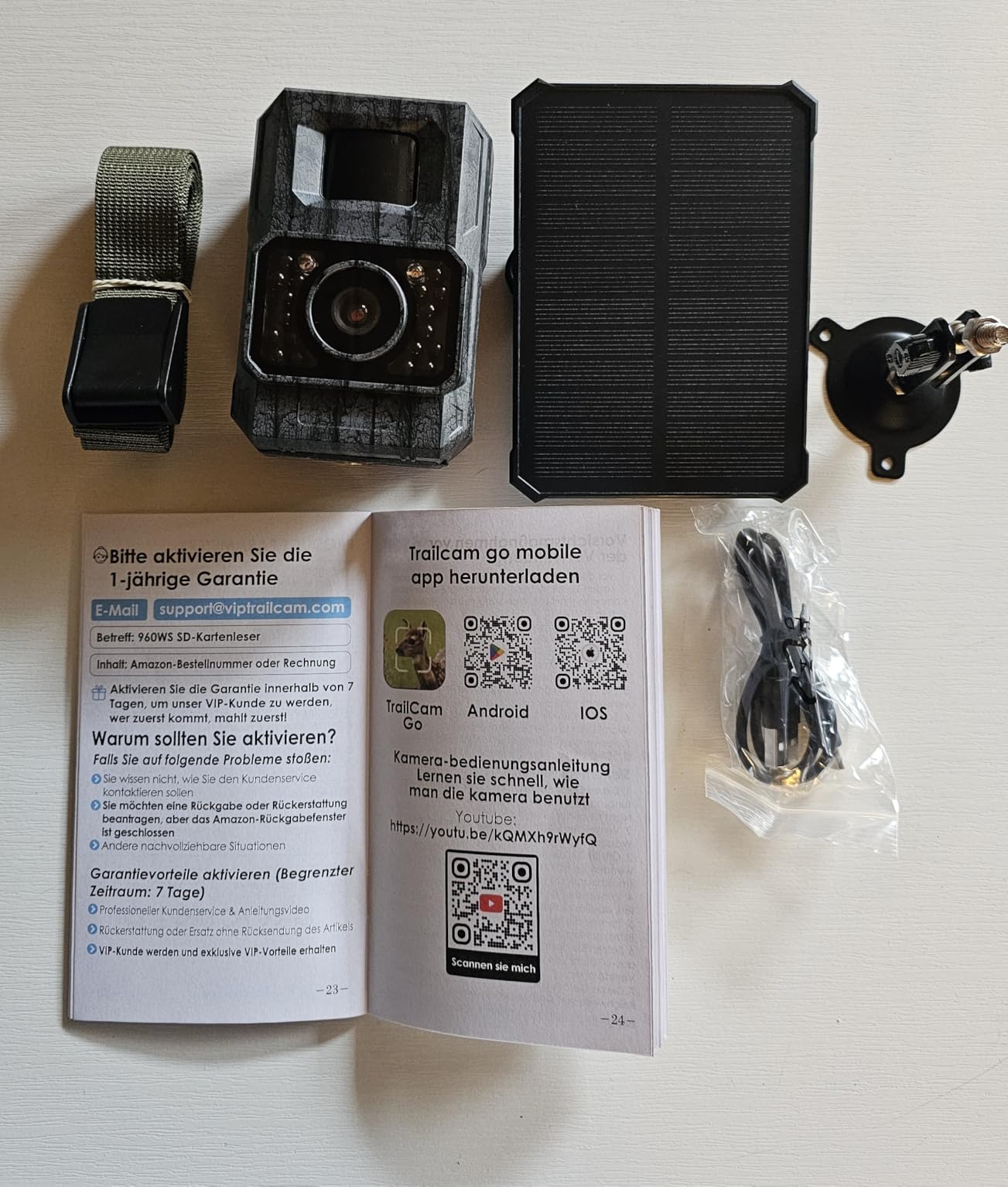
Image: The trail camera secured to a tree using the provided mounting strap, demonstrating a typical outdoor installation.
The camera can be mounted using the included strap or the wall/tree mounting bracket and screws. Choose a location that provides a clear view of the area you wish to monitor and allows the solar panel to receive adequate sunlight.
- Whakamaunga here: Thread the mounting strap through the slots on the back of the camera and secure it around a tree or pole.
- Whakapuru Taiapa: Use the screws to attach the mounting bracket to a wall or tree. Then, attach the camera to the bracket. Adjust the camera angle as needed.
4. Taupānga Tāuta me te Hononga

Image: The trail camera connected to a smartphone running the 'TrailCam Go' app, illustrating the WiFi remote control feature.
- Tikiake i te Taupānga: Rapua "TrailCam Go" in your smartphone's app store (iOS or Android) and install it.
- Enable Camera WiFi/Bluetooth: Turn on the camera. Activate its WiFi and Bluetooth functions (refer to the camera's internal menu or quick start guide for specific steps).
- Hono ki te Taupānga: Open the "TrailCam Go" app. The app will use Bluetooth to discover the camera. Once discovered, it will prompt you to connect via the camera's integrated WiFi hotspot. Follow the on-screen instructions to establish the connection.
- Tuhipoka: The camera connects to your mobile phone via its own hotspot WiFi and does not support connection to home Wi-Fi networks. The connection range is approximately 15 meters.
Nga Tohutohu Whakahaere
1. Mahi Taketake
- Hiko Whakaka/Weto: Use the power switch located inside the camera housing to turn the camera ON or OFF.
- Kōwhiringa Aratau: The camera typically has modes like 'OFF', 'SETUP', and 'ON' (or 'MONITOR'). Use 'SETUP' mode to configure settings and 'ON' to activate recording.
- Tahua Whakaterenga: Use the camera's internal buttons (usually 'MENU', 'UP', 'DOWN', 'LEFT', 'RIGHT', 'OK') to navigate through settings on the built-in screen.
2. Whakahōputu i te Kāri SD
It is recommended to format the MicroSD card before first use and periodically thereafter to ensure optimal performance and prevent data corruption.
- In 'SETUP' mode, navigate to the 'Format SD Card' option in the menu.
- Select 'Yes' and confirm to format the card. All data on the card will be erased.
3. Configuring Camera Settings
Access the camera's menu in 'SETUP' mode to adjust various parameters:
- Aratau: Select 'Photo', 'Video', or 'Photo + Video'.
- Taumira Whakaahua: Choose from available options, up to 64MP.
- Taumira Ataata: Choose from available options, up to 4K.
- Roa Ataata: Set the duration for each video clip.
- PIR mataata: Adjust the motion sensor sensitivity (Low, Medium, High) based on the environment.
- Mahinga PIR: Tautuhia te whakaroa i waenga i ngā whakaoho karapīpiti.
- Nga haora mahi: Define specific times of day for the camera to be active.
- Te Waahi: Enable time-lapse photography for long-term observation.
- Taimaamp: Enable or disable date and time stamps i runga i nga rekoata.
- Roopu Hopu: If enabled, the camera will overwrite the oldest files ka kapi te kaari SD.
- Parenga Kupuhipa: Set a password to prevent unauthorized access to camera settings.
4. Using the "TrailCam Go" App
Once connected via WiFi, the app allows you to:
- Ora View: See a real-time feed from the camera.
- Browse Gallery: View photos and videos stored on the SD card.
- Download Media: Transfer photos and videos directly to your smartphone.
- Huri Tautuhinga: Whakatikatikahia ngā tautuhinga kāmera mai i tawhiti.
- Share Content: Easily share captured moments.
Te tiaki
- Te horoi: Regularly clean the camera lens and PIR sensor window with a soft, dry cloth. Do not use abrasive cleaners or solvents.
- Tiaki Pūhiko: Ensure the solar panel is clean and positioned to receive maximum sunlight for continuous charging. If storing the camera for an extended period, fully charge the battery and store it in a cool, dry place.
- Whakaha Kaari SD: Ia wā anōview me te whakakore i nga mea kore files from the SD card to free up space and maintain performance. Reformat the card every few months.
- Tiaki Taiao: While the camera is IP66 waterproof, avoid submerging it in water. Ensure the housing is securely closed to prevent moisture ingress.
Raparongoā
| Raruraru | Take pea | Rongoā |
|---|---|---|
| Karekau te kamera i te hiko. | Pūhiko iti; Whakawetohia te hiko. | Charge the battery fully. Ensure the power switch is in the 'ON' or 'SETUP' position. |
| No photos/videos recorded. | SD card full/corrupted; PIR sensitivity too low; Camera in 'SETUP' mode; Incorrect settings. | Format the SD card. Increase PIR sensitivity. Switch camera to 'ON' mode. Verify recording settings (mode, resolution). |
| Te kounga o te tirohanga pō kino. | IR LEDs obstructed; Objects too far/close; Low battery. | Ensure IR LEDs are clear. Position camera appropriately. Ensure battery is sufficiently charged. |
| Cannot connect to "TrailCam Go" app. | Camera WiFi/Bluetooth off; Out of range; App issues. | Ensure camera WiFi/Bluetooth is enabled. Move closer to the camera (within 15m). Restart the app and camera. |
| Karekau te panui solar e utu ana. | Insufficient sunlight; Panel obstructed/dirty; Cable disconnected. | Relocate the solar panel to a sunnier spot. Clean the panel surface. Check cable connection. |
Whakatakotoranga
| Āhuahira | Taipitopito |
|---|---|
| Tau tauira | PH960W-SGE |
| Kaihanga | MAXDONE |
| Hunga Hua | 7 x 5 x 10 cm |
| Taumaha | 520 g |
| Momo Pūhiko | Integrated 6000mAh Lithium-polymer |
| Whakataunga Whakaahua | Tae atu ki te 64MP |
| Whakatau Ataata | Tae atu ki te 4K |
| Tere Trigger | 0.1 hēkona |
| LED Matapihi Po | 14 x 850nm Low-Glow IR LEDs |
| Hononga | WiFi, Bluetooth (for app connection) |
| Hototahi App | "TrailCam Go" (iOS/Android) |
| Awhe WiFi | Approx. 15 mita |
| Rokiroki | MicroSD card, up to 256GB (32GB included) |
| Whakatauranga parewai | IP66 |
| Taiao Mahi | Waho |
| Momo Whakaeke | Tree mounting (strap/bracket) |
| Tae | Taupe |
Tautoko me nga Korero Whakaputanga
MAXDONE is committed to providing excellent customer service. For any questions, technical assistance, or warranty claims, please contact our support team.
- Tautoko Kiritaki: Available 24 hours for assistance.
- Kaupapa Whakahoki: 7-day return without reason.
- Ratonga Whakakapi: 365-day lifetime replacement service.
Please refer to your purchase documentation or the MAXDONE official webpaetukutuku mō ngā mōhiohio whakapā hou me ngā tikanga taipitopito o te pūtāhui.