
Xbox EP2-29563
Xbox Wireless Controller Storm Breaker Special Edition
Tauira: EP2-29563
Waitohu: Xbox
Kupu Whakataki
The Xbox Wireless Controller Storm Breaker Special Edition is designed to provide an enhanced gaming experience across multiple platforms. This controller features a unique aesthetic with classic grays and blacks, offset with whites, along with textured grips for improved handling. It offers seamless connectivity and customizable controls to optimize your gameplay.
Nga waahanga matua
- Storm Breaker Special Edition Design: Features a distinctive gray, black, and white pattern.
- Textured Triggers: Provides enhanced grip and control during gameplay.
- Rubberized Grips: Located on the back cases for secure handling.
- Wireless & Bluetooth Connectivity: Easily pairs with Xbox consoles, PCs, and mobile devices.
- Patene Tiri: Seamlessly capture and share screenshots and game recordings.
- Mahere Patene Whakaritea: Personalize controls using the Xbox Accessories app.
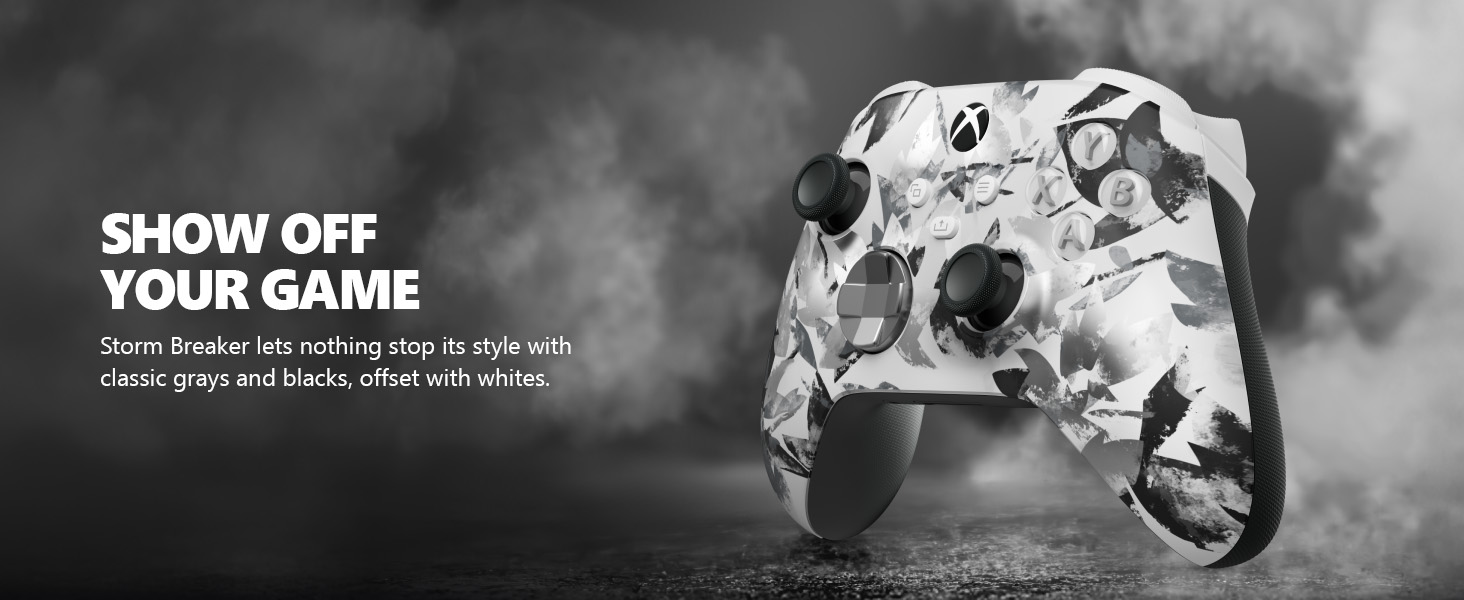
Image: The Xbox Wireless Controller Storm Breaker Special Edition showcasing its distinctive color scheme.
Tatūnga
1. Tāuta Pūhiko
The controller requires two AA batteries (included). To install:
- Kimihia te wāhanga pākahiko kei muri o te kaiwhakahaere.
- Press the small tab and lift the battery cover.
- Whakauruhia nga pākahiko AA e rua, kia tika te polarity (+ me te -).
- Whakakapihia te taupoki papahiko kia pa ra ano ki te waahi.
2. Tauhoa ki nga Pūrere
The controller supports both Xbox Wireless and Bluetooth for versatile connectivity.
- For Xbox Console:
- Turn on your Xbox console.
- Press the Xbox button on your controller to turn it on.
- Patohia me te pupuri i te paatene Pair (⏚) on the top of the controller until the Xbox button flashes rapidly.
- Press the Pair button on your Xbox console (usually near the USB port or on the front).
- The Xbox button on the controller will become solid when connected.
- For PC (Windows 10/11) via Bluetooth:
- Me mohio kei te whakahohea to PC i te Nihokikorangi.
- Press the Xbox button on your controller to turn it on.
- Patohia me te pupuri i te paatene Pair (⏚) on the top of the controller until the Xbox button flashes rapidly.
- I to PC, haere ki Tautuhinga> Pūrere> Nihokikorangi me etahi atu taputapu.
- Select "Add Bluetooth or other device" and then "Bluetooth".
- Choose "Xbox Wireless Controller" from the list and follow on-screen prompts.
- Mō ngā Pūrere Waea Pūkoro (Android/iOS):
- Whakahohehia te Nihokikorangi i runga i to taputapu pūkoro.
- Press the Xbox button on your controller to turn it on.
- Patohia me te pupuri i te paatene Pair (⏚) on the top of the controller until the Xbox button flashes rapidly.
- On your mobile device, search for Bluetooth devices and select "Xbox Wireless Controller" to pair.
Ataata: Kua mutuview of the Xbox Wireless Controller, demonstrating its physical features and ports, useful for understanding setup.
Te whakahaere i te Kaiwhakahaere
1. Mana Taketake
- Nga koromatua: Whakamahia mo te nekehanga me te whakahaere kamera.
- Papa-D: Ideal for precise directional input in games and menu navigation.
- Patene A, B, X, Y: Primary action buttons for in-game commands.
- Triggers (LT/RT) & Bumpers (LB/RB): Used for various actions like shooting, accelerating, or menu selection.
2. Share Button
The dedicated Share button (⤓) allows you to quickly capture and share your gaming moments:
- Press once to take a screenshot.
- Press and hold to record the last 30 seconds of gameplay.
3. Tiki Paneoro
A 3.5mm audio jack is located at the bottom of the controller, allowing you to connect compatible headsets for in-game audio and chat.
4. Customization with Xbox Accessories App
Download the Xbox Accessories app on your Xbox console or Windows PC to customize button mapping and create personalized controller profiles.
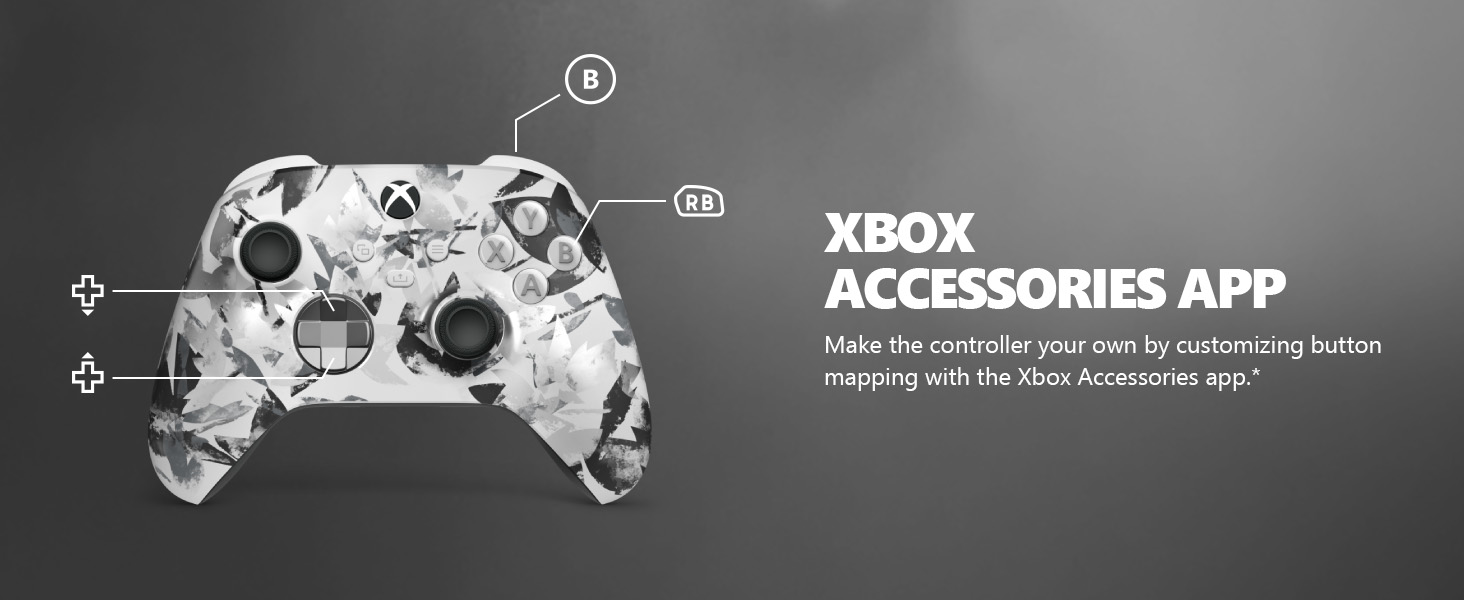
Image: The Share button and an illustration of button mapping customization via the Xbox Accessories app.
Te tiaki
- Te horoi: Whakamahia he kakahu ngohengohe, maroke hei horoi i te kaiwhakahaere. Āta karohia ngā kaihoroi whakakoi, ngā whakarewa rānei.
- Tiaki Pūhiko: Tangohia ngā pākahiko mēnā kāore te kaiwhakahaere e whakamahia mō te wā roa hei ārai i te turuturu.
- Rokiroki: Whakaorangia te pūmana ki te wahi matao, maroke atu i te ra tika me te wera nui.
Raparongoā
- Karekau te Kaiwhakahaere e hono ana:
- Me whakarite kia tika te whakauru me te utu o nga pākahiko.
- Re-attempt the pairing process as described in the Setup section.
- Tirohia mēnā he pokanoa mai i ētahi atu taputapu ahokore.
- Update controller firmware via the Xbox Accessories app.
- Patene Karekau i te whakautu:
- Horoi a tawhio noa nga patene hei tango i nga otaota.
- Test the controller with another device or game to isolate the issue.
- He poto te ora o te Pūhiko:
- Whakamahia nga pākahiko AA hou, kounga teitei.
- Consider using a rechargeable battery pack (sold separately) for extended play.
Whakatakotoranga
| Āhuahira | Taipitopito |
|---|---|
| Tau tauira | EP2-29563 |
| Hononga | Xbox Wireless, Bluetooth |
| Hototahi | Xbox Series X|S, Xbox One, Windows 10/11, Android, iOS |
| Puna Mana | 2 pākahiko AA (kei roto) |
| Haumaru Ororongo | 3.5mm jack paneoro |
| Ahu | 6.91 x 5.61 x 2.76 inihi |
| Taumaha | 14.1 hekere |
| Kaihanga | Microsoft |
Pūtāhui me te Tautoko
For warranty information and technical support, please refer to the documentation included with your product or visit the official Xbox support webpae. Puritia to tohu hoko mo nga kereme whakamana.
Tautoko Aipurangi: tautoko.xbox.com
Ask a question about this manual
Ask about setup, troubleshooting, compatibility, parts, safety, or missing instructions. Manuals+ will review the question and use this page’s manual context to help answer it.