
1. Kupu Whakataki
This manual provides detailed instructions for the setup, operation, maintenance, and troubleshooting of your Jectse WiFi 6 4G/5G CPE LTE Router. Please read this manual carefully before using the device to ensure optimal performance and safety.
Āhuatanga matua:
- Mahinga Nui: Connects up to 32 devices simultaneously, covering an area of approximately 300 square meters. Ideal for home or small office environments.
- Comprehensive 4G LTE Support: Compatible with a wide range of 4G LTE bands including FDD (B1, 3, 5, 7, 8, 20), TDD (B38, 40, 41), and WCDMA (B1, 5, 8), ensuring stable connectivity across various network providers.
- 6 Antenna Design: Equipped with six antennas for enhanced signal coverage and faster network speeds, providing a stable and consistent internet experience.
- Fast Internet Speeds: Achieves 4G download speeds up to 150 Mbps, upload speeds up to 50 Mbps, and wireless transfer rates up to 300 Mbps for smooth streaming, gaming, and browsing.
- Tatūnga ngawari: Simply insert a standard SIM card to convert 4G LTE into a WiFi hotspot, allowing multiple devices to connect without complex installations.
2. Ihirangi mokete
Tena koa tirohia te kete mo nga mea e whai ake nei:
- Jectse WiFi 6 4G/5G CPE LTE Router
- Pūurutau Hiko
- Tauira Itarangi
- Pukapuka Kaiwhakamahi (tenei tuhinga)

Image: Package contents including the router, power adapter, and Ethernet cable.
3. Hua Neke Atuview
Mua me Runga View:
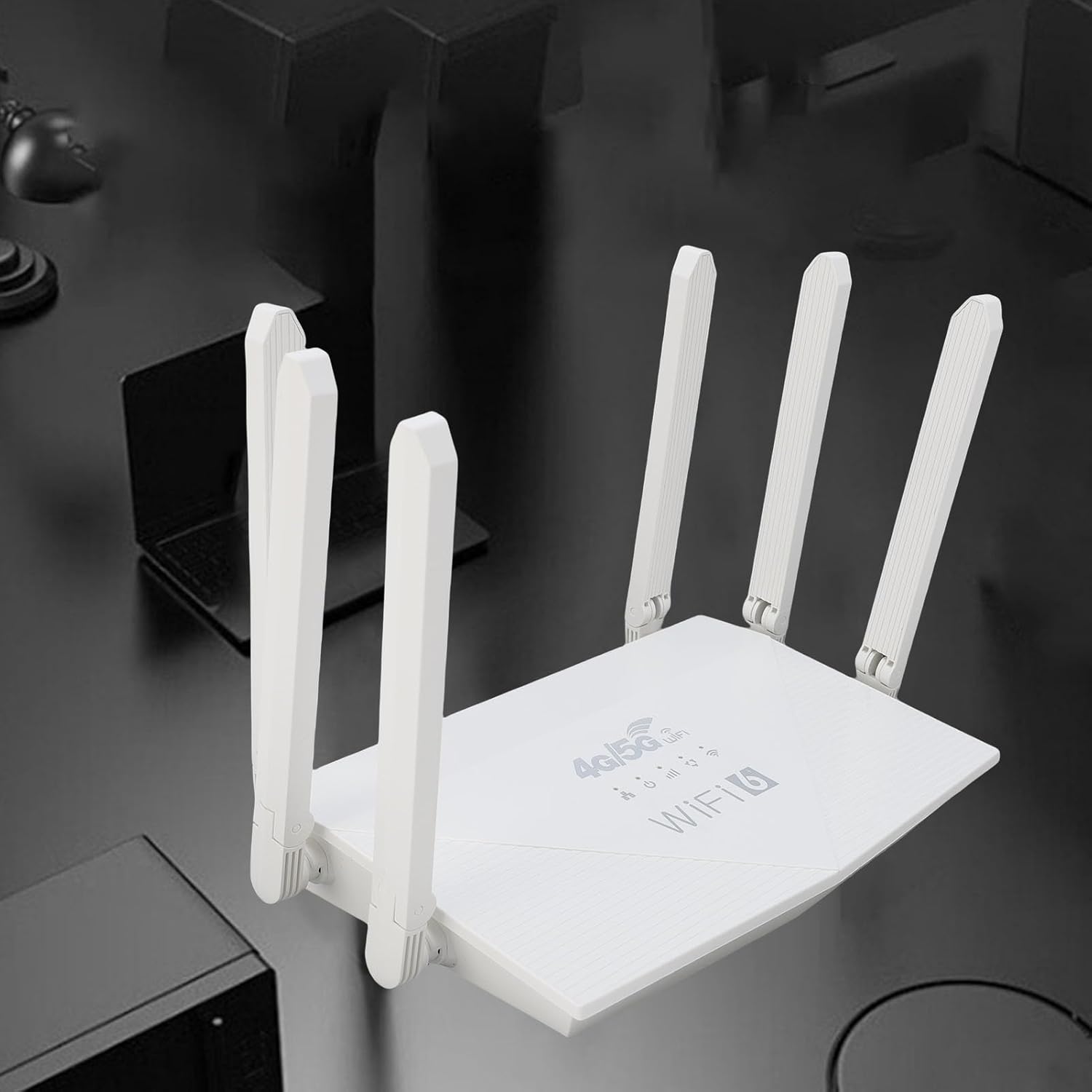
Whakaahua: Runga view of the router, showing the '4G/5G LTE WiFi 6' branding and six external antennas.
Rear Panel and Ports:

Whakaahua: Rear view of the router, displaying the various ports and antenna connections.
- Patene Tautuhi Anō: Whakamahia hei whakahoki i ngā tautuhinga wheketere.
- Momo-C Port: For power input (if applicable, check power adapter type).
- Tauranga Hiko: Whakauru hiko DC.
- Mokamoka Kaari SIM: For inserting a standard 4G/5G SIM card.
- ETH1-ETH4 Ports: Four Ethernet LAN ports for wired connections.

Image: Close-up of the reset button, Type-C port, power port, and SIM card slot.

Image: Close-up of the four Ethernet LAN ports (ETH1, ETH2, ETH3, ETH4).
Bottom Label:
The bottom label contains important information such as the default WiFi name, WiFi key, IP address, and login credentials.

Image: Bottom label of the router with essential network details.
4. Tohutohu Tatūnga
- Kōkuhu Kāri Sim: Locate the SIM card slot on the rear panel. Gently insert a standard-sized 4G/5G SIM card until it clicks into place. Ensure the SIM card is correctly oriented.
- Hono Hono: Connect the provided power adapter to the router's power port and then plug the adapter into a power outlet.
- Whakahiko: The router will automatically power on. Wait for the indicator lights to stabilize, which typically takes a few minutes.
- Tūhono Pūrere:
- Hononga Ahokore: On your device (smartphone, tablet, laptop), search for available Wi-Fi networks. Select the network name (SSID) found on the router's bottom label. Enter the default Wi-Fi key (password) also found on the label.
- Hononga Waea: Connect one end of the Ethernet cable to any of the ETH1-ETH4 ports on the router and the other end to the Ethernet port on your computer or other wired device.
- Urunga Web Atanga (Whiringa): Tuwhera a web browser and enter the default IP address (e.g., 192.168.0.1) found on the bottom label. Use the default username and password (e.g., admin/admin) to log in and configure advanced settings.
5. Nga Tohutohu Whakahaere
Te hono ki te Whatunga:
Once the router is powered on and the SIM card is active, your devices can connect to the internet:
- Wi-Fi: Use the SSID and password printed on the router's bottom label to connect your wireless devices.
- Itarangi: Connect devices directly to the ETH ports for a stable wired connection.
Managing Router Settings:
To customize your network, such as changing the Wi-Fi name or password, or configuring advanced features:
- Me mohio kei te hono to taputapu ki te pouara (ma Wi-Fi, Ethernet ranei).
- Tuwhera a web browser and enter the router's IP address (e.g., 192.168.0.1).
- Log in using the username and password from the bottom label.
- Navigate through the interface to adjust settings as needed.
6. Tiaki
- Te horoi: Keep the router clean and free from dust. Use a soft, dry cloth. Do not use liquid cleaners.
- Whakahau: Ensure the router is placed in a well-ventilated area to prevent overheating. Do not cover ventilation holes.
- Whakahōu Firmware: Tirohia i ia wa i te kaihanga website for firmware updates. Keeping your router's firmware up-to-date can improve performance and security.
- Tīmata Anō: If you experience network issues, try restarting the router by unplugging the power adapter, waiting 10 seconds, and then plugging it back in.
7. Te Raru
Kaore he Hononga Ipurangi:
- Tirohia mēnā kua tika te whakaurunga o te kāri SIM, ā, kua whakahohea hoki.
- Verify that the router's indicator lights are stable.
- Tīmata anō i te pouara me tō pūrere hono.
- Ensure your SIM card has an active data plan.
- Uru ki te pouara web interface to check the network status and APN settings.
Ngā Tere Ipurangi Pōturi:
- Me whakarite kia tū te pouara ki tētahi wāhi tuwhera, kia matara atu i ngā mea aukati me ngā pūtake pokanoa.
- Whakaitihia te maha o ngā taputapu hono, ngā mahi rānei e nui ana te roanga o te hononga.
- Check your 4G/5G signal strength in the router's web atanga.
- Contact your mobile network provider to inquire about network congestion or data plan limits.
Kāore e taea te uru atu ki ngā tautuhinga pouara:
- Me mohio kei te hono to taputapu ki te whatunga o te pouara.
- Verify you are entering the correct IP address (e.g., 192.168.0.1) in your browser.
- Confirm the username and password are correct (check the bottom label).
- Whakamātauria he rerekē web pūtirotiro, ūkui rānei i te keteroki o tō pūtirotiro.
- If all else fails, perform a factory reset by pressing the reset button for 5-10 seconds (note: this will erase all custom settings).
8. Whakatakotoranga
| Āhuahira | Whakaahuatanga |
|---|---|
| Waitohu | Jectse |
| Tau tauira | Jectse7yitc28aer |
| Tae | Mā |
| Pūnaha Mahi | RouterOS |
| Hangarau Hononga | LTE, Ipurangi Ahokore |
| Nga waahanga motuhake | Integrated firewall, full 4G LTE support, fast internet speeds |
| Pūrere Hototahi | Smartphone, tablet, computer |
| Karaehe Band Auautanga | Roopu kotahi |
| Paerewa Whakawhitinga Korerokore | 802.11b, 802.11g, 802.11n |
| Nga Whakamahinga Manakohia | Kainga, Ngaio |
| 4G Tere Tikiake | Tae atu ki te 150 Mbps |
| 4G Tukuake Tere | Tae atu ki te 50 Mbps |
| Wireless Transfer Rate | Tae atu ki te 300 Mbps |
| Max Pūrere Hono | 32 |
| Te Rohe Kapi | 300㎡ |
| Paihere LTE tautokona | FDD (B1, 3, 5, 7, 8, 20), TDD (B38, 40, 41), WCDMA (B1, 5, 8) |
| Antenna | 6 Nga Antenna o waho |
9. Pūtāhui me te Tautoko
Mōhiohio Pūtāhui:
This Jectse router comes with a 2 tau te whakamana a te kaiwhakanao. Tena koa pupurihia to tohu mo te hoko mo nga kereme whakamana. Ka kapi te raihana i nga hapa o nga rawa me nga mahi i raro i te whakamahinga noa.
Tautoko Kiritaki:
If you encounter any issues or have questions not covered in this manual, please contact Jectse customer support or your retailer for assistance. You may find contact information on the product packaging or the official Jectse webpae.