
Nga Tohutohu Haumaru Nui
Please read these instructions carefully before using the Avtech DGM5907SVSGAT IP Dome Camera. Keep this manual for future reference.
- Ensure proper power supply (PoE or compatible adapter) to prevent damage.
- Do not expose the camera to extreme temperatures, humidity, or direct sunlight beyond its operating specifications.
- Handle the camera with care. Avoid dropping or subjecting it to strong vibrations.
- Installation should be performed by qualified personnel and comply with local electrical codes.
- Kaua e ngana ki te wetewete, ki te whakarereke ranei i te kamera. Ma tenei ka whakakore i te whakamana.
- Clean the camera lens and housing with a soft, dry cloth. Avoid harsh chemicals.
Ka mutu te huaview
The Avtech DGM5907SVSGAT is a 5MP AI IP Dome Camera designed for advanced surveillance. It features AI-based human and vehicle detection to minimize false alarms, ONVIF support for system integration, and Power-over-Ethernet (PoE) for simplified installation. The camera provides clear images with Starlight visibility, an integrated microphone for audio recording, and an effective IR range of up to 50 meters for night surveillance. Its WDR (Wide Dynamic Range) function enhances image clarity in challenging lighting conditions, and the IP66 housing ensures durability in various environments.
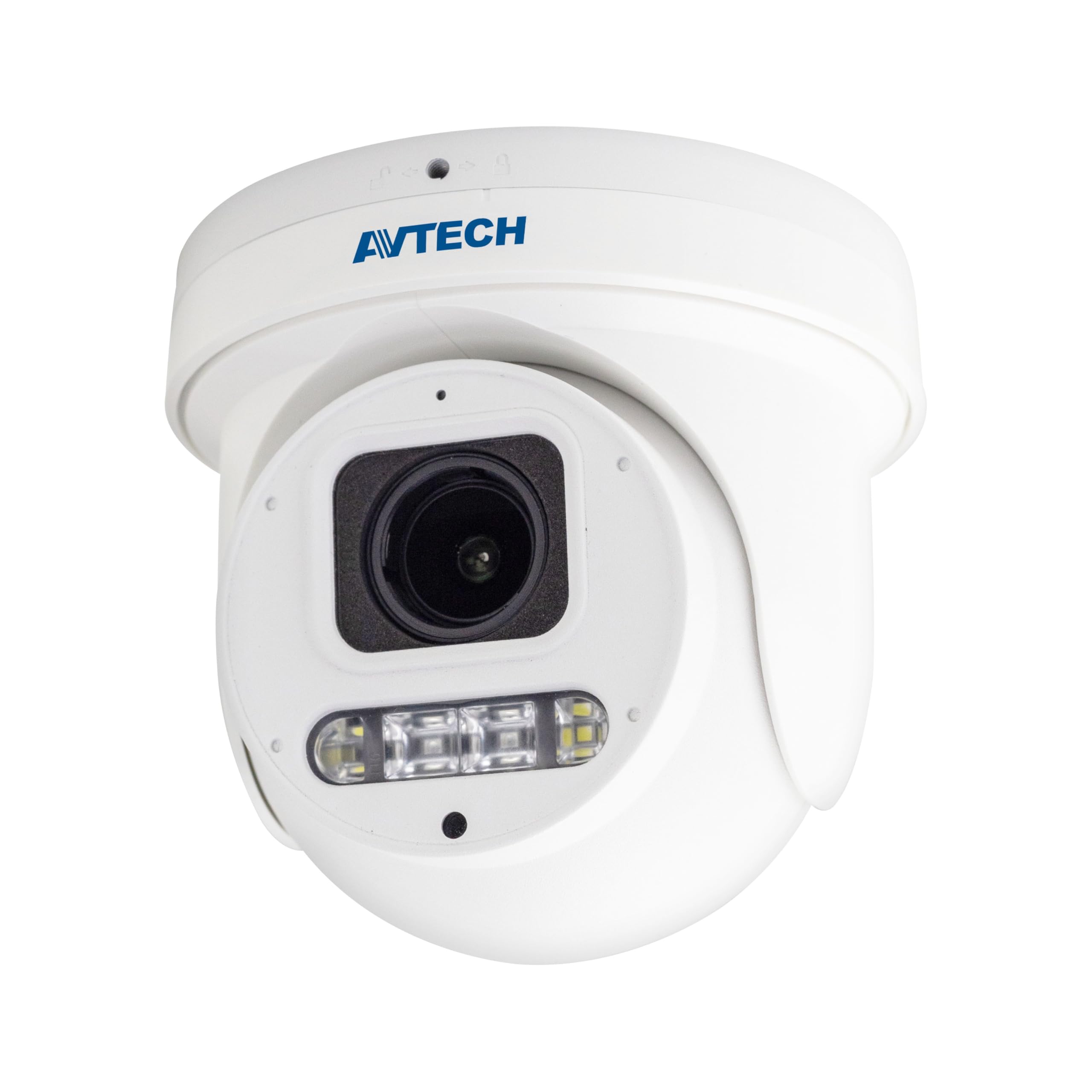
Whakaahua 1: Mua view of the Avtech DGM5907SVSGAT 5MP AI IP Dome Camera. This image shows the dome-shaped camera housing, the lens assembly, and the IR LEDs visible around the lens.
Ihirangi mokete
Me manatoko kei roto i te kete ngā taonga katoa. Mena kei te ngaro, kei te pakaru rānei ētahi taonga, whakapā atu ki tō kaihoko tonu.
- Avtech DGM5907SVSGAT 5MP AI IP Dome Camera
- Mounting Screw Kit (screws, wall anchors)
- Waterproof Connector for Ethernet Cable
- Aratohu Timata Tere
- Tātauira keri
Tatūnga
1. Tāutanga Tinana
Before mounting, ensure the installation location provides a clear field of view and is within range of your network infrastructure (PoE switch/injector).
- Whakapaia te Mata Maunga: Use the provided drilling template to mark the screw holes on the wall or ceiling.
- Rua rua: Drill pilot holes at the marked positions. Insert wall anchors if mounting on drywall or masonry.
- Whakamaua te Pūtake Kāmera: Attach the camera's mounting base to the surface using the supplied screws.
- Honoa Taura Whatunga: Connect an Ethernet cable (RJ-45) from your PoE switch/injector to the camera's network port. Ensure the waterproof connector is properly sealed if installing outdoors.
- Whakaritea Koki Kamera: Loosen the adjustment screws on the dome to position the camera lens for the desired viewing angle. Tighten the screws once adjusted.
Whakaahua 2: Illustrative diagram of the Avtech DGM5907SVSGAT camera mounting process. This image depicts the camera base being secured to a surface, with an Ethernet cable connected.
2. Whirihoranga Whatunga
The camera typically obtains an IP address automatically via DHCP. If your network does not use DHCP, you may need to use a discovery tool provided by Avtech or manually configure the IP address.
- Hono atu ki te Whatunga: Ensure the camera is powered via PoE and connected to your local network.
- Tirohia te Wāhitau IP: Use the Avtech IP Camera Utility software (available on the Avtech website) to discover the camera's IP address on your network.
- Urunga Web Atanga: Tuwhera a web browser (Internet Explorer 6+, Microsoft Edge, or Google Chrome) and enter the camera's IP address in the address bar.
- Takiuru: Enter the default username and password (refer to the Quick Start Guide for default credentials). It is highly recommended to change the default password immediately for security.
- Ruānuku Tatūnga Tuatahi: Follow the on-screen wizard to configure basic network settings, date/time, and user accounts.
Nga Tohutohu Whakahaere
1. Ora View me te tuhi
Kia takiuru ki te web interface, you can access the live video feed and manage recording settings.
- Ora View: Navigate to the 'Live View' section to see the real-time video feed from the camera.
- Recording to MicroSD: The camera supports a MicroSD card up to 256 GB. Insert the card into the designated slot (usually accessible by opening the dome cover). Configure recording schedules and event-triggered recording (e.g., motion detection, AI detection) in the 'Storage' or 'Recording' settings.
- Kōpeketanga Ataata: The camera supports H.265 and H.264 compression. H.265 offers better compression efficiency, reducing storage and bandwidth requirements. Adjust this in the 'Video Settings'.
2. AI Detection (Human and Vehicle)
The AI detection feature helps reduce false alarms by distinguishing between humans/vehicles and other moving objects.
- Whakahohehia te Kitenga AI: Go to 'Event' or 'AI Settings' in the web interface. Enable 'Human Detection' and/or 'Vehicle Detection'.
- Whirihorahia ngā Rohe Kimi: Draw specific areas on the live view where you want AI detection to be active.
- Tautuhi i te Tairongo: Adjust the sensitivity levels to optimize detection performance and minimize false positives.
- Configure Actions: Specify actions to be taken upon detection, such as recording, sending notifications, or triggering alarms.
3. Image Enhancement Features
- Te tirohanga matakite a te po: The camera automatically switches to IR mode in low light conditions, providing clear black and white images up to 50 meters. Ensure the IR LEDs are not obstructed.
- WDR (Awhe Nui Whanui): Enable WDR in 'Image Settings' to improve image quality in scenes with both very bright and very dark areas, such as entrances or windows.
- Starlight Visibility: This feature enhances low-light performance, allowing the camera to capture color images in very dim conditions before switching to IR mode.
Te tiaki
Mā te tiaki auau ka roa te ora o tō kāmera, ā, ka tino pai te mahi.
- Te horoi: Periodically clean the camera lens and housing with a soft, lint-free cloth. For stubborn dirt, use a mild cleaning solution specifically designed for optical lenses. Do not use abrasive cleaners.
- Whakahōu Firmware: Check the Avtech official website regularly for firmware updates. Firmware updates can improve performance, add new features, and enhance security. Follow the instructions provided with the firmware update package carefully.
- Whakahaere Rokiroki: If using a MicroSD card for recording, periodically review tuhia footage and manage storage space. Format the MicroSD card occasionally to maintain performance.
- Tirohanga taura: For outdoor installations, inspect network cables and waterproof connectors for any signs of wear or damage.
Raparongoā
Ko tenei waahanga e aro ana ki nga take noa ka pa ki a koe me to kamera.
| Raruraru | Take pea | Rongoā |
|---|---|---|
| Kāore he whāngai whakaahua/ataata | No power; Network connection issue; Incorrect IP address | Check PoE connection; Verify network cable; Use IP utility to find camera IP; Ensure firewall is not blocking access. |
| Kaamera tuimotu | Network cable disconnected; Router/switch issue; IP address conflict | Check physical network connections; Restart network equipment; Verify unique IP address. |
| Te kounga whakaahua kounga | Dirty lens; Incorrect resolution settings; Insufficient lighting; WDR not enabled | Clean the lens; Adjust resolution in settings; Ensure adequate lighting or enable IR; Enable WDR for high contrast scenes. |
| He maha nga whakaoho teka | Sensitivity too high; Detection zone too wide; Environmental factors (e.g., moving branches) | Adjust AI detection sensitivity; Refine detection zones; Ensure AI detection is enabled for human/vehicle only. |
| Kaore e taea te uru web atanga | Incorrect IP address; Browser compatibility; Firewall blocking | Verify IP address; Use recommended browsers (IE, Edge, Chrome); Temporarily disable firewall for testing. |
Whakatakotoranga
Detailed technical specifications for the Avtech DGM5907SVSGAT IP Dome Camera.
- Pūoko Atahanga: 1/2.8” CMOS
- Taumira Morahi: 2592 x 1944 (5MP)
- Arotahi: f2.7 ~ 13.5mm / F1.6 ~ F2.2
- Viewing Angle (Diagonal): Tele 40° ~ Wide 117°
- Whakamarama iti: 0.001 Lux (IR off), 0 Lux (IR on)
- Tere Marumaru: AUTO, 1 / 25s ~ 1 / 100000s
- IR LED: 4 wae
- Effective IR Distance: Tae atu ki te 50 mita
- Aratau Ra/Po: Aunoa
- WDR: Āe (120dB)
- RTC (Karaka Wā-tūturu): Ae
- Mokamoka MicroSD: Tae atu ki te 256 GB
- Kōpeketanga Ataata: H.265 / H.264
- Main Stream Resolution: 5MP (2592x1944) / 4MP (2560x1440) / 3MP (2304x1296) / 2MP (1080P) / 720P
- Auau Tāpare: 5MP @ 25FPS
- Multiple Video Streams: 2 awa
- Mana Rere Moka: 512Kbps - 12Mbps, VBR/CBR
- Whakarei Atahanga: WDR / BLC / HLC / 2D DNR / 3D DNR
- Ororongo: Waea Whakakotahi
- Kawa Whatunga: ONVIF supported
- Mana: PoE (Power-over-Ethernet)
- Whare: IP66 Koreutu
- Hototahi: Internet Explorer 6+, Microsoft Edge, Google Chrome, Windows 10/8/7, DirectX 9.0+
Pūtāhui me te Tautoko
Avtech products are designed for reliability and performance. This product comes with a standard manufacturer's warranty against defects in materials and workmanship.
- Wā Pūtāhui: Please refer to your purchase documentation or the Avtech official website for specific warranty terms and duration applicable in your region.
- Tautoko Hangarau: For technical assistance, troubleshooting, or warranty claims, please contact Avtech customer support.
- Rauemi ipurangi: Visit the official Avtech website for FAQs, driver downloads, firmware updates, and additional product information.
Mōhiohio Whakapā:
Webpae: www.avtech.com.tw
Īmēra: support@avtech.com
Waea: +1-XXX-XXX-XXXX


