
1. Kupu Whakataki
Thank you for choosing the RebotAi A11 Android 15 Tablet. This manual provides essential information for setting up, operating, maintaining, and troubleshooting your device. The RebotAi A11 features an 11-inch 2.5K IPS display, a powerful MediaTek Helio G100 Octa-Core processor, 24GB RAM, 128GB ROM, and an 8200 mAh battery, designed for a smooth and immersive user experience.
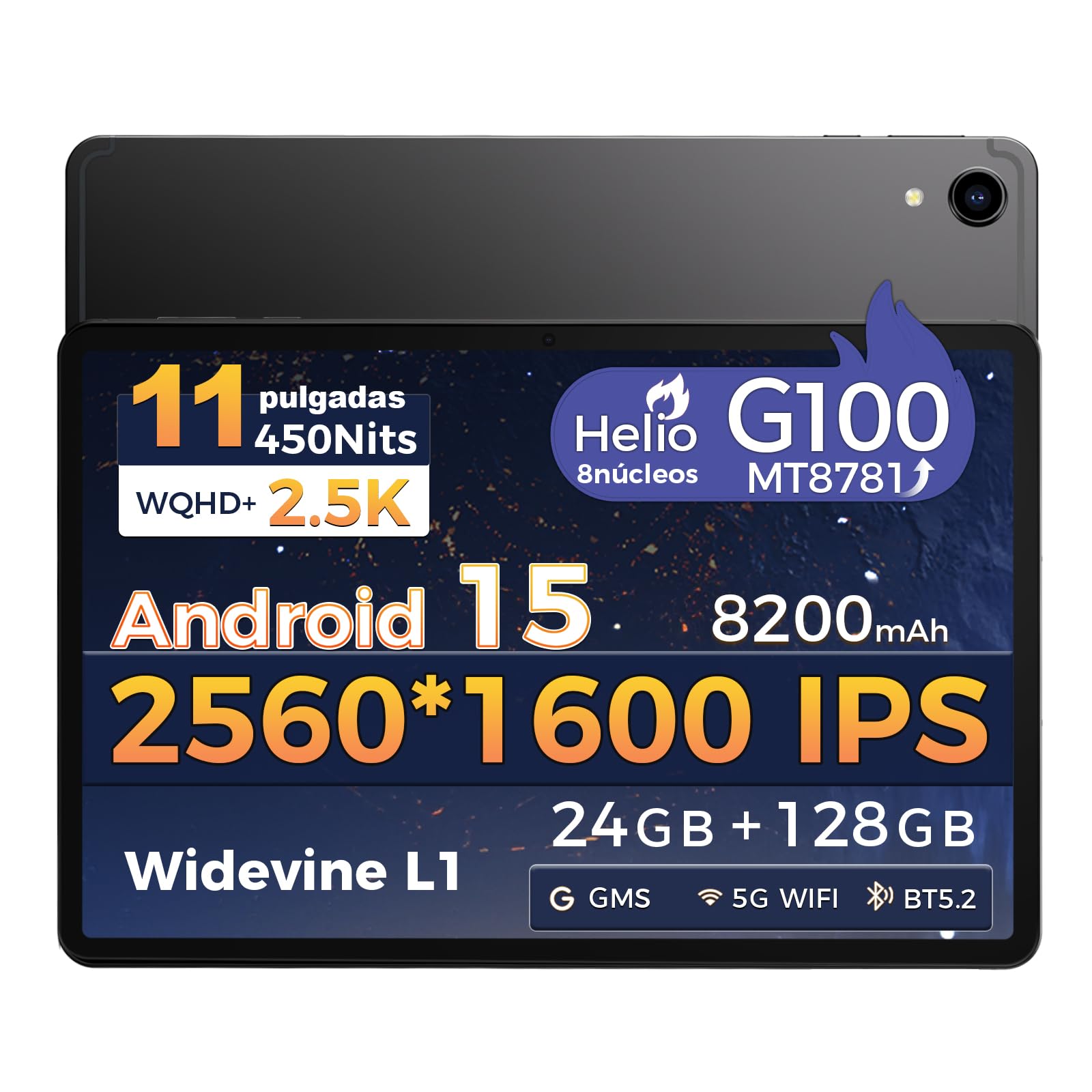
Whakaahua: Mua view of the RebotAi A11 Tablet.
2. He aha kei roto i te Pouaka
Upon opening your RebotAi A11 package, please ensure all the following items are present:
- RebotAi A11 Tablet (x1)
- Leather Case (x1)
- USB-C to USB-C Charging Cable (x1)
- Stylus (x1)
- SIM Ejector Pin (x1)
- Pukapuka Kaiwhakamahi (x1)
Note: In accordance with global environmental guidelines, the RebotAi A11 tablet does not include a wall charger. Only a USB-C charging cable is provided.
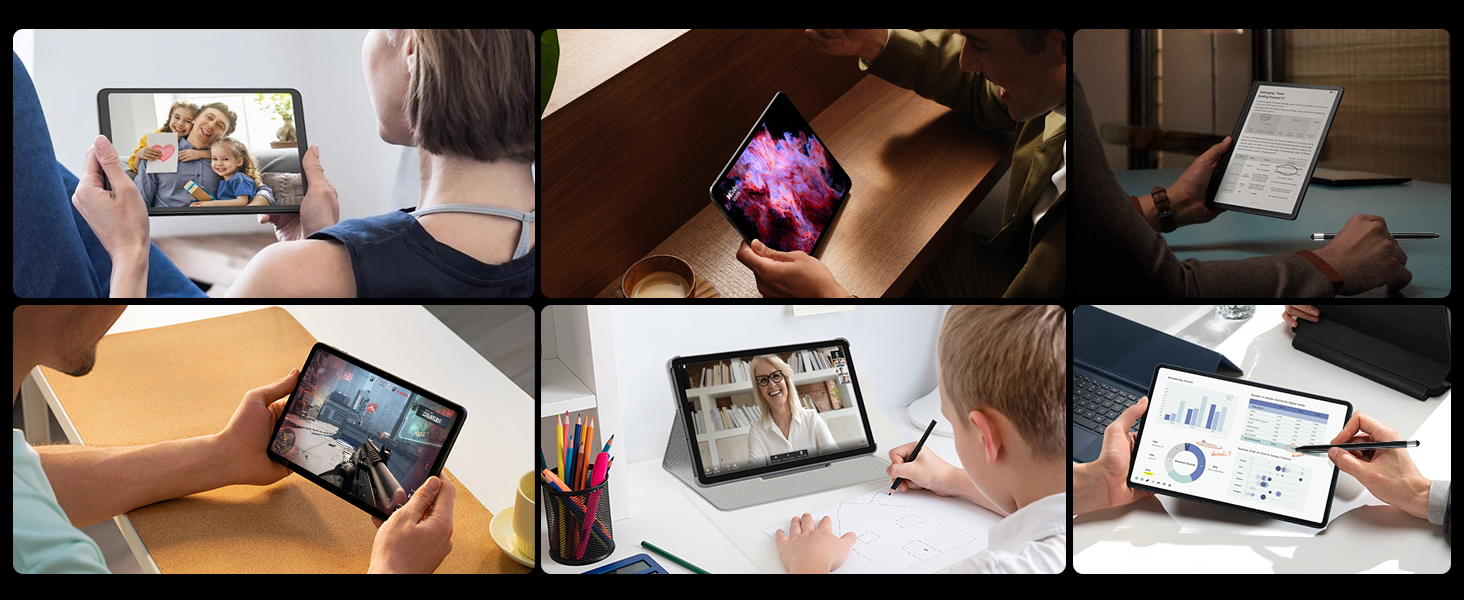
Image: Contents of the RebotAi A11 Tablet package.
3. Tatūnga
3.1 Te Whakataki i te Pūhiko
Before first use, fully charge your tablet. Connect the provided USB-C cable to the tablet's USB-C port and the other end to a compatible USB wall charger (not included) or a computer. The tablet supports 20W PD fast charging.
3.2 Kei te Hiko / Weto
- Hei Whakahiko: Press and hold the Power button located on the side of the tablet until the RebotAi logo appears.
- Hei Whakaweto: Press and hold the Power button until the power options appear on the screen, then select "Power Off."
- Hei Tīmata anō: Press and hold the Power button until the power options appear, then select "Restart."
3.3 Tatūnga Tuatahi
When you power on the tablet for the first time, follow the on-screen instructions to:
- Tīpakohia tō reo.
- Tūhono ki te whatunga Wi-Fi.
- Waitohu mai me to putea Google, hanga ranei he mea hou.
- Set up screen lock (PIN, pattern, password, or face unlock).
3.4 Te Whakauru i tētahi Kāri MicroSD
The RebotAi A11 supports MicroSD cards up to 1TB for expanded storage. Use the provided SIM ejector pin to open the card tray, insert the MicroSD card into the designated slot, and then close the tray securely.
3.5 Te whakamahi i te Stylus
The included stylus can be used for precise navigation, drawing, writing, and signing documents on the tablet's screen. No charging is required for the stylus.

Whakaahua: Taha view of the RebotAi A11 Tablet, showing ports and buttons.
4. Nga Tohutohu Whakahaere
4.1 Whakaaturanga Whakaaturanga
The RebotAi A11 features an 11-inch IPS Full HD 2.5K anti-glare display with a resolution of 2560 x 1600 pixels. It supports Widevine L1 certification for high-definition streaming and dynamic brightness adjustment. The anti-glare screen and immersive reading mode help prevent eye fatigue.

Image: The RebotAi A11's 2.5K high-definition display with eye protection and automatic brightness.

Image: Widevine L1 support for premium streaming services.
4.2 Mahi me te Rokiroki
The tablet is powered by the MediaTek Helio G100 Octa-Core processor (MT8781), featuring 2 high-performance Cortex-A76 cores and 6 power-efficient Cortex-A55 cores. This ensures smooth operation for daily tasks, social media, video playback, and light gaming. It comes with 8GB base RAM, expandable by 16GB virtual RAM for a total of 24GB, and 128GB of internal storage, expandable up to 1TB via a MicroSD card.

Image: The Helio G100 chip, demonstrating high performance and energy efficiency.

Image: Large capacity storage with 24GB RAM and 128GB ROM, expandable to 1TB.
4.3 Nga kamera
The RebotAi A11 is equipped with a 5MP front-facing camera and a 16MP rear-facing camera. These cameras are suitable for video calls, online meetings, and capturing everyday moments with clear and natural images.

Image: The 5MP front and 16MP rear cameras for clear photos and video calls.
4.4 Whakahaere Pūhiko
The tablet features an 8200 mAh high-capacity battery, providing long-lasting power for reading, online courses, video playback, and office work. It supports 20W PD fast charging, allowing the device to be fully charged quickly.

Image: Powerful 8200 mAh battery with 20W fast charging for extended use.
4.5 Hononga
The RebotAi A11 supports dual-band Wi-Fi (2.4GHz and 5GHz) with 802.11ac for fast and stable internet access. It also includes Bluetooth 5.2 for energy-efficient wireless connections and GPS for precise navigation, compatible with Beidou, Galileo, and GLONASS.

Image: Fast connectivity and precise positioning with dual-band Wi-Fi, Bluetooth 5.2, and GPS.
4.6 Mahi maha
With the dual-screen function, you can run two applications simultaneously on a single screen. This allows for seamless navigation, watching videos while chatting, or consulting information while working.

Image: Dual-screen functionality for fluid multitasking.
4.7 Ororongo
Equipped with dual BOX speakers, the tablet offers an immersive audio experience for both movies and music. The balanced reproduction of highs and lows creates a pleasant listening experience.

Image: Immersive and crystal-clear audio from dual BOX speakers.
4.8 Intelligent Sensors
The A11 is equipped with intelligent sensors and AI, offering a more intelligent user experience. The gyroscope improves immersion in games, while the magnetometer ensures precise navigation, even in tunnels. Other sensors include G-sensor (automatic rotation), proximity sensor (automatic screen off), and ambient light sensor (adjustable backlight).

Image: Intelligent detection with various sensors for enhanced user experience.
4.9 Ahuatanga Tinana
The tablet features a uniform metallic body crafted with advanced nano-coating technology, providing a smooth and delicate touch while being durable. Its surface is resistant to fingerprints and scratches, offering a high-quality texture and feel. It is surprisingly light at 510g and thin at 7.8mm.

Image: The tablet's lightweight and slim design, achieved through nano-molding technology.
5. Tiaki
5.1 Te horoi i tō papahiko
Hei horoi i to papa, whakamahia he kakahu ngohengohe, kore-puru. Mo nga kohukohu pakeke, paku dampen the cloth with water or a screen-safe cleaner. Avoid using harsh chemicals, abrasive materials, or excessive moisture.
5.2 Whakahōu Pūmanawa
Tirohia me te tāuta i ngā whakahōutanga pūmanawa i ia wā, i ia wā, kia pai ai te mahi, kia haumaru ai, kia uru atu ai ki ngā āhuatanga hou. I te nuinga o te wā ka kitea tēnei kōwhiringa i roto i Tautuhinga> Pūnaha> Whakahou Pūnaha.
5.3 Tiaki Pūhiko
Hei whakaroa i te ora o te papahiko:
- A ape i te wera nui.
- Kaua e tukua te pākahiko kia mimiti i nga wa katoa.
- Unplug the charger once the tablet is fully charged.
- Whakaritea te kanapa o te mata ki te taumata whakamarie.
6. Te Raru
| Raruraru | Rongoa pea |
|---|---|
| Kāore te papa e tahuri | Ensure the battery is charged. Connect to a power source for at least 30 minutes. If it still doesn't turn on, try a forced restart by holding the power button for 10-15 seconds. |
| Karekau te mata i te aro | Restart the tablet. If the issue persists, perform a factory reset (data will be lost). |
| Nga take hononga Wi-Fi | Tīmata anō i tō pouara Wi-Fi me te papahikohiko. Warewaretia te whatunga i ngā tautuhinga papahikohiko ka hono anō. Kia mōhio kei roto koe i te whānuitanga o te tohu Wi-Fi. |
| Kei te takataka, kei te mīti ranei nga taupānga | Ūkuia te keteroki me ngā raraunga mō te taupānga raruraru i roto i Tautuhinga > Taupānga. If the issue continues, uninstall and reinstall the app. Ensure sufficient storage space is available. |
| Ka tere te pau o te pākahiko | Reduce screen brightness, close unused apps, disable Wi-Fi/Bluetooth when not in use. Check battery usage in Tautuhinga> Pūhiko ki te tautuhi i nga taupānga hiakai. |
7. Whakatakotoranga
| Āhuahira | Whakatakotoranga |
|---|---|
| Waitohu | RebotAi |
| Huinga Tauira | A11 |
| Hunga Hua | 25 x 15 x 5 cm |
| Taumaha | 900 g |
| Tae | Kerei |
| Rahi Mata | 11 Inihi |
| Whakatau Mata | 2560 x 1600 Pika (2.5K) |
| Kaihanga Tukatuka | MediaTek |
| Tauira Tukatuka | Helio G100 (MT8781) |
| Tere Tukatuka | 2.2 GHz |
| Rahi RAM | 8 GB (expandable to 24 GB with virtual RAM) |
| Raukaha Rokiroki | 128 GB (expandable up to 1 TB via MicroSD) |
| Whakamuri Webcam Resolution | 16 MP |
| Mua Webcam Resolution | 5 MP |
| Pūnaha Mahi | Android 15 |
| Hononga Ahokore | Wi-Fi 6 (802.11ac, 802.11n), Bluetooth 5.2, GPS |
| Pūhiko Raukaha | 8200 mah |
| Toharite Pūhiko Ora | 24 haora |
| Whakatau Tere | 20W PD |
8. Pūtāhui me te Tautoko
RebotAi offers a 2-tau pūtāhui for your tablet, ensuring peace of mind with your purchase. We are committed to providing excellent customer service.
8.1 Tautoko Kiritaki
If you encounter any technical issues or have questions regarding the use of your RebotAi A11 tablet, our customer support team is available 24/7. You can contact us through the seller contact option on the Amazon product page.

Image: RebotAi customer service support information.