
Kupu Whakataki
This manual provides detailed instructions for the setup, operation, and maintenance of your Jectse 5G Mobile Hotspot. Please read this manual thoroughly before using the device to ensure proper functionality and to maximize your user experience. Keep this manual for future reference.
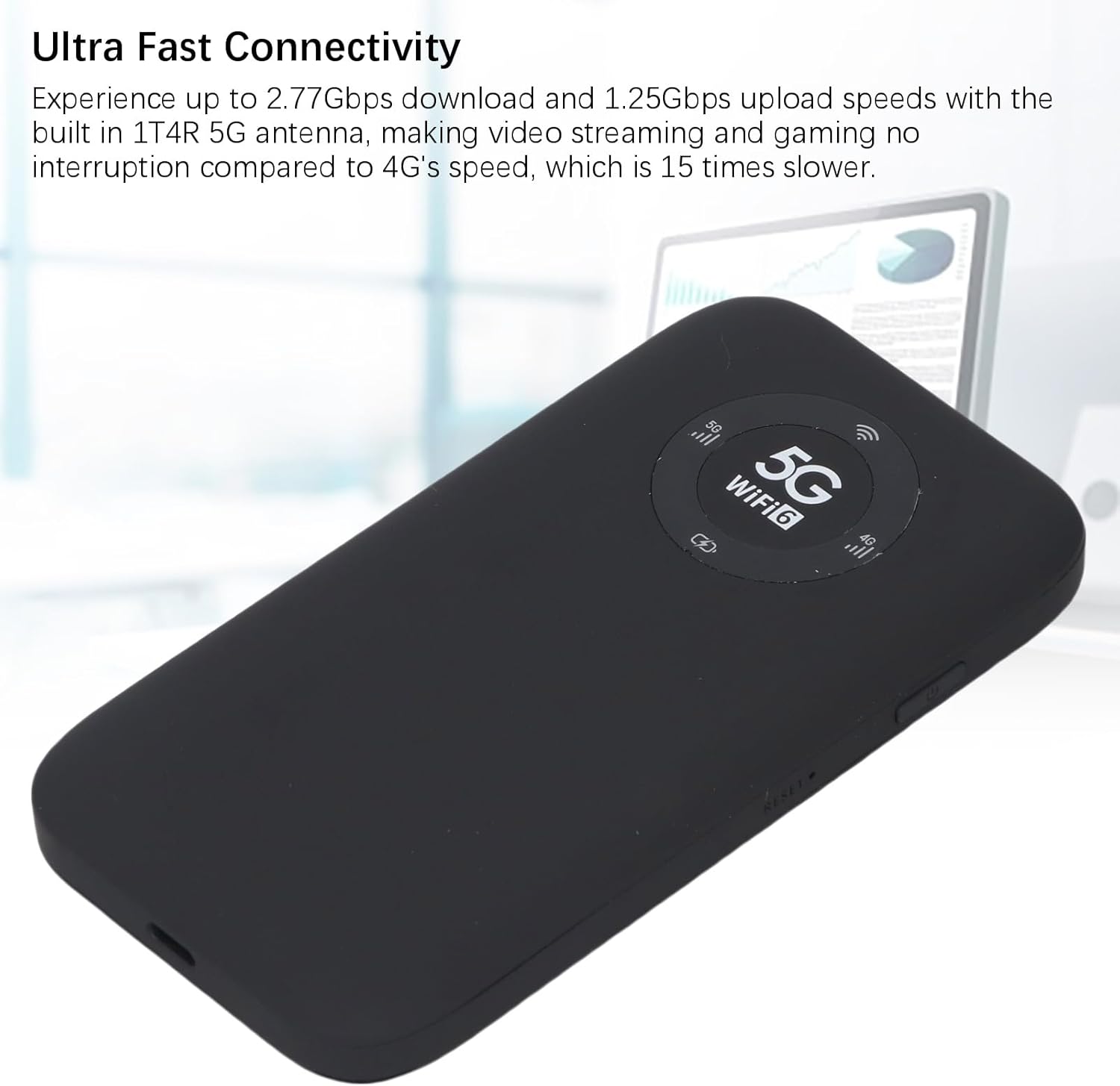
Image: The Jectse 5G Mobile Hotspot, a compact and portable device designed for high-speed 5G and WiFi 6 connectivity.
Ka mutu te huaview
Nga waahanga matua
- Ultra-Fast 5G Connectivity: Supports up to 2.77Gbps download and 1.25Gbps upload speeds with a built-in 1T4R 5G antenna.
- Extensive Network Band Support: Compatible with multiple 5G NR bands (FDD: N1, N3, N28; TDD: N41, N78) and 4G bands (TDD LTE: B34, 38, 39, 40, 41; FDD LTE: B1, B3, B5, B8), and 3G band B1.
- Waea-rua Wi-Fi 6: Offers 2.4GHz and 5.8GHz WiFi connectivity (802.11 a/b/g/n/ac/ax protocols) for up to 16 devices simultaneously.
- Pūhiko Roa-roa: Equipped with a 7100mAh Li-Ion battery for extended use.
- Hoahoa pakari: Features an IP67 rating, making it drop-proof, dust-proof, and rain-proof.
- Whakaaturanga LED Ataahua-Kaiwhakamahi: Provides information on data usage, signal strength, WiFi credentials, and device settings.
- Mokamoka Kaari SIM: Supports SIM card compatibility for ease of setup (SIM card not included).
Ihirangi mokete
Kei roto i te kete hua:
- 1 x Jectse 5G Mobile Hotspot
- 1 x Taura USB (Momo-C)
- 1 x Manual Kaiwhakamahi (tenei tuhinga)
- 1 x SIM Card Eject Pin

Image: The Jectse 5G Mobile Hotspot device shown alongside its included USB-C charging cable and a SIM card eject pin.
Aratohu Tatūnga
1. Tāuta Kāri Sim
- Me mohio kua weto te taputapu.
- Locate the SIM card slot on the side of the hotspot.
- Insert the provided SIM eject pin into the small hole next to the SIM card tray. Press gently until the tray pops out.
- Place your activated Nano-SIM card into the tray with the gold contacts facing down and the notched corner aligned correctly.
- Carefully push the SIM card tray back into the slot until it clicks into place.
2. Ka tohatohahia te Pūrere
- Connect the USB-C cable to the charging port on the hotspot.
- Honoa te tahi pito o te taura USB ki te urutau hiko USB hototahi (kaore i whakaurua) ki te tauranga USB rorohiko ranei.
- The LED indicator on the device will show charging status. A full charge is recommended before first use.
3. Te Whakakaha/Weto
- Hei Whakahiko: Press and hold the Power button (usually located on the side) for a few seconds until the screen or LED indicators light up.
- Hei Whakaweto: Press and hold the Power button until the device prompts you to power off or the indicators turn off.
Nga Tohutohu Whakahaere
1. Te Hononga i ngā Pūrere ki te Wāhi Wera
- Ensure the Jectse 5G Mobile Hotspot is powered on.
- On your WiFi-enabled device (smartphone, laptop, tablet), open the WiFi settings.
- Scan for available WiFi networks.
- Select the network name (SSID) displayed on your hotspot's screen or indicated in the manual.
- Enter the WiFi password (Key) displayed on the hotspot's screen or in the manual.
- Once connected, your device will have internet access through the hotspot. Up to 16 devices can be connected simultaneously.

Image: The Jectse 5G Mobile Hotspot showing its display with 5G and WiFi 6 indicators, ready for device connection.
2. Te Mārama ki ngā Tohu LED
The device features an LED light display that provides essential information:
- Kaha Waitohu: E tohu ana i te kaha o te tohu pūkoro 5G/4G.
- Taumata Pūhiko: Ka whakaatu i te mana o te utu pākahiko onāianei.
- Tūnga WiFi: Confirms if WiFi is active and broadcasting.
- Whakamahi Raraunga: May display current data consumption (check device interface for details).
- Momo Whatunga: Indicates whether the device is connected to a 5G or 4G network.
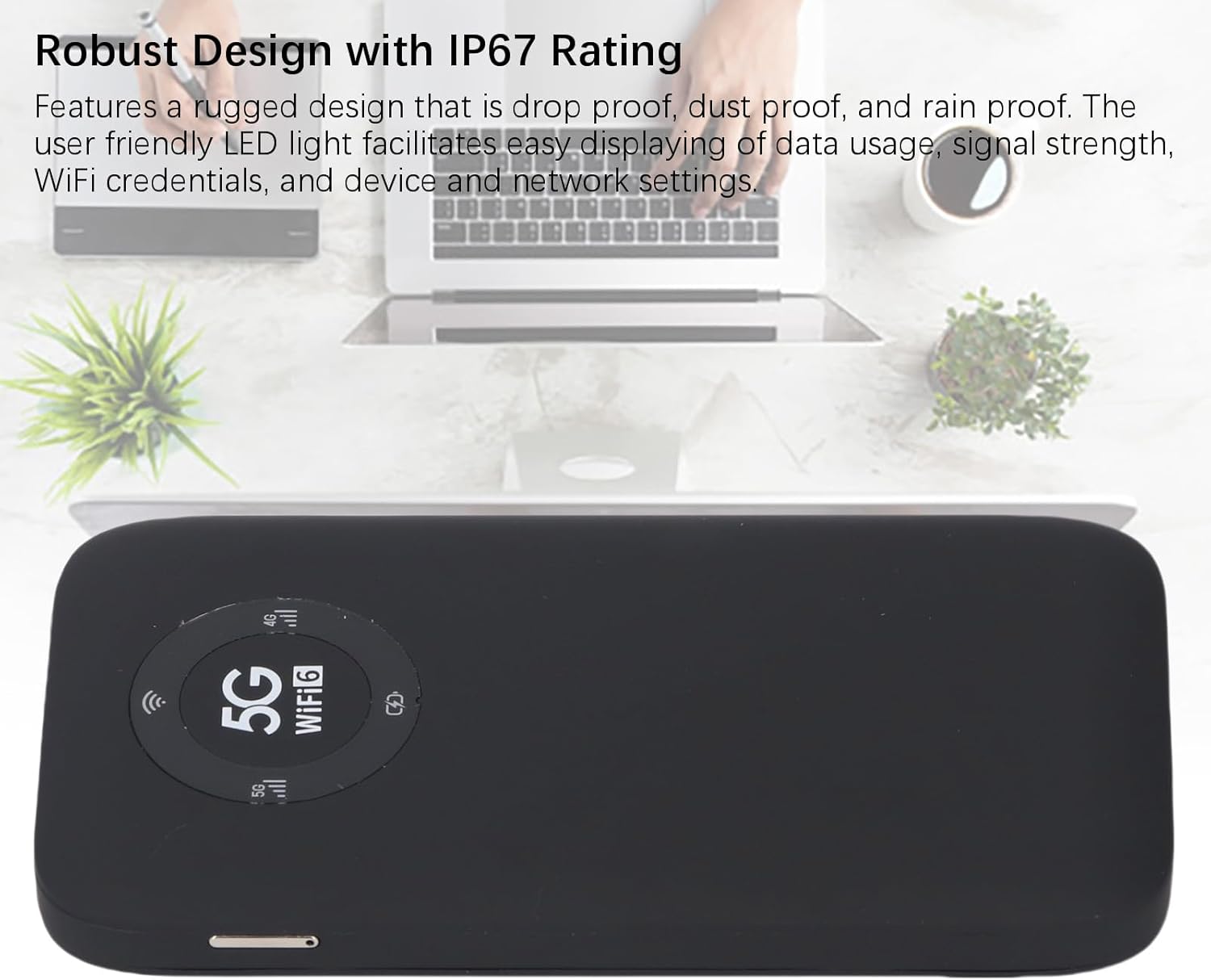
Image: A close-up of the Jectse 5G Mobile Hotspot's LED display, highlighting the 5G and WiFi 6 indicators, along with signal and battery icons.
3. Te uru atu Web Management Interface (if applicable)
For advanced settings and configuration, you may access the device's web atanga whakahaere:
- Connect your computer or smartphone to the hotspot's WiFi network.
- Tuwhera a web browser and enter the default IP address (e.g., 192.168.0.1 or 192.168.1.1). This address is usually found on a sticker inside the SIM card slot or in the quick start guide.
- Enter the default username and password (also typically found on the device sticker or in documentation).
- Mai i te web interface, you can manage WiFi settings, change passwords, view connected devices, and monitor data usage.
Te tiaki
Tiaki Pūhiko
- Kaua e whakaatuhia te taputapu ki ngā pāmahana tino kino (i raro i te 0°C, i runga ake rānei i te 45°C).
- Kaua e waiho te taputapu kia kore e pau katoa mō te wā roa.
- Mō te rokiroki roa, whakakīia te pākahiko ki te 50-70%.
- Whakamahia anake te taura USB kua whakaratohia mo te utu.
Te horoi
- Wipe the device with a soft, dry, lint-free cloth.
- Kaua e whakamahia ngā wai horoi, ngā aerosols, ngā whakarewa rānei.
- Me whakarite kia ma te puehu me te paru ngā tauranga katoa.
Raparongoā
| Raruraru | Take pea | Rongoā |
|---|---|---|
| Kaore he Hononga Ipurangi |
|
|
| Cannot Connect to WiFi |
|
|
| Kaore te Pūrere i te hiko |
|
|
Whakatakotoranga
| Āhuahira | Taipitopito |
|---|---|
| Tau tauira | Jectses1yn2px9gw-11 |
| Ahu | Approx. 136x72x16mm (5.35x2.83x0.63in) |
| Taumaha | 10.6 hekere |
| Pūhiko | 7100mAh Li-Ion Battery (Built-in) |
| Maharahara | LPDDR4X 4GB RAM, NAND 2GB ROM |
| Tauranga Whakatau | USB-C |
| Momo Kaari SIM | Nano-SIM (Not Included) |
| Whatunga Pūkoro | 3GPP Rel.15, 5G NR (SA/NSA, Sub 6G), LTE Category 18 |
| 5G NR Paihere | FDD: N1, N3, N28; TDD: N41, N78 |
| 4G Paihere | FDD: B1, B3, B5, B8; TDD: B34, B38, B39, B40, B41 |
| Ropu 3G | B1 |
| Paihere WiFi | WiFi6 2.4GHz, 5.8GHz |
| Kawa WiFi | 802.11 a, b, g, n, ac, toki |
| Max WiFi Connections | Tae atu ki te 16 Ngā Pūrere i te Wā Kotahi |
| NR Download Rate | 2.77Gbps (DL) |
| NR Upload Rate | 1.25Gbps (UL) |
| Whakatauranga IP | IP67 (Drop-proof, Dust-proof, Rain-proof) |
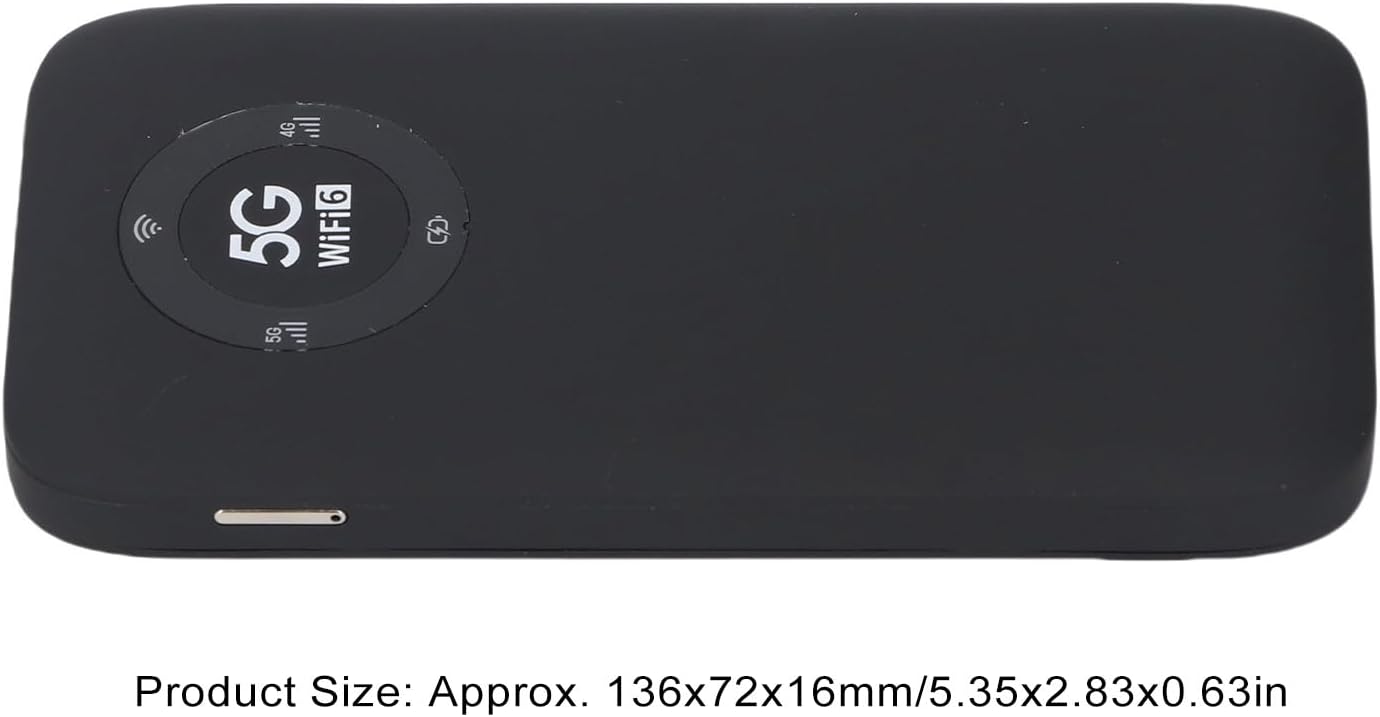
Image: The Jectse 5G Mobile Hotspot, illustrating its compact size with approximate dimensions of 136x72x16mm.
Nga Korero Nui
- I mua i te hokoasing, ensure that your local network signal frequency band and the SIM card frequency band are compatible with the supported frequency bands of this product.
- This product does not support use in South America, Japan, and South Korea regions.
Pūtāhui me te Tautoko
For warranty information and technical support, please refer to the documentation provided with your purchase or contact Jectse customer service through their official channels. Specific warranty terms may vary by region and retailer.
Ka taea e koe te toro ki te Jectse Store on Amazon mo etahi atu korero, ki te whakapā atu ranei ki te tautoko.