
Ajazz AK35I V4
Ajazz AK35I V4 Customizable Wireless Gaming Mechanical Keyboard User Manual
Kupu Whakataki
This manual provides detailed instructions for the setup, operation, and maintenance of your Ajazz AK35I V4 Customizable Wireless Gaming Mechanical Keyboard. Please read this manual thoroughly to ensure optimal performance and longevity of your device.
Nga waahanga matua
- Smart Color Screen and Multifunction Knob: Displays essential information and allows for quick adjustments.
- Tikanga-toru Hononga: Supports Bluetooth 5.0, 2.4GHz wireless, and USB-C wired connections.
- Advanced Gasket Structure: Features silicone pads and PCB groove design for enhanced typing feel and reduced noise.
- Full-Color RGB Backlighting: Offers 20 lighting effects and 16.8 million colors with side-illuminated lighting.
- Programmable Software: Customize key mappings, macros, screen animations, and RGB effects.
- Hot-Swappable Key Zone: Compatible with 3-pin/5-pin switches for personalized customization.
- 10000mAh Pūhiko: Provides extended usage for gaming and productivity.

Ka mutuview of the Ajazz AK35I V4 keyboard highlighting its main features.
Tatūnga
Ihirangi mokete
Ina wetewetehia te pouaka, me whakarite kei roto i te kete ngā mea katoa e whai ake nei:
- Ajazz AK35I V4 Mechanical Keyboard
- USB-C ki USB-A Cable
- 2.4GHz Wireless Dongle (often stored in the keyboard's base)
- Paetukutuku Puller
- Whakawhiti Puller
- Extra Switches (for replacement or customization)
- Pukapuka Kaiwhakamahi (tenei tuhinga)
Aratau Hononga
The Ajazz AK35I V4 keyboard offers three versatile connection options:
- Aratau Waea (USB-C): Connect the keyboard directly to your device using the provided USB-C cable. This mode also charges the keyboard.
- 2.4GHz Aratau Ahokore: Insert the 2.4GHz USB dongle into your computer's USB port. Switch the keyboard's mode selector to 2.4G.
- Aratau Nihokikorangi 5.0: Switch the keyboard's mode selector to BT. On your device, search for available Bluetooth devices and select "Ajazz AK35I V4" to pair. The keyboard supports pairing with multiple Bluetooth devices.

Illustration of the keyboard's triple-mode connectivity.
Nga Tohutohu Whakahaere
Smart Color Screen and Multifunction Knob
The keyboard features a 1.14-inch color screen and a multifunction knob for intuitive control:
- Whakaatu Mata: The screen shows date, time, battery level, system information, connection mode, and status indicators.
- Nga Mahi Knob:
- Rotate left/right to adjust volume.
- Pēhia hei whakangū/whakakore i te oro.
- Press and hold to access system settings, connection mode selection, RGB lighting modes, language, and screen images/GIFs.

Taipitopito view of the multifunction knob and its controls.
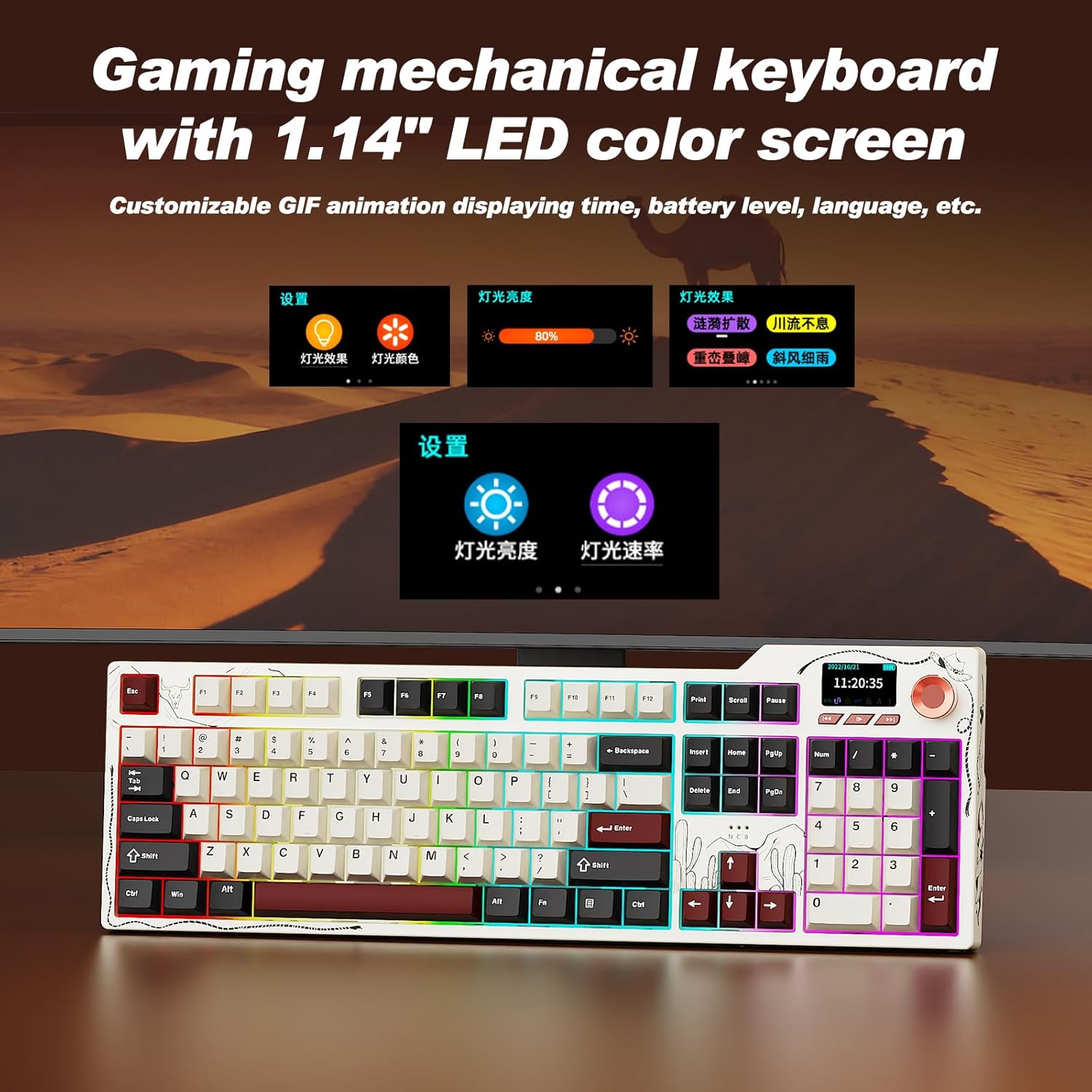
The 1.14-inch color screen displaying various customizable information.
Video demonstrating the mechanical keyboard with its integrated screen.
Mana Whakamuri RGB
The keyboard features 20 lighting effects and 16.8 million RGB colors. Use the following key combinations to adjust the backlighting:
- FN + ↑ (Up Arrow): Increase lighting brightness.
- FN + ↓ (Down Arrow): Decrease lighting brightness.
- FN + ← (Left Arrow): Adjust lighting effect direction.
- FN + → (Right Arrow): Switch interface colors.
- FN + \|: Hurihia nga paanga rama.

Visual guide for controlling the RGB backlighting.
Pūmanawa Whakatakataka
The keyboard supports full key programming through dedicated software. This allows you to:
- Customize key mappings.
- Set macro commands.
- Adjust sleep time.
- Upload on-screen GIF animations.
- Modify RGB lighting effects, including music-synced backlighting.
Hot-Swappable Key Zone
The AK35I V4 features a hot-swappable design, allowing you to easily change switches without soldering. It supports both 3-pin and 5-pin mechanical switches, offering extensive customization options for your typing experience.

Diagram illustrating the internal gasket structure of the keyboard.
Te tiaki
- Te horoi: Regularly clean the keyboard with a soft, dry cloth. For deeper cleaning, remove keycaps using the provided keycap puller and use compressed air to clear debris.
- Tiaki Pūhiko: To prolong battery life, avoid fully discharging the keyboard frequently. Charge it when the battery indicator on the screen shows low power.
- Rokiroki: Whakaorangia te papapātuhi ki te waahi hauhautanga, maroke atu i te ra tika me te wera nui.
Raparongoā
- Papapātuhi Kaore i te whakautu: Ensure the keyboard is charged and properly connected (wired, 2.4GHz dongle, or Bluetooth paired). Try restarting your computer or device.
- Nga take hono:
- For 2.4GHz, ensure the dongle is securely plugged in and the keyboard is in 2.4G mode.
- For Bluetooth, ensure Bluetooth is enabled on your device and the keyboard is in BT mode and successfully paired. Try re-pairing if necessary.
- Raiti RGB Kare e Mahi: Check the keyboard's RGB settings via the multifunction knob or programmable software. Ensure brightness is not set to zero.
- Screen Not Displaying Correctly: Try restarting the keyboard. If issues persist, consult the programmable software for screen settings or contact support.
- Kī Kāore i te Rēhita: If individual keys are not working, try replacing the switch using the provided switch puller and extra switches.
Whakatakotoranga
| Āhuahira | Taipitopito |
|---|---|
| Tau tauira | AK35I V4 |
| Hangarau Hononga | Ahokore 2.4GHz, Nihokikorangi 5.0, Waea USB-C |
| Pūhiko Raukaha | 10000mAh |
| Whakaahuatanga Papapātuhi | Hangaia |
| Whakamuri Matua | RGB (20 ngā pānga, 16.8 miriona tae) |
| Nga waahanga motuhake | Backlit, Hot-Swappable, Hotkeys and Media Keys, TFT Display Screen, Volume Roller |
| Pūrere Hototahi | Laptop, PC, Smart TV, Smartphone, Tablet (Windows, Mac, iOS, Android) |
| Hunga Hua | 17 x 5 x 1.22 inihi |
| Taumaha Tūemi | 4.55 pauna |
Whakaaturanga ataatacasing the multifunctionality of the Ajazz AK35I V4 gaming keyboard.
Pūtāhui me te Tautoko
The Ajazz AK35I V4 keyboard comes with a manufacturer's warranty. For specific warranty details, please refer to the warranty card included in your product packaging or visit the official Ajazz website. For technical support, troubleshooting assistance, or any product-related inquiries, please contact Ajazz customer service through their official channels.
Ask a question about this manual
Ask about setup, troubleshooting, compatibility, parts, safety, or missing instructions. Manuals+ will review the question and use this page’s manual context to help answer it.