
WESEARY WG2
WESEARY WG2 Wired Gaming Headset User Manual
Tauira: WG2
1. Kupu Whakataki
Thank you for choosing the WESEARY WG2 Wired Gaming Headset. This manual provides detailed instructions for setting up, operating, and maintaining your headset to ensure an optimal gaming experience. The WG2 headset is designed for immersive audio and clear communication across multiple gaming platforms.
2. He aha kei roto i te Pouaka
- WESEARY WG2 Gaming Headset (1 unit)
- 1 to 2 3.5mm Audio Jack Splitter Cable (1 unit)
- Pukapuka Kaiwhakamahi (Tenei tuhinga)
3. Hua Neke Atuview
The WESEARY WG2 headset features 50mm drivers for rich stereo sound, an omnidirectional noise-canceling microphone for clear communication, and comfortable memory foam earcups. It is designed for multi-platform compatibility.
3.1 Nga waahanga matua
- Oro Stereo Rumaki: 50mm high-density neodymium drivers deliver detailed 3D stereo audio.
- Haruru-Whakakore hopuoro: 360° rotatable omnidirectional microphone with advanced noise cancellation for clear voice pickup.
- Whakamarie Ergonomic: Lightweight design with soft memory foam earcups and an adjustable headband for extended wear.
- Nga Mana Whakakore: In-line rotary volume control and one-button microphone mute.
- Hoahoa Roa: Features a strong braided cable for longevity.
3.2 Ngā Wāhanga o te Paneoro
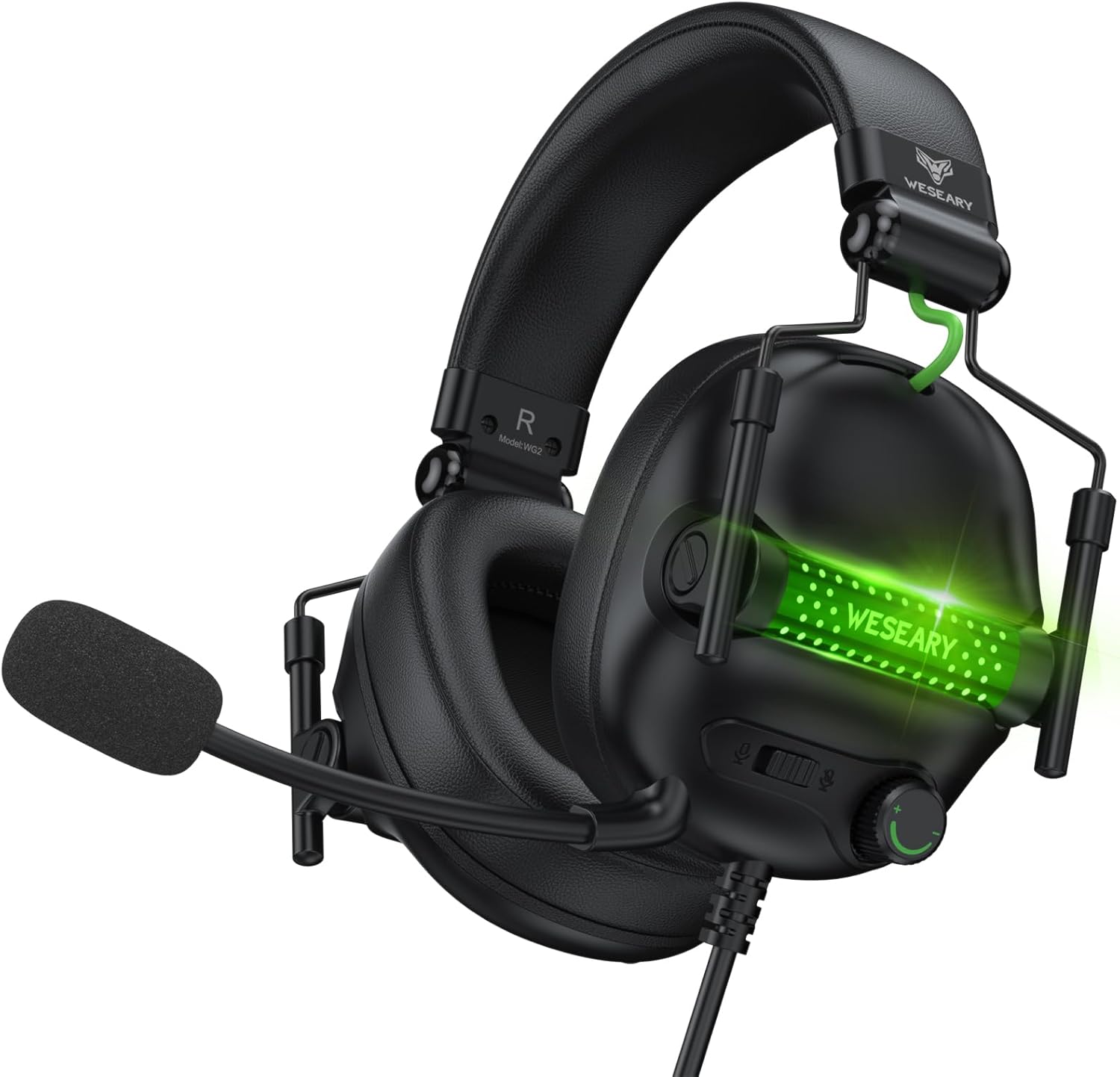


4. Tohutohu Tatūnga
The WESEARY WG2 headset connects via a 3.5mm audio jack. Follow these steps to connect your headset to your device.
4.1 Connecting to PC/Laptop/Mac (with separate audio/mic ports)
- Locate the 3.5mm audio output port (headphone icon) and microphone input port (microphone icon) on your computer.
- Connect the 1 to 2 3.5mm Audio Jack Splitter Cable to the headset's 3.5mm jack.
- Plug the green connector of the splitter into your computer's audio output port.
- Plug the pink connector of the splitter into your computer's microphone input port.
- For LED lighting, connect the USB cable to an available USB port on your computer.
4.2 Connecting to PS4/PS5, Nintendo Switch, Xbox Series X|S, Mobile/Tablet (with single 3.5mm port)
- Plug the headset's 3.5mm jack directly into the 3.5mm audio port on your controller (PS4/PS5, Xbox Series X|S), console (Nintendo Switch), or mobile device.
- For LED lighting, connect the USB cable to an available USB port on your console or a USB power adapter.
- Note for Xbox One (older controllers): A Microsoft adapter (not included) is required for older Xbox One controllers that do not have a built-in 3.5mm jack.
- Tuhipoka Hototahi: This headset is not compatible with PS3 (without a 3.5mm adapter) or Xbox 360.

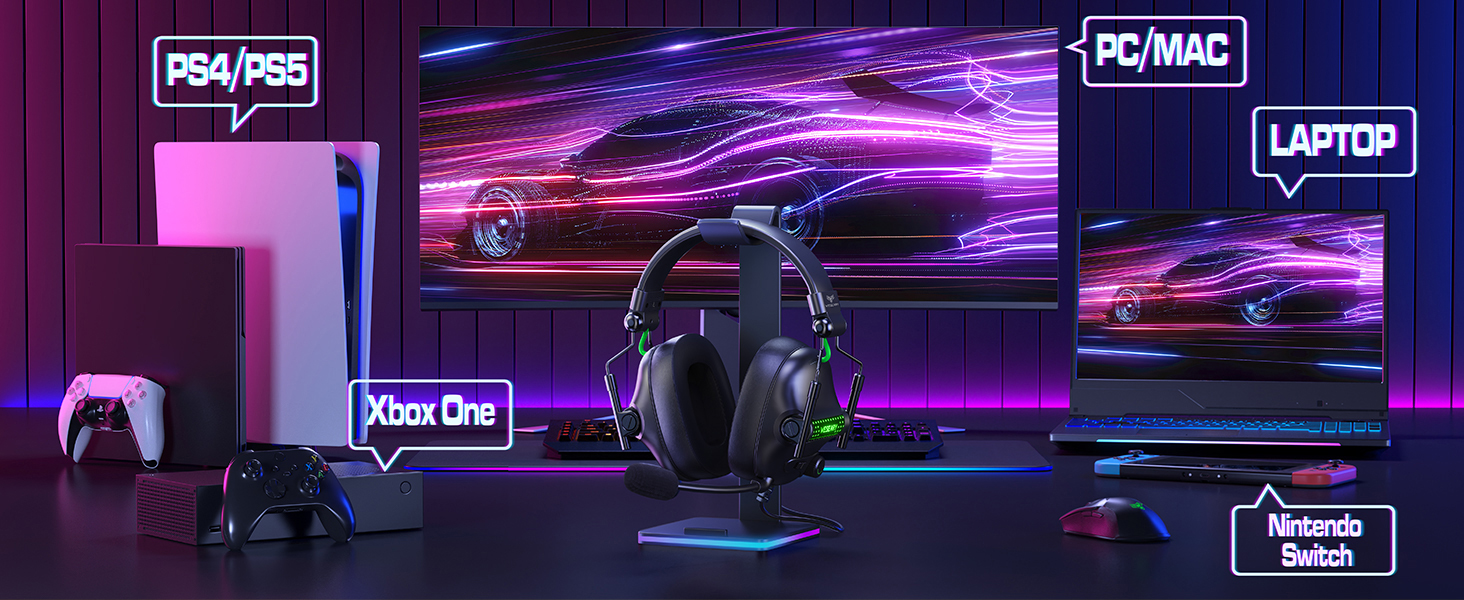
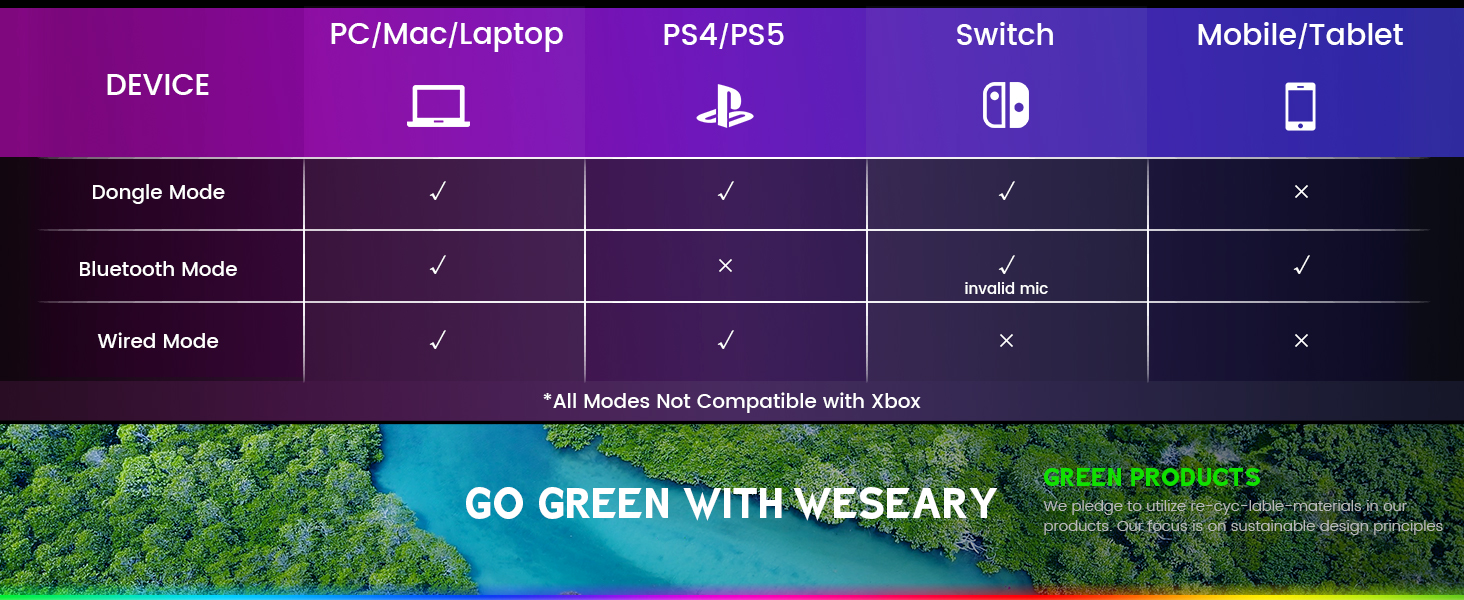
Tuhipoka Nui: The WESEARY WG2 is a waea waea gaming headset. Any references to "Dongle Mode" or "Bluetooth Mode" in external diagrams or marketing materials are not applicable to this specific model (WG2) which connects solely via its 3.5mm audio jack and USB for LED power.
5. Nga Tohutohu Whakahaere
5.1 Te Whakaritea i te Rōrahi
- Locate the rotary volume control wheel on the left earcup or in-line control.
- Rotate the wheel upwards to increase volume.
- Rotate the wheel downwards to decrease volume.

5.2 Wahangu i te hopuoro
- Locate the microphone mute button on the left earcup or in-line control.
- Press the button once to mute the microphone.
- Press the button again to unmute the microphone.
5.3 Te Whakatikatika i te Hopuoro
- The microphone is 360° rotatable. Adjust its position for optimal voice pickup.
- Position the microphone approximately 1-2 inches from your mouth for best clarity.


5.4 Adjusting Headset Fit
- Whakatikatikahia te pane taringa mā te neke i ngā kapu taringa ki runga, ki raro rānei, kia pai ai te uru o te pane taringa ki runga i ō taringa.
- Ensure the earcups fully enclose your ears for optimal sound isolation and comfort.
6. Hototahitanga Maha-Pūhara
The WESEARY WG2 Wired Gaming Headset is compatible with a wide range of devices:
- Papatohu petipeti: PlayStation 5 (PS5), PlayStation 4 (PS4), Xbox Series X|S, Nintendo Switch.
- Rorohiko: PC, Laptops, Mac.
- Pūrere Pūkoro: Mobile phones, Tablets.
Tuhipoka Nui:
- For older Xbox One controllers without a 3.5mm jack, a Microsoft adapter (not included) is required.
- The headset is not compatible with PS3 or Xbox 360 without additional adapters.
- The USB connection is solely for powering the LED lighting and does not transmit audio.
7. Tiaki
- Te horoi: Whakamahia he kakahu ngohengohe, maroke hei horoi i te pane whakarongo. Kaua e whakamahi i ngā matū kino, i ngā rauemi whakakoi rānei.
- Rokiroki: Rokirokihia te pane whakarongo ki te wāhi hauhautanga, maroke, kia matara atu i te rā tika me ngā pāmahana tino kino. Mā te hoahoa takai ka taea te rokiroki kiato.
- Tiaki taura: Āta karohia ngā piko koi, te tōia nui rānei o te taura hei ārai i te pakaru.
8. Te Raru
8.1 Kāore he Oro mai i te Paneoro
- Me whakarite kua whakaurua katoatia te hononga oro 3.5mm ki te tauranga oro o te pūrere.
- Check the volume control wheel on the headset and ensure it is turned up.
- Verify the audio output settings on your device (console, PC, etc.) are configured to use the headset.
- If using the splitter cable, ensure both green and pink jacks are correctly connected to their respective ports.
8.2 Kaore i te Mahi te hopuoro
- Kia tino mohio kāore te pātene whakangā o te hopuoro i runga i te pane whakarongo i whakahohea.
- Check the microphone input settings on your device (console, PC, etc.) to ensure the headset microphone is selected and its volume is not muted.
- Ensure the 3.5mm audio jack (and pink splitter jack if applicable) is fully inserted.
- Whakaritea te noho o te hopuoro kia tata atu ki to waha.
8.3 Kāore e Mahi ana ngā Rama LED
- Ensure the USB cable is securely connected to a powered USB port on your device or a USB power adapter.
- Ngāna ki te hono i te taura USB ki tētahi atu tauranga USB.
9. Whakatakotoranga
| Ingoa Tauira | WG2 |
| Hangarau Hononga | Wired (3.5mm Audio Jack, USB for LED) |
| Momo Atekōkiri Ororongo | Dynamic Driver (50mm Neodymium) |
| Te aukati | 32 Ohm |
| Te Whakanoho Taringa | Ki runga Taringa |
| Mana Haruru | Sound Isolation, Noise Cancellation (Microphone) |
| hopuoro | Omnidirectional, Noise-Canceling, 360° Rotatable |
| Rauemi | Composite, Plastic (with Memory Foam Earcups) |
| Hunga Hua | 5.5 x 2.98 x 5.5 inihi |
| Taumaha Tūemi | 14.8 hekere |
| Tae | Rock Black |
| Kaihanga | WESEARY |
10. Pūtāhui me te Tautoko
For warranty information and technical support, please refer to the documentation provided with your purchase or visit the official WESEARY webpae. Puritia to tohu hoko mo nga kereme whakamana.
Tautoko Aipurangi: Visit the WESEARY Store on Amazon
11. Hua Ataata
Ataata 1: WESEARY Wired Gaming Headset Overview. This video provides a brief visual overview of the headset's features and design, demonstrating its immersive sound and clear communication capabilities.
Ask a question about this manual
Ask about setup, troubleshooting, compatibility, parts, safety, or missing instructions. Manuals+ will review the question and use this page’s manual context to help answer it.