
1. Kupu Whakataki
The Gawfolk 27-inch 4K 160Hz IPS Gaming Monitor (Model GF270J) is designed to provide an exceptional visual experience for gaming, professional work, and multimedia consumption. Featuring a stunning 4K UHD resolution, a high refresh rate, and an IPS panel, this monitor delivers vibrant colors and smooth performance. This manual provides essential information for setting up, operating, and maintaining your monitor.
2. Ihirangi mokete
Tena koa tirohia nga ihirangi o te kete. Mena kei te ngaro, kua pakaru ranei etahi mea, whakapaa atu ki te tautoko a nga kaihoko.
- Gawfolk 27-inch Monitor
- Monitor Stand (Base and Support)
- DP taura
- Power Adapter and Screws
- Pukapuka Kaiwhakamahi
3. Tohutohu Tatūnga
3.1. Huihui i te Tu
- Kia ata tangohia te kaitirotiro me te tu i nga waahanga mai i te kete.
- Attach the stand support to the monitor panel using the provided screws.
- Connect the stand base to the support, securing it with the designated screw.
3.2. Hononga taura
Honoa nga taura e tika ana ki te aroturuki me to rorohiko me etahi atu taputapu.
- Taputapu Tahana: Connect the power adapter to the monitor's DC input port, then plug the adapter into a power outlet.
- Taura DisplayPort (DP): For optimal performance (up to 4K @ 160Hz), connect the included DP cable from your computer's graphics card to one of the monitor's DP 1.4 ports.
- Tauira HDMI: Alternatively, connect an HDMI cable from your device to one of the monitor's HDMI 2.1 ports (supports up to 4K @ 160Hz).
- Ororongo Kei: Tūhonohia ngā kaikōrero o waho, taringa ranei ki te tauranga Ororongo Out ki te hiahia.

This image provides a clear overview of the monitor's physical dimensions and its comprehensive set of input/output ports. It shows the location of the DC power input, two HDMI 2.1 ports, two DisplayPort 1.4 ports, and an Audio Out jack, facilitating various connectivity options.
3.3. VESA Wall Mounting
The monitor supports VESA 75mm x 75mm mounting for alternative installation options, such as wall mounts or monitor arms. Ensure the VESA mount is compatible and can support the monitor's weight.

This image demonstrates the monitor's ergonomic flexibility, featuring tilt adjustment from -7° to 17° for optimal viewing comfort. It also highlights VESA wall-mount compatibility (75x75mm) for space-saving setups and includes a built-in cable organizer for a tidy workspace.
4. Nga Tohutohu Whakahaere
4.1. Te Hiko / Whakaweto
Press the power button, usually located on the back or bottom of the monitor, to turn the monitor on or off.
4.2. Kōwhiringa Pūtake Tāuru
Use the monitor's On-Screen Display (OSD) menu or dedicated input button to select the desired input source (e.g., HDMI 1, HDMI 2, DP 1, DP 2).
4.3. OSD Tahua Navigation
The OSD menu allows you to adjust various display settings. Navigate the menu using the buttons on the monitor. Common settings include brightness, contrast, color temperature, and gaming modes.
4.4. Whakatikatika Honga
The monitor stand allows for tilt adjustment from -7° to 17°. Gently adjust the monitor panel to your preferred viewkoki.
5. Nga waahanga matua
5.1. 4K UHD Resolution
Experience stunning clarity with a 3840 x 2160 pixel resolution on a 27-inch display, offering four times the detail of Full HD.

This image illustrates the difference between Full HD (1920x1080) and 4K Ultra HD (3840x2160) resolutions. The 4K display on the right shows a much sharper and more detailed image of a racing game scene compared to the Full HD display on the left.
5.2. 160Hz Refresh Rate & 1ms Response Time
Enjoy fluid motion and reduced input lag with a high 160Hz refresh rate and a rapid 1ms response time, crucial for fast-paced gaming.

This image shows the monitor displaying a dynamic motorcycle racing game, highlighting its 160Hz refresh rate. This high refresh rate ensures smooth motion and reduced input lag for an immersive gaming experience.
5.3. IPS Panel & Color Performance
The IPS (In-Plane Switching) panel ensures consistent color accuracy and sharp image quality across wide 178° viewing angles. With 85% NTSC color gamut, 1.07 billion colors (8-bit + Hi-FRC), 300 nits brightness, and a 1000:1 contrast ratio, visuals are vibrant and lifelike.
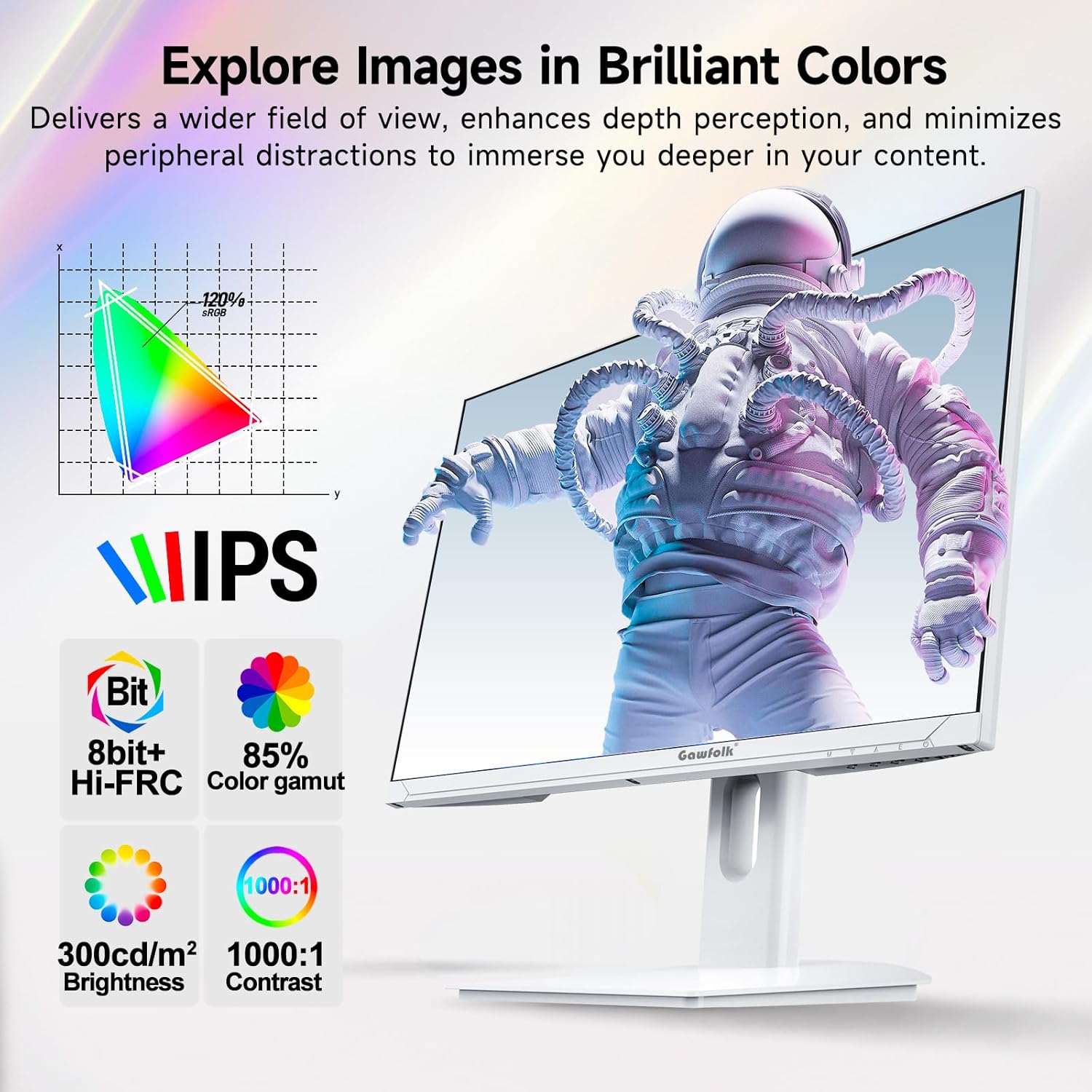
This image showcases the monitor's IPS panel technology, which provides consistent and accurate colors across wide viewing angles. Accompanying icons detail its color capabilities (8-bit + Hi-FRC, 85% NTSC color gamut), brightness (300 cd/m²), and contrast ratio (1000:1), all contributing to vivid and clear visuals.
5.4. Adaptive Sync (FreeSync)
Supported FreeSync technology helps eliminate screen tearing and stuttering, providing a smoother gaming experience.
5.5. Nga waahanga tiaki kanohi
The monitor incorporates flicker-free technology to reduce eye strain during extended use.
5.6. Ngā Whakapai Ake i te Keemu
Integrated customizable reticle overlays assist with precise aiming in games.
6. Tiaki
6.1. Te horoi i te Mata
Me ata horoia te mata ki te kakahu ngohengohe, kore-puru. Mo nga tohu pakeke, kia ngawari dampHoroia te kakahu ki te wai, ki tētahi atu kaihoroi mata motuhake rānei. Āta karohia te whakamahi i ngā matū kino, te waipiro, ngā mea whakakoi rānei.
6.2. Te horoi i te Casing
Whakamahia he kakahu ngohengohe, maroke hei horoi i te casing. Do not spray cleaning liquids directly onto the monitor.
7. Te Raru
If you encounter issues with your monitor, refer to the following troubleshooting tips:
- Kore Mana: Me whakarite kei te hono tika te urutau hiko ki te mata me te putanga hiko e mahi ana.
- Kore he Tohu: Verify that the display cable (DP or HDMI) is firmly connected to both the monitor and your computer. Select the correct input source via the OSD menu.
- He Rere Whakatau/Tamata: Ensure your graphics card drivers are up to date. Check your computer's display settings to set the resolution to 3840x2160 and the refresh rate to 160Hz.
- Optimal Performance Requirements: To achieve 4K @ 160Hz, your PC must be equipped with a dedicated GPU. It is recommended to use a GPU equivalent to or above an NVIDIA GTX 1650. Ensure you are using HDMI 2.1 or DisplayPort 1.4 cables.
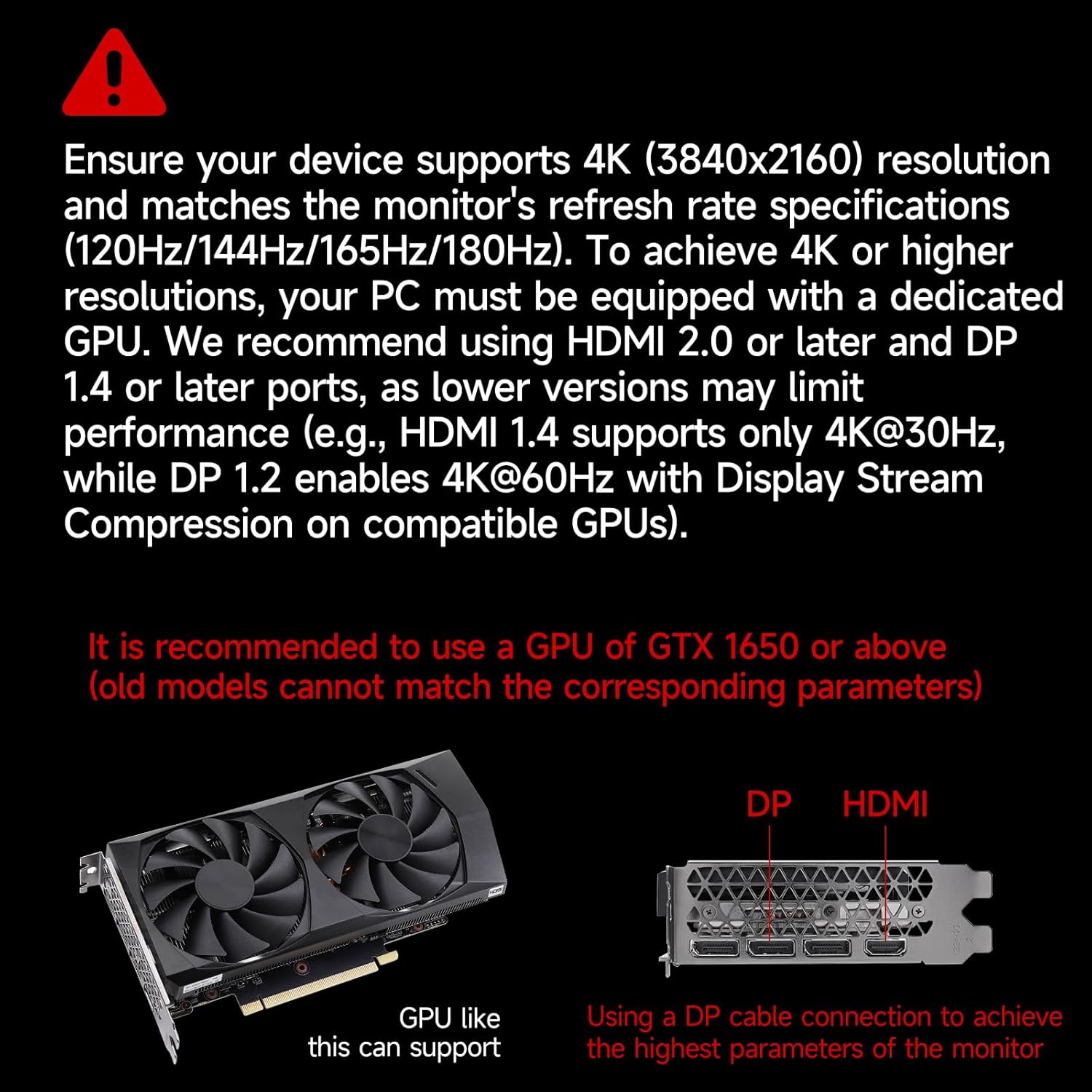
This image provides crucial information regarding system requirements, recommending a graphics processing unit (GPU) equivalent to or better than an NVIDIA GTX 1650 to fully utilize the monitor's 4K resolution and high refresh rate capabilities. It also highlights the importance of using DP or HDMI ports for optimal performance.
8. Whakatakotoranga
| Āhuahira | Whakatakotoranga |
|---|---|
| Waitohu | Karekau |
| Tau tauira | GF270J |
| Rahi Mata | 27 Inihi |
| Whakatau | 3840 x 2160 Pika (4K UHD) |
| Rere tāmata | 160 Hz |
| Wā Whakautu | 1 Mirihekona (MPRT) |
| Hangarau Whakaatu | IPS |
| Momo Whakaatu | LED |
| Aspect Ratio | 16:9 |
| Screen Finish | Mate |
| Tirohanga | 300 cd/m² |
| Tauwehenga Purata | 1000:1 |
| Viewing Koki | 178 Waeine |
| Uara Gamut Tae | 85% NTSC |
| Hangarau Hononga | Tauranga Whakaatu, HDMI |
| Hononga taputapu | 2x HDMI 2.1, 2x DisplayPort 1.4, 1x Putanga Ororongo |
| Tukutahi Urutau | FreeSync |
| Nga waahanga motuhake | Tilt Adjustment, Frameless, Flicker-Free, Eye Care, Adaptive Sync |
| Momo Maunga VESA | 75 x 75 mm (Wall Mount) |
| Pūrere Hototahi | Gaming Console, Computer, Laptop |
| Rahi Tūemi (D x W x H) | 20 x 61.4 x 46.3 Henemita |
| Taumaha Tūemi | 5.1 Kirokaramu |
| Tae | Mā |
9. Pūtāhui me te Tautoko
9.1. Nga Korero Whakaputanga
Gawfolk provides a 12-month worry-free warranty for this monitor. This warranty covers manufacturing defects and malfunctions under normal use.
9.2. Tautoko Kiritaki
If you encounter any issues such as damage, malfunction, or missing accessories, please contact Gawfolk customer service for assistance. Refer to the contact information provided with your purchase or on the official Gawfolk webpae.