
Ka mutu te huaview
The pTron Studio Pro are wireless over-ear headphones designed for extended listening and clear communication. They feature an ergonomic design with soft earpads and an adjustable headband for comfortable wear. Key features include long battery life, advanced audio drivers, and versatile connectivity options.
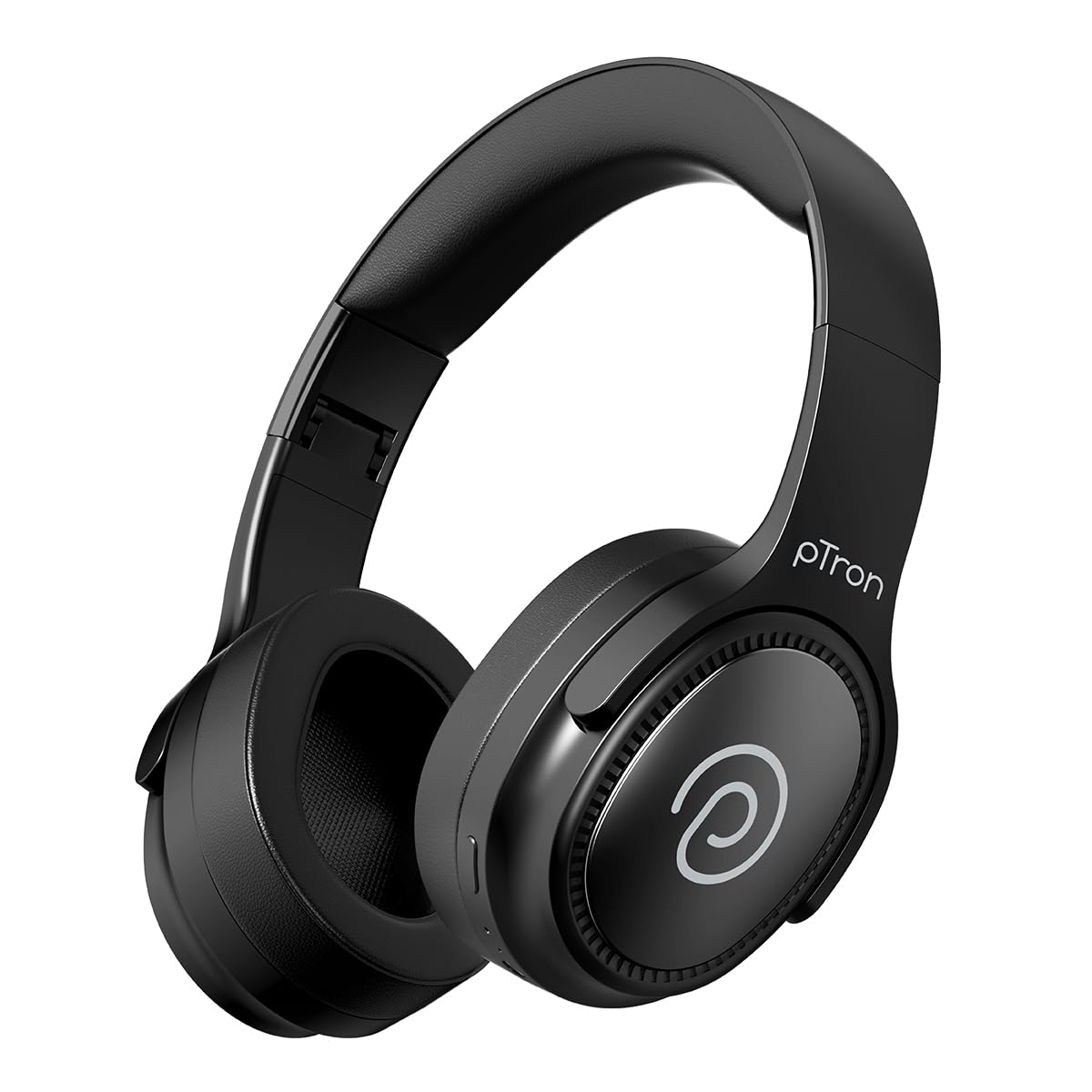
Image: pTron Studio Pro Wireless Over-Ear Headphones in Jet Black, showcasinte hoahoa maeneene.
Nga waahanga matua
- Wā purei roa: Up to 65 hours of music playback on a single full charge.
- Whakataki Tere: 2.5 hours for a full charge via Type-C. A 10-minute charge provides approximately 4 hours of playtime.
- Ororongo Kounga-Teitei: Equipped with 40mm Neody Drivers for pristine stereo sound.
- Ūkui Waea: Built-in HD Microphone with TruTalk AI-ENC (Environmental Noise Cancellation) for crystal-clear calls.
- Hononga Arā Atu Anō: Fast Bluetooth v5.4 for instant pairing and stable connection.
- Te Hononga Pūrere Takirua: Seamlessly connect and switch between two devices simultaneously.
- Aratau Waahanga: Dedicated Low-Latency Gaming Mode and Music Mode.
- Ātete wai: IPX4 rating, making them resistant to water splashes and sweat.
- Comfort & Portability: Ergonomic, lightweight, and foldable design with soft earpads and an adjustable headband for a perfect fit and easy storage.
- Mana ngawari: Multi-functional buttons for managing music, calls, and activating voice assistant.

Image: Infographic detailing the main features of the pTron Studio Pro headphones, including battery life, drivers, and connectivity.
He aha kei roto i te Pouaka
Upon unboxing your pTron Studio Pro headphones, you will find the following items:
- pTron Studio Pro Wireless Over-Ear Headphones
- Uira Whakatau (Momo-C)
- Pukapuka Kaiwhakamahi
Video: An official product video demonstrating the unboxing and key features of the pTron Studio Pro headphones.
Product Layout and Controls
Familiarize yourself with the physical components and control buttons of your pTron Studio Pro headphones.

Whakaahua: Taipitopito view of the multi-function control buttons located on the ear cup, including power, volume, and track controls.
Control Button Functions:
| Patene/Mahi | Mahi |
|---|---|
| Pātene Hiko (Pēhi Roa) | Whakakā/Whakaweto, Tomo ki te Aratau Honohono |
| Play/Pause Button (Single Press) | Purei/Tatari Waiata, Whakautu/Whakamutua te Waea |
| Play/Pause Button (Long Press) | Whakakahoretia te Waea, Whakahohe Kaiawhina Reo |
| Whakanuia te Rōrahi (+) (Pēhi Kotahi) | Whakanuia te Rōrahi |
| Whakaitihia te Rōrahi (-) (Pēhi Kotahi) | Whakaheke Rōrahi |
| Volume Up (+) (Long Press) | Riro Panuku |
| Volume Down (-) (Long Press) | Tuhinga o mua |
| Mode Button (Single Press) | Whakawhiti i waenga i te Aratau Kēmu me te Aratau Pūoro |
Tatūnga
1. Te Whakataki i nga Paneoro
- Honoa te taura utu Momo-C kua whakaratohia ki te tauranga utu i runga i ngā paneoro.
- Connect the other end of the cable to a USB power source (DC5V-1A max.).
- Ko te tohu LED ka whakaatu i te mana utu. He 2.5 haora te roa o te utu katoa.
- A 10-minute charge can provide up to 4 hours of playtime.

Image: The pTron Studio Pro headphones highlighting the Type-C charging port and emphasizing the 65-hour playtime.
2. Takirua Nihokikorangi
- Me mohio kei te whakakiia nga taringa.
- Press and hold the Power button until the LED indicator flashes red and blue alternately, indicating pairing mode.
- I runga i to taputapu (smartphone, tablet, pona), whakaahei i te Nihokikorangi me te rapu mo nga taputapu e waatea ana.
- Select "pTron Studio Pro" from the list of devices.
- Once connected, the LED indicator will turn solid blue or stop flashing.
3. Takirua Pūrere Taurua
- Tauhoatia nga taringa ki te taputapu tuatahi i whakaahuatia i runga ake nei.
- Monokia te Nihokikorangi i runga i te taputapu tuatahi. Ka uru ano nga taringa ki te aratau takirua.
- Tauhoatia nga taringa ki te taputapu tuarua.
- Whakahohehia ano te Nihokikorangi i runga i te taputapu tuatahi. Me hono aunoa nga taringa ki nga taputapu e rua.
- You can now switch audio playback between the two connected devices.

Image: The headphones connected to both a laptop and a smartphone, demonstrating the dual device pairing feature.
4. Wired Connection (3.5mm Aux-in)
- Insert one end of a 3.5mm audio cable (not included) into the Aux-in port on the headphones.
- Connect the other end of the cable to your audio source's 3.5mm jack.
- Ka huri aunoa nga taringa ki te aratau waea.

Image: The headphones connected to a smartphone using a 3.5mm Aux-in cable, illustrating wired music playback.
Nga Tohutohu Whakahaere
Te Hiko / Whakaweto
- Whakahiko: Pēhia me te pupuri i te pātene Mana mō te 3 hēkona pea kia mura rā anō te tohu LED.
- Weto Whakakore: Pēhia me te pupuri i te pātene Mana mō te 5 hēkona pea tae noa ki te whakaweto o te tohu LED.
Mana Waiata
- Purei/Tatari: Kotahi te pehi i te paatene Play/Pause.
- Riu Panuku: Pēhia roa te pātene Rōrahi Whakarunga (+).
- Riu o mua: Pēhia roa te pātene Whakaiti Oro (-).
- Runga Runga: Single press the Volume Up (+) button.
- Raro Raro: Single press the Volume Down (-) button.
Waea Mana
- Whakautu/Whakamutu Waea: Kotahi te pehi i te paatene Play/Pause.
- Whakakore Waea: Pēhia roa te pātene Play/Pause.
Kaiāwhina reo
- Whakahohe i te Kaiawhina Reo: Long press the Play/Pause button (after rejecting a call, if applicable, or when not on a call).
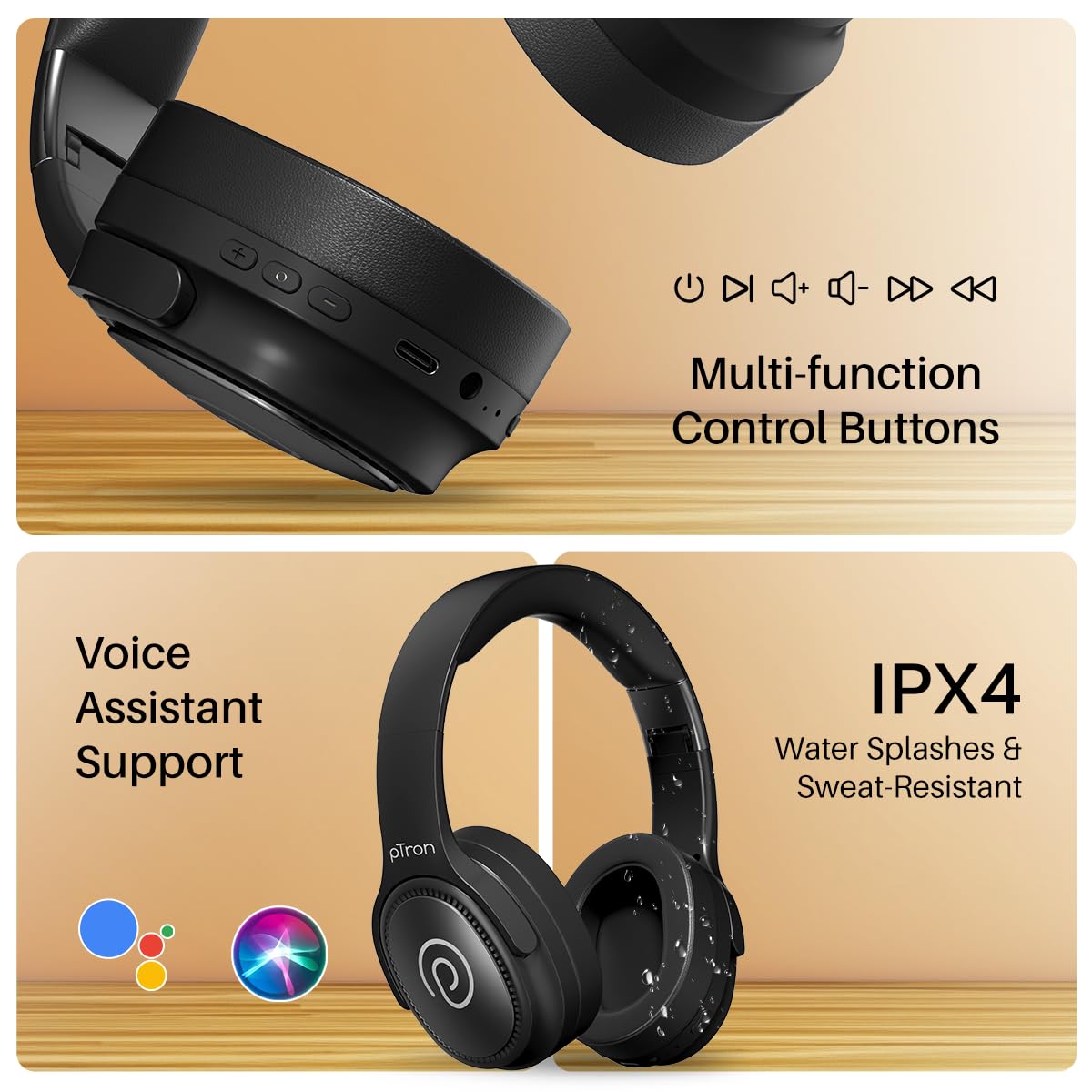
Image: The headphones illustrating support for voice assistants like Google Assistant and Siri, along with their IPX4 water-resistant rating.
Game & Music Modes
- Whakawhiti Aratau: Single press the Mode button to toggle between Low-Latency Gaming Mode and standard Music Mode.
Te tiaki
To ensure the longevity and optimal performance of your pTron Studio Pro headphones, follow these maintenance guidelines:
- Te horoi: Whakamahia he kakahu ngohengohe, maroke hei horoi i nga taringa. Kaua e whakamahi i nga kai horoi me nga whakarewa.
- Rokiroki: Ki te kore e whakamahia, penapenahia nga taringa ki te waahi makariri, maroke. Ko te hoahoa kopaki ka taea te rokiroki kiato.
- Puranga wai: While rated IPX4 for water splashes and sweat resistance, avoid submerging the headphones in water or exposing them to heavy rain. Dry them thoroughly if they get wet.
- Kei te utu: Use only the provided Type-C cable and a compatible power adapter (DC5V-1A max.) for charging.
- Aukati i nga Pawera Nui: Kaua e tukuna nga taringa ki te tino teitei, ki te iti ranei te mahana.
Raparongoā
If you encounter any issues with your pTron Studio Pro headphones, refer to the following common troubleshooting steps:
| Raruraru | Rongoā |
|---|---|
| Karekau e kaha ana nga waea. | Kia tino utua ngā paneoro. Honoa ki tētahi pūtake hiko, tirohia te tohu utu. |
| Kaore e taea te hono ki tetahi taputapu. | Make sure Bluetooth is enabled on your device and the headphones are in pairing mode (LED flashing red/blue). Move closer to the device. Forget previous pairings on your device and try again. |
| Karekau he oro, he iti te reo. | Check the volume levels on both the headphones and your connected device. Ensure the headphones are correctly paired. If using Aux-in, ensure the cable is fully inserted. |
| He kino te kounga o te waea. | Kia tino mohio kei te āraihia te hopuoro. Neke atu ki tētahi wāhi he iti ake te haruru o te taiao. Tirohia te tohu whatunga o tō pūrere. |
| Ka momotuhia nga waea waea. | Ensure there are no obstacles between the headphones and your device. Keep within the Bluetooth range (10 meters). Avoid strong electromagnetic interference. |
Whakatakotoranga
| Āhuahira | Taipitopito |
|---|---|
| Waitohu | pTone |
| Ingoa Tauira | Studio |
| Te Whakanoho Taringa | Ki runga Taringa |
| Putanga Nihokikorangi | 5.4 |
| Awhe Nihokikorangi | 10 Mita |
| Rahi Atekōkiri Ororongo | 40 Milimetera |
| Te aukati | 32 Ohm |
| Pūhiko Wawaenga Te Ora | 65 haora |
| Wā Utu Pūhiko | 2.5 haora |
| Tauranga Whakatau | Momo-C |
| Taumata Atete Wai | IPX4 (Atete Wai) |
| hopuoro | Built-in HD Mic with AI-ENC |
| Tiki Waeoro | 3.5 mm Jack |
| Momo Mana | Mana Waea, Pātene Pēhi |
| Nga waahanga hua | Fast Charging, Foldable, Microphone Included, Noise Isolation, Surround Sound |
| Taumaha Tūemi | 200 Karamu |
| Rauemi | Acrylonitrile Butadiene Styrene (ABS) |
| Pūrere Hototahi | Cellphones, Desktops, Laptops, Tablets |
Pūtāhui me te Tautoko
Your pTron Studio Pro headphones come with a manufacturer's warranty and dedicated customer support.
- Pūtāhui: 6 Months Manufacturer Warranty from the Date of Purchase on Manufacturing Defects Only.
- Whakapā Kaihanga: Building A1, Red Box Creative Park, No. 3 Huancheng South Road, Bantian Street, Longgang District, Shenzhen City, China 518116.
- Taipitopito Whakapā Tiaki Kiritaki: 40-67138888 / Tautoko@ptron.in
- Hoapā Kawemai: PALRED ELECTRONICS PVT. LTD., SY.NO. 56, PAPA TUATAHI, GUNDLAPOCHAMPALLY VILLAGE, TECH PARK MTP, TSIIC-IALA NACHARAM, HYDERABAD - 500076, TELANGANA, INDIA.