
1. Kupu Whakataki
Thank you for choosing the Goshyda USB Noise Cancelling Microphone. This device is designed for high-fidelity audio capture with intelligent noise reduction, suitable for various computer and laptop applications. This manual provides essential information for setup, operation, and maintenance to ensure optimal performance.
1.1 He aha kei roto i te Pouaka
- 1 x Goshyda USB Noise Cancelling Microphone
- 1 x Tauira USB
- 1 x Pukapuka Kaiwhakamahi

Image 1.1: The Goshyda USB Noise Cancelling Microphone and its included USB cable.
2. Nga Hua o te Hua
The Goshyda USB Noise Cancelling Microphone offers advanced features for superior audio performance:
- 360° Omnidirectional Sound Pickup: Captures sound from all directions with a pickup distance of up to 3 meters (9.8 ft).
- Intelligent AI Noise Reduction: Built-in DSP chip isolates environmental noise for clear voice capture.
- 192kHz Sampreiti ling: Dual-channel design provides high-fidelity sound reproduction, four times denser than regular microphones.
- Hoahoa Kiato me te Kawe: Features magnetic absorption for easy storage and transport.
- Hononga Mono me te Tākaro: Simple USB connection for immediate use with compatible devices.
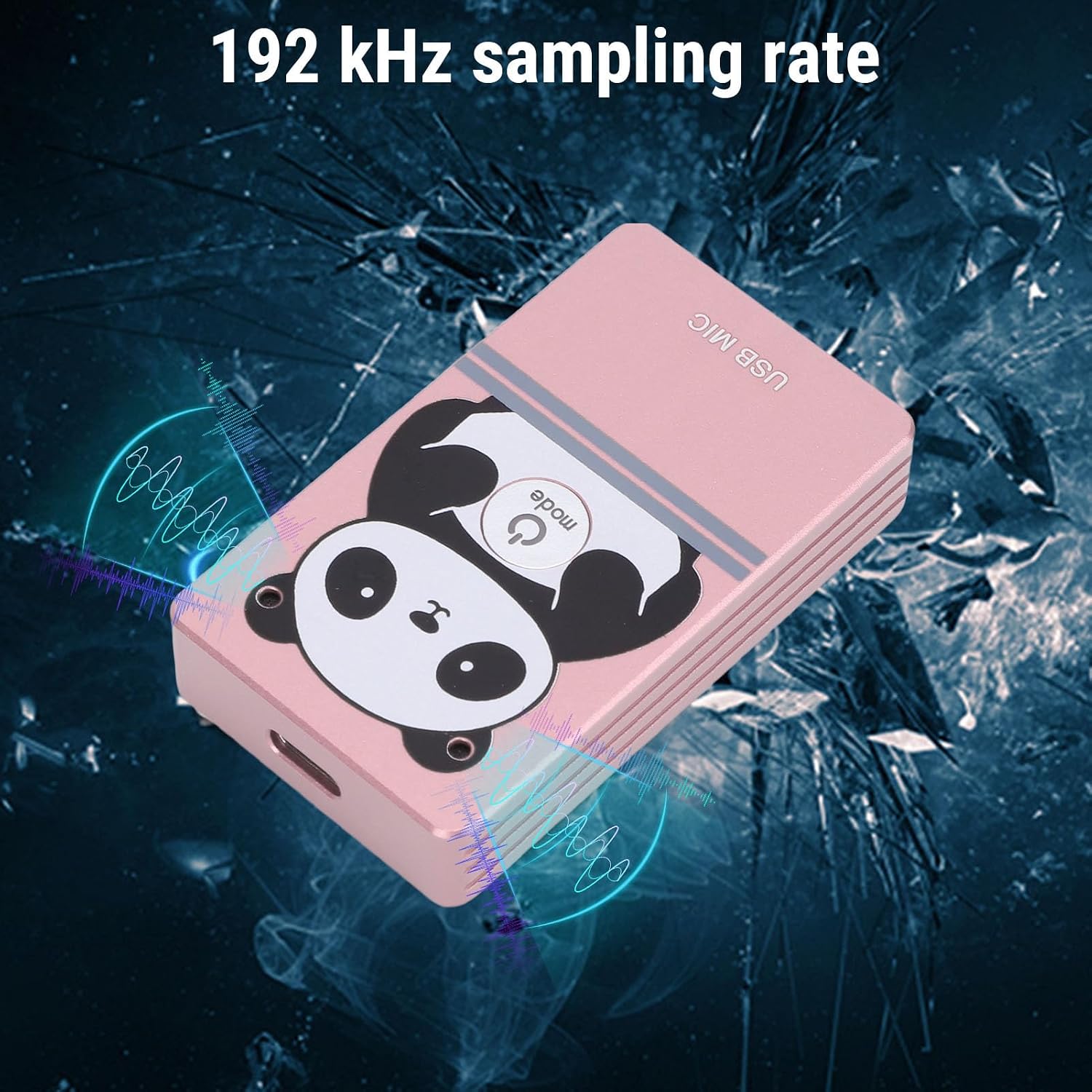
Image 2.1: The microphone's compact design with magnetic absorption for easy portability and storage.

Image 2.2: The microphone's compact and flexible design makes it suitable for travel, business trips, and live streaming.

Image 2.3: The microphone features 360-degree omnidirectional sound pickup for comprehensive audio capture.

Image 2.4: The microphone supports a 192 kHz sampling rate for high-fidelity audio recording.
3. Tatūnga
3.1 Whakaritenga Pūnaha
The microphone is compatible with the following operating systems:
- Matapihi
- macOS (OS X)
- Linux
- Android
3.2 Hononga
- Locate an available USB port on your computer, laptop, or compatible Android device.
- Connect the provided USB cable to the microphone and then to the USB port on your device.
- The device should automatically recognize the microphone as a USB audio input device. No driver installation is typically required.
- Verify the microphone is detected in your device's sound settings.
4. Nga Tohutohu Whakahaere
4.1 Mahi Taketake
Once connected, the microphone is ready for use. It functions as a standard USB audio input device. You can select it as your primary microphone in communication applications (e.g., video conferencing software, voice chat) or recording software.
4.2 Whakakore Haruru
The microphone features an intelligent AI noise reduction mode. This function is automatically active to filter out ambient noise, ensuring your voice is clear and distinct during calls or recordings.
4.3 Sound Pickup
Position the microphone centrally within your desired pickup area. Its 360° omnidirectional design allows it to capture sound effectively from all directions within a 3-meter radius. For optimal voice clarity, ensure the microphone is not obstructed.

Image 4.1: The microphone's effective sound pickup in a typical desktop environment.

Image 4.2: Application scenarios include collaborative work, consultations, online teaching, live streaming, karaoke, and game voiceovers.
5. Tiaki
- Kia ma te hopuoro ma te muru ki te kakahu ngohengohe, maroke.
- Kaua e whakaatu i te hopuoro ki ngā pāmahana tino kino, ki te haumākū, ki te rā tika rānei.
- Do not attempt to disassemble the microphone, as this may void any potential warranty and cause damage.
- Store the microphone in a safe place when not in use, utilizing its magnetic absorption feature for secure placement on metal surfaces.
6. Te Raru
| Raruraru | Take pea | Rongoā |
|---|---|---|
| Kaore i kitea te hopuoro | Loose USB connection, faulty USB port, incorrect system settings. | Ensure USB cable is securely connected. Try a different USB port. Check your device's sound settings to ensure the microphone is selected as the input device. |
| Low or no sound output | Microphone volume too low, application settings, distance from microphone. | Adjust microphone volume in your device's sound settings. Check microphone input levels in your application. Ensure you are within the 3-meter pickup range. |
| Ko te kounga oro he kino, he kino ranei | High background noise, incorrect placement, software issues. | Ensure the AI noise reduction is functioning. Avoid placing the microphone near noisy sources. Update audio drivers if necessary. |
7. Whakatakotoranga
| Āhuahira | Taipitopito |
|---|---|
| Tau tauira | Goshydagn0bfcogim-13 |
| Rauemi | konumohe konumohe |
| Aratau Whakaiti Noise | AI (Artificial Intelligence) |
| Awhe Auautanga | 20Hz-40kHz |
| Tawhiti Tango | Approx. 3 mita (9.8 ft) |
| Tango oro | 360° Arohanga katoa |
| Sampreiti reiti | 192kHz (Dual Channel) |
| Hangarau Hononga | USB 2.0 |
| Pūnaha Hototahi | Windows, macOS, Linux, Android |
| Āhuahira Motuhake | Adjustable, Magnetic Absorption |
| Taumaha Tūemi | 5.1 hekere |
| Ahu mōkihi | 6.3 x 3.54 x 1.97 inihi |
8. Pūtāhui me te Tautoko
For warranty information and technical support, please refer to the documentation provided with your purchase or contact the seller directly. Keep your purchase receipt for warranty claims.