
Kupu Whakataki
This manual provides detailed instructions for the installation, operation, and maintenance of your Gawfolk GF490D 49-inch Ultra-Wide Curved Gaming Monitor. Please read this manual thoroughly before using the product to ensure proper setup and optimal performance. Keep this manual for future reference.
Nga korero haumaru
Always follow these basic safety precautions when using your monitor:
- Kaua e tuu te kaitutei ki runga i te kaata korepu, te turanga, te tepu ranei.
- Kaua e aukati i nga tomokanga hau.
- Do not use near water or sources of heat.
- Whakamahia anake te taura hiko me te urutau i homai e te kaihanga.
- Tukuna nga ratonga katoa ki nga kaimahi ratonga whai tohu.
- Wewetehia te kaitirotiro i te wa e uira ana te tupuhi, i te kore ranei e whakamahia mo te wa roa.
Ihirangi mokete
Manatokohia kei te noho nga waahanga katoa i roto i te kete:
- Gawfolk GF490D Monitor
- Monitor Stand Components (Base, Neck)
- Pūurutau Hiko me te taura
- Tauera HDMI
- Papanga Whakaatu
- Pukapuka Kaiwhakamahi
Tatūnga
1. Huihui i te Tu
- Tangohia marietia te mata i roto i tōna takai, kia mau tonu ki runga i tētahi mata ngohengohe.
- Āpitihia te kaki o te tūnga ki te papa aroturuki.
- Secure the stand base to the neck using the provided screws.

Whakaahua 1: Illustration of monitor ergonomic adjustments, including height adjustment (0-160mm), wall bracket compatibility (75x75mm), and tilt adjustment (-5° to 15°).
2. Te hono ki nga Pūrere
The monitor is equipped with multiple input ports for various devices:
- Power Connector (DC): Connect the power adapter to this port and then to a power outlet.
- Tauranga HDMI 2.1 (x2): Connect to devices such as PCs, game consoles (PS5/Xbox Series X), or laptops using an HDMI cable.
- DisplayPort 1.4 Ports (x2): Connect to PCs or other compatible devices using a DisplayPort cable for high-resolution and high-refresh-rate signals.
- Atanga Putanga Ororongo: Honoa nga kaikorero o waho, nga taringa ranei.

Whakaahua 2: Whakamuri view of the monitor showing the available input ports: DC power connector, two DisplayPort 1.4 interfaces, two HDMI 2.1 interfaces, and an audio output interface.
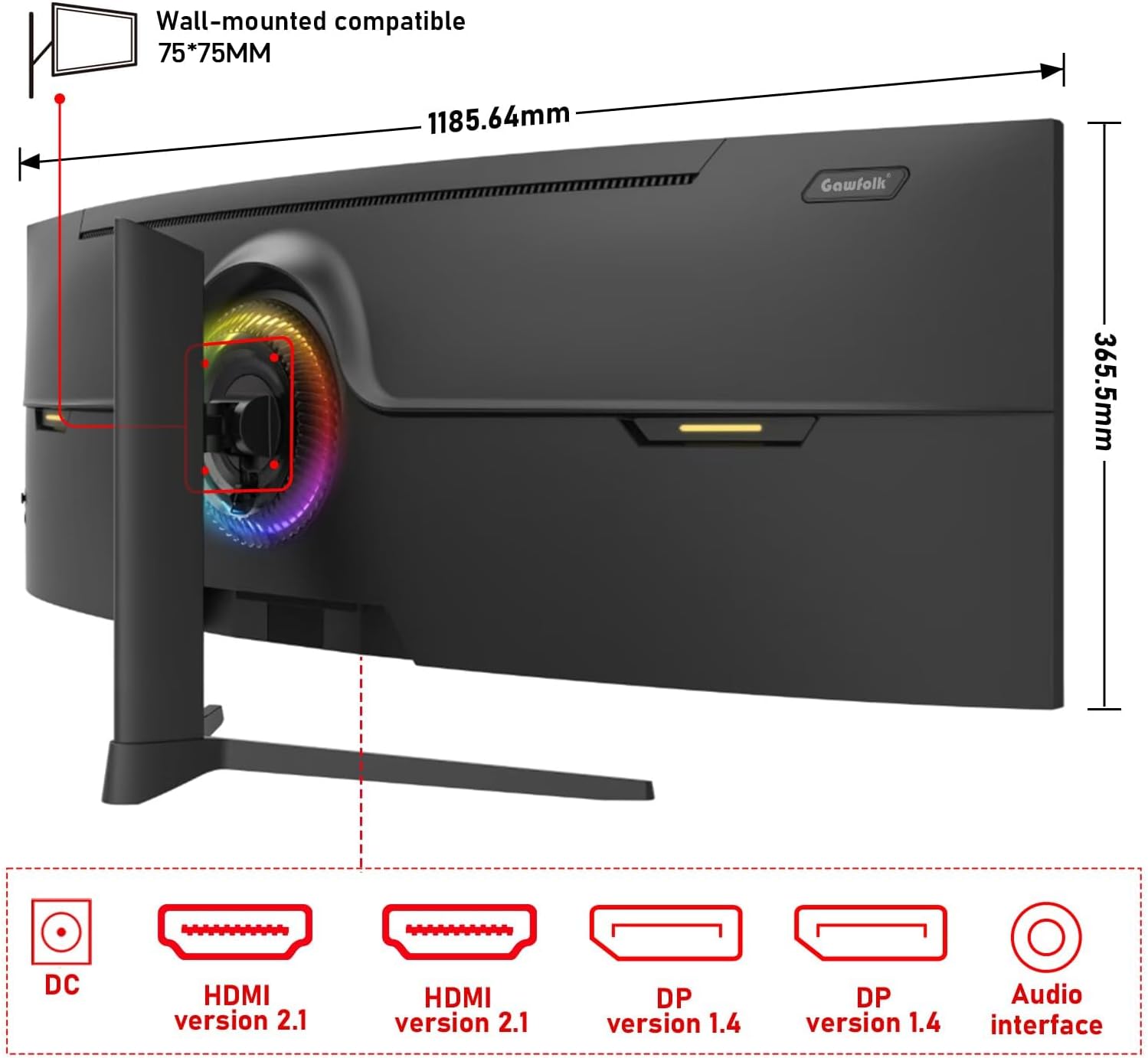
Whakaahua 3: Whakamuri view of the monitor illustrating its approximate dimensions (1185.64mm width, 365.5mm height without stand) and indicating 75x75mm VESA wall-mount compatibility.
3. Whakapiki Taiepa (Kōwhiringa)
The monitor supports a 75x75mm VESA wall mount. Ensure the wall mount can support the monitor's weight (7.9 kg) and follow the wall mount manufacturer's instructions for installation.
Nga Tohutohu Whakahaere
1. Te Whakakaha/Weto
- Honoa te urutau hiko ki te mata me te putanga hiko.
- Press the power button (location typically on the rear or bottom-right of the monitor) to turn the monitor on or off.
2. Te whakatikatika i nga Tautuhinga Whakaatu
The monitor features an On-Screen Display (OSD) menu for adjusting various settings. Use the joystick or buttons (refer to the physical monitor for exact controls) to navigate the OSD menu.
- Pūtake Tāuru: Select between HDMI 1, HDMI 2, DP 1, or DP 2.
- Tirohanga/Prata: Whakaritea te rama atahanga.
- Tautuhinga Tae: Modify color temperature, gamma, and color gamut (120% sRGB).
- Rere tāmata: The monitor supports up to 240Hz. Ensure your connected device and cable support this refresh rate for optimal performance.
- Adaptive Sync (FreeSync): Enable this feature in the OSD and your graphics card settings to synchronize the monitor's refresh rate with your GPU's frame rate, reducing screen tearing and stuttering.
- Aratau Maama Kahurangi: Whakahohehia hei whakaiti i te taumahatanga o ngā kanohi i te wā e whakamahia ana mō te wā roa.

Whakaahua 4: The 49-inch 32:9 ultra-wide display with DQHD (5120x1440) resolution, offering an expansive field of view compared to traditional 16:9 QHD (2560x1440) monitors.

Whakaahua 5: Visual comparison demonstrating the smoothness of a 240Hz refresh rate versus lower refresh rates (100Hz and 60Hz), highlighting reduced motion blur and stuttering.

Whakaahua 6: Illustration of Adaptive Sync (FreeSync) technology, showing how it eliminates screen tearing and input lag for a smoother gaming experience compared to when it is disabled.

Whakaahua 7: The 1500R curvature of the screen, designed to provide an immersive viewing experience by conforming to the human eye's natural field of vision.

Whakaahua 8: Display characteristics including 120% sRGB color gamut, 8-bit color depth (16.7 million colors), 3000:1 contrast ratio, and 330 cd/m² brightness, ensuring rich and accurate color reproduction.

Whakaahua 9: A visual comparison demonstrating the difference between a 1000:1 contrast ratio and the monitor's 3000:1 contrast ratio, showing enhanced detail in dark and bright areas.
3. Whakaritenga Tinana
Ka taea e te turanga aroturuki mo nga whakatikatika ergonomic:
- Whakatikatika Teitei: Adjust the screen height by up to 160mm.
- Hurihuri: Rotate the monitor left or right by 15 degrees.
- Tapahia: Adjust the screen tilt from -5 degrees to 20 degrees.
4. Rama Āhua RGB
The monitor features customizable RGB ambient lighting on its rear. This can be configured through the OSD menu to match your preferences or gaming setup.
Te tiaki
Te horoi i te Aroturuki
- Wewetehia te kaitirotiro i nga wa katoa i mua i te horoi.
- Kia ngawari te whakamahi i te kakahu ngohengohe, karekau he ngongo dampkua whakakikoruatia ki te wai, ki te kai horoi mata ngawari ranei.
- Kaua e rehu tika te kai horoi ki te mata.
- Kaua e whakamahi i te benzene, te angiangi, tetahi atu whakarewa pūngāwerewere rānei, nā te mea ka kino pea te mata o te mata.
Raparongoā
| Raruraru | Take pea | Rongoā |
|---|---|---|
| Kaore he ahua o te mata | Power cable disconnected, video cable disconnected, incorrect input source selected. | Check power and video cable connections. Select the correct input source via the OSD menu. Ensure the computer is powered on. |
| Ko te atahanga he rangirua, he korikori ranei | Incorrect resolution or refresh rate settings, faulty video cable. | Set the display resolution to 5120x1440 and refresh rate to 240Hz (or compatible with your GPU). Try a different video cable. |
| Ka haehae te mata, te maaka ranei | Adaptive Sync (FreeSync) is not enabled or not supported by GPU/game. | Enable FreeSync in the monitor's OSD menu and your graphics card control panel. Ensure your GPU supports FreeSync. |
| Dead pixel(s) | Te hapa hangahanga. | Refer to warranty policy. A small number of dead pixels may be considered within acceptable manufacturing tolerances. |
| Karekau he ororongo | Audio cable disconnected, incorrect audio output selected on PC, monitor volume too low. | Check audio cable connection. Ensure the correct audio output device is selected in your computer's sound settings. Adjust monitor volume. |
Whakatakotoranga
| Āhuahira | Taipitopito |
|---|---|
| Tau tauira | GF490D |
| Rahi Mata | 49 Inihi |
| Whakatau | DQHD (5120x1440 Pixels) |
| Aspect Ratio | 32:9 |
| Kopikopiko | 1500R |
| Rere tāmata | 240 Hz |
| Wā Whakautu | 1 Milihekona |
| Momo Paewhiri | VA (LCD Display Technology) |
| Tirohanga | 350 Kānerara (cd/m²) |
| Tauwehenga Purata | 3000:1 |
| Tae Gamut | 120% sRGB |
| Viewing Koki | 178 Waeine |
| Tukutahi Urutau | FreeSync |
| Nga Whakauru Ataata | 2x HDMI 2.1, 2x DisplayPort 1.4 |
| Putanga Ororongo | 3.5mm Audio Jack |
| Momo Whakaeke | Wall Mount (75x75mm VESA compatible) |
| Rahi Hua (D x W x H) | 5 x 118.5 x 43 cm (me te turanga) |
| Taumaha Tūemi | 7.9 Kirokaramu |
| Nga waahanga taapiri | Blue Light Filter, Curved, Frameless, RGB Ambient Lighting |
Pūtāhui me te Tautoko
The Gawfolk GF490D monitor comes with a 12-marama i muri i-hoko ratonga (1 year manufacturer warranty). If you encounter any issues or have questions regarding your monitor, please contact Gawfolk customer support for assistance.
Manufacturer: Shenzhen Qinghong Zhuoyue Technology Co., Ltd.