
Kupu Whakataki
The ONIKUMA X22 Wired Gaming Headset is designed to provide an immersive audio experience for gamers. It features dynamic RGB lighting, a comfortable design, and a clear communication microphone. This manual provides essential information for the proper setup, operation, maintenance, and troubleshooting of your headset.
Āhuatanga matua:
- Stunning RGB lighting effects to enhance the gaming atmosphere.
- 50mm dynamic drivers deliver impressive stereo sound.
- Features a 360-degree omnidirectional microphone with active noise reduction for clear sound.
- Convenient inline controls for RGB lighting, microphone mute, and volume adjustment.
- Designed with an adjustable suspended headband and well-ventilated ear cups for comfortable wear.
Tohutohu Tatūnga
Follow these steps to set up your ONIKUMA X22 Gaming Headset:
- Honoa te Taura Ororongo: Plug the 3.5mm audio jack of the headset into the corresponding audio port on your gaming device (PC, console controller, etc.). Ensure the connection is secure.
- Connect the USB Cable (for RGB Lighting): Plug the USB-A connector into an available USB port on your device. This connection powers the RGB lighting feature. The headset will function for audio and microphone without the USB connection, but RGB lighting requires it.
- Whakaritea te Peepee: Place the headset on your head and adjust the suspended headband for a comfortable fit. The headband is designed to adapt to various head sizes.
- Turanga Microphone: Adjust the flexible microphone boom to position the microphone near your mouth for optimal voice pickup. Ensure it is not obstructing your vision.
- Taki Oro Tuatahi: Play some audio or initiate a voice chat to confirm sound output and microphone input are working correctly. Adjust system volume settings as needed.
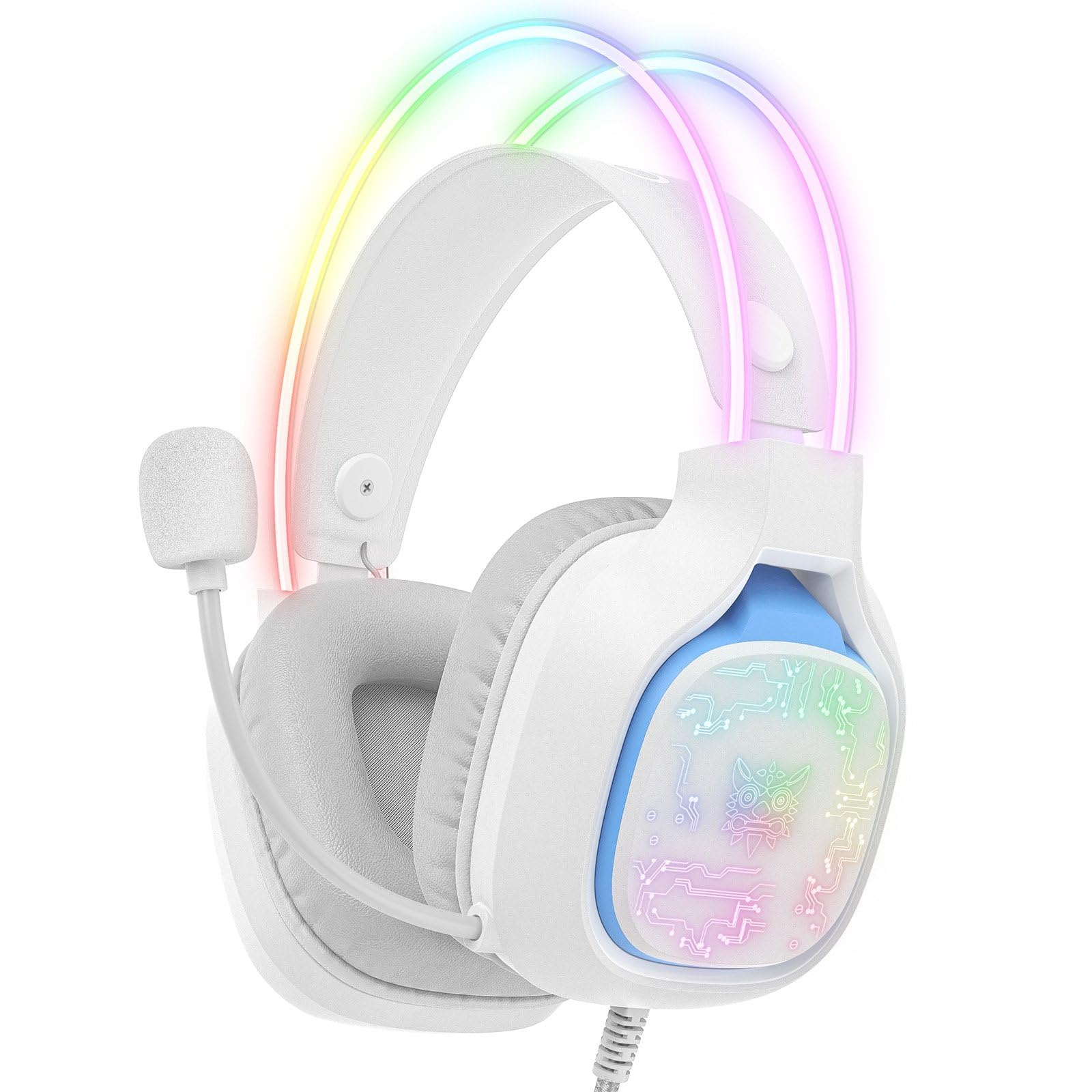
Image: The ONIKUMA X22 Gaming Headset with its 3.5mm audio jack and USB connector, ready for connection to a gaming device. The adjustable headband and microphone are visible.
Nga Tohutohu Whakahaere
The ONIKUMA X22 features convenient inline controls for easy management during use:
- Mana Rōrahi: Locate the volume roller on the inline control unit. Roll it up to increase volume and down to decrease volume.
- Wahangu hopuoro: A switch on the inline control unit allows you to quickly mute or unmute the microphone. Slide the switch to the 'Mute' position to disable the microphone, and to the 'Unmute' position to enable it.
- Mana Rarama RGB: If connected via USB, the RGB lighting will activate automatically. Some models may include a button on the inline control to cycle through lighting modes or turn the RGB off/on. Refer to the specific product packaging for detailed RGB control options if available.
For optimal performance, ensure your device's audio settings are configured to use the ONIKUMA X22 as the default playback and recording device.
Te tiaki
Mā te tiaki tika ka roa te ora me te mahi a tō pane whakarongo:
- Te horoi: Whakamahia he kakahu ngohengohe, maroke hei muru i nga kapu taringa me te mahunga. Mo te paru maro, he paku damp cloth with mild soap can be used, but ensure no liquid enters the speaker grilles or microphone. Do not use harsh chemicals or abrasive cleaners.
- Rokiroki: When not in use, store the headset in a clean, dry place away from direct sunlight and extreme temperatures. Avoid placing heavy objects on the headset.
- Tiaki taura: Avoid sharp bends or excessive pulling on the cables. Always grasp the plug, not the cable, when disconnecting.
- Ear Cup Replacement: If the ear cushions become worn, they may be replaceable. Check the manufacturer's website or contact support for replacement parts.
Raparongoā
Mena ka raru koe ki to pane, tirohia nga rongoa e whai ake nei:
- Kore Oro:
- Me whakarite kua whakaurua katoatia te hononga oro 3.5mm ki te tauranga oro o te pūrere.
- Check the inline volume control and increase the volume.
- Manatokohia kei te whakaitihia te oro o te pūnaha o tō pūrere, kei te iti rawa rānei te oro.
- Whakaū kua tohua te pane hei taputapu whakaputa oro taunoa i roto i nga tautuhinga tangi o to punaha whakahaere.
- Whakamātauria te pane whakarongo i runga i tētahi atu pūrere hei whakakore i te raruraru e pā ana ki tētahi pūrere.
- Kaore i te Mahi:
- Ensure the microphone mute switch on the inline control is in the 'Unmute' position.
- Check that the microphone is properly positioned near your mouth.
- Verify the headset microphone is selected as the default input device in your operating system's sound settings and communication applications.
- Adjust the microphone input level in your device's sound settings.
- Whakamātauria te hopuoro i runga i tētahi atu pūrere.
- Rarama RGB Kaore e Mahi:
- Ensure the USB-A connector is securely plugged into a powered USB port.
- Ngana ki tetahi atu tauranga USB.
- If there is an RGB control button on the inline unit, press it to cycle through modes or activate the lighting.
- Whakararuraru Te Pai:
- Adjust the suspended headband to find the most comfortable position.
- Ensure the ear cups are fully covering your ears without excessive pressure.
Whakatakotoranga
| Āhuahira | Taipitopito |
|---|---|
| Tau tauira | X22 |
| Diamita taraiwa | 50mm |
| Awhe Auautanga | 20Hz - 20kHz |
| Momo hopuoro | 360-degree Omnidirectional with Active Noise Reduction |
| Hononga | 3.5mm Audio Jack + USB-A (for RGB) |
| Te roa o te taura | 1.8 mita |
| Taumaha | 364 karamu |
| Nga Ahua Tukunga | 23.5 x 19.4 x 11.4 cm |
| Te Ra Whakaputa | Mahuru 26, 2025 |
Nga korero Whakaputanga
The ONIKUMA X22 Gaming Headset is covered by a standard manufacturer's warranty. The duration and terms of the warranty may vary by region and retailer. Please retain your proof of purchase for warranty claims. For specific details regarding your warranty coverage, refer to the documentation included with your product or visit the official ONIKUMA webpae.
Tautoko Kiritaki
For technical assistance, product inquiries, or customer service, please contact ONIKUMA customer support. You can typically find contact information, including email addresses, phone numbers, or support portals, on the official ONIKUMA webpae. Kia rite mai tō tauira hua (X22) me ngā taipitopito hoko ina whakapā atu koe ki te tautoko.
Whaimana Webpae: www.onikuma.net (Kia mahara: He kaipupuri waahi tenei URL. Refer to your product packaging for the correct official webpae.)