
1. Kupu Whakataki
Thank you for choosing the Acer Gadget Golf Rangefinder. This device is designed to provide precise distance measurements for golf, hunting, and other outdoor activities. Featuring advanced laser technology, 6x magnification, slope compensation, and anti-shake capabilities, it offers reliable performance. Please read this manual thoroughly to understand the proper operation and care of your rangefinder.

The Acer Gadget Golf Rangefinder, a compact and ergonomic device designed for precise distance measurement.
2. Tatūnga
2.1 Te Whakakore me te Tirotiro Tuatahi
I te whakatuwheratanga o te kete, me mohio kei te noho nga waahanga katoa:
- Acer Range Finder unit
- USB-C Uira Whakatau
- Te Kawe i te Keehi
- Karaka horoi horoi
- Pukapuka Kaiwhakamahi
Video demonstrating the unboxing process of the Acer Gadget Golf Rangefinder, showing the included accessories.
2.2 Te Whakataki i te Pūhiko
The rangefinder is equipped with a built-in USB-C rechargeable battery. Before first use, fully charge the device.
- Locate the USB-C charging port on the side of the rangefinder.
- Connect the provided USB-C cable to the rangefinder and a compatible USB power source (e.g., computer, wall adapter).
- A charging indicator light will illuminate. It will change color or turn off when fully charged.
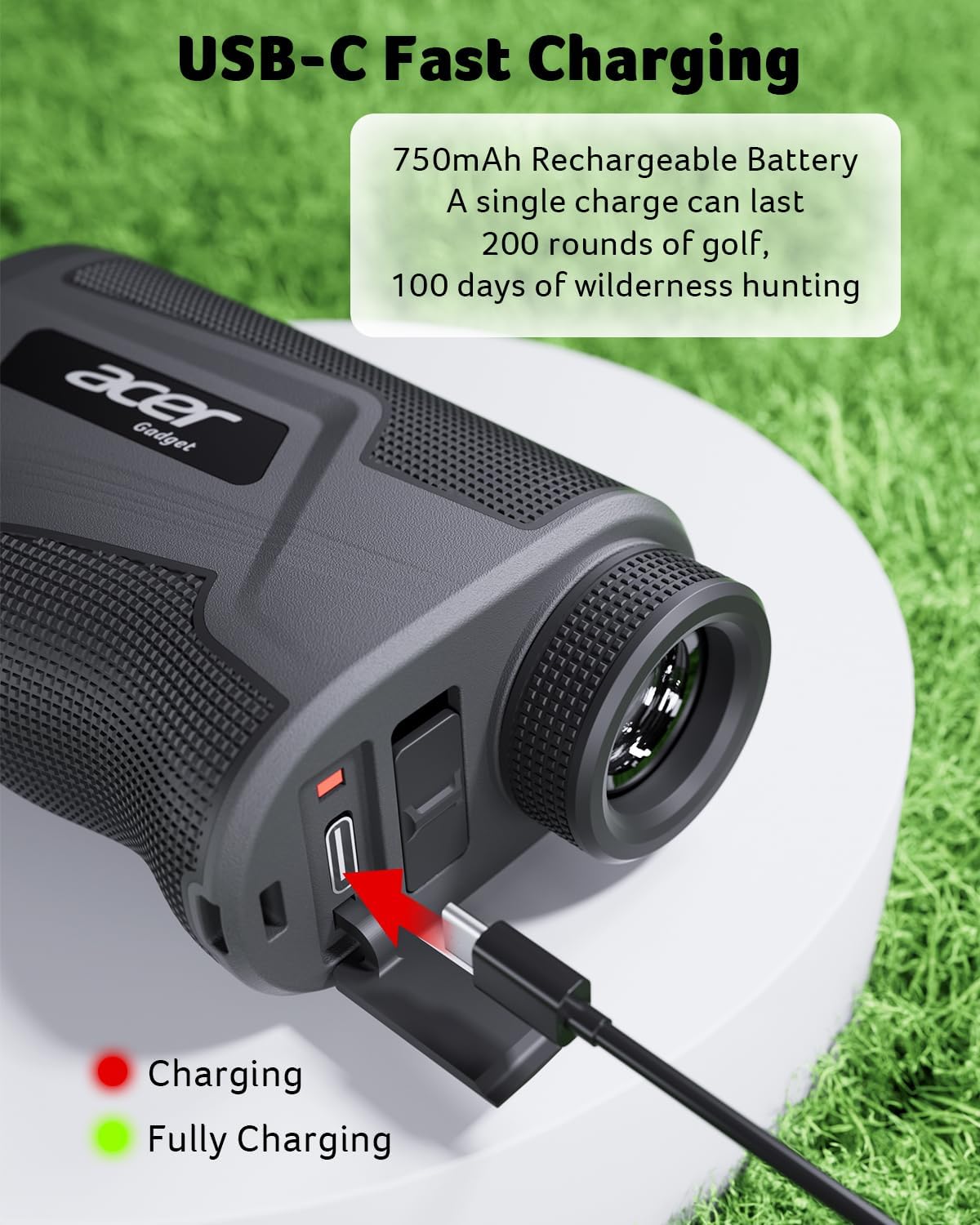
Image showing the USB-C charging port on the rangefinder, with a cable connected and indicating charging status.
2.3 Power On/Off and Focus Adjustment
To power on the device, press the Power/Measure button. To adjust the focus for a clear view, rotate the eyepiece until the display is sharp.
3. Nga Tohutohu Whakahaere
The Acer Gadget Golf Rangefinder offers multiple modes for various measurement needs. Use the 'M' (Mode) button to cycle through the available modes.
3.1 Aratau Ine
- Slope Compensation Mode (Golf): Provides adjusted distances based on elevation changes. This mode can be toggled on or off using the dedicated slope switch for tournament legality. When active, it calculates the 'play as' distance.
- Vertical & Horizontal Distance Mode: Measures the straight-line distance, vertical height, and horizontal distance to a target.
- Aratau Koki: Displays the angle of inclination or declination to the target.
- Aratau Tere: Measures the speed of a moving object.
- Aratau Matawai: Allows continuous measurement by holding down the Power/Measure button, useful for scanning multiple targets or moving objects.
- Flaglock with Vibration: When targeting a flagpole, the device will vibrate to confirm it has locked onto the flag, filtering out background objects.

Illustration of the Slope Assist feature, showing how it calculates adjusted distances for uphill and downhill shots. The image also shows the physical slope switch on the device.

Demonstration of the anti-shake technology, comparing a shaky reading without it to a stabilized reading with it, ensuring easier target lock.

Visual representation of the rangefinder's 800-yard capability and 6x magnification, highlighting its accuracy.

Ka mutuview of specialized modes for hunting, such as Speed Mode, Scan Mode, and Angle Mode, with continuous scanning capability.
Whakaaturanga ataatacasing the multi-functionality of the rangefinder, demonstrating various measurement modes.
3.2 Switching Units (Yards/Meters)
To switch between yards and meters, long-press the 'M' (Mode) button until the unit changes in the display.
3.3 Magnetic Stripe
The rangefinder features a built-in magnetic stripe, allowing it to be securely attached to metal surfaces, such as a golf cart frame, for convenient access.

Image illustrating the magnetic stripe feature, showing the rangefinder attached to a golf cart and also in a belt clip case.
Informational video discussing key features of the Acer Golf Rangefinder, including its magnetic stripe and various modes.
Video demonstrating the Acer Gadget Golf Rangefinder in use during a golf game, highlighting its ease of use and accuracy.
4. Tiaki
4.1 Te horoi
To maintain optimal performance and clarity:
- Use the provided lens cleaning cloth to gently wipe the lenses. Avoid using abrasive materials or excessive force.
- Clean the body of the rangefinder with a soft, damp kakahu. Kaua e whakamahia nga matū kino, nga whakarewa ranei.
4.2 Rokiroki
Ki te kore e whakamahia, rongoatia te ine tawhiti i roto i tana putea tiaki ki te wāhi hauhautanga, maroke, kia matara atu i te rā tika me te pāmahana tino kino.
4.3 Atete Wai
The device features IPX5 water resistance, meaning it is protected against low-pressure water jets from any direction. It is not designed for submersion.

Image showing the rangefinder with water droplets, demonstrating its water-resistant design.
5. Te Raru
If you encounter issues with your Acer Gadget Golf Rangefinder, refer to the following common problems and solutions:
| Raruraru | Take pea | Rongoā |
|---|---|---|
| Ko nga panui kaore i te tika, kaore ranei i te rite | Unstable aiming, dirty lens, environmental factors (haze, fog) | Ensure steady aim, clean lenses with provided cloth. Note that extreme haze or fog can affect laser performance. |
| Kaore te taputapu i te hiko | Low battery, device malfunction | Charge the battery fully using the USB-C cable. If the issue persists, contact customer support. |
| Cannot lock onto flag/target | Obstruction, incorrect mode, target too small/far | Ensure a clear line of sight. Try using scanning mode or ensure Flaglock with Vibration is active. Ensure target is within range. |
| He rangirua te whakaaturanga | Eyepiece not focused | Hurihia te karu tirohanga hei whakatika i te arotahi kia mārama ra ano te whakaaturanga. |
6. Whakatakotoranga
| Āhuahira | Taipitopito |
|---|---|
| Tau tauira | SW-RF700 |
| Awhe Ine | 800 iari |
| Whakanui | 6x |
| Tika | ±0.5 iāri |
| Momo Pūhiko | Lithium-Ion, Rechargeable (USB-C) |
| Rauemi | Polycarbonate (PC) |
| Ahu (L x W x H) | 4.2" x 2.5" x 1.5" |
| Taumaha Tūemi | 0.7 Pauna |
| Ātete wai | IPX5 |

Image displaying the physical dimensions of the Acer Gadget Golf Rangefinder.
7. Pūtāhui me te Tautoko
7.1 Nga Korero Whakaputanga
This Acer Gadget Golf Rangefinder comes with a 1-year warranty. Please retain your proof of purchase for warranty claims. The warranty covers manufacturing defects under normal use.
7.2 Tautoko Kiritaki
For technical assistance, troubleshooting, or warranty inquiries, please contact Acer Gadget Inc. customer support. Refer to the product packaging or the official Acer webpae mo nga korero whakapā o naianei.