
1. Kupu Whakataki
Thank you for choosing the WISHBETY 4K Night Vision Binoculars, Model Ja-50. This device is engineered to provide clear observation capabilities in various lighting conditions, from low light to complete darkness. It is ideal for outdoor activities such as wildlife observation, hunting, and security monitoring. This manual provides essential information for the proper setup, operation, and maintenance of your night vision binoculars.
He aha kei roto i te Pouaka:
- 1x WISHBETY 4K Night Vision Binoculars (Model Ja-50)
- 1x Tiki Panui USB XNUMXx
- 1x Kawe Kawe
- 1x Manual Kaiwhakamahi
- 1x 32GB TF Card (Built-in)
- 1x Neck Strap
- 1x Kakahu horoi
2. Nga korero haumaru
- Do not expose the device to direct sunlight for extended periods, as this may damage internal components.
- Avoid pointing the infrared illuminator directly at eyes.
- Keep the device away from extreme temperatures, humidity, and dust.
- Use only the specified charging cable and power adapter to prevent damage.
- Kaua e ngana ki te wetewete, ki te whakatika ranei i te taputapu. Whakapa atu ki te tautoko a nga kaihoko mo te awhina.
- Ensure the TF card is inserted correctly to avoid data loss or device malfunction.
3. Hua Neke Atuview
The WISHBETY Ja-50 Night Vision Binoculars feature a robust design with intuitive controls for ease of use in the field. Key components include the objective lens, infrared illuminator, eyepiece, 3.5-inch HD display, and control buttons.

Whakaahua 3.1: Runga-raro view of the WISHBETY Ja-50 Night Vision Binoculars, highlighting the control panel and integrated display.

Whakaahua 3.2: Mua view of the binoculars, illustrating the objective lens, infrared illuminator, and the focus adjustment wheel.
4. Tatūnga
4.1 Te Whakataki i te Pūhiko
The device is powered by a built-in 4000mAh rechargeable lithium battery.
- Honoa te taura utu USB kua whakaratohia ki te tauranga utu o te pūrere.
- Honoa te tahi pito o te taura USB ki te urutau hiko USB hototahi (kaore i whakaurua) ki te tauranga USB rorohiko ranei.
- The charging indicator light will illuminate during charging and turn off when fully charged. A full charge typically takes a few hours.
4.2 TF Card Tāutatanga
A 32GB TF card is pre-installed for storing photos and videos. If you need to replace or re-insert the card:
- Locate the TF card slot, usually covered by a rubber flap.
- Gently push the TF card into the slot until it clicks into place. Ensure the correct orientation.
- Hei tango, pēhia anō te kāri kia pūwero ake, kātahi ka unuhia ki waho.
4.3 Te Whakapiri i te Whitiki Kaki
Attach the included neck strap to the designated strap loops on the binoculars for secure and convenient carrying.
5. Nga Tohutohu Whakahaere
5.1 Kei te Hiko / Weto
- Hei whakakaha: Patohia me te pupuri i te Mana / OK pēhi i te pātene kia mārama rā anō te mata.
- Hei whakaweto: Pēhi me te pupuri i te Mana / OK patene ano kia weto te mata.
5.2 Te Whakarite Arotahi
For a clear image, adjust the focus according to your distance from the target.
- Look through the eyepiece at your target.
- Rotate the focusing gear (located on the front of the device, between the lenses) clockwise or counter-clockwise until the image on the screen is sharp.
Figure 5.1: Adjusting the focus wheel for optimal image clarity.
5.3 Using Night Vision (IR Adjustment)
The device features a 9-level adjustable infrared (IR) illuminator (850 nm) for enhanced visibility in low light or complete darkness.
- In low-light conditions, press the IR + button to activate the infrared illuminator.
- Me pehi tonu IR + to increase the IR intensity (levels 1-9).
- Pehia te IR- button to decrease the IR intensity.
- Adjust the IR level to achieve the best visibility without overexposure.
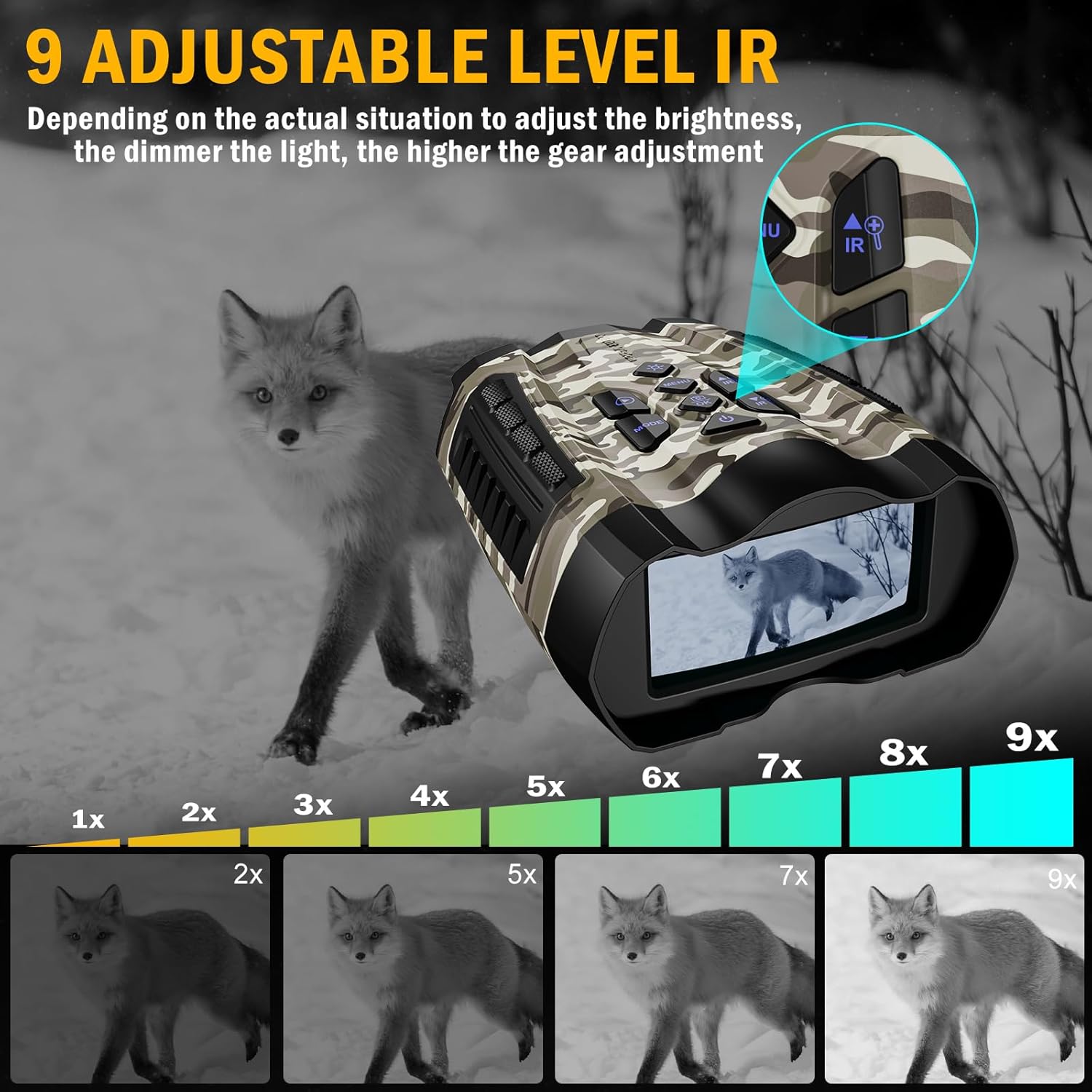
Figure 5.2: Visual representation of the 9-level infrared adjustment, showing how image clarity improves with higher IR settings in darkness.
5.4 Topa Mamati
The binoculars offer up to 10X digital zoom to observe distant objects.
- To zoom in: Press the Topa Mai button (often combined with IR+).
- To zoom out: Press the Topa Atu button (often combined with IR-).
- Note that digital zoom may reduce image quality at higher magnifications.

Figure 5.3: The 10x digital zoom feature, showing how to magnify distant subjects.
5.5 Te Hopu Whakaahua me te Ataata
Capture high-resolution photos (up to 36MP) and 4K UHD videos.
- Whakawhiti Aratau: Pehia te MODE button to cycle between Photo, Video, and Playback modes.
- Whakaahua: I te aratau Whakaahua, pehi i te Marumaru button (often labeled with a camera icon) to capture an image.
- Hopu Ataata: I te mahinga Ataata, paatohia te Tuhia button (often labeled with a video camera icon) to start recording. Press again to stop.

Figure 5.4: Day and night observation capabilities, demonstrating the device's ability to capture both photos and videos in varying light conditions.
5.6 Whakahoki
Review your captured media directly on the 3.5-inch HD display.
- Whakawhiti ki te aratau Purei Anō mā te whakamahi i te MODE pātene.
- Use the navigation buttons (Up/Down or Left/Right) to browse through your photos and videos.
- Pehia te OK pātene ki view tētahi tūemi kua tīpakohia, te purei rānei i tētahi ataata.
5.7 Te hono ki te PC
Transfer your recorded photos and videos to a computer.
- Ensure the binoculars are powered off.
- Connect the binoculars to your PC using the provided USB cable.
- The device should appear as a removable disk on your computer. You can then access and transfer files.
5.8 Whakatere Tahua
Access settings and advanced features through the menu.
- Pehia te MENU pātene ki te tomo i te tahua tautuhinga.
- Whakamahia nga paatene whakatere ki te panuku i roto i nga whiringa tahua.
- Perehi OK hei tīpako i tētahi kōwhiringa, hei whakaū rānei i tētahi tautuhinga.
- Perehi MENU ano ki te puta i te tahua.
6. Tiaki
6.1 Te horoi
- Use the provided cleaning cloth to gently wipe the lenses and screen.
- For stubborn dirt, use a lens cleaning solution specifically designed for optical surfaces.
- Wipe the body of the device with a soft, dry cloth. Avoid abrasive materials or harsh chemicals.
6.2 Rokiroki
- Store the binoculars in the provided carrying case when not in use to protect them from dust and impact.
- Store in a cool, dry place, away from direct sunlight and high humidity.
6.3 Tiaki Pūhiko
- Charge the battery regularly, even if the device is not used frequently, to maintain battery health.
- Kaua e tukua kia tino pau te pākahiko i ngā wā katoa.
7. Te Raru
| Raruraru | Take pea | Rongoā |
|---|---|---|
| Kaore te taputapu i te hiko. | He iti te pākahiko; he hapa te pūrere. | Charge the battery fully. If issue persists, contact support. |
| He rangirua te ahua. | Improper focus; dirty lens. | Adjust the focusing gear. Clean the objective lens. |
| Poor night vision performance. | IR illuminator off or too low; environmental factors. | Increase IR intensity. Ensure no obstructions. |
| Kāore e taea te tuhi whakaahua/ataata. | TF card full or not inserted correctly; incorrect mode. | Check TF card status and free space. Ensure correct mode is selected. |
| Ka kati te pūrere, kāore rānei e aro mai. | Hapa o te rorohiko. | Press and hold the Power button to force a restart. |
8. Whakatakotoranga
| Āhuahira | Taipitopito |
|---|---|
| Whakaatu | 3.5 Inch HD IPS Screen |
| Whakatau Ataata | 4K Max (Adjustable) |
| Whakataunga Whakaahua | 36MP (Adjustable) |
| Rokiroki | 32GB TF Card (Built-in) |
| Ngā Taumata Pūwero | 9 levels of infrared adjustment (850 nm) |
| Awhe Tirohanga Po | 300M Max |
| Huringa Mamati | 10X |
| Momo Pūhiko | Pūhiko lithium ka taea te utu (4000mAh) |
| Ora Pūhiko | 3-12 hours continuous use (depending on mode) |
| Taumaha | 634 ± 30g (approximately 1 pound) |
| Hunga Hua | 22.2 x 17.6 x 8.3 cm (tata ki te 6.72 x 5.55 x 3 inihi) |
| Rauemi | He kirihou roa ake |
| Te Waahi Mahi | -20°C ki te 60°C |
9. Pūtāhui me te Tautoko
WISHBETY products are designed for reliability and performance. For warranty information, technical support, or any questions regarding your Ja-50 Night Vision Binoculars, please refer to the contact information provided on the product packaging or visit the official WISHBETY webpae. Tena koa pupurihia to tohu mo te hoko mo nga kereme whakamana.