
1. Kupu Whakataki
Thank you for choosing the WOLFANG WT08-WB 4G Solar-Powered Outdoor Security Camera. This manual provides detailed instructions for the proper installation, operation, and maintenance of your camera. Please read this manual thoroughly before use to ensure optimal performance and longevity of your device. This camera is designed for outdoor surveillance in areas without Wi-Fi access, utilizing 4G LTE connectivity and solar power for continuous operation.
2. Hua Neke Atuview
The WOLFANG WT08-WB is a robust outdoor security camera featuring 2.5K HD video, 4G LTE connectivity, solar power, and advanced night vision capabilities. It is ideal for monitoring remote locations such as farms, cabins, or wildlife areas where traditional power and Wi-Fi are unavailable.
Āhuatanga matua:
- Hononga 4G LTE: Operates independently without Wi-Fi, connecting to the strongest available 4G signal.
- Whakahikohia te Ra: Equipped with a 3W solar panel and a high-capacity 7800mAh built-in battery for continuous power.
- Ataata 2.5K HD: Delivers clear images and video recordings.
- Pan/Tītaha/Whakanui (PTZ): Offers 355° horizontal rotation, 90° vertical tilt, and 4x digital zoom for comprehensive coverage.
- Two Night Vision Modes: Supports black-and-white IR night vision and color night vision with integrated spotlights.
- Kaupapa Motini PIR: Intelligent motion detection reduces false alarms and sends real-time notifications.
- Ororongo Ara-rua: Allows for remote communication.
- Rokiroki Paetata me te Kapua: Includes a 32GB SD card for local recording and supports cloud storage services.
- Taurangirangi: IP66 rated for outdoor use, withstanding temperatures from -15°C to 50°C.
Ihirangi mōkī:
- WOLFANG WT08-WB 4G Camera
- Paewhiri Solar (3W)
- Whakauranga Taiapa me nga Tiu
- 32GB SD Card
- SIM Card (with 300MB trial data)
- Pukapuka Kaiwhakamahi
3. Tatūnga
3.1 Te whakauru i nga kaari SIM me nga kaari SD
Before mounting, ensure the SIM card and SD card are correctly inserted into their respective slots on the camera. The camera comes with a pre-installed SIM card and a 32GB SD card.
- Locate the SIM and SD card slots, usually protected by a rubber cover on the camera body.
- Āta whakatuwheratia te uhi.
- Insert the provided 4G SIM card into the SIM slot with the gold contacts facing down and the notched corner aligned correctly.
- Insert the 32GB SD card into the SD card slot until it clicks into place.
- Close the rubber cover firmly to ensure waterproofing.
3.2 Te Whakaeke i te Kaamera me te Paewhiri Solar
Choose a location with good 4G signal reception and direct sunlight exposure for the solar panel. The camera can be mounted on a wall or tree.
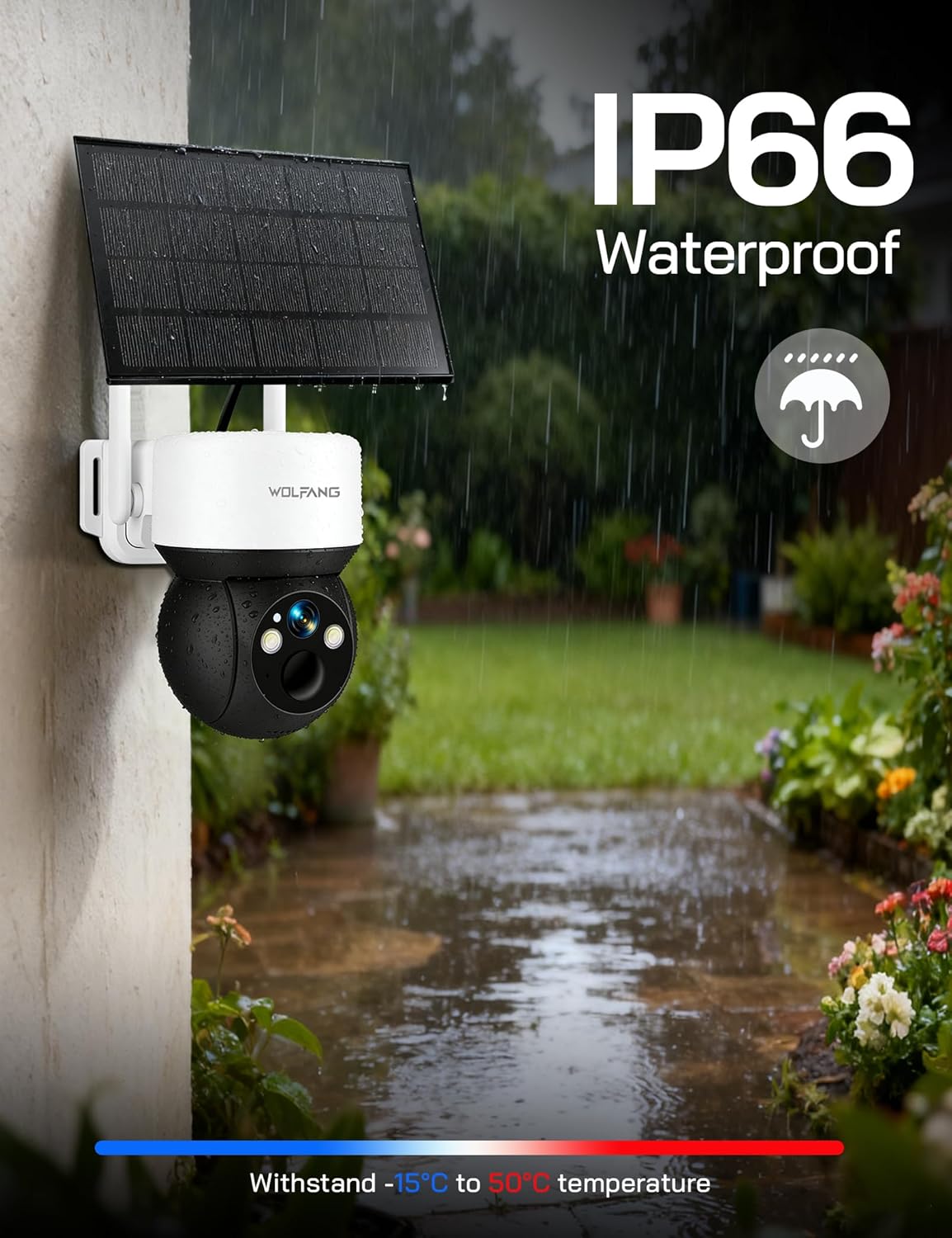
Image: The WOLFANG WT08-WB camera and solar panel mounted on an outdoor wall, illustrating a typical installation scenario for continuous power.
- Tīpako Tauwāhi: Identify a mounting spot that provides the desired viewing angle and ensures the solar panel receives maximum sunlight throughout the day.
- Tāuta Taiapa: Use the provided screws and mounting bracket to securely attach the camera to a wall or tree.
- Āpiti Paewhiri Solar: Connect the solar panel to the camera using the provided cable. Ensure the connection is secure and weatherproof.
- Whakarite Koki: Adjust the camera and solar panel angles to optimize surveillance coverage and solar charging efficiency.
3.3 App Download and Initial Connection
The camera is controlled via the UBox app.
- Tikiake App: Rapua "UBox" in your smartphone's app store (iOS or Android) and download it.
- Puka Rehita: Open the UBox app and follow the on-screen instructions to register a new account.
- Tāpiri Pūrere: Power on the camera. In the UBox app, tap "Add Device" or the '+' icon. Follow the prompts to scan the QR code on the camera or manually add the device.
- Connect to 4G: The camera will automatically attempt to connect to the 4G network. Once connected, you should see the camera's live feed in the app.
4. Nga Tohutohu Whakahaere
4.1 Ora View me te tuhi
Access the camera's live feed and initiate manual recordings through the UBox app.
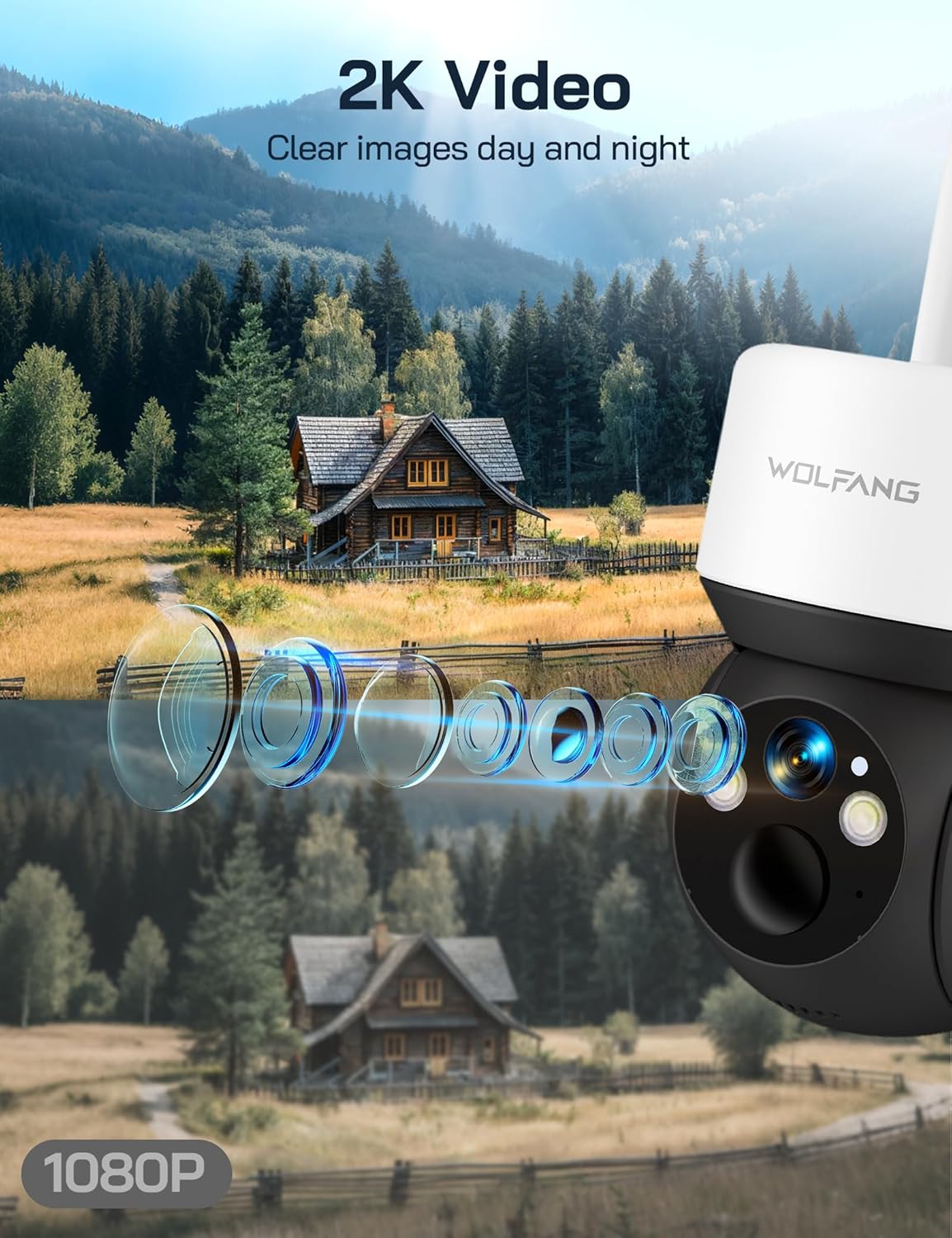
Image: A visual comparison demonstrating the superior clarity of 2.5K video resolution compared to 1080P, showcasing the camera's detailed image capture.
- Open the UBox app and select your camera from the device list.
- The live feed will display. You can tap the record button to start or stop manual recording.
- Recorded videos are saved to the SD card or cloud storage, depending on your settings.
4.2 Pan, Tītaha, me te Whakanui Mamati
Whakahaerehia te kamera viewkoki mamao.
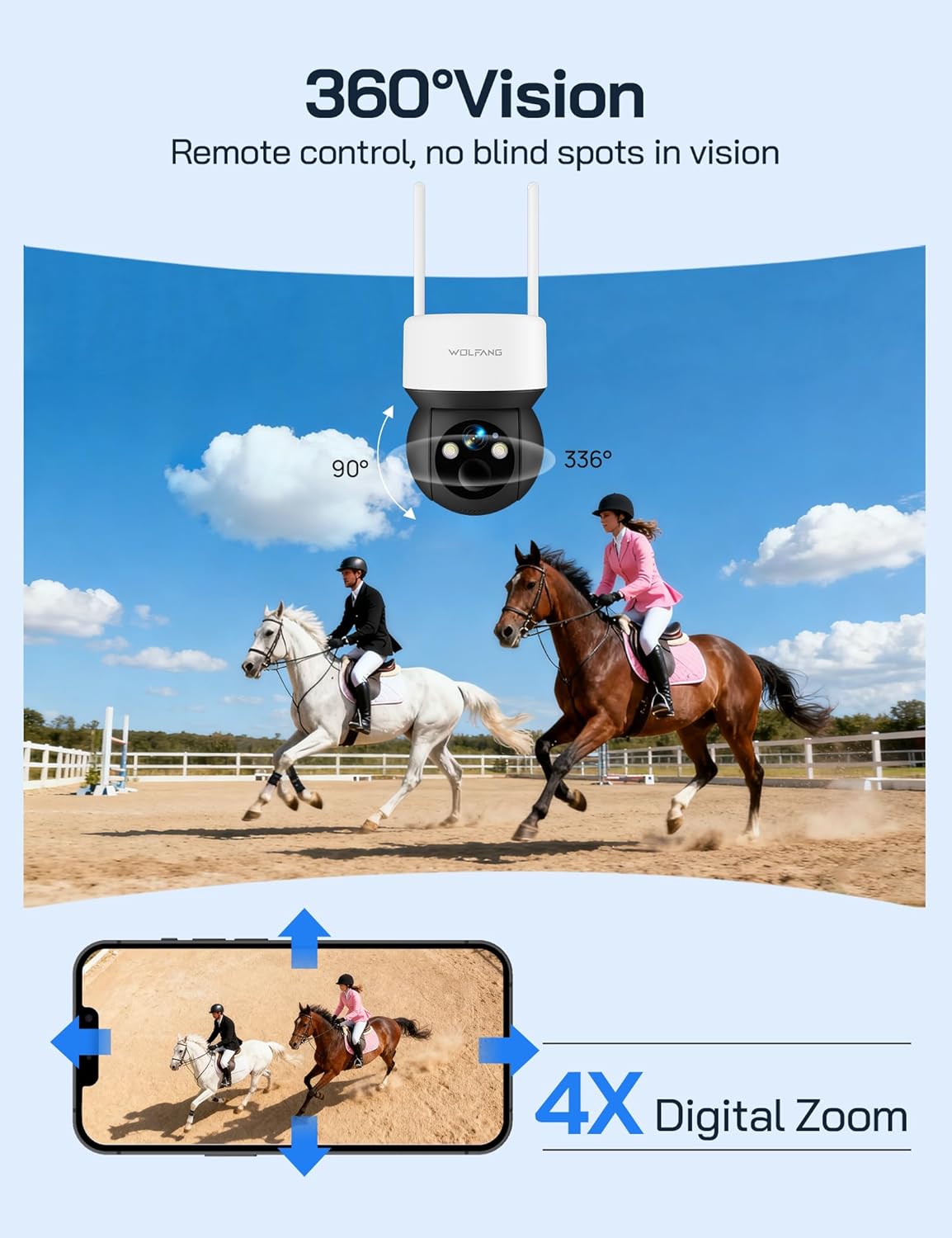
Image: The camera's 360-degree vision is depicted with directional arrows for pan and tilt, alongside a smartphone interface illustrating the 4x digital zoom function.
- I runga i te ora view screen in the UBox app, use the directional controls to pan (355° horizontally) and tilt (90° vertically) the camera.
- Pinch to zoom on the live feed to utilize the 4x digital zoom feature.
4.3 Aratau Matakitenga Po
The camera offers two night vision options for different surveillance needs.

Image: A demonstration of the camera's night vision capabilities, including full-color night vision with spotlight, infrared (IR) black-and-white night vision, and smart night vision that automatically activates the spotlight.
- Te tirohanga matakite a te po: Automatically activates in low-light conditions, providing clear black-and-white video without visible light.
- Tirohanga Po Tae: When enabled, the camera's built-in spotlights illuminate the area, allowing for full-color video recording at night. This can be manually activated or set to trigger upon motion detection.
- Adjust night vision settings in the UBox app.
4.4 Te Motini me nga Matohi
Whiwhi whakamōhiotanga ina kitea he nekehanga.
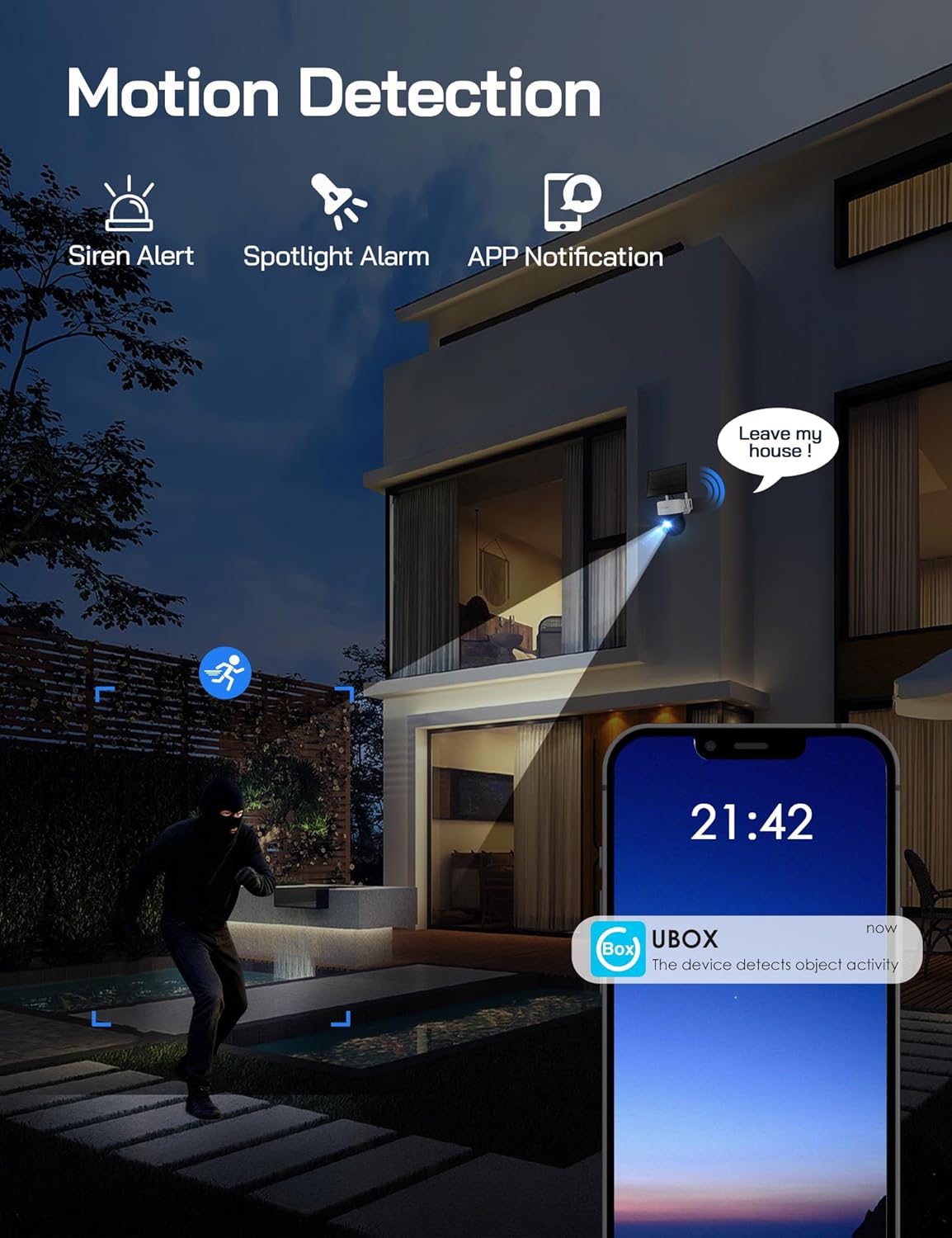
Image: A visual representation of the camera's motion detection system, showing a person being detected, which activates a spotlight, an audible siren, and sends an immediate notification to the user's smartphone via the UBox app.
- Enable motion detection in the UBox app settings.
- Adjust PIR sensitivity to minimize false alarms.
- When motion is detected, the camera will record a video clip, send a notification to your phone, and can optionally activate the spotlight and siren.
4.5 Ororongo Waa-rua
Communicate through the camera using the UBox app.
- I runga i te ora view screen, tap the microphone icon to speak through the camera's speaker.
- Patohia te ata korero hei whakarongo ki te ororongo mai i te hopuoro o te kamera.
5. Tiaki
5.1 Te horoi
- Horoia te arotahi kāmera me te papa rā i ia wā ki te wai ngohengohe,amp cloth to ensure clear images and efficient charging.
- Kaua e whakamahi i nga matū kino, i nga mea awhiowhio ranei.
5.2 Whakahaere Pūhiko
- The solar panel is designed to keep the built-in battery charged. Ensure the solar panel is free from obstructions and receives adequate sunlight.
- Monitor battery levels through the UBox app. If the battery level is consistently low, check the solar panel's placement and cleanliness.
5.3 SIM Card Data
- The included SIM card provides 300MB of trial data. After this is used, you will need to renew the data package through the UBox app or replace the SIM card with one from your preferred provider.
- Ensure your SIM card has an active data plan for continuous 4G connectivity.
5.4 Whakahoutanga Firmware
- Periodically check the UBox app for available firmware updates. Updates can improve performance, add new features, and enhance security.
- Follow the app's instructions carefully when performing firmware updates.
6. Te Raru
6.1 Camera Not Connecting to 4G Network
- Tirohia te Kaari SIM: Me mohio kei te tika te whakauru o te kaari SIM me te mahere raraunga kaha.
- Kaha Waitohu: Verify that the camera is in an area with sufficient 4G signal coverage. Relocate the camera if necessary.
- Tīmata Anō i te Kāmera: Power cycle the camera by temporarily removing and reinserting the SIM/SD card cover (if accessible) or by pressing the reset button if available.
6.2 Karekau te Pūhiko e Karangatia
- Te Whakataunga Paewhiri Solar: Ensure the solar panel is positioned to receive direct sunlight for several hours daily.
- Ārai: Clear any dirt, dust, or debris from the solar panel surface.
- Hononga taura: Check that the solar panel cable is securely connected to the camera.
6.3 Kāore e Mahi ana te Kitenga Nekehanga, he Nui Rawa rānei ngā Whakaoho Hē
- Enable Feature: Confirm motion detection is enabled in the UBox app settings.
- Whakaritea te Tairongo: Lower the PIR sensitivity in the app settings to reduce false alarms caused by small animals or environmental factors. Increase sensitivity if detections are missed.
- Rohe Rapu: Me whakarite te mara o te kamera view e kapi ana i te rohe kimi e hiahiatia ana.
6.4 Kounga Ataata Kino
- Arotahi Ma: Horoia te arotahi o te kāmera kia tangohia ngā paru, ngā paru rānei.
- Tohu 4G: A weak 4G signal can affect live stream quality. Ensure good signal strength.
- Tautuhinga App: Check video quality settings in the UBox app; higher quality settings require more bandwidth.
7. Whakatakotoranga
| Āhuahira | Whakatakotoranga |
|---|---|
| Tau tauira | WT08-WB |
| Whakatau Ataata | 2.5K HD |
| Hononga | 4G LTE (No Wi-Fi) |
| Puna Mana | 3W Solar Panel, 7800mAh Built-in Battery |
| Koki Panui | 355° |
| Koki Honga | 90° |
| Huringa Mamati | 4x |
| Matakitenga Po | IR (Black & White), Color (with Spotlight) |
| Rokiroki | 32GB SD Card (included), Cloud Storage Support |
| Ororongo | Whakawhiti-korero e rua-ara |
| Ātete Huarere | IP66 |
| Te Waahi Mahi | -15°C ki te 50°C |
| Ahu (L x W x H) | 11 x 13.8 x 14.8 cm |
| Taumaha | 1.04 kg |
8. Pūtāhui me te Tautoko
For warranty information or technical assistance, please contact WOLFANG customer service. Our support team is available to help with any questions or issues you may encounter with your WT08-WB camera.
- Tautoko Īmēra: tautoko.vc@wolfang.co
- Please provide your model number (WT08-WB) and a detailed description of your issue when contacting support.