
1. Tatūnga
1.1 Te Wetewete pouaka me nga Ihirangi
Carefully remove all items from the packaging. Ensure all components are present before proceeding with installation.
- Roku Select Series 55" 4K TV
- Ngā tūnga me ngā tīwiri
- Mana Mamao
- Pukapuka Kaiwhakamahi

Figure 1: Contents of the Roku Select Series 55-inch TV package.
1.2 Tāutanga Tinana
The Roku Select Series TV can be installed using the included stands for table mounting or by using a compatible VESA wall mount (200 x 100 mm, sold separately).
Tāutanga Maunga Ripanga:
- Whakanohoia te mata pouaka whakaata ki runga i te mata ngawari, ma kia kore ai e pakaru.
- Attach the two TV stands to the designated slots on the bottom of the TV using the provided screws. Ensure they are securely fastened.
- Kia tupato ki te hapai i te pouaka whakaata, ka tuu ki runga i te mata o te papa.
Tautanga Maunga Taiepa:
For wall mounting, refer to the instructions provided with your VESA 200 x 100 mm compatible wall mount kit. Ensure the wall can support the weight of the television (approximately 20.1 pounds without stand).

Figure 2: TV dimensions and package contents overview.
1.3 Hononga Pikitia
The TV features multiple ports for connecting external devices. Refer to the back panel diagram for port locations.

Figure 3: Rear panel connections including HDMI, USB, and network ports.
- Tauranga HDMI (3 katoa): Connect gaming consoles, Blu-ray players, soundbars, or other HDMI-enabled devices.
- USB Port (1 total): Honoa nga taputapu rokiroki USB mo te purei pāpāho.
- Tauranga Itarangi (LAN): Mo te hononga ipurangi waea.
- Antenna/Tauru Taura: Honoa he antenna mo nga haapurorotanga-a-rangi, he hononga pouaka whakaata ranei.
- Optical (S/PDIF) Output: Mo te whakaputanga ororongo matihiko ki te punaha tangi.
1.4 Te Hiko-Ai Tuatahi me te Hononga Whatunga
- Honoa te taura hiko ki te pouaka whakaata me te putanga hiko.
- Pēhia te pātene hiko i runga i te mana mamao hei whakakā i te pouaka whakaata.
- Follow the on-screen instructions to complete the initial setup, including language selection (English, Spanish, French, Portuguese are supported).
- Select your preferred network connection:
- Wi-Fi: Kōwhiria tō whatunga Wi-Fi mai i te rārangi ka tāuru i te kupuhipa.
- Itarangi: If an Ethernet cable is connected, the TV will automatically attempt to establish a wired connection.
- The TV will guide you through linking to a Roku account, which is necessary to access streaming channels and features.
2. Nga Tohutohu Whakahaere
2.1 Nga Mahi Mana Mamao
The included voice remote provides intuitive control over your TV. It operates via Bluetooth, eliminating the need for direct line-of-sight.

Figure 4: Roku Voice Remote layout and key functions.
- Pātene Hiko: Ka whakakā, whakaweto rānei i te pouaka whakaata.
- Papa Aronga (pātene ĀE kei waenganui): Ka whakatere i ngā tahua me te tīpako i ngā tūemi.
- Rōrahi Whakarunga/Whakararo: Whakaritea te rōrahi pouaka whakaata.
- Patene Whakakore: Whakamōmo, whakakore rānei i te oro o te pouaka whakaata.
- Pātene reo: Ka whakahohe i te rapu me te whakahaere reo.
- Whakahoki Inamata: Ka peke whakamuri mo etahi hēkona i roto i te purei ataata.
- Live TV Button: Accesses the live TV channel guide.
- Ngā Pātene Whakarewa Tere: Dedicated buttons for popular streaming apps (e.g., Netflix, Disney+, Apple TV, Prime Video). These can be customized for your favorite apps.
- Kimi Mamao Ngaro: If the remote is misplaced, use the Roku mobile app to activate an audible alert from the remote.
2.2 Home Screen Navigation and Streaming
The Roku home screen provides quick access to all your streaming channels, inputs, and settings.
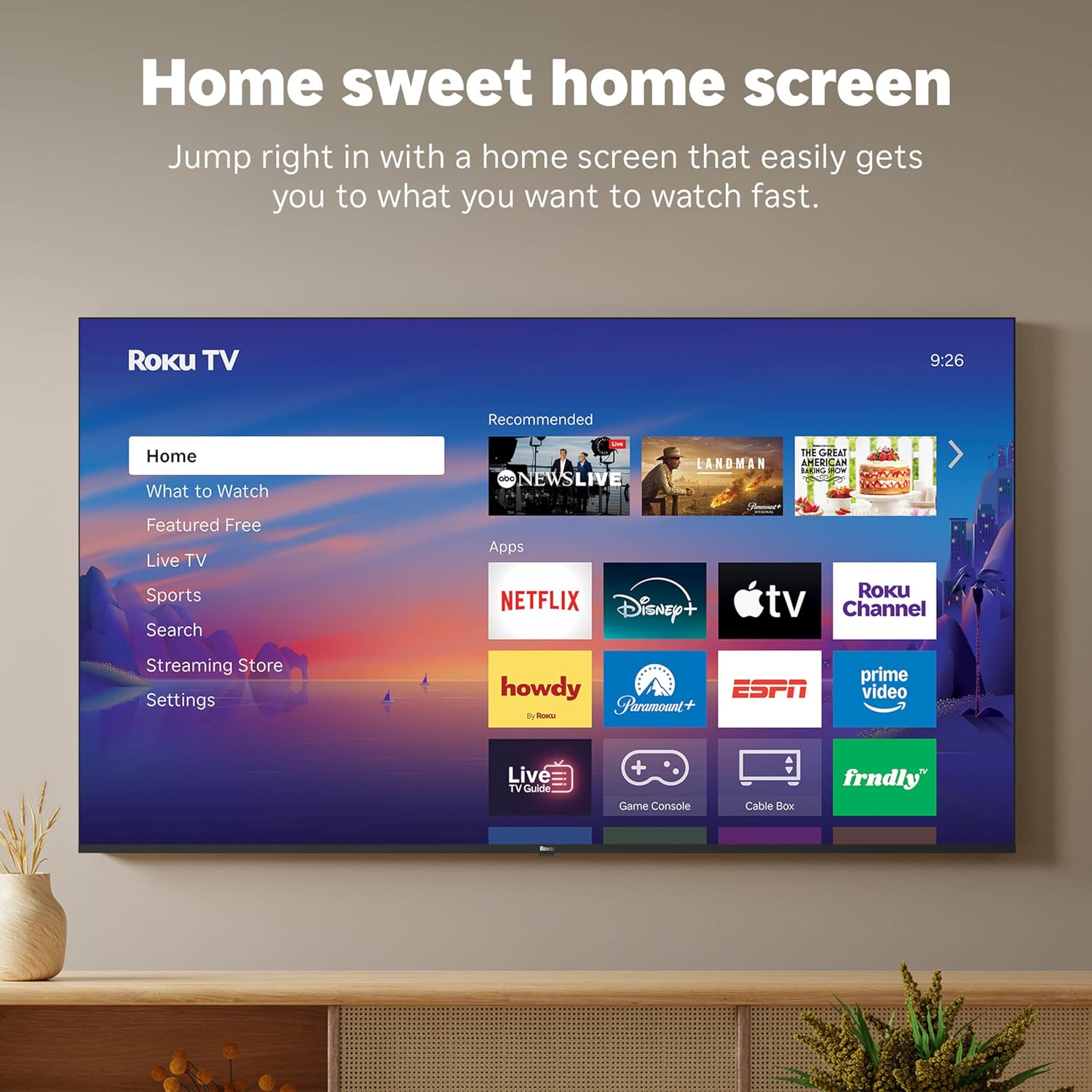
Figure 5: The Roku TV home screen interface.
- Use the directional pad on your remote to navigate through the menu options on the left side of the screen (Home, What to Watch, Live TV, Sports, Search, Streaming Store, Settings).
- Select an app icon from the main grid to launch your desired streaming service.
- The TV's fast Wi-Fi and optimized app launch ensure quick access to entertainment.
2.3 Tautuhinga Pikitia me te Oro
The Roku Select Series TV offers advanced picture and sound technologies for an enhanced viewte wheako.
- 4K QLED Display: Provides sharp 4K resolution and accurate colors.
- Tautoko HDR10: Enhances contrast and color depth for compatible content.
- Roku Smart Picture: Automatically optimizes incoming TV signals and selects the appropriate picture mode for content.
- Dolby Audio: Delivers clear speech and enhanced sound quality through the integrated 2.1 channel speakers (20 Watts maximum output power).
- Aratau Paneoro Nihokikorangi: Honoa ngā paneoro Nihokikorangi hei whakarongo tūmataiti me te kore e whakararuraru i ētahi atu.
2.4 Te Mana Reo me te Whakakotahitanga Whare Ataata
Control your TV and integrate it into your smart home ecosystem.

Figure 6: Roku TV's smart home compatibility.
- Roku Voice: Use the voice button on your remote to search for content, launch apps, or control playback.
- Hototahitanga Kaiawhina Ataata: The TV is compatible with Siri, Alexa, and Google Assistant for voice control through external smart devices.
- Apple AirPlay: Share videos, photos, music, and more from your Apple devices directly to your TV.
2.5 Live TV Access
Access live television channels directly from the home screen.

Figure 7: Live TV channel guide interface.
- Connect an antenna to the TV's Antenna/Cable input.
- Use the 'Live TV' option on the home screen or the dedicated button on the remote to access the channel guide.
- The TV supports ATSC tuner type for digital broadcasts.
3. Tiaki
3.1 Te horoi i te pouaka whakaata
- Wewetehia te TV i mua i te horoi.
- Whakamahia he kakahu ngohengohe, maroke, kore-raro hei muru ata i te mata me te rūnanga.
- Mo nga tohu pakeke, kia ngawari dampen te kakahu ki te wai, ki te horoi mata ngawari, kore-abrasive ranei. Kaua e rehu tika te kai horoi ki te mata.
- Avoid using harsh chemicals, abrasive pads, or solvents as they can damage the TV's finish.
3.2 Whakahōu Pūmanawa
The Roku TV receives automatic software updates to provide new features and improvements. Ensure your TV is connected to the internet to receive these updates.
4. Te Raru
If you encounter issues with your Roku TV, consider the following basic troubleshooting steps:
- Kore Mana: Me mohio kua mau te taura hiko ki te pouaka whakaata me te putanga hiko e mahi ana. Whakamātauria he putanga kē.
- Kore Pikitia/Oro: Manatokohia kua tohua te puna whakauru tika. Tirohia nga hononga taura katoa (HDMI, antenna, me etahi atu) mo te waatea.
- Mamao Kaore i te Whakautu: Replace the AAA batteries in the remote control. Ensure there are no obstructions between the remote and the TV (though Bluetooth reduces this issue). Re-pair the remote if necessary (refer to Roku support documentation).
- Nga Take Hononga Whatunga: Haere ki Tautuhinga > Whatunga > Tirohia te hononga to diagnose network problems. Restart your router and modem.
- App Not Loading/Crashing: Try restarting the app. If the issue persists, remove the app and reinstall it from the Streaming Store.
- Kounga Pikitia Kino: Check your internet speed for streaming content. For broadcast TV, adjust your antenna. Ensure the TV's picture settings are appropriate for the content being viewed.
For more detailed troubleshooting or persistent issues, visit the Roku support website or consult the full User Manual PDF available online.
5. Whakatakotoranga
| Āhuahira | Taipitopito |
|---|---|
| Ingoa Tauira | Roku 55" Select Series 4K |
| Tau tauira | 55R5D5 |
| Rahi Mata | 55 Inihi |
| Hangarau Whakaatu | 4K UHD, LED, QLED |
| Whakatau | 4K (3840 x 2160) |
| Rere tāmata | 60 Hz |
| Tautokohia te Hōputu HDR | HDR10, HDR10+, HLG |
| Picture Quality Enhancement | 4K, Roku Smart Picture |
| Te Mana Putanga Ororongo | 20 Watts |
| Integrated Surround Sound | Dolby Ororongo |
| Hangarau Hononga | Bluetooth, Ethernet, USB C, Wi-Fi |
| Tauranga HDMI | 3 |
| Tauranga USB | 1 |
| Pūnaha Mahi | Roku OS |
| Mana Reo | Roku Voice, Siri, Alexa, Google Assistant |
| Whakaata Mata | AirPlay 2, Miracast |
| Rahi Hua (D x W x H) | 12.7"D x 48.3"W x 30.5"H |
| Taumaha Tūemi | 20.5 Pauna |
| VESA Maunga Paerewa | 200 x 100 mm |
| Whakamahi Hiko | 160 watts |
| UPC | 829610009322 |
6. Pūtāhui me te Tautoko
6.1 Rarangi Whaiti
Roku warrants the hardware of this device against defects in materials and workmanship under normal use for a period of kotahi (1) tau from the date of purchase (“Warranty Period”), provided it is used in accordance with the provided documentation.
If Roku determines that the device’s hardware is defective during the Warranty Period, Roku’s sole obligation, and your exclusive remedy, will be to either repair or replace the unit with either a new or rebuilt device, at its option.
Important information about warranty returns and replacements is available on the Roku support site.
6.2 Product Returns
You may return a device for any reason, subject to the terms of the applicable return policy:
- Within thirty (30) days from the date of purchase from Roku.
- Within the applicable return period if purchased from an authorized reseller or distributor.
Additional details regarding product returns can be found on the Roku support site.
6.3 Tautoko Tāpiri
For further assistance, including detailed guides and FAQs, please refer to the official Roku support website. A downloadable PDF version of the User Manual is also available for reference: Pukapuka Kaiwhakamahi (PDF).