
1. Tatūnga
1.1. He aha kei roto i te Pouaka
Verify all components are present:
- 1 x CEYOMUR Trail Camera (Model CY70)
- Panui 1 x Panui
- 1 x Tauira USB
- 1 x Pukapuka Kaiwhakamahi
- 1 x Whakamaunga Here
- 1 x Mauri Maunga
- 1 x Taramu
- 1 x Tiwhikete
- 1 x Pre-installed SIM Card
- 1 x 64GB TF Card
1.2. Whakaritenga Tuatahi
- Insert SIM Card and TF Card: Open the camera housing. Locate the SIM card slot and TF card slot. Insert the pre-installed SIM card and the included 64GB TF card into their respective slots. Ensure they are correctly oriented and fully seated.
- Āpiti Antenna: Screw the antenna onto the designated port on the top of the camera.
- Whakahiko: Turn on the camera using the power switch located inside the housing.

Figure 1: Initial setup steps including inserting SIM/TF cards and attaching the antenna.
1.3. Te Whakamau i te Kāmera me te Paewhiri Rā
The camera and solar panel can be mounted using the provided strap or bracket. Ensure the solar panel is placed in a location with adequate sunlight for optimal charging.
Video 1: Quick Guide: Trail Camera Mount Assembly. This video demonstrates how to assemble and mount the solar panel bracket for the CEYOMUR trail camera.

Figure 2: CEYOMUR CY70 Trail Camera with solar panel mounted on a tree, illustrating the power connection.

Figure 3: Solar panel providing continuous power to the trail camera in an outdoor setting.
2. Te Whakahaere i te Kaamera
2.1. Dual Mode Functionality
The CEYOMUR CY70 operates in two modes: Traditional and 4G Cellular.
- Traditional Mode: Use the built-in 2-inch screen for direct setup, viewing, and playback of captured media. This mode does not require cellular data.
- 4G Cellular Mode: For remote access, live viewing, real-time alerts, and managing settings from your smartphone via the "TrailCam Go" app.

Figure 4: Demonstrating the dual viewing methods: remote via app and direct on-camera.
2.2. App Connection and Remote Features
Download the "TrailCam Go" app from your device's app store. Follow the in-app instructions to connect your camera. Once connected, you can:
- Receive real-time motion alerts.
- View awa ataata ora.
- Playback recorded videos and photos.
- Whakatikatikahia ngā tautuhinga kāmera mai i tawhiti.
- Monitor the camera's location on a map.

Pikitia 5: Mamao viewing and playback of camera footage via the mobile application.

Figure 6: Monitoring camera location and adjusting settings through the app.
2.3. Te Hopu Whakaahua me te Ataata
The camera captures 2K video and 48MP photos. In 4G mode, the maximum image resolution is 8MP.
- Kitenga Nekehanga: An advanced PIR sensor triggers recording in 0.2 seconds upon detecting movement.
- Matakitenga po: Equipped with 850nm low-glow infrared LEDs for clear nighttime footage without disturbing wildlife.

Figure 7: Daytime capture of wildlife with the CEYOMUR CY70 Trail Camera.
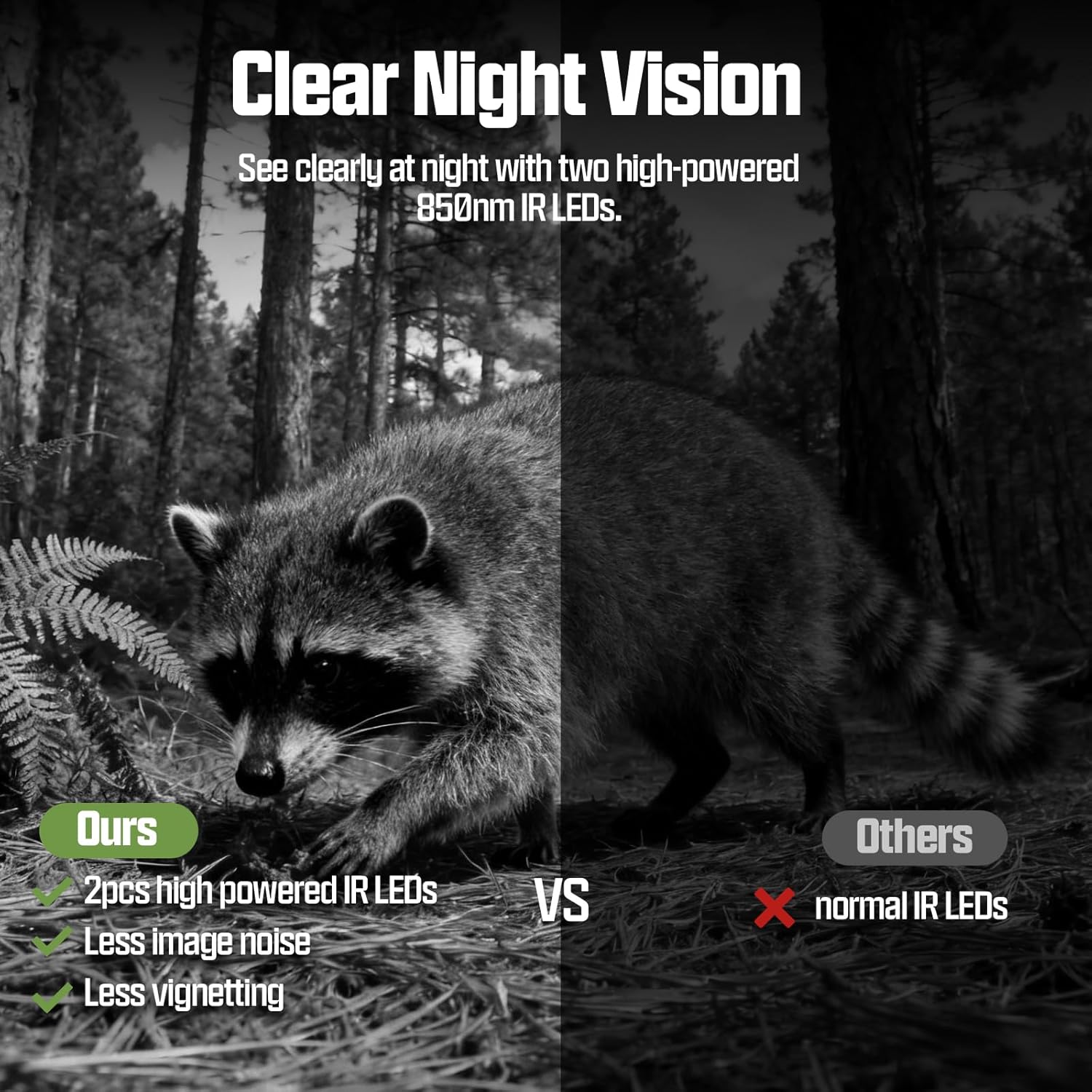
Figure 8: Night vision comparison, highlighting the clarity of CEYOMUR CY70's infrared LEDs.

Whakaahua 9: Example of 2K video quality from the trail camera.

Figure 10: Illustration of the 0.2-second fast trigger speed.
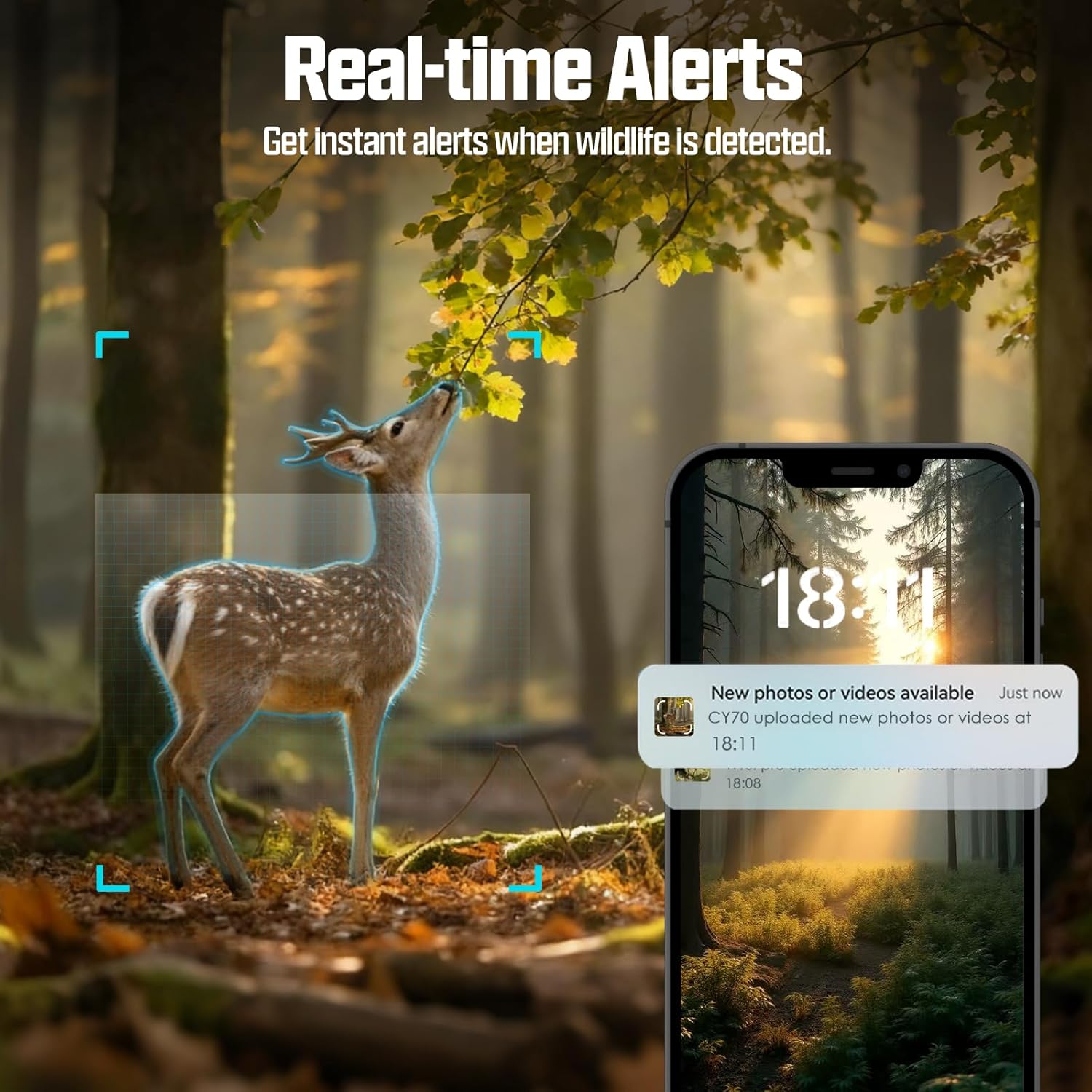
Figure 11: Real-time motion alerts delivered to your smartphone.
Video 2: Video Clips of Trail Camera CY70Pro. This video showcases various video clips captured by the CEYOMUR CY70Pro trail camera, demonstrating its recording capabilities.
3. Tiaki
3.1. Whakahaere Mana
The CEYOMUR CY70 features an integrated 5200mAh rechargeable lithium battery and a 3W solar panel for continuous power. Ensure the solar panel is positioned to receive maximum direct sunlight to maintain battery charge. No external batteries are typically required for long-term operation.

Figure 12: Solar panel providing power to the trail camera, eliminating the need for disposable batteries.
3.2. Atete Huarere
The camera is rated IP66 waterproof, providing protection against dust and strong jets of water. This ensures reliable operation in various outdoor weather conditions, including rain and snow.

Figure 13: IP66 waterproof rating ensures durability in harsh weather.
3.3. Te horoi
Me horoi i ia wa te arotahi kamera me te panui solar ki te ngohengohe, damp cloth to ensure optimal performance. Avoid using abrasive cleaners or solvents.
4. Te Raru
| Putanga | Take pea | Rongoā |
|---|---|---|
| Karekau te kamera i te hiko | Low battery; Power switch off; Incorrect SIM/TF card insertion. | Ensure solar panel is receiving sunlight or charge via USB. Check power switch. Reinsert SIM/TF cards correctly. |
| No remote access/alerts | Poor 4G signal; SIM card not activated; App not configured correctly. | Verify 4G signal strength at camera location. Check SIM card status. Reconfigure app connection. |
| Kounga ahua/ataata ngoikore | Mata paru; Nga tikanga marama iti; Tautuhinga hē. | Clean the lens. Ensure adequate lighting or proper night vision activation. Adjust resolution settings. |
| Ko te pūoko nekehanga karekau e whakaoho | PIR sensitivity too low; Obstructions in detection zone. | Increase PIR sensitivity in settings. Clear any foliage or objects blocking the sensor. |
Mo etahi atu awhina, tirohia te waahanga Whakaputanga me te Tautoko.
5. Whakatakotoranga
| Āhuahira | Taipitopito |
|---|---|
| Tau tauira | CY70 |
| Hononga | 4G Pūkoro |
| Puna Mana | Solar Powered, 5200mAh Lithium Ion Battery (included) |
| Whakatau Ataata | 2K HD |
| Whakataunga Whakaahua | Up to 48MP (8MP in 4G mode) |
| Matakitenga Po | 850nm Low-Glow IR LEDs |
| Te Motini | 0.2s PIR Trigger Speed |
| Whakaatu | Built-in 2-inch screen |
| Rokiroki | TF Card (up to 128GB, 64GB included), Cloud Storage |
| Ātete wai | IP66 |
| Ahu (L x W x H) | 5.31 x 3.94 x 2.99 inihi |
| Taumaha | 1.83 pauna |
| Nga Waahanga kei roto | Trail Camera, Solar Panel, USB Cable, User Manual, Mounting Strap, Mounting Bracket, Antenna, Tweezers, SIM Card, 64GB TF Card |
6. Raihana me te Tautoko
6.1. Nga Korero Whakaputanga
The CEYOMUR CY70 Trail Camera comes with a 2-tau pūtāhui and parts replacement service. This warranty covers manufacturing defects and ensures peace of mind regarding product quality.
6.2. Tautoko Kiritaki
For any questions regarding your 4G LTE camera, data plan, or technical assistance, please contact CEYOMUR's dedicated support team through the following channels:
- CEYOMUR Official Email: (Tirohia te takai hua, te aratohu mana rānei webpae mō te wāhitau īmēra motuhake)
- Amazon Messaging: Contact seller via your Amazon order page.
- TrailCam Go App: Utilize the support features within the mobile application.
Our support team is committed to providing a worry-free experience and ensuring your complete satisfaction.