
Nga Korero Haumaru Nui
Please read all instructions carefully before using this monitor. Keep this manual for future reference.
- Kaua e tuu te kaitutei ki te taha o te wai, ki nga waahi makuku ranei.
- Me whakarite kia pai te hau huri noa i te kaitirotiro kia kore ai e wera rawa.
- Use only the power adapter provided with the monitor.
- Avoid exposing the monitor to direct sunlight or extreme temperatures.
- Kaua e ngana ki te whakatika i a koe ano i te aroturuki. Tukuna atu nga ratonga katoa ki nga kaimahi whai tohu.
- Horoihia te mata ki te kakahu ngohengohe, kore-puru. A ape i te whakamahi matū kino.
Ihirangi mokete
Tena koa tirohia kei roto katoa nga mea e whai ake nei ki to kete:
- 31.5-inch 2K 120Hz Monitor (x1)
- Monitor Stand (x1)
- Quick Start Guide (QSG) (x1)
- Tauira HDMI (x1)
- Pūurutau Hiko (x1)
- Waea Hiko (x1)

An image showing the monitor's dimensions and a list of included accessories: monitor, QSG, HDMI cable, adapter, power cord, and monitor stand.
Tatūnga
Huihuinga Aroturuki
A pee i enei mahi ki te whakahiato i te turanga aroturuki ka whakapiri atu ki te papa whakaatu:
- Kia ata tangohia te kaitirotiro me te tu i nga waahanga mai i te kete.
- Attach the base to the stand column, securing it with the provided screw.
- Align the assembled stand with the mounting points on the back of the monitor panel.
- Pēhia mārire te tūnga ki tōna tūranga kia pāorooro rawa.
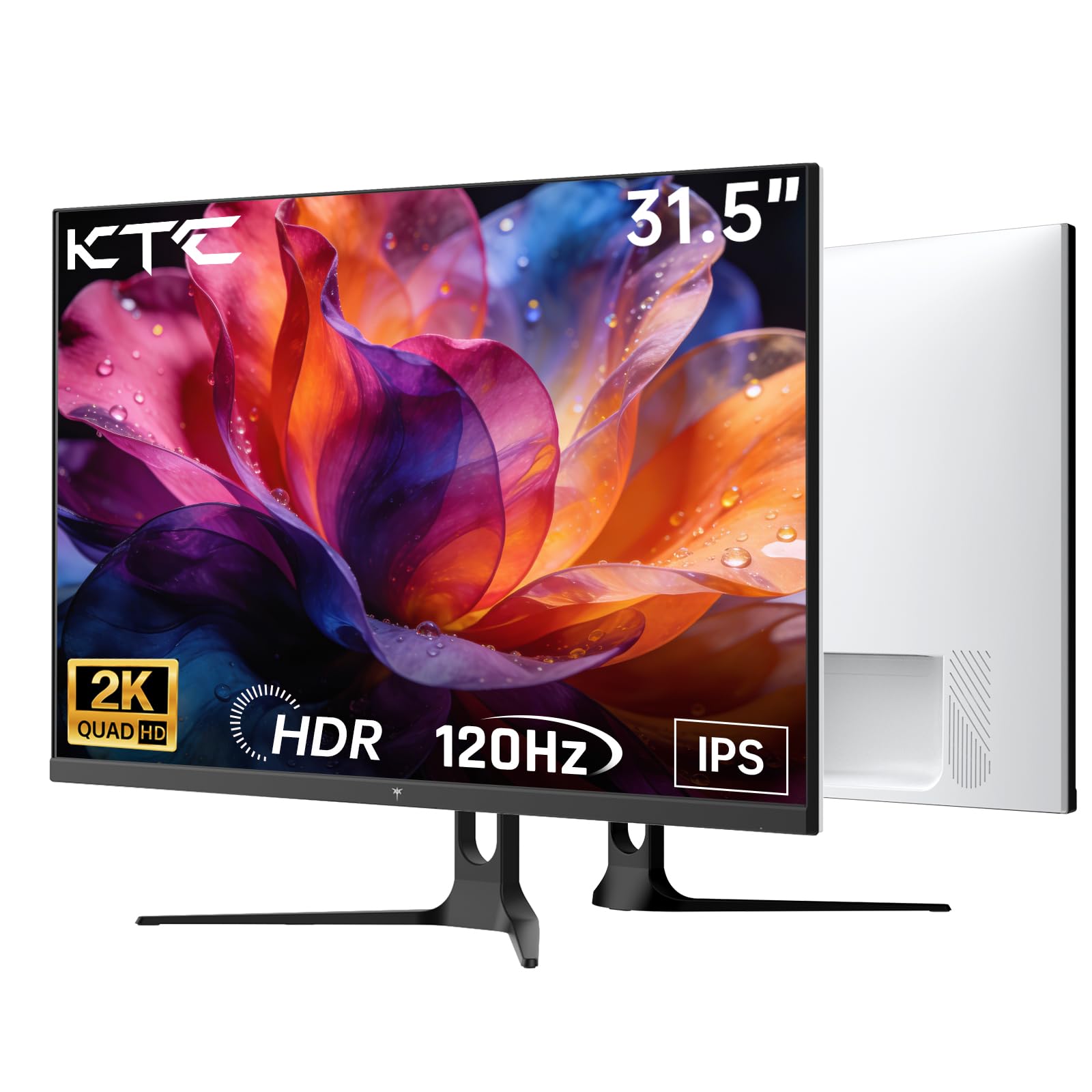
Mua view of the KTC H32D6 31.5-inch monitor on its stand.
Hononga
Connect your monitor to a power source and your computer using the appropriate cables:
- Connect the power adapter to the monitor's DC input port, then plug the power cord into an electrical outlet.
- For video input, connect one end of the HDMI or DisplayPort cable to your computer's graphics card and the other end to the corresponding port on the monitor.
- Ki te hiahiatia, honoa ngā pane taringa, ngā kaikōrero o waho rānei ki te hononga pane taringa.

Close-up of the monitor's rear panel, highlighting the HDMI 2.0 ports (x2), DisplayPort 1.4 (x1), and earphone jack.
Ko tenei ataata e whakarato ana i te mutungaview of the KTC 32 Inch 2K 120Hz Computer Monitor, showcasing its features and benefits in a dynamic presentation.
Nga Tohutohu Whakahaere
Te Hiko / Whakaweto
Press the power button (usually located on the back or bottom right of the monitor) to turn the monitor on or off. The power indicator light will illuminate when the monitor is on.
Whakaatu I-Mata (OSD) Whakaterenga Tahua
The monitor features an intuitive OSD menu for adjusting various settings. Use the joystick or buttons (depending on your model) on the back of the monitor to navigate the menu:
- Pēhia te rakau harikoa/pātene hei whakatuwhera i te tahua OSD.
- Move the joystick up/down or left/right to select menu options.
- Press the joystick/button again to confirm a selection or enter a sub-menu.
- To exit the OSD menu, navigate to the 'Exit' option or hold the joystick/button for a few seconds.
Te whakatikatika i nga Tautuhinga Whakaatu
I roto i te tahua OSD, ka taea e koe te whakatika i nga tautuhinga penei:
- Whakatau: Set to QHD (2560x1440) for optimal clarity.
- Rere tāmata: Adjust to 120Hz for ultra-smooth visuals.
- Tīahoaho me te Pūrata: Fine-tune for your preferred viewte wheako.
- Tautuhinga Tae: Whakaritea te pāmahana tae, te gamma, me ētahi atu tawhā tae.

An image demonstrating the superior clarity of QHD (2560x1440) resolution compared to FHD (1920x1080) on the monitor screen.

A visual representation of smooth motion on the monitor, illustrating the benefit of a 120Hz refresh rate for seamless visuals.
Tukutahi Urutau
This monitor supports Adaptive Sync technology (FreeSync, G-Sync Compatible) to eliminate screen tearing and stuttering during gaming or fast-paced video. Ensure Adaptive Sync is enabled in both your monitor's OSD settings and your graphics card control panel for optimal performance.

A side-by-side comparison showing the visual difference with Adaptive Sync ON (smooth image) and OFF (screen tearing) during fast-paced action.
Tautoko HDR10
The monitor supports HDR10, providing a wider range of colors and contrast for a more immersive viewing experience. To utilize HDR10, ensure your content and graphics card support HDR, and enable it in your operating system display settings.

An image highlighting the enhanced color and contrast provided by HDR10 technology.
Nga waahanga tiaki kanohi
The KTC H32D6 monitor includes Low Blue Light and Flicker-Free technologies to reduce eye fatigue during prolonged use. These features are designed to provide a more comfortable viewte wheako.

An image illustrating the eye care features, including low blue light and flicker-free technology, designed to reduce eye strain.
Whakaritea Tilt
The monitor stand allows for tilt adjustment from -5° to 20°. Gently adjust the monitor panel to your desired viewte koki mo te whakamarie ergonomic.

An image demonstrating the wide 178-degree viewing angle provided by the IPS panel, ensuring consistent image quality from various positions.
Te tiaki
Ma te tiaki tika ka mau te roa me te mahi tino pai o to kaitirotiro.
- Te horoi i te Mata: Me ata horoia te mata ki te kakahu ngohengohe, maroke, kore-raru. Mo nga tohu pakeke, kia ngawari dampen the cloth with water or a screen-cleaning solution specifically designed for monitors. Never spray liquid directly onto the screen.
- Te horoi i te Casing: Whakamahia he kakahu ngohengohe, maroke hei horoi i te casing. A ape i te kai horoi, te whakarewa ranei.
- Whakaweto Ina Kaore i te Whakamahi: Turn off the monitor when not in use to save energy and extend its lifespan.
- Aukati i nga arai: Me whakarite kia kore e tutakina nga tuwhera o te hau i runga i te kaitutei kia kore ai e wera rawa.
Raparongoā
Mena ka raru koe ki to kaitutei, tirohia nga raru me nga otinga e whai ake nei:
| Raruraru | Rongoa pea |
|---|---|
| Kaore he ahua o te mata | Ensure the power cable is securely connected and the monitor is turned on. Check that the video cable (HDMI/DP) is firmly connected to both the monitor and your computer. Select the correct input source via the OSD menu. |
| Kei te kimokimo te ahua, kāore rānei i te pumau | Check the video cable connection. Ensure your graphics card drivers are up to date. Verify that the refresh rate is set correctly in your computer's display settings. Enable Adaptive Sync if supported by your graphics card. |
| He he te ahua o nga tae | Adjust color settings (brightness, contrast, color temperature) in the OSD menu. Ensure HDR is correctly configured in your operating system if you are using HDR content. |
| Kāore te mata tirotiro e mōhiotia e te rorohiko | Tīmata anō tō rorohiko. Whakamātauria tētahi atu tauranga ataata, taura rānei. Whakahōuhia ngā taraiwa o tō kāri whakairoiro. |
Whakatakotoranga
Key technical specifications for the KTC H32D6 monitor:
| Āhuahira | Whakatakotoranga |
|---|---|
| Waitohu | CTC |
| Tau tauira | H32D6 |
| Rahi Mata | 31.5 Inihi |
| Whakatau | QHD Wide 1440p (2560 x 1440 Pixels) |
| Rere tāmata | 100 Hz (up to 120Hz overclocked) |
| Momo Whakaatu | IPS |
| Wā Whakautu | 7 Milihekona |
| Aspect Ratio | 16:9 |
| Tirohanga | 350 Kānerara (cd/m²) |
| Tauwehenga Purata | 1000:1 |
| Viewing Koki | 178 Waeine |
| Tae Gamut | 109% sRGB |
| Picture Quality Enhancement | HDR10 |
| Hononga | 2 x HDMI 2.0, 1 x DisplayPort 1.4, Earphone Jack |
| Tukutahi Urutau | FreeSync, G-Sync Compatible |
| Nga waahanga taapiri | Eye Care, Flicker-Free, Tilt Adjustment, VESA 100x100mm Compatible |
| Whakamahi Hiko | 48 Watts |
| Rahi Tūemi (D x W x H) | 7.09"D x 28.23"W x 20.08"H |
Pūtāhui me te Tautoko
Nga korero Whakaputanga
This KTC H32D6 monitor comes with a 3-Tau Whakaputanga Kaihanga. Ka kapi tenei raihana i nga hapa o nga rawa me nga mahi i raro i te whakamahinga noa. Tena koa pupurihia to tohu mo te hoko mo nga kereme whakamana.
The warranty does not cover damage caused by misuse, accidents, unauthorized modifications, or external factors such as power surges.
Tautoko Kiritaki
For technical assistance, warranty claims, or any other inquiries, please contact KTC customer support through the official website or the contact information provided with your purchase. You may also refer to the Quick Start Guide for additional support resources.