
Kupu Whakataki
The Marshall Heston 60 Soundbar is designed to enhance your home audio experience with immersive cinematic sound. Featuring Dolby Atmos, it delivers three-dimensional audio for movies, music, and TV. Its design is inspired by classic Marshall amplifiers, offering both versatility and convenience for various setups.
Ko nga ahuatanga matua ko:
- Immersive Dolby Atmos Sound: Experience clear, detailed, three-dimensional audio.
- Multi-Wireless Connectivity: Connect via Bluetooth, Wi-Fi (AirPlay, Google Cast, Spotify Connect, TIDAL Connect).
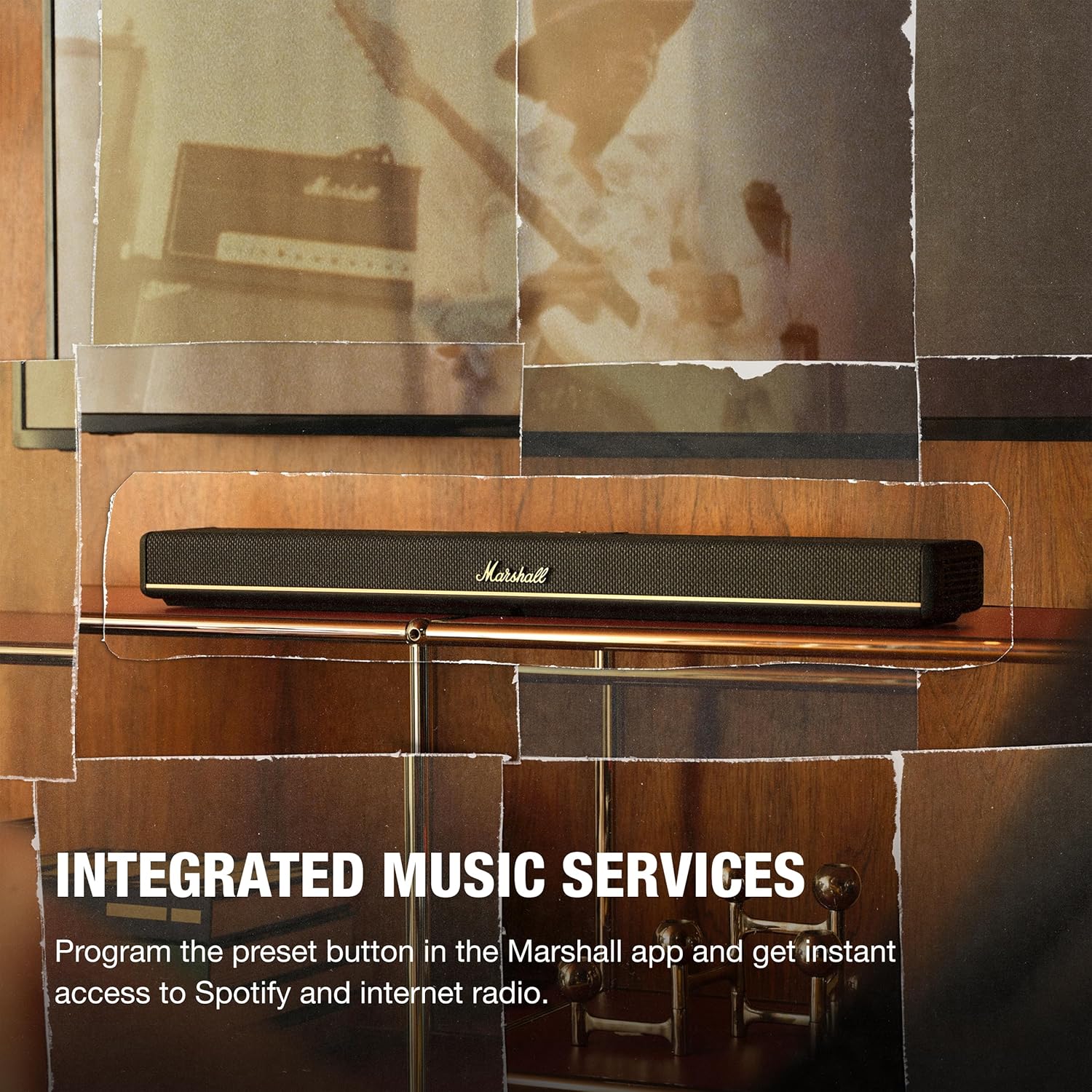
- Ratonga Waiata Whakauru: Program preset buttons in the Marshall app for instant access to Spotify or internet radio.
- Aratau Oro Maha: Choose from Movie, Voice, Music, or Night Mode to optimize your listening experience.
- Whakanohongawari: Designed for TV shelf placement or wall mounting, with a reversible control panel and removable magnetic logo for aesthetic alignment.
- Marshall App Control: Access advanced audio settings, customize presets, calibrate sound, and fine-tune EQ settings.
He aha kei roto i te Pouaka
Carefully unpack the following items:
- Heston 60 Soundbar
- Waea Hiko
- Tauera HDMI
- 2 Pcs Wall Mount Grommets
- Aratohu Timata Tere

Tatūnga
- Turanga: Place the Heston 60 Soundbar on a flat surface, centered under your TV, or mount it to the wall. Ensure at least 15 cm clearance above and on each side for optimal sound. If wall mounting, follow the included wall mount instructions.
- Hononga HDMI: Connect one end of the HDMI cable to the HDMI 1 (TV) port on the Heston 60 and the other end to an HDMI port supporting eARC/ARC on your TV.
- Hononga Hiko: Connect the mains lead to the soundbar, then to the mains plug on the wall socket, and close the back panel hatch. Ensure the mains lead, plug, and soundbar are compatible with your mains supply and wall socket. Caution: Always unplug the mains lead from the wall socket before disconnecting it from the soundbar.
- Aesthetic Setup: Place the magnetic Marshall script logo on the front center of the Heston 60. Then, position the magnetic user panel with the text oriented correctly.
- Tikiake me te Tatūnga Taupānga: Download the Marshall app to complete the setup. The app guides you through Wi-Fi setup, audio adjustments, customizing playlists, and selecting sound modes. The app also functions as a remote control for the Heston 60.


Nga Tohutohu Whakahaere
Nga Mana Whakahaereview
The Heston 60 features intuitive controls located on the top panel for easy access to various functions.

- Kaitohu Pūtake: Switch between input sources (HDMI, Aux, Bluetooth, Wi-Fi).
- Mana Rōrahi: Whakatikatikahia te taumata oro whānui.
- Mana Panguru/Turitoru: Fine-tune the bass and treble frequencies to your preference.
- Mana Media: Play, pause, skip tracks when using connected music services.
- Patene Aratau Oro: Cycle through available sound modes (Music, Movie, Night, Voice).
- Pātene Whakahōtaka: Customize this button via the Marshall app for quick access to favorite features or internet radio stations.

Aratau oro
The Heston 60 offers specialized sound modes to optimize audio for different content:
- Aratau Kiriata: Enhances drama and intensifies effects for a cinematic experience.
- Aratau Waiata: Delivers rich, balanced sound for your playlists.
- Aratau Reo: Keeps dialogue clear and prominent, ideal for news or podcasts.
- Aratau Po: Reduces loud effects and maintains speech clarity for late-night listening without disturbing others.

Hononga
Hononga Waea
The Heston 60 offers several wired input options:
- HDMI eARC/ARC: For high-quality audio connection to your TV.
- 3.5 mm Aux Input: Connect external audio devices using a standard auxiliary cable.
- Raro ki waho: Connect an external subwoofer for enhanced bass.
- Putanga Mana USB-C: Provides 5V 1A power output for charging small devices.
Hononga Ahokore
Enjoy seamless audio streaming with multiple wireless options:
- Nihokikorangi: Pair your smartphone, tablet, or other Bluetooth-enabled devices.
- Wi-Fi: Connect to your home network for streaming via AirPlay, Google Cast, Spotify Connect, or TIDAL Connect.

Whakapiki taiepa
The Heston 60 Soundbar is designed for flexible placement, including wall mounting. Use the provided wall mount grommets and follow the detailed instructions in the Quick Start Guide for secure installation. The reversible control panel and removable magnetic logo ensure optimal appearance regardless of mounting orientation.

Whakatakotoranga
| Āhuahira | Taipitopito |
|---|---|
| Waitohu | Marshall |
| Ingoa Tauira | Heston 60 |
| Tau tauira | 1008949 |
| Kaikorero Te Mana Putanga Morahi | 56 Watts |
| Whakautu auau | 45 Hz |
| Hangarau Hononga | Auxiliary, Bluetooth, HDMI, Wi-Fi |
| Aratau Putanga Ororongo | Tirooro |
| Momo Whakaeke | Maunga Taiepa |
| Nga waahanga taapiri | Whakahohehia a Dolby, Ororongo Hi Res |
| Tikanga Mana | Paa |
| Te maha o nga hongere ororongo | 5.1 |
| Rahi Tūemi (D x W x H) | 4.88"D x 28.74"W x 2.68"H |
| Taumaha Tūemi | 6.1 Pauna |
| Puna Mana | Hiko Hiko |
Te tiaki
To ensure the longevity and optimal performance of your Marshall Heston 60 Soundbar, follow these maintenance guidelines:
- Te horoi: Use a soft, dry cloth to clean the exterior surfaces. Avoid abrasive cleaners, solvents, or sprays that could damage the finish.
- Whakahau: Ensure the soundbar has adequate ventilation and that no vents are blocked.
- Rokiroki: Mena kei te rongoa te pae oro mo te wa roa, momotuhia mai i te hiko ka penapena ki te waahi makariri, maroke.
- Aukati i te makuku: Keep the soundbar away from water, high humidity, and extreme temperatures.
Raparongoā
If you encounter issues with your Heston 60 Soundbar, refer to the following common troubleshooting steps:
- Kore Mana: Check that the power cable is securely connected to both the soundbar and a working wall outlet.
- Kore Oro: Verify the correct input source is selected on the soundbar and your TV. Ensure the volume is not muted or set too low on both devices. Check all cable connections (HDMI, Aux).
- Nga Take Takirua Nihokikorangi: Ensure the soundbar is in Bluetooth pairing mode. Disable and re-enable Bluetooth on your device, then try pairing again. Move your device closer to the soundbar.
- Oro korikori: Reduce the volume on both the soundbar and your connected device. Check for loose cable connections. Try a different audio source to isolate the problem.
- Raruraru Hononga Wi-Fi: Ensure your Wi-Fi network is active and the soundbar is within range. Restart your router and the soundbar. Use the Marshall app to reconfigure Wi-Fi settings.
For more detailed troubleshooting or persistent issues, consult the full user manual or contact Marshall customer support.
Pūtāhui me te Tautoko
The Marshall Heston 60 Soundbar comes with a 1 Tau Kaihanga Rarangi. Ka kapi tenei raihana i nga hapa o nga rawa me nga mahi i raro i te whakamahinga noa.
For warranty claims, technical support, or service inquiries, please refer to the contact information provided in your Quick Start Guide or visit the official Marshall webpae.