
1. Kupu Whakataki
The Strong 4G LTE N300 WiFi Router provides high-speed internet access using a 4G SIM card, offering reliable Cat4 LTE speeds up to 150 Mbps and stable N300 Mbps Wi-Fi coverage. This device is designed for easy setup and use, supporting up to 32 devices simultaneously, making it suitable for both home and small office environments where wired broadband may not be available.
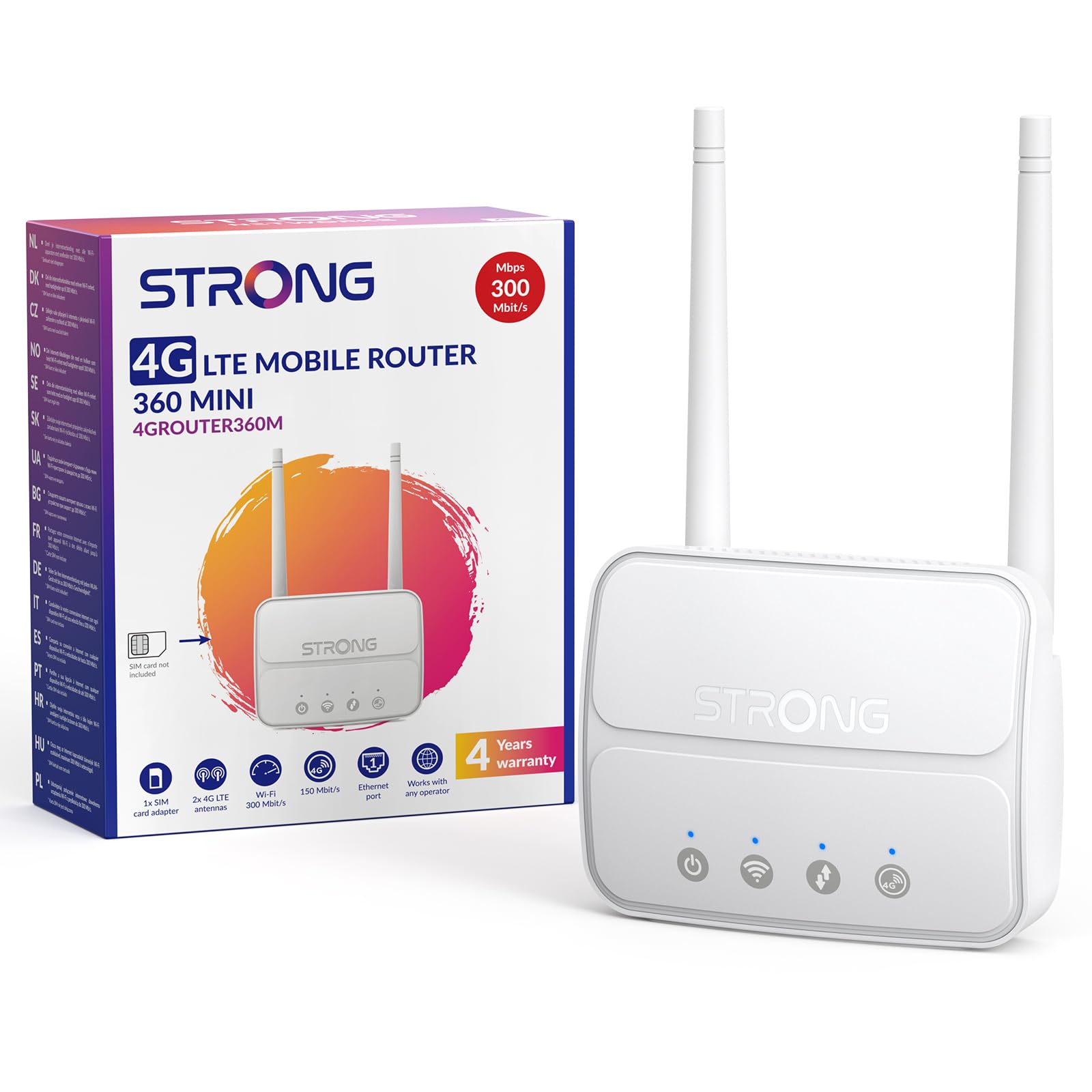
Image 1: The Strong 4G LTE N300 WiFi Router, a compact device with two external antennas for enhanced signal reception.
2. He aha kei roto i te Pouaka
Tena koa tirohia nga ihirangi o te kete. Mena kei te ngaro, kua pakaru ranei etahi mea, whakapaa atu ki te tautoko a nga kaihoko.
- Strong 4G LTE N300 WiFi Router
- External Antennas (2 units)
- RJ45 Itarangi Taura
- Tuku Hiko o waho
- Nano to Micro SIM Card Adapter
- Aratohu Tāuta Tere
- Safety and Warranty Card
3. Aratohu Tatūnga
Follow these steps for a quick and easy setup of your Strong 4G LTE N300 WiFi Router.
3.1. Prepare Your SIM Card
Before inserting your SIM card, ensure that any PIN protection is disabled. You can do this by inserting the SIM card into a smartphone and disabling the PIN request through the phone's settings.
3.2. Insert the SIM Card
- Kimihia te mokamoka kaari SIM i runga i te pouara.
- If you have a Nano SIM, use the provided Nano to Micro SIM adapter to fit it into the standard SIM slot.
- Gently insert the prepared SIM card into the slot until it clicks into place.
3.3. Attach External Antennas
Screw the two external 4G antennas onto the designated connectors at the back of the router. Adjust their orientation for optimal signal reception.
3.4. Power On the Router
Connect the external power supply to the router's DC-in port and then plug it into a power outlet. The router will automatically power on and begin the startup sequence.
3.5. Connect to the Network (Plug & Play)
The router is designed for Plug & Play operation. Once powered on and with a valid SIM card, it will automatically connect to the 4G LTE network. You can then connect your devices via Wi-Fi or Ethernet.

Image 2: Visual guide for SIM card insertion and powering on the router for instant connection. The image also shows the SIM card slot supporting standard, micro, and nano SIMs with an adapter.
3.6. Te uru atu ki te Web Atanga
For advanced settings and network management, access the router's web atanga ma te pato 192.168.188.1 ki roto i to web browser's address bar. Refer to the Quick Installation Guide for default login credentials.
4. Nga Tohutohu Whakahaere
This section details how to use your Strong 4G LTE N300 WiFi Router for optimal performance.
4.1. Pūrere hono
The router supports connections for up to 32 devices simultaneously.
- Hononga Wi-Fi: Locate the Wi-Fi network name (SSID) and password printed on the label at the bottom of the router. Select this network on your device and enter the password to connect.
- Hononga Itarangi: Use an RJ45 Ethernet cable to connect devices such as PCs, game consoles, or Smart TVs to the router's 100 Mbps LAN port for a stable wired connection.
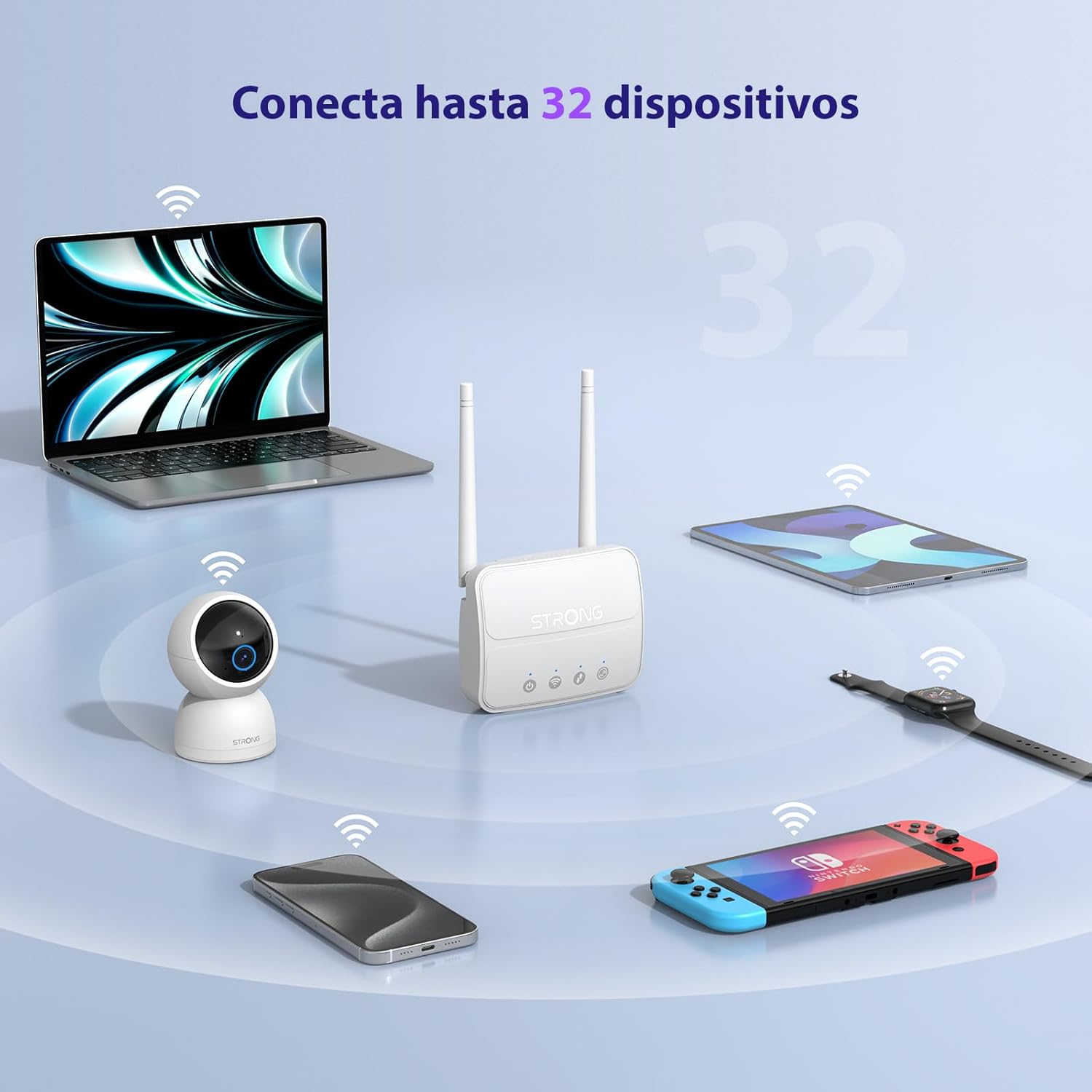
Image 3: The router connecting various devices including laptops, tablets, smartphones, and gaming consoles, demonstrating its capacity for up to 32 simultaneous connections.
4.2. Network Management and Security
The router offers robust security features to protect your network:
- WPA / WPA2 Whakamunatanga: Ensures secure wireless communication.
- PIN Control: Manage SIM card PIN settings.
- Tātari MAC: Control which devices can connect to your network based on their MAC addresses.
- Advanced Firewall Settings: Customize firewall rules for enhanced protection.
All these settings can be managed through the easy-to-use web atanga (192.168.188.1).

Image 4: A user managing network settings on a laptop, illustrating the router's WPA/WPA2 encryption and PIN control features for secure network management.
5. Tiaki
Mā te tiaki tika ka roa te ora me te mahi tino pai o tō pouara.
- Te horoi: Whakamahia he kakahu ngohengohe, maroke hei horoi i te taha waho o te pouara. Kaua e whakamahi i ngā wai horoi, i ngā waipara rānei.
- Turanga: Place the router in a well-ventilated area, away from direct sunlight, heat sources, and strong electromagnetic fields.
- Whakahōu Firmware: The router features a USB port specifically for firmware updates. Regularly check the Strong official website for the latest firmware versions to ensure improved performance and security. Follow the instructions provided with the firmware update package carefully.
6. Te Raru
Mena ka pāngia koe e ngā raruraru me tō pouara, tirohia ngā mahi rapurongoā noa e whai ake nei:
- Kaore he Hononga Ipurangi:
- Me mohio kei te tika te whakauru o te kaari SIM me te mahere raraunga kaha.
- Verify that the SIM card's PIN protection is disabled.
- Check the signal strength indicators on the router. If the signal is weak, try adjusting the external antennas or relocating the router.
- Tīmata anō i te pouara mā te momotu me te mono anō i te urutau hiko.
- Kāore e Kitea, e Hono Ana rānei te Wi-Fi:
- Ensure the Wi-Fi function is enabled (check the router's LED indicators).
- Manatokona kei te whakauru koe i te kupuhipa Wi-Fi tika (Kei te tapanga o te pouara te SSID me te kupuhipa).
- Try connecting a device via Ethernet to confirm the router has internet access.
- Ngā Tere Pōturi:
- Check the 4G signal strength. Weak signal can lead to slower speeds.
- Ensure no other applications or devices are consuming excessive bandwidth.
- Consider the number of connected devices; the router supports up to 32, but performance may vary with heavy usage.
- Kaore e taea te uru Web Atanga:
- Me whakarite kei te hono tō pūrere ki te whatunga o te pouara (Wi-Fi, Ethernet rānei).
- Whakaū kei te pato koe i te wāhitau IP tika: 192.168.188.1.
- Whakamātauria he rerekē web pūtirotiro.
If these steps do not resolve the issue, please contact Strong customer support.
7. Whakatakotoranga
Detailed technical specifications for the Strong 4G LTE N300 WiFi Router (Model 4GROUTER360M).
| Āhuahira | Whakatakotoranga |
|---|---|
| Waitohu | Kaha |
| Ingoa Tauira | 4GRUTER360M |
| Hangarau Hononga | 4G, Ethernet, LTE, Wi-Fi |
| Paerewa Ahokore | 802.11n (N300 Mbps) |
| 4G LTE Tere | Up to 150 Mbps (Cat4) |
| Tauranga Itarangi | 1 x 100 Mbps LAN Port |
| Kāri Kāri Sim | Standard (2FF), includes Nano to Micro adapter |
| Momo Antenna | 2 x External, Detachable 4G Antennas; 2 x Internal Wi-Fi Antennas |
| Max Pūrere Hono | Tae atu ki te 32 |
| Āhuatanga Haumarutanga | WPA/WPA2 Encryption, PIN Control, MAC Filtering, Firewall |
| Pūnaha Mahi | StrongOS |
| Ahu (Pake) | 18.1 x 15.6 x 7.3 cm |
| Taumaha Hua | 204 g |
| Tuku Hiko | Uru Uru Waho |
| Nga waahanga motuhake | Secure Network Management, Plug & Play, Connect up to 32 devices, USB port for firmware updates |
8. Pūtāhui me te Tautoko
Strong is committed to providing reliable products and excellent customer service.
8.1. Nga Korero Whakaputanga
Your Strong 4G LTE N300 WiFi Router comes with a 4-year protection plan, ensuring long-term peace of mind. Please refer to the included Safety and Warranty Card for detailed terms and conditions.
8.2. Tautoko Kiritaki
For any technical assistance, troubleshooting, or warranty inquiries, please contact our expert support team:
- Īmēra: support_at@strong-eu.com
Our support team offers solid service and extended coverage to assist you.

Image 5: Visual representation of Strong's reliable support, highlighting the 4-year protection and contact email for assistance.