
Kupu Whakataki
This manual provides essential information for setting up, operating, maintaining, and troubleshooting your HP 17.3" Touchscreen Laptop, model 17-cp3602nr. Please read this guide thoroughly to ensure proper use and to maximize the lifespan of your device.
Ihirangi mokete
Manatokona kei roto katoa nga mea kei roto i te kete:
- HP 17.3" Touchscreen Laptop (Model 17-cp3602nr)
- AC Power Adapter and Cord
- Aratohu Timata Tere (mehemea kei roto)

Image: The HP 17.3" Touchscreen Laptop and its included power adapter.
Tatūnga
1. Te Hia Tuatahi me te Whakatau
- Connect the AC power adapter to the laptop's AC smart pin port and then to a power outlet.
- Whakatuwheratia te taupoki o te pona. Tērā pea ka whakakā aunoa te pona, me pēhi rānei e koe te pātene mana kei runga i te papapātuhi.
- Allow the battery to charge fully before initial use, though you can begin setup while charging.
2. Tatūnga Windows 11
Follow the on-screen instructions to complete the Windows 11 Home setup. This typically includes:
- Te tīpako i tō rohe me te tahora papapātuhi.
- Te hono ki te whatunga Wi-Fi.
- Te takiuru me te whakamahi, te waihanga rānei i tētahi pūkete Microsoft.
- Te whakatū i tētahi PIN, kupuhipa rānei.
- Configuring privacy settings.
3. Tatūnga Pānui Taputapu
During or after Windows setup, you can configure the fingerprint reader for secure login. Navigate to Tautuhinga > Ngā Pūkete > Ngā Kōwhiringa Takiuru and follow the prompts to add your fingerprint.

Image: Close-up of the backlit keyboard and the integrated fingerprint reader on the HP laptop.
Nga Tohutohu Whakahaere
Te whakamahi i te Whakaaturanga Mata Paa
The 17.3" HD+ (1600 x 900) display supports touch input. You can interact with Windows 11 and applications directly on the screen using gestures similar to a tablet or smartphone. Ensure your screen is clean for optimal touch responsiveness.
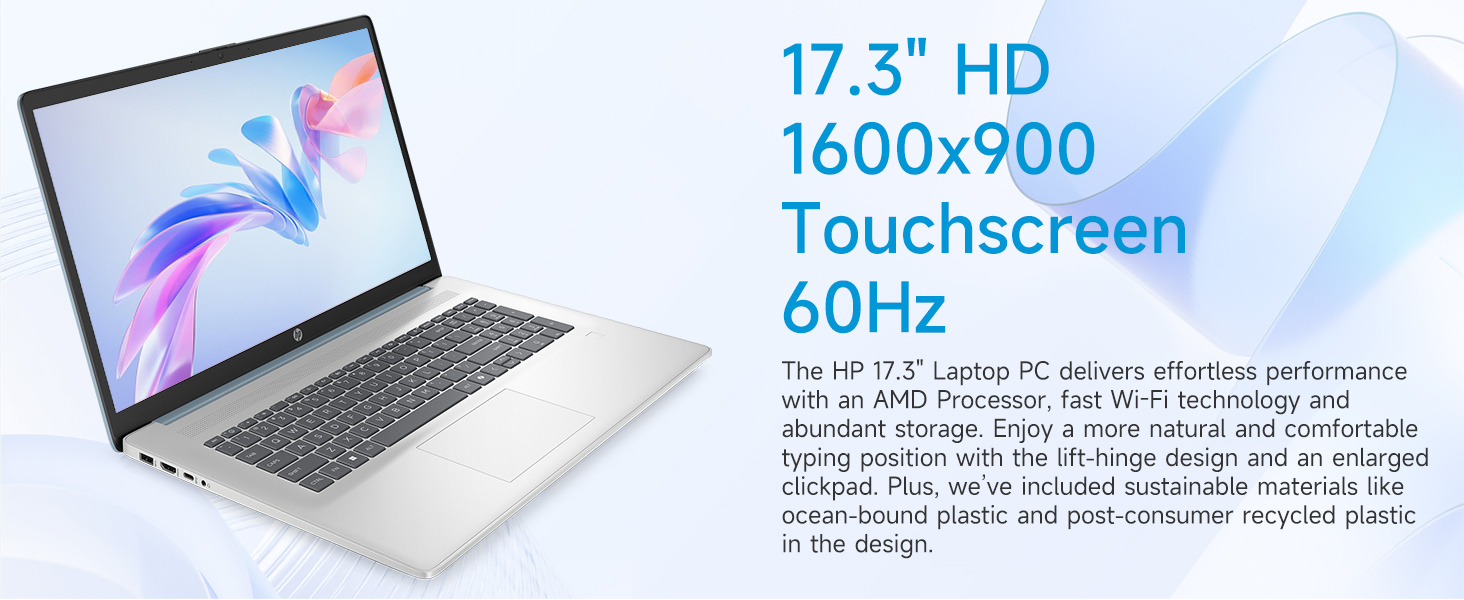
Image: The 17.3-inch touchscreen display of the HP laptop, illustrating its touch capabilities.
Papapātuhi me te Papapātuhi
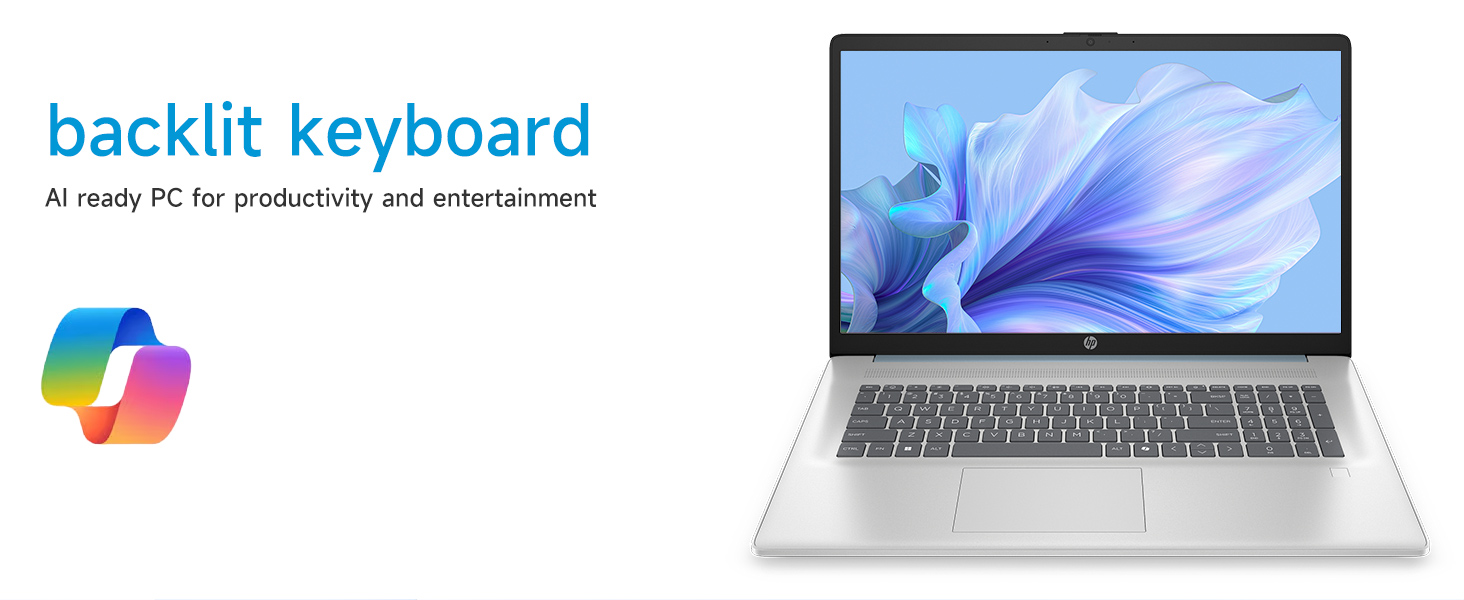
- Papapātuhi Whakamuri: Pehia te Fn + F5 (or similar function key with a keyboard backlight icon) to toggle the keyboard backlight on/off or adjust its brightness.
- Papapātuhi Tau: Utilize the dedicated numeric keypad for efficient data entry.
- Papapa: The large click pad supports multi-touch gestures for navigation. Refer to Windows settings for customizing touchpad gestures.
Connecting External Devices (Ports)
He maha ngā tauranga kei tō pona hei hono atu i ngā taputapu tāpiri:
- USB Type-C (5Gbps signaling rate): For connecting modern USB-C devices.
- USB Type-A (5Gbps signaling rate): Two ports for standard USB devices like mice, keyboards, or external drives.
- HDMI 1.4b: Connect to external monitors or TVs for extended display.
- Wae-oro/Microphone Combo Jack: For audio input/output with a single jack.
- Pine Atamai AC: Mo te hono i te urutau hiko.
Whakaahua: Taipitopito view of the laptop's side ports, including USB-A, USB-C, HDMI, and audio jack.
Wi-Fi 6 Hononga
The laptop supports Wi-Fi 6 (802.11ax) for fast and reliable wireless internet connectivity. To connect, click the Wi-Fi icon in the taskbar, select your network, and enter the password.
Te tiaki
Te horoi i to Pona
- Mata: Whakamahia he kakahu ngohengohe, karekau he ngongo paku damphoroia ki te wai, ki te kaihoroi mata rānei. Āta karohia ngā matū kino.
- Papapātuhi me te Chassis: Whakamahia he kakahu ngohengohe, maroke. Mo te paru maro, he paku damp ka taea te whakamahi i te kakahu, kia kore ai he wai e uru ki ngā pūaha.
- Tauranga: Keep ports free of dust and debris using compressed air if necessary.
Whakahōu Pūmanawa
Tirohia me te tāuta i ngā whakahōutanga Windows i ia wā, kia mōhio ai kei tō pūnaha ngā papaki haumarutanga hou me ngā whakapainga mahi. Haere ki Tautuhinga > Windows Update ki te whakahaere i nga whakahou.
Tiaki Pūhiko
To prolong battery life, avoid extreme temperatures and fully discharging the battery frequently. For long-term storage, charge the battery to about 50%.
Raparongoā
Ko tenei waahanga e aro ana ki nga take noa ka pa ki a koe.
Laptop Does Not Power On
- Me whakarite kei te hono tika te urutau AC ki te pona me te putanga hiko e mahi ana.
- Manatokohia kei te mahi te putanga hiko ma te hono ki tetahi atu taputapu.
- Mena kua pau katoa te pākahiko, tera pea ka roa te utu i mua i te taea o te whakakā i te pona.
Screen Remains Blank
- Tirohia mēnā kei te whakakāhia te pona (te rama tohu hiko).
- Try adjusting the screen brightness using the function keys (e.g., Fn + F2/F3).
- If an external monitor is connected, ensure it is properly configured in Windows display settings.
Nga Take Hononga Wi-Fi
- Me whakarite kua whakahohea te Wi-Fi i ngā tautuhinga Windows.
- Tīmataria anō tō pouara me te pouwhanga.
- Wareware te whatunga ka hono anō, me te whakauru anō i te kupuhipa.
- Whakahōu i ngā taraiwa Wi-Fi mā te Kaiwhakahaere Pūrere.
System Restarts Unexpectedly
Unexpected restarts can be caused by software conflicts, outdated drivers, or hardware issues. Ensure all Windows updates are installed and drivers are current. If the issue persists, consider running Windows diagnostic tools or contacting HP Support.
Whakatakotoranga
| Āhuahira | Taipitopito |
|---|---|
| Waitohu | HP |
| Ingoa Tauira | 17-cp3602nr |
| Rahi Mata | 17.3 Inihi |
| Whakaatu Whakatau | HD+ (1600 x 900) |
| Whakaatuhia nga waahanga | Touch, Anti-glare, 250 nits, 60% NTSC |
| Tukatuka | AMD Ryzen 5 7430U (6 Matua, 12 Miro, tae atu ki te 4.3 GHz) |
| Whakairoiro | Whakairoiro AMD Radeon (Whakaurua) |
| RAM | 8 GB DDR4 SDRAM (3200 MHz) |
| Rokiroki | 128 GB PCIe NVMe M.2 SSD |
| Pūnaha Mahi | Windows 11 Home |
| Tauranga | 1x USB Type-C 5Gbps, 2x USB Type-A 5Gbps, 1x HDMI 1.4b, 1x Headphone/Microphone Combo, 1x AC Smart Pin |
| Hononga Ahokore | Wi-Fi 6 (802.11ax) |
| Nga waahanga motuhake | Backlit Keyboard, Fingerprint Reader, Numeric Keypad, Webkamera |
| Dimensions (L x W x Thickness) | 15.78"L x 10.15"W x 0.81"Th |
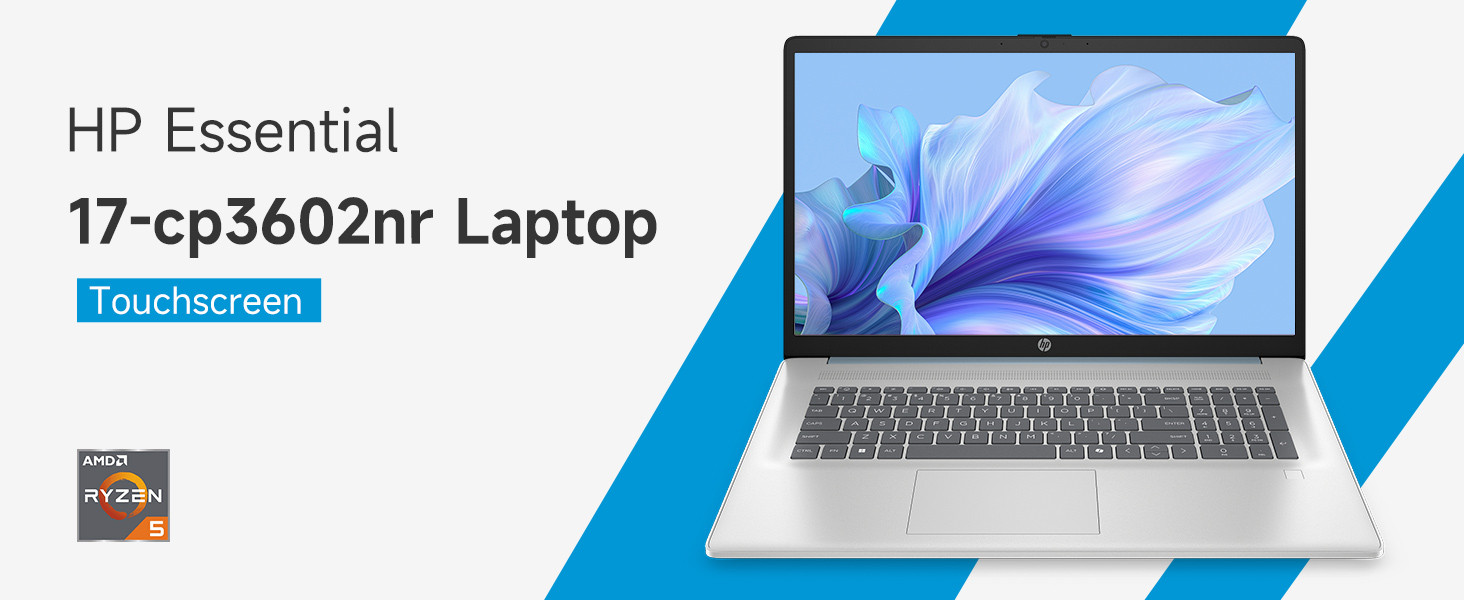
Image: An infographic highlighting key specifications such as the AMD Ryzen 5 processor, Windows 11 Home, storage, and connectivity options.
Pūtāhui me te Tautoko
Pūtāhui a te Kaihanga
Your HP laptop is covered by a standard manufacturer's warranty. For specific terms and conditions, please refer to the warranty documentation included with your product or visit the official HP support website. Warranty duration and coverage may vary by region.
Tautoko Hangarau
Mō te āwhina hangarau, te tango i ngā taraiwa, te rapurongoā atu rānei, tirohia te Tautoko HP mana. webpae:
When contacting support, have your laptop's model number (17-cp3602nr) and serial number ready.