
1. Kupu Whakataki
The WOLFANG WS03 is an advanced indoor 2K 3MP WiFi security camera designed to provide comprehensive monitoring for your home or office. It features 360° pan and 110° tilt capabilities, automatic motion tracking, two-way audio communication, and enhanced infrared night vision. This manual will guide you through the setup, operation, and maintenance of your camera to ensure optimal performance and security.
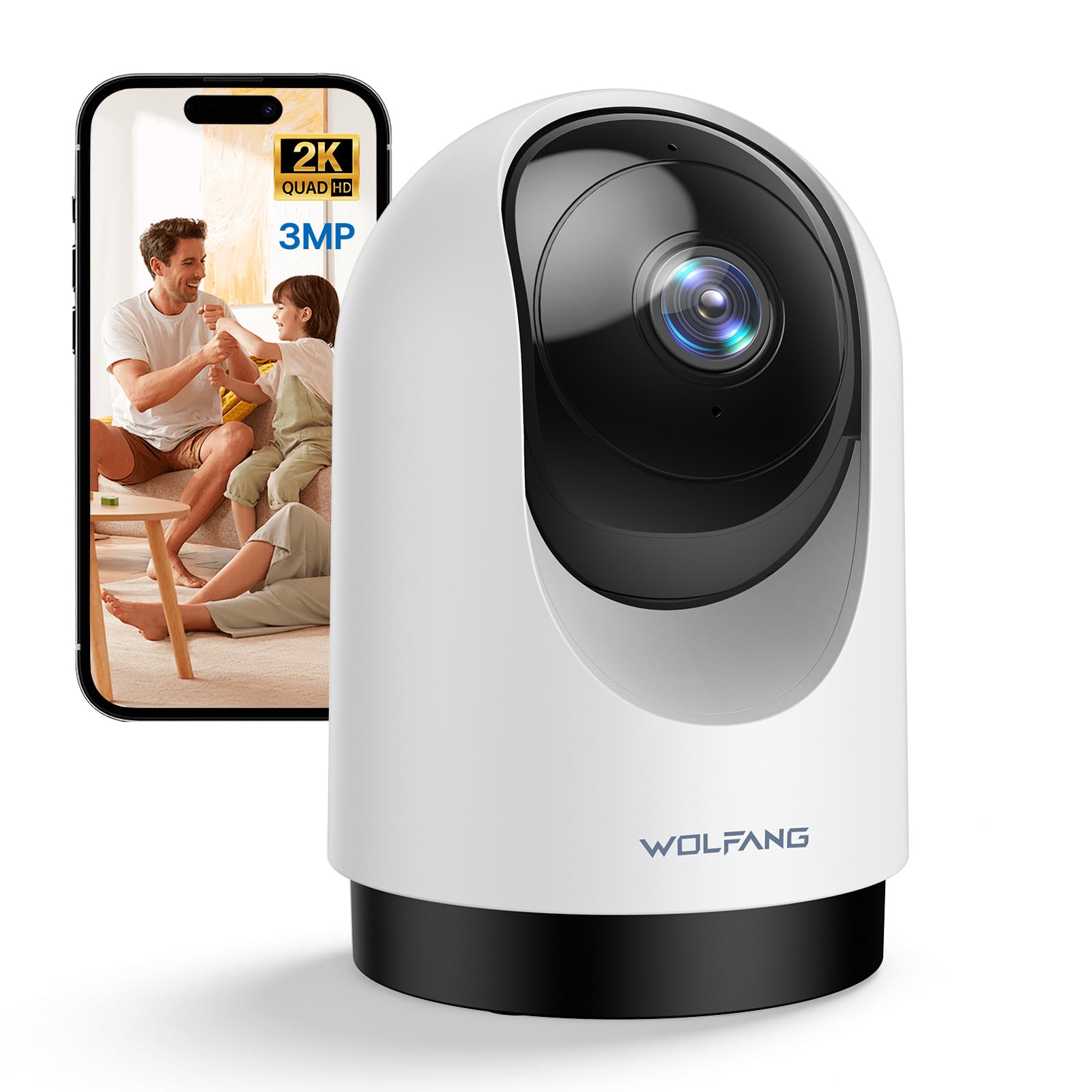
Image 1.1: WOLFANG WS03 Camera Overview
2. Ihirangi mokete
Tirohia ngā mea kei roto i te kete i te wā e wetewetehia ai. Mena kua ngaro, kua pakaru rānei ētahi taonga, whakapā atu ki te ratonga kiritaki.
- WOLFANG WS03 2K Indoor Security Camera
- Pūurutau Hiko
- USB Itini taura
- Mounting Accessories (screws, wall plugs, mounting bracket)
- Pukapuka Kaiwhakamahi (tenei tuhinga)
3. Hua Neke Atuview me nga ahuatanga
Familiarize yourself with the key features and components of your WOLFANG WS03 camera.
- Taumira 2K 3MP Ultra HD: Ka hopu i ngā ataata koi, taipitopito hokitage at 2304 x 1296p.
- Pane 360° me te 110° Hoa: Provides extensive coverage of your indoor environment, minimizing blind spots.
- Automatic Motion Tracking: The camera intelligently detects and follows moving subjects in real-time.
- Tirohanga Po Infrared: Equipped with IR LEDs for clear monitoring in complete darkness.
- Ororongo Ara-rua: Features a built-in microphone and speaker for seamless remote communication.
- Rapu Motini Ataata & Matohi Inamata: Advanced motion detection sends real-time notifications to your mobile device.
- Kōwhiringa Rokiroki Hangarau: Supports local storage via a microSD card (up to 128GB, not included) and offers optional cloud storage (14-day free trial).
- Hototahitanga Mana Reo: Integrates with Amazon Alexa and Google Home for convenient hands-free control.
- Tiri Kaiwhakamahi Maha: Allows secure sharing of camera access with up to four authorized users.

Image 3.1: WOLFANG WS03 Key Features Diagram
4. Aratohu Tatūnga
Follow these steps to set up your WOLFANG WS03 camera.
- 1. Whakahiko ana: Connect the camera to a power outlet using the provided USB power cable and adapter. The camera will power on and indicate its status (e.g., flashing LED).
- 2. Tikiake i te Taupānga: Tikiake te Osaio app from the Apple App Store or Google Play Store on your smartphone.
- 3. Create an Account: Open the Osaio app and follow the on-screen instructions to register for a new account or log in if you already have one.
-
4. Tāpiri Pūrere: In the Osaio app, tap the '+' icon to add a new device. Select your camera model (WS03) and follow the prompts to connect it to your Wi-Fi network.
- Me mohio kei te hono to waea atamai ki a 2.4GHz whatunga Wi-Fi. The camera does not support 5GHz Wi-Fi.
- You may need to scan a QR code displayed on your phone with the camera lens to establish the connection.
- 5. Whakanoho me te Whakapuru: Whakatakotoria te kāmera ki runga i tētahi mata pūmau, papatahi hoki, he mārama hoki te mata view of the area you wish to monitor. Alternatively, use the included mounting accessories to securely install the camera on a wall or ceiling. Ensure the camera is within range of your 2.4GHz Wi-Fi signal.
5. Nga Tohutohu Whakahaere
Learn how to use the various functions of your WOLFANG WS03 camera through the Osaio app.
5.1 Ora View me te Mana Pan/Tilt Control
Once connected, open the Osaio app and select your camera to view the live feed. Use the on-screen controls to pan (rotate horizontally 360°) and tilt (rotate vertically 110°) the camera lens to adjust your viewkoki.

Image 5.1: Pan and Tilt Functionality with Motion Tracking
5.2 Automatic Motion Tracking
Enable the automatic motion tracking feature in the app settings. The camera will then automatically detect and follow any moving objects or people within its field of view, ensuring important events are captured.
5.3 Ororongo Waa-rua
The built-in microphone and speaker allow for real-time two-way communication. Tap the microphone icon in the app to speak, and the sound will be projected through the camera's speaker. You can also hear audio from the camera's environment.

Whakaahua 5.2: Whakawhitiwhiti Ororongo Rua-Ara
5.4 Matakite Po
The camera automatically activates its infrared night vision mode in low-light conditions, providing clear black-and-white video footage even in complete darkness. This ensures continuous monitoring around the clock.

Image 5.3: Advanced Night Vision in action
5.5 Te tuhi me te rokiroki
The WOLFANG WS03 offers flexible recording and storage options:
- Rokiroki Kari MicroSD: Insert a microSD card (up to 128GB, not included) into the designated slot on the camera for continuous 24/7 recording or event-triggered recordings.
- Rokiroki Kapua: An optional cloud storage service is available, offering a 14-day free trial. This provides secure off-site storage for your video recordings.
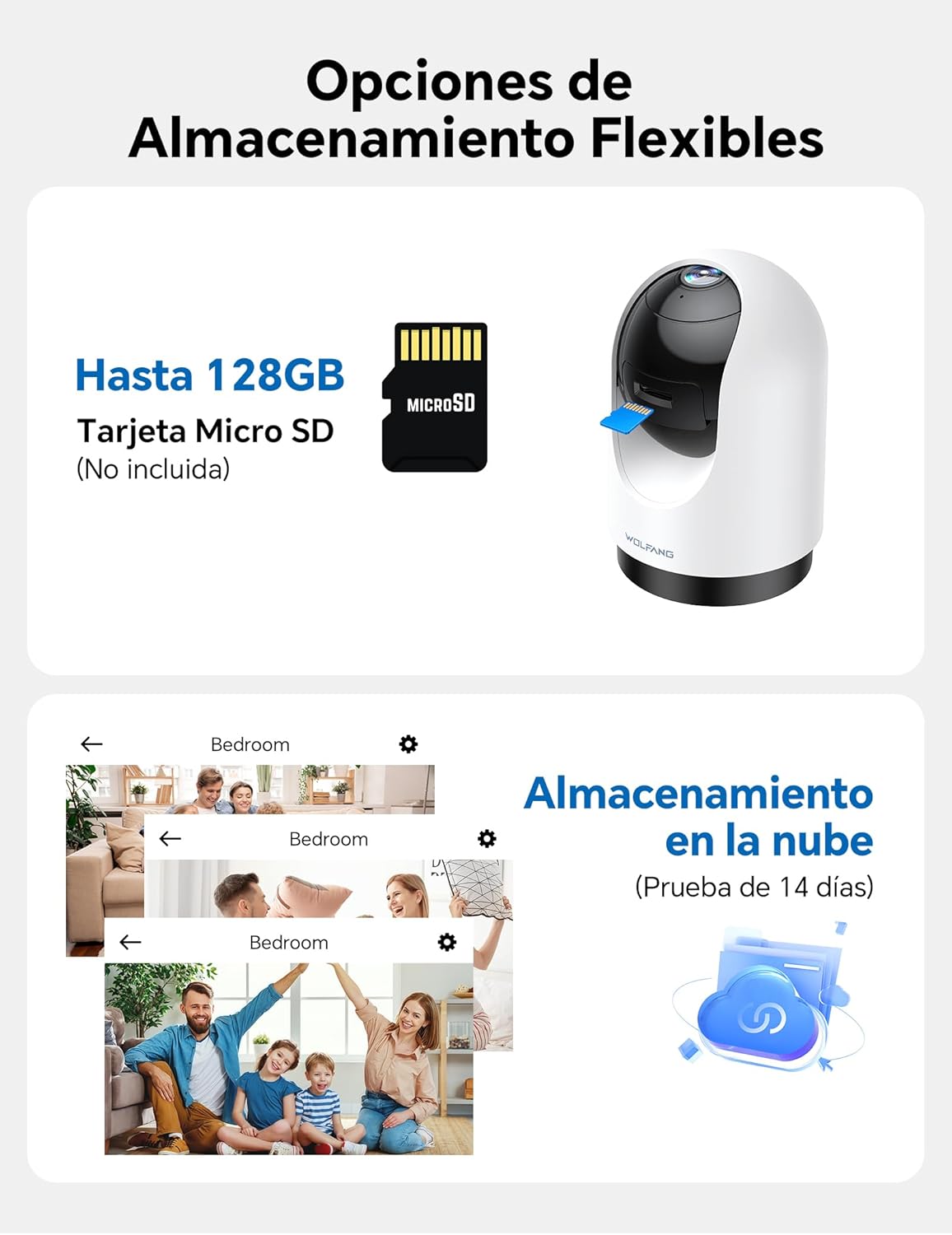
Image 5.4: Flexible Storage Options
5.6 Tiritahi Kaiwhakamahi Maha
You can share access to your camera's live feed and recordings with up to four other users. Use the sharing function within the Osaio app to invite family members or trusted individuals.

Image 5.5: Multi-User Sharing Interface
5.7 Whakaurunga Mana Reo
The WOLFANG WS03 camera is compatible with Amazon Alexa and Google Home. Link your camera to your smart home assistant through their respective apps to control it using voice commands, such as "Alexa, show me the living room."

Image 5.6: Voice Control with Smart Assistants
6. Tiaki
Ko te tiaki tika ka whakarite i te roa me te mahi tino pai o to kamera.
- Te horoi: Gently wipe the camera lens and exterior with a soft, dry, lint-free cloth. Avoid using liquid cleaners or abrasive materials, which can damage the lens or finish.
- Whakahōu Firmware: Regularly check the Osaio app for available firmware updates. Installing updates ensures your camera has the latest features, security patches, and performance improvements.
- Hurihanga Hiko: If the camera becomes unresponsive or experiences connectivity issues, try power cycling it. Unplug the power adapter from the camera for 10-15 seconds, then plug it back in.
- Nga Tikanga Taiao: Ensure the camera is used within its specified operating temperature and humidity ranges. Avoid exposing it to extreme temperatures, direct sunlight for prolonged periods, or high moisture environments.
7. Te Raru
Tirohia tenei waahanga mo nga otinga mo nga take noa ka pa ki a koe.
| Raruraru | Rongoa pea |
|---|---|
| Karekau te kamera e hono ana ki te Wi-Fi |
|
| Poor video quality or blurry image |
|
| Motion detection not working or false alerts |
|
| Two-way audio issues (cannot hear or speak) |
|
| USB power cable issue |
|
8. Whakatakotoranga
| Āhuahira | Taipitopito |
|---|---|
| Waitohu | WOLFANG |
| Ingoa Tauira | WS03 |
| Whakatau Ataata | 2K (2304 x 1296p) |
| Whakaaetanga Taiao | 3 Megapixels |
| Koki Panui | 360° Whakapae |
| Koki Honga | 110 ° Poutū |
| Hononga | Wi-Fi (2.4GHz anake) |
| Matakitenga Po | Infrared (IR) |
| Ororongo | Ororongo Rua-Waahi (Hauorooro me te Tukuoro) |
| Kōwhiringa Rokiroki | MicroSD card (up to 128GB, not included), Cloud Storage (optional) |
| Mana Reo | Compatible with Amazon Alexa, Google Home |
| Hunga Hua | 7.5 x 11 x 7.5 cm (tata ki te 2.95 x 4.33 x 2.95 inihi) |
| Hōputu Hopu Ataata | MP4 |
| Puna Mana | Wired Electric (No batteries required) |
| UPC | 850067892427 |
9. Pūtāhui me te Tautoko
WOLFANG is committed to providing high-quality products and customer satisfaction. For any questions, technical assistance, or warranty inquiries, please contact our dedicated customer support team.
Imeera Tautoko Kaihoko: tautoko.vc@wolfang.co
Please include your product model (WS03) and a detailed description of your issue when contacting support for faster assistance.