
Kupu Whakataki
The Roku Hiro 32-inch 720p HD Smart TV offers an integrated Roku streaming experience. This television features an HD display for clear picture quality and speakers with enhanced audio. It supports Bluetooth for private listening with headphones and includes Wi-Fi for internet connectivity. The Roku operating system provides a customizable home screen, access to numerous streaming channels, and automatic updates, making it suitable for various living spaces.
He aha kei roto i te Pouaka
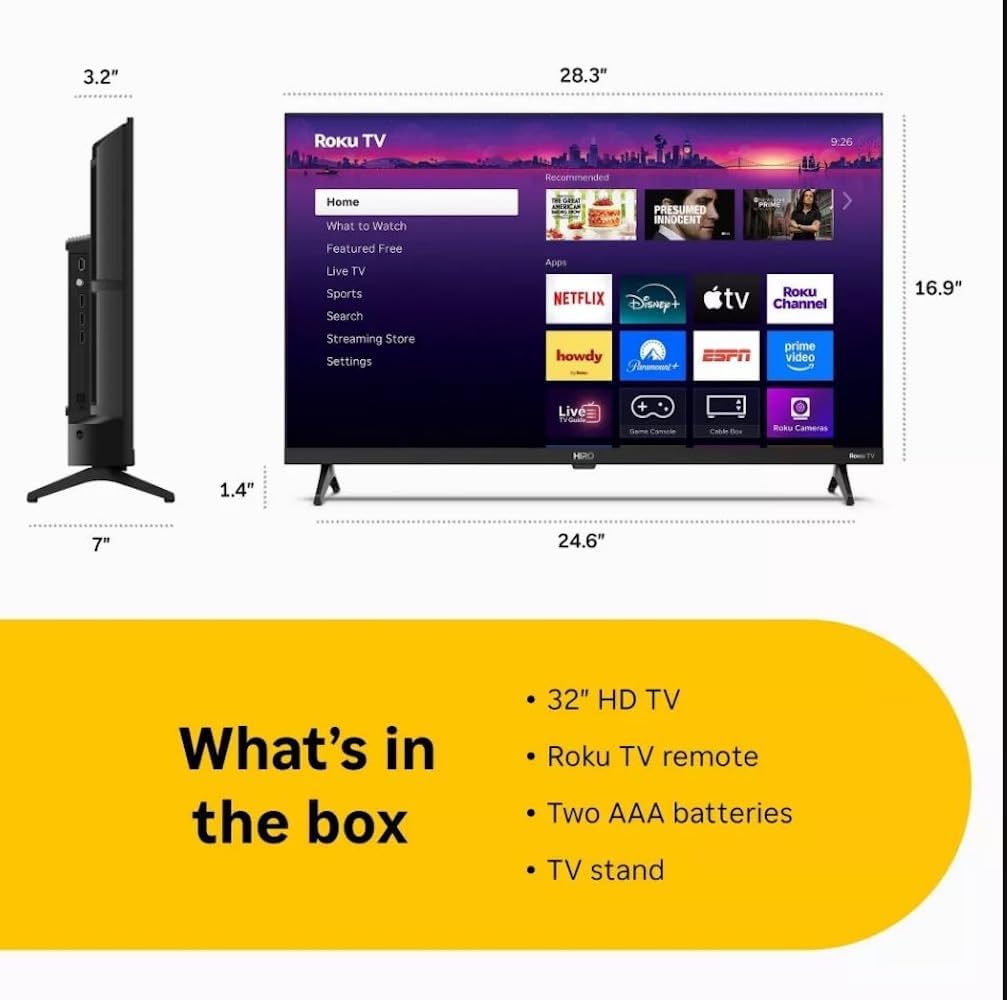
Diagram showing the dimensions of the Roku Hiro 32-inch TV and a list of included accessories: 32-inch HD TV, Roku TV remote, two AAA batteries, and TV stand.
- Hiro 32" 720p HD Smart TV Flat Screen LED Television with Roku TV
- Mana Mamao
- Tuukuru TV
- Waea Hiko
- Aratohu Kaiwhakamahi
Tatūnga
1. Tu te whakaurunga
Carefully place the TV screen-down on a soft, clean surface to prevent damage. Align the TV stand with the designated slots on the bottom of the TV. Secure the stand using the provided screws. Ensure the stand is firmly attached before proceeding.
2. Pūrere hono

Whakamuri view of the Roku Hiro TV, showing the input/output ports including USB, HDMI, and antenna connections.
- Mana: Honoa te taura hiko ki te whakauru hiko o te pouaka whakaata, katahi ka ki te putanga pakitara.
- HDMI: Connect external devices such as Blu-ray players, game consoles, or cable boxes to the HDMI ports. This TV features 3 HDMI ports.
- USB: Whakamahia te tauranga USB mō te purei pāpāho mai i te puku USB.
- Ororongo whatu: Connect an external sound system using an optical audio cable for enhanced sound.
- Antenna/Cable: Honoa he pūihi, he whāngai pouaka whakaata taura rānei ki te tāuru RF mō ngā hongere ā-rangi, taura rānei.
3. Tatūnga Tuatahi
After connecting all necessary cables, power on the TV. Follow the on-screen instructions to:
- Tīpakohia tō reo.
- Hono atu ki to whatunga Wi-Fi.
- Whakahohehia tō pūkete Roku (waihangahia rānei tētahi mea hou).
- Scan for available channels if an antenna is connected.
Nga Tohutohu Whakahaere
Nga Mahi Mana Mamao

Close-up of the Roku TV remote control, highlighting buttons for TV power, volume, mute, sleep timer, instant replay, options, and app shortcuts.
- Pātene Hiko: Ka whakakā, whakaweto rānei i te pouaka whakaata.
- Papa Aronga (D-Pad): Ka whakatere i ngā tahua me te tīpako i ngā tūemi.
- Pene OK: Ka whakamana i nga whiringa.
- Pātene Kāinga: Ka hoki ki te mata kāinga o Roku.
- Pātene Whakamuri: Ka hoki ki te mata o mua.
- Rōrahi Whakarunga/Whakararo: Whakaritea ai te rōrahi pouaka whakaata.
- Patene Whakakore: Wahangu, wetewete ranei te oro TV.
- Patene Pokatata Taupānga: Direct access to popular streaming services (e.g., Netflix, Disney+, Apple TV+, Prime Video).
- Waka Moe: Sets a timer for the TV to turn off automatically.
- Whakahoki Inamata: Jumps back a few seconds in supported content.
- Kōwhiringa: Accesses additional settings or information for the current content.
Navigating the Roku OS

The Roku TV home screen interface, showing recommended content and various streaming applications.
The Roku home screen provides access to all your streaming channels, inputs, and settings. Use the D-Pad on your remote to navigate through the menu options on the left and the app grid on the right. You can customize the order of your channels by highlighting an app, pressing the * (Options) button, and selecting 'Move channel'.
Ihirangi Rererangi
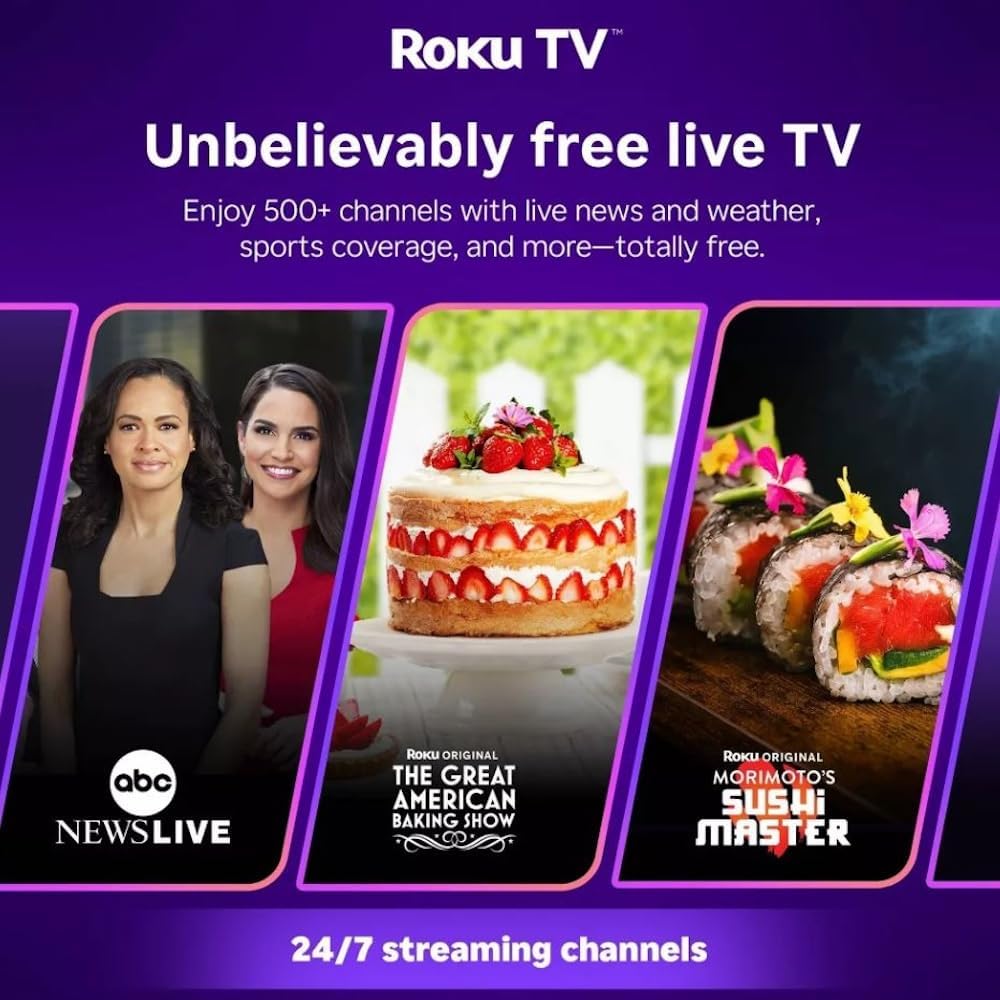
Roku TV interface promoting free live TV channels, featuring examples like ABC News Live, The Great American Baking Show, and Morimoto's Sushi Master.
Access a wide range of streaming services and free content through the Roku Channel Store. The Roku platform offers over 500 free channels, including live television, movies, and news. Use the 'Search' function on the home screen to find specific titles or channels.
Āhuatanga Ororongo

Roku Hiro TV displaying the home screen with various streaming apps, emphasizing enhanced audio quality.
The TV features enhanced audio quality. For private listening, you can pair Bluetooth headphones directly with the TV. Navigate to Settings > Remotes & devices > Bluetooth devices > Pair new device to connect your headphones.
Te tiaki
Te horoi i te pouaka whakaata
- Wewetehia te TV i mua i te horoi.
- Whakamahia he kakahu ngohengohe, kore karekau hei muru marie i te mata me te rūnanga.
- Mo nga tohu pakeke, kia ngawari dampen te kakahu ki te wai, ki te horoi mata ngawari, kore-abrasive ranei. Kaua e rehu tika te kai horoi ki te mata.
- A ape i te whakamahi i nga matū kino, i nga papa abrasive, i nga whakarewa ranei.
Whakahōu Pūmanawa
The Roku TV automatically checks for and installs software updates when connected to the internet. To manually check for updates, go to Tautuhinga> Pūnaha> Whakahou Pūmanawa.
Raparongoā
| Raruraru | Rongoā |
|---|---|
| Karekau he kaha | Me whakarite kia mau te hononga o te taura hiko ki te pouaka whakaata me te putanga hiko e mahi ana. Whakamātauria tētahi atu putanga. |
| Karekau he pikitia, engari he oro | Tirohia te puna whakauru. Pehia te Kainga button on the remote and select the correct input. Ensure all HDMI cables are securely connected. |
| Karekau he oro, engari he pikitia kei reira | Tirohia te taumata oro, kia mōhio ai kāore te pouaka whakaata i te whakangū. Ki te whakamahi koe i te oro o waho, manatokohia ngā hononga me ngā tautuhinga. |
| Kaore e taea te hono ki Wi-Fi | Manatokohia tō kupuhipa Wi-Fi. Tīmata anō i tō pouara me tō pouwhanga. Haere ki Tautuhinga> Whatunga> Whakaritea hononga to reconfigure. |
| Ko te mana mamao kaore e mahi | Whakakapihia nga pākahiko i te mamao. Me whakarite karekau he arai i waenga i te mamao me te pukoro IR o te pouaka whakaata. |
Whakatakotoranga
| Ingoa Tauira | H32C2C4 |
| Rahi Mata | 32 Inihi |
| Hangarau Whakaatu | LED |
| Whakatau | 720p |
| Rere tāmata | 60 Hz |
| Pūnaha Mahi | Roku OS |
| Hangarau Hononga | Bluetooth, HDMI, Optical Audio, USB, Wi-Fi |
| Total Number of HDMI Ports | 3 |
| Tauranga USB katoa | 1 |
| Rahi Hua (D x W x H) | 3.2"D x 28.3"W x 16.9"H |
| Taumaha Tūemi | 7.5 Pauna |
| Voltage | 120 Volts (AC) |
| Momo Whakaeke | Maunga Ripanga |
| Tae | Pango |
Nga korero Whakaputanga
This Roku Hiro TV is covered by a 90-day Replacement Warranty. Please retain your proof of purchase for any warranty claims. For detailed terms and conditions, refer to the warranty documentation included with your product or visit the official Roku support webpae.
Tautoko
For further assistance, troubleshooting guides, or to contact customer support, please visit the official Roku support website. You can find comprehensive FAQs and contact information there.