1. Kupu Whakataki
This manual provides instructions for the installation, operation, and maintenance of your Seagate Technology 200 GB USB 2.0 and FireWire External Drive (Model ST3200823A-RK). This high-capacity external drive offers reliable storage and high performance for your digital data.
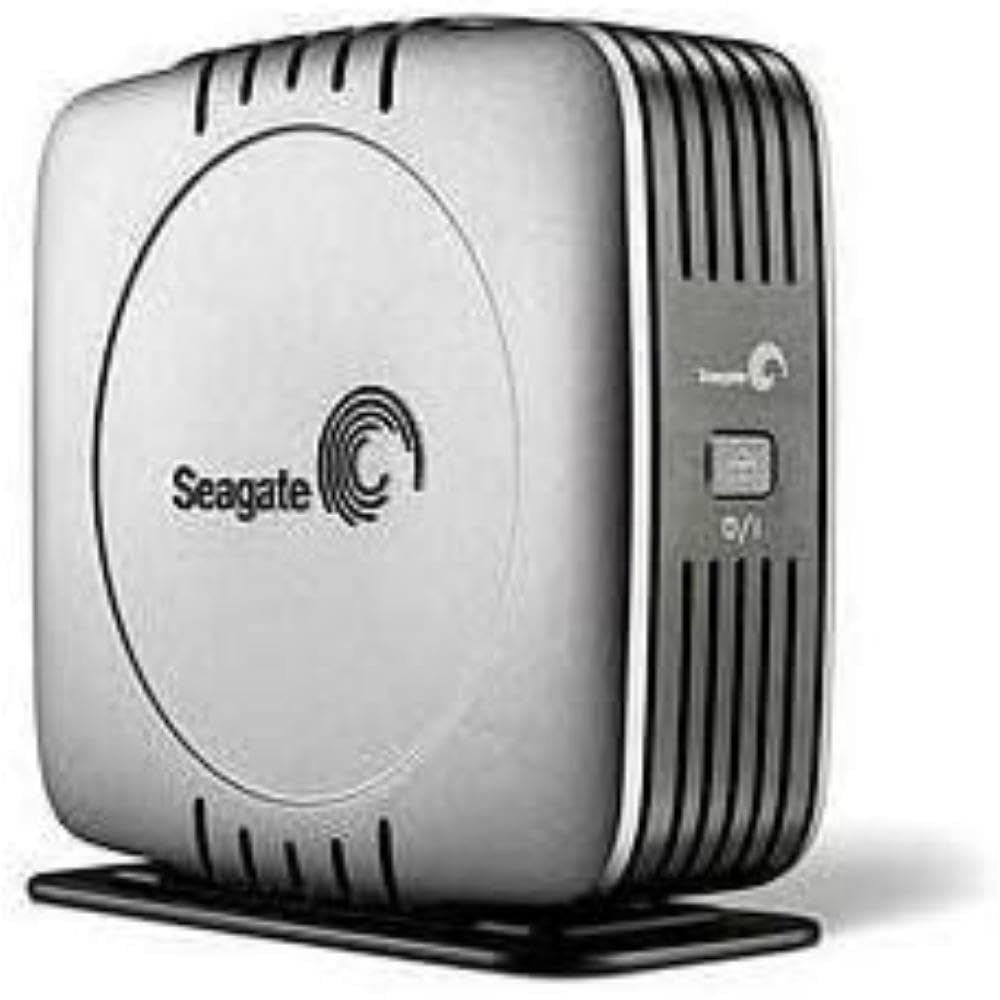
Figure 1: Seagate Technology 200 GB USB 2.0 and FireWire External Drive. This image displays the external hard drive, featuring a black rectangular casing with silver accents, indicating its compact design and connectivity ports.
2. Tatūnga
2.1 Unpacking the Drive
Kia ata tangohia nga waahanga katoa mai i te kete. Manatokohia kei te whakauruhia nga mea e whai ake nei:
- Seagate External Drive (ST3200823A-RK)
- USB 2.0 taura
- FireWire 1394a cable
- Adapter AC me te taura hiko
- Quick installation guide (refer to this manual for detailed instructions)
- Backup software CD (for optional installation)
2.2 Te hono ki to Rorohiko
The drive supports both USB 2.0 and FireWire (IEEE 1394a) connectivity. Choose the connection type compatible with your computer.
- Connect the Data Cable:
- For USB 2.0: Connect one end of the USB 2.0 cable to the USB port on the external drive and the other end to an available USB 2.0 port on your computer.
- For FireWire: Connect one end of the FireWire 1394a cable to the FireWire port on the external drive and the other end to an available FireWire port on your computer.
- Tūhonohia te Pūurutau Hiko: Plug the AC adapter into the power input on the external drive. Then, plug the power cord into a standard electrical outlet.
- Whakahiko: The drive should power on automatically or have a power button to activate it. Refer to the drive's physical indicators for power status.
- Whakaaetanga tuatahi: Your operating system (Windows or macOS) should detect the new hardware and install necessary drivers automatically. This process may take a few moments. The drive will appear as a new storage device in "My Computer" (Windows) or on the Desktop/Finder (macOS).
Tuhipoka: For optimal performance, ensure your computer has the latest drivers for its USB or FireWire ports.
3. Te whakahaere i te Puku
3.1 Whakawhiti Raraunga
Once the drive is recognized by your computer, you can transfer files to and from it using standard operating system functions:
- Tōia me te Whakataka: Patohia ka toia files or folders from your computer's internal drive to the external drive icon, or vice versa.
- Tārua ka Whakapiri: Pāwhiri-matau ki runga files/folders, select "Copy," then navigate to the destination on the external drive, right-click, and select "Paste."
- Pūmanawa Pūrua: Use the included backup software CD for automated backup solutions, if desired. Follow the on-screen instructions for installation and configuration.
3.2 Nga Ahua Mahi
The Seagate external drive features a 7200 RPM hard disk with an average seek time of 8.5 milliseconds, providing fast data access and transfer speeds, especially when connected via FireWire or USB 2.0.
3.3 Hototahi
This drive is compatible with both PC (Windows) and Macintosh (macOS) computers. Ensure your operating system is up-to-date for best compatibility and performance.
4. Tiaki
4.1 Tiakitanga Whanui
- Keep the drive in a clean, dry environment, away from direct sunlight, extreme temperatures, and humidity.
- Avoid placing heavy objects on the drive.
- Horoia te waho ki te kakahu ngohengohe, maroke. Kaua e whakamahia nga kai horoi wai, nga whakarewa ranei.
- Ensure adequate ventilation around the drive to prevent overheating.
4.2 Te Momotu Haumaru
Always safely eject or unmount the drive from your operating system before disconnecting the data cable or power. This prevents data corruption.
- Matapihi: Pāwhiritia te ata "Tango Haumaru i ngā Pūmārō me te Whakaputa Pāpāho" i roto i te paepae pūnaha, kātahi ka tīpako i te puku Seagate.
- macOS: Drag the drive icon from the Desktop to the Trash, or click the Eject icon next to the drive name in Finder.
5. Te Raru
If you encounter issues with your Seagate external drive, try the following steps:
- Kaore i kitea te Puku:
- Ensure all cables (power and data) are securely connected to both the drive and the computer.
- Try connecting the drive to a different USB or FireWire port on your computer.
- If using a USB hub, connect the drive directly to the computer.
- Verify the drive's power indicator light is on.
- Tīmataria anō tō rorohiko.
- Whakawhiti Raraunga Puturi:
- Ensure you are using USB 2.0 or FireWire 1394a ports on your computer, not older USB 1.1 ports.
- Katia nga tono koretake e rere ana i te papamuri.
- Check your computer's system resources; high CPU or memory usage can affect transfer speeds.
- He haruru rerekē te putanga o te puku:
If the drive emits grinding, clicking, or repetitive unusual noises, immediately back up any critical data if possible, and discontinue use. Contact Seagate support for further assistance.
- Te pirau Raraunga:
Always safely eject the drive before disconnecting. If data corruption occurs, try running disk utility tools provided by your operating system (e.g., Check Disk on Windows, Disk Utility on macOS).
For persistent issues, refer to the Seagate support webpaetukutuku, whakapā atu ranei ki ta raatau ratonga kaihoko.
6. Whakatakotoranga
| Tau tauira: | ST3200823A-RK |
| Te Rokiroki Mamati: | 200 GB |
| Hangarau Hononga: | USB 2.0, FireWire IEEE 1394a |
| Hard Disk RPM: | 7200 RPM |
| Wawaenga Rapu: | 8.5 milihakona |
| Ahu (D x W x H): | 7.2" x 6.5" x 2.25" (18.3 cm x 16.5 cm x 5.7 cm) |
| Taumaha Tūemi: | 6.51 pauna (2.95 kg) |
| Ngā Pūrere Hototahi: | PC and Macintosh computers (Desktop) |
| Kaihanga: | Seagate |
| Tae: | Pango |
7. Pūtāhui me te Tautoko
7.1 Hua Whakatau
This Seagate product is covered by a limited warranty. Please refer to the warranty information included with your product packaging or visit the official Seagate webpaetukutuku mō ngā tikanga me ngā herenga taipitopito e pā ana ki te kapinga pūtāhui, te roanga, me ngā tukanga kereme.
7.2 Tautoko Hangarau
For technical assistance, troubleshooting, or further inquiries, please visit the Seagate support webpae. Ka kitea e koe nga FAQ, nga tango taraiwa, me nga korero whakapā mo te ratonga kaihoko ki reira.
Tautoko Seagate Webpae: www.seagate.com/support


