Kupu Whakataki
The RCA DRC8052N DVD Recorder is designed for recording and playing back video content on DVD discs. This device allows you to record from various sources such as a television, camcorder, or other video devices, and archive your favorite movies and shows. It features an HDMI output for a high-quality digital connection and upconversion to high-definition resolution, enhancing your viewing experience. The unit also supports DivX playback and includes convenient front audio/video input jacks for easy connectivity.
Tatūnga
Follow these steps to set up your RCA DRC8052N DVD Recorder:
- Wewete ana: Carefully remove the DVD recorder and all accessories from the packaging. Ensure all components are present.
- Hononga Hiko: Connect the power cord to the DC IN 9V port on the rear of the unit and then plug it into a standard electrical outlet.
- Video Output Connection:
- For optimal picture quality, connect an HDMI cable from the HDMI PUTA port on the DVD recorder to an HDMI-IN tauranga i runga i to pouaka whakaata.
- Alternatively, use composite video (yellow) and stereo audio (red/white) cables to connect the VIDEO ATU a AUDIO OUT (R/L) ports on the DVD recorder to corresponding input ports on your television.
- Video Input Connection (for recording):
- To record from a camcorder, connect it to the DV-Input port on the front panel. This digital connection is ideal for transferring digital video.
- For other video sources (e.g., VCR, cable box), use the ORORO I ROTO (R/L) a VIDEO I Roto jacks on the rear panel, or the convenient Front Audio/Video Input Jacks.
- Pūhiko Mana Mamao: Insert two AA batteries into the remote control unit, observing the correct polarity. The remote control is essential for full functionality.
- Hiko Tuatahi: Pehia te MANA button on the unit or remote control to turn on the DVD recorder. Follow any on-screen prompts for initial setup.
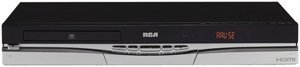
Whakaahua 1: Mua view of the RCA DRC8052N DVD Recorder, showing the disc tray and control buttons.
Nga Tohutohu Whakahaere
This section details the basic operation of your DVD recorder.
Te purei DVD
- Ensure the DVD recorder is powered on and your TV is set to the correct input source (e.g., HDMI 1, AV1).
- Pehia te TUwhera/KATI patene hei whakatuwhera i te paepae kōpae.
- Tuhia he kōpae DVD ki runga i te paepae me te taha tapanga anga whakarunga.
- Pehia te TUwhera/KATI pēhi anō i te pātene hei kati i te paepae. Ka utaina aunoa te kōpae.
- Whakamahia te TAKARO, TATAHI, KATI, and navigation buttons on the remote control to manage playback.
Te tuhi ki te DVD
The RCA DRC8052N supports recording to DVD+R/+RW and DVD-R/-RW discs.
- Insert a blank recordable DVD disc into the disc tray.
- Select the input source you wish to record from (e.g., DV-Input, AV-Input) using the remote control.
- Ensure the source device is playing or transmitting the content you want to record.
- Pehia te REKOTI button on the remote control or the unit to begin recording.
- Pehia te KATI pātene hei whakamutu i te rekoata.
- Finalize the disc if necessary, following the on-screen instructions, to ensure it can be played on other DVD players.
HDMI with HD Upconversion
When connected via HDMI, the DVD recorder can upconvert standard DVD images to high-definition resolution (up to 1080i), providing a clearer and more detailed picture on compatible HD televisions.
DivX Playback
This unit is DivX certified, allowing playback of DivX video files stored on compatible discs. Insert a disc containing DivX files, and the interactive user interface will guide you through selecting and playing the content.
Te tiaki
Proper care ensures the longevity and optimal performance of your DVD recorder.
- Te horoi i te Waehe: Use a soft, dry cloth to clean the exterior of the unit. Do not use liquid cleaners or abrasive materials, as they may damage the finish.
- Tiaki Kōpae: Handle discs by their edges to avoid fingerprints and scratches. Store discs in their cases when not in use. Clean dirty discs with a soft, lint-free cloth, wiping from the center outwards.
- Whakahau: Ensure the unit has adequate ventilation. Do not block any ventilation openings on the top, sides, or bottom of the recorder. Avoid placing the unit in an enclosed space or on soft surfaces that may obstruct airflow.
- Weto Whakakore: When not in use for extended periods, it is recommended to unplug the unit from the power outlet.
Raparongoā
If you encounter issues with your RCA DRC8052N DVD Recorder, refer to the following common solutions:
| Raruraru | Te Take Taea / Rongoa |
|---|---|
| Karekau te waeine i te hiko. | Ensure the power cord is securely connected to both the unit and a working electrical outlet. |
| Kāore he pikitia, kāore he oro i runga i te pouaka whakaata. | Check all video and audio cable connections (HDMI, composite). Ensure your TV is set to the correct input source (e.g., HDMI 1, AV1). |
| Kaore te kōpae e purei. | Ensure the disc is inserted correctly with the label side up. Check if the disc is clean and free of scratches. Verify the disc format is compatible with the player (e.g., DVD-Video, DivX). Some discs may be region-coded and not compatible. |
| Kaore e taea te tuhi. | Ensure a blank, recordable DVD disc (DVD+R/+RW or DVD-R/-RW) is inserted. Verify the input source is correctly selected and providing a signal. Check if the disc has sufficient free space. |
| Kaore e mahi te mana mamao. | Check and replace the batteries (2 AA batteries required). Ensure there are no obstructions between the remote and the unit's sensor. The remote control is necessary for full operation. |
| Unit takes a long time to start up. | A brief startup sequence (approximately 20 seconds) is normal for this device before it fully responds to commands. |
Whakatakotoranga
- Waitohu: RCA
- Tau tauira: DRC8052N
- Rahi Hua: 16.9 x 11 x 2.6 inihi
- Taumaha Tūemi: 10.1 pauna
- Pūhiko: E rua ngā pākahiko AA e hiahiatia ana (mō te mana mamao)
- Nga waahanga motuhake: Hoahoa kiato
- Momo Media: DVD (+R/+RW, -R/-RW)
- Whakatau: Up to 1920x1080 (via HDMI upconversion)
- Momo Tuhono: RCA, HDMI
- Hangarau Hononga: HDMI, RCA
- Aratau Putanga Ororongo: Tirooro
- Hōputu Ororongo Tautoko: Dolby Digital, DTS, PCM
- Tauranga HDMI Tapeke: 1
Pūtāhui me te Tautoko
For detailed warranty information, please refer to the warranty card included with your product or visit the official RCA website. For technical support or service inquiries, please contact RCA customer service through their official channels.


