Kupu Whakataki
This manual provides essential instructions for the setup, operation, maintenance, and troubleshooting of your iHome 7-Port USB 2.0 Hub, model IH-U512SP. Please read this guide thoroughly before using the product to ensure proper functionality and longevity.
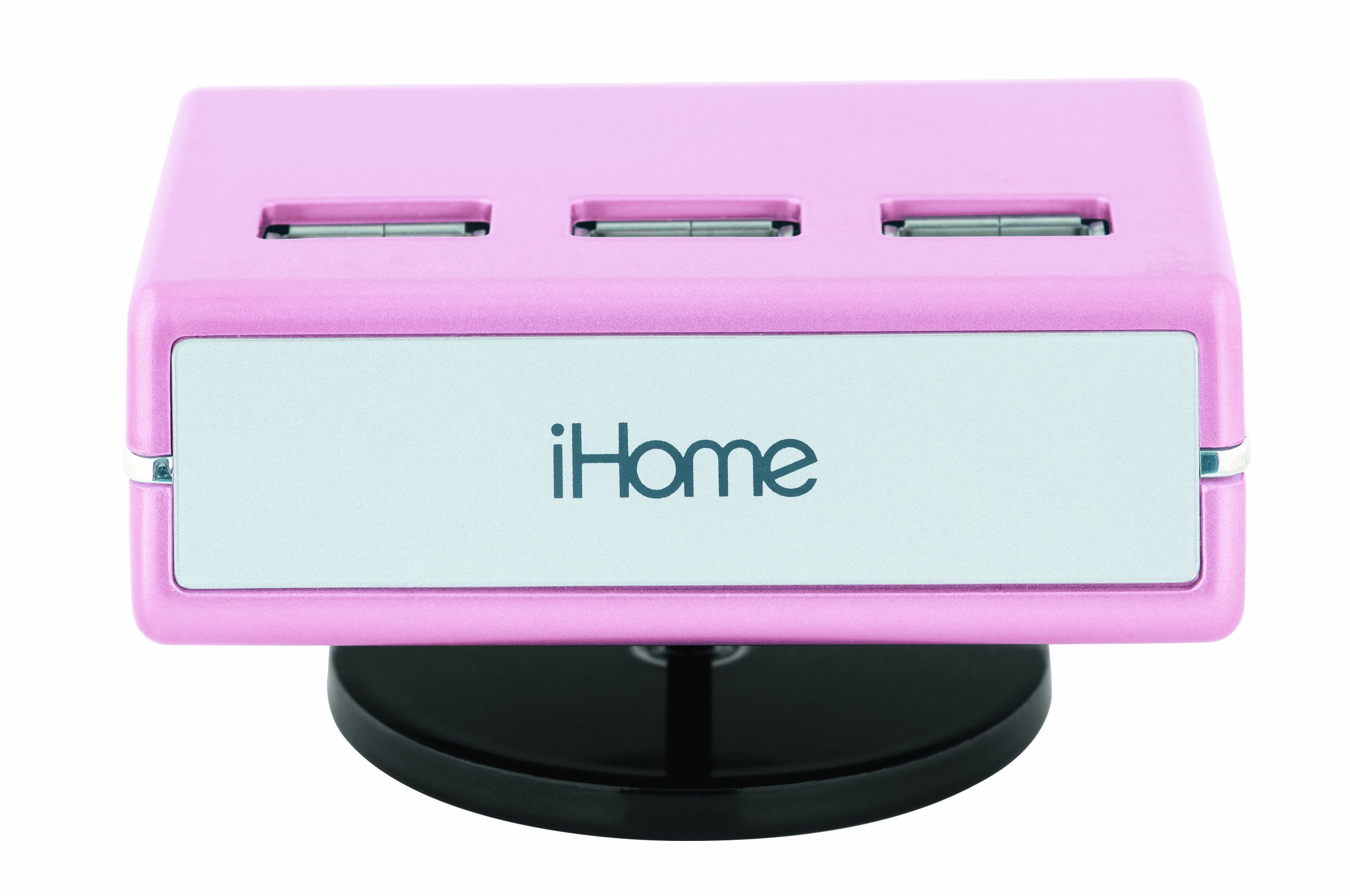
An image of the iHome 7-Port USB 2.0 Hub, featuring its compact design and seven USB 2.0 ports, including three top-loading ports, in a pink finish.
Tatūnga
Follow these steps to set up your iHome 7-Port USB 2.0 Hub:
- Honoa te Pūurutau AC: Plug the included AC adapter into the power input port on the iHome USB hub. Then, plug the other end of the AC adapter into a standard electrical outlet. This provides necessary power for the hub and connected devices.
- Hono ki Rorohiko: Use the provided USB cable to connect the iHome USB hub to an available USB port on your computer. Ensure the connection is secure.
- Tāuta Atekōkiri (mehemea e tika ana): For most modern operating systems (Windows, macOS, Linux), the hub should be recognized automatically without additional driver installation. If prompted, follow the on-screen instructions to install any required drivers.
- Tūhono Pūrere: You can now connect up to seven USB devices (such as printers, digital cameras, or iPods) to the available USB ports on the hub. The hub features three top-loading ports for convenient access.
Nga Tohutohu Whakahaere
The iHome 7-Port USB 2.0 Hub is designed for simple plug-and-play operation:
- Āhukahuka Pūrere: Once connected, your computer should automatically detect any devices plugged into the hub.
- Whakawhiti Raraunga Tere-Teitei: The hub supports Hi-Speed USB 2.0 technology, allowing for data transfer rates up to 480 Mbps. Actual speeds may vary depending on the connected devices and your computer's USB capabilities.
- Whakahaere Hiko: The included AC adapter ensures sufficient power delivery to all connected devices, which is especially important for power-hungry peripherals.
- Hototahi: This hub is ideal for connecting a wide range of USB 2.0 compatible devices, including but not limited to printers, digital cameras, external hard drives, and portable media players like iPods.
Te tiaki
Hei whakarite i te roa o te ora me te mahi tino pai o tō pū USB, whai i ēnei aratohu tiaki:
- Te horoi: Disconnect the hub from power and your computer before cleaning. Use a soft, dry, lint-free cloth to wipe the exterior. Do not use liquid cleaners, aerosols, or solvents.
- Rokiroki: Ki te kore e whakamahia, rongoatia te pūhiko ki te wāhi hauhautanga, maroke, kia matara atu i te rā tika me te pāmahana tino kino.
- Tiaki taura: Avoid bending or crimping the USB and power cables excessively. Always grasp the plug, not the cable, when disconnecting.
- Nga Tikanga Taiao: Do not expose the hub to moisture, dust, or corrosive environments.
Raparongoā
If you encounter issues with your iHome USB hub, refer to the following common solutions:
- Pūrere Kaore i te Mohiotia:
- Ensure the hub's AC adapter is securely plugged into both the hub and a working electrical outlet.
- Verify that the USB cable connecting the hub to your computer is firmly connected at both ends.
- Try connecting the problematic device directly to your computer's USB port to confirm the device itself is functioning.
- Connect the hub to a different USB port on your computer.
- Tīmataria anō tō rorohiko.
- He iti te Mana: If devices are not functioning correctly or intermittently, ensure the AC adapter is connected. Some high-power devices require the hub's external power supply.
- Whakawhiti Raraunga Puturi: Ensure both the hub and the connected device are USB 2.0 compatible. Connecting a USB 1.1 device will limit speeds to USB 1.1 rates.
- Nga Waenga Ngaro: If you believe essential parts are missing for proper functionality (e.g., specific cables for certain operating systems), please contact iHome customer support or your retailer.
Whakatakotoranga
| Tau tauira | IH-U512SP |
| Hunga Hua | 2.9 x 1.6 x 2.1 inihi |
| Taumaha Tūemi | 10.1 hekere |
| Tauranga USB katoa | 7 |
| Atanga Pūmārō | USB 2.0 |
| Pūrere Hototahi | Digital Cameras, Printers, iPods, and other USB 2.0 devices |
| Puna Mana | Pūurutau AC (kei roto) |
Pūtāhui me te Tautoko
For warranty information or technical support, please refer to the documentation included with your purchase or visit the official iHome webpae. Puritia to tohu hoko mo nga kereme whakamana.
Kaihanga: Lifeworks Technology, Inc.
Te Ra Tuatahi Wātea: Hui-tanguru 1, 2009


