1. Kupu Whakataki
This manual provides instructions for the SanDisk MobileMate MS+ USB 2.0 Mobile Card Reader/Writer, model SDDR-107-A10M. This device facilitates the transfer of files between various memory cards and your computer. It supports Memory Stick, Memory Stick Duo, Memory Stick PRO, and Memory Stick PRO Duo formats, offering a Hi-Speed USB 2.0 interface for efficient data transfer.
2. Ihirangi mokete
Manatokona kei roto katoa nga mea kei roto i to kete:
- SanDisk MobileMate MS+ USB 2.0 Mobile Card Reader/Writer (SDDR-107-A10M)
- 3-inch type Installation CD
- Taura toronga USB
- Clear protective caps (2)

Figure 2.1: SanDisk MobileMate MS+ Card Reader, USB extension cable, and protective caps.
3. Tatūnga
3.1 Whakaritenga Pūnaha
Ensure your computer meets the following minimum requirements:
- PC: Windows 98SE/ME/2000/XP, supported memory cards, USB 2.0 port (for Hi-Speed transfer), CD-ROM drive.
- Macintosh: Mac OS 9.2.x+, OS X v10.1.2+, supported memory cards, USB 2.0 port (for Hi-Speed transfer), CD-ROM drive.
3.2 Tāuta Atekōkiri
- Insert the provided 3-inch Installation CD into your computer's CD-ROM drive.
- Follow the on-screen instructions to install any necessary drivers or the TransferMate application.
- If prompted, restart your computer after installation.
3.3 Connecting the Card Reader
- Kimihia he tauranga USB e waatea ana i runga i to rorohiko.
- Plug the SanDisk MobileMate MS+ directly into the USB port. If the port is difficult to access or crowded, use the provided USB extension cable.
- Your computer should detect the device automatically.
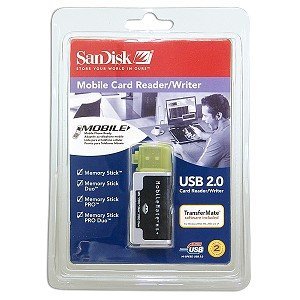
Figure 3.1: SanDisk MobileMate MS+ Card Reader with protective cap.
4. Nga Tohutohu Whakahaere
4.1 Te whakauru i te kaari mahara
- Identify the correct slot on the MobileMate MS+ for your memory card type (Memory Stick, Memory Stick Duo, Memory Stick PRO, or Memory Stick PRO Duo).
- Gently insert the memory card into the appropriate slot until it is fully seated. Do not force the card.
4.2 Te uru atu Files
- Once the card reader is connected and a memory card is inserted, your computer should recognize it as a removable drive.
- Open "My Computer" (Windows) or "Finder" (Mac) and locate the new removable drive.
- Double-click the drive icon to view the contents of the memory card.
4.3 Te Whakawhiti Files
- Using Drag-and-Drop: Tīpakohia te files or folders you wish to transfer from the memory card and drag them to a desired location on your computer's hard drive. Conversely, drag files from your computer to the memory card drive to transfer them to the card.
- Using TransferMate Application: If installed, launch the TransferMate application for additional features such as easy transfer, printing, emailing, and displaying images. Refer to the TransferMate application's help documentation for detailed instructions.
4.4 Safely Removing the Device
Before disconnecting the MobileMate MS+ from your computer, always safely eject the device to prevent data corruption:
- Matapihi: Click the "Safely Remove Hardware" icon in the system tray, then select the MobileMate MS+ device. Wait for the "Safe to Remove Hardware" message.
- Macintosh: Drag the removable drive icon to the Trash or right-click (Control-click) the drive icon and select "Eject."
Once safely ejected, you can physically disconnect the card reader from the USB port.
5. Tiaki
- Te horoi: Whakamahia he kakahu ngohengohe, maroke, kore-miro hei horoi i te taha waho o te kaipānui kāri. Kaua e whakamahi i ngā wai horoi, i ngā whakarewa rānei.
- Rokiroki: When not in use, store the MobileMate MS+ with its protective caps in a clean, dry environment away from extreme temperatures and direct sunlight.
- Te whakahaere: A ape i te tuku i te taputapu, te tuku ranei ki nga paanga kaha.
6. Te Raru
| Raruraru | Take pea | Rongoā |
|---|---|---|
| Ko te taputapu kaore e mohiotia e te rorohiko. |
|
|
| Nga tere whakawhiti raraunga puhoi. |
|
|
| Cannot read or write to memory card. |
|
|
7. Whakatakotoranga
| Tau tauira | SDDR-107-A10M |
| Hunga Hua | 6.1 x 4.8 x 1.2 inihi (tata) |
| Taumaha Tūemi | 2.89 hekere (tata) |
| Hangarau Hononga | Momo USB A |
| Atanga | Hi-Speed USB 2.0 (compatible with USB 1.1) |
| Momo Pouaka tautoko | Memory Stick, Memory Stick Duo, Memory Stick PRO Duo, Memory Stick Pro |
| Tae | Pango |
| Whakaaetanga Ture | FCC, CE, C-Tiki |
8. Pūtāhui me te Tautoko
For information regarding product warranty, technical support, or service, please refer to the documentation included with your purchase or visit the official SanDisk webpae. Ko ngā mōhiohio whakapā mō te tautoko kiritaki ka kitea i runga i te paetukutuku a te kaihanga webpae.
Kaihanga: SanDisk


