1. Kupu Whakataki
This manual provides essential information for the safe and efficient operation of your Intermec PD42 Series Commercial Printer. The PD42 is a dependable and versatile direct thermal printer designed for medium-duty applications in manufacturing, transportation, and warehousing environments. It features a robust all-metal chassis, proven printing mechanics, and powerful electronics to ensure reliable performance. The integrated monochrome graphical display allows for direct setup and configuration, enhancing user control and reducing reliance on host commands.
2. Nga korero haumaru
Please read and understand all safety instructions before operating the printer. Failure to follow these instructions may result in injury or damage to the equipment.
- Honoa tonutia te pūreretā ki tētahi putanga hiko e hono ana ki te whenua.
- Do not operate the printer with a damaged power cord or plug.
- Avoid placing the printer in areas with excessive dust, humidity, or extreme temperatures.
- Kaua e whakamātau ki te mahi i te pūreretā māu ake. Tukuna ngā mahi tiaki katoa ki ngā kaimahi whai tohu.
- Puritia nga ringa me nga kakahu matara mai i nga waahanga neke i te wa e mahi ana.
3. Ihirangi mokete
Verify that all items are present in the package. If any items are missing or damaged, contact your supplier immediately.
- Intermec PD42 Series Commercial Printer
- Power Cord (Euro and US compatible)
- Aratohu Timata Tere (mehemea kei roto)
- Documentation CD (if included)
4. Tino Tinoview
Familiarize yourself with the external components and connection ports of the Intermec PD42 printer.

Whakaahua 4.1: Mua me te Taha View of the Intermec PD42 Printer. This image displays the printer's front panel with its graphical display and control buttons, along with a label partially ejected from the print mechanism. The robust casing and compact design are visible.
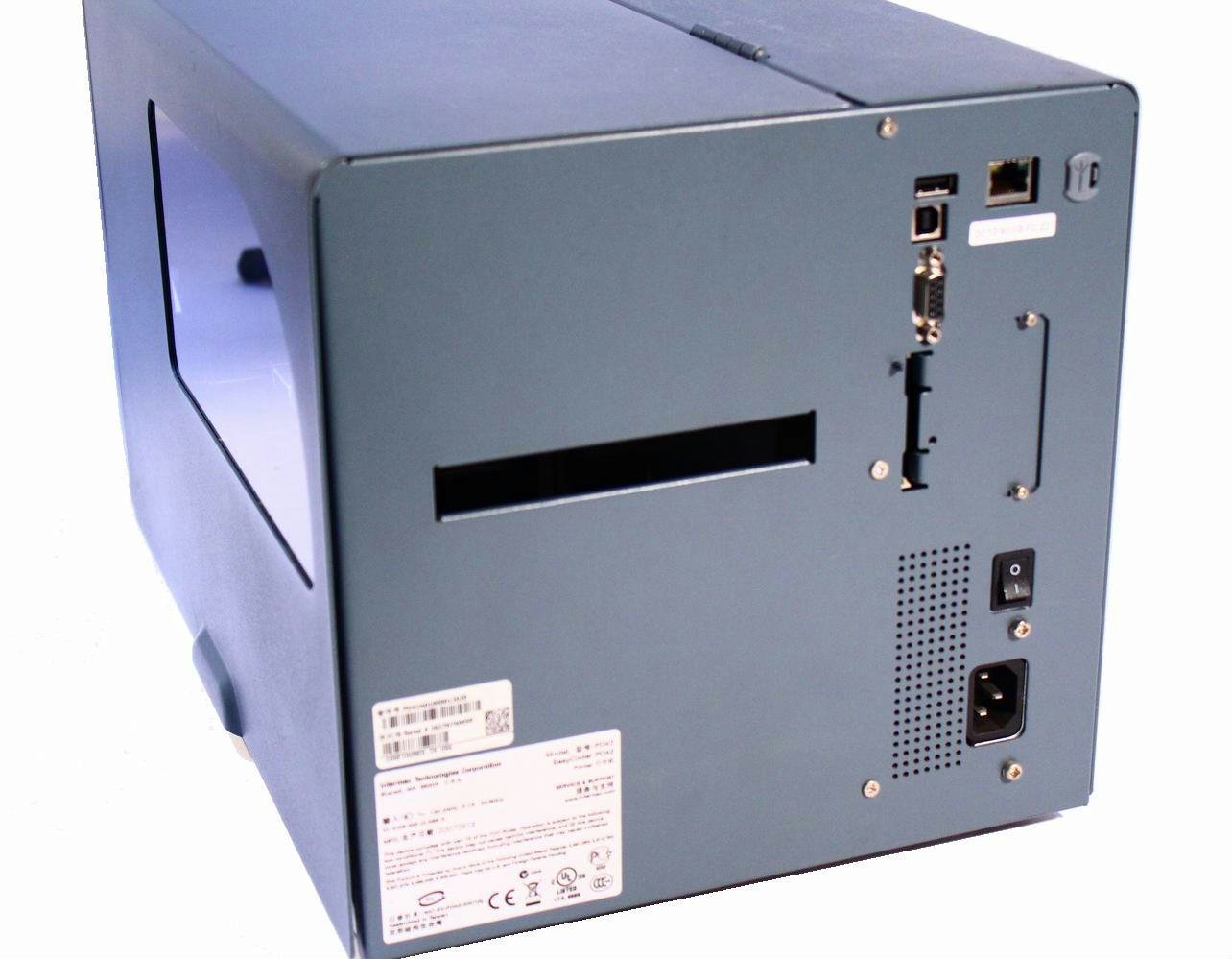
Whakaahua 4.2: Whakamuri View of the Intermec PD42 Printer. This image highlights the various connectivity options available on the back of the printer, including USB, Serial, and Ethernet ports. The power input and main power switch are also visible.

Whakaahua 4.3: Roto View of the Intermec PD42 Printer. With the top cover open, this image reveals the internal mechanisms for loading labels and ribbon. Key components such as the printhead assembly, media guides, and ribbon spindles are visible, illustrating the media path.
5. Tatūnga
5.1 Te Wetewete me te Whakanoho
- Āta tango i te pūreretā mai i tōna tākainga.
- Whakatakotoria te pūreretā ki runga i tētahi mata pumau, papatahi, ā, e tika ana te hauhautanga.
- Ensure sufficient space around the printer for media loading and maintenance.
5.2 Te Mana Hononga
- Connect the power cord to the power input on the rear of the printer (refer to Figure 4.2).
- Monohia tetahi pito o te taura hiko ki tetahi putanga hiko kua oti te tu.
5.3 Connecting Data Cables
The PD42 offers multiple connectivity options:
- USB: Honoa he taura USB mai i te tauranga USB o te pūreretā ki tō rorohiko.
- Rangatū: Connect a serial cable from the printer's serial port to your computer or host system.
- Itarangi: Connect an Ethernet cable from the printer's Ethernet port to your network.
5.4 Loading Media (Labels and Ribbon)
The PD42 supports industry-standard 200-mm (8-inch) label rolls and 450-m (18,000-inch) ribbon rolls.
- Open the printer's top cover (refer to Figure 4.3).
- Follow the internal diagrams or specific instructions for your media type to correctly load the label roll onto the media spindle.
- Thread the labels through the media guides and under the printhead assembly.
- If using thermal transfer printing, load the ribbon onto the ribbon supply spindle and thread it according to the internal guides.
- Katia kia mau te uhi o runga.
6. Nga Tohutohu Whakahaere
6.1 Kei te Hiko / Weto
- Hei Whakahiko: Flip the main power switch on the rear of the printer to the 'On' position. The graphical display will illuminate.
- Hei Whakaweto: Flip the main power switch to the 'Off' position.
6.2 Using the Graphical Display
The monochrome graphical display and control buttons on the front panel allow you to configure printer settings directly. Navigate through menus using the arrow buttons and confirm selections with the 'Enter' button. Refer to the on-screen prompts for specific options.
6.3 Atekōkiri me te Tāuta Pūmanawa
Before printing from a computer, install the appropriate printer drivers. These are typically available on the manufacturer's website or an included CD. Follow the on-screen instructions during installation.
6.4 Printing a Test Label
After setup, it is recommended to print a test label to verify proper operation and media loading. This option is usually available through the printer's front panel menu or via the printer driver software.
7. Tiaki
Mā te tiaki auau ka tino pai te mahi, ā, ka roa ake te ora o tō pūreretā.
7.1 Cleaning the Printhead
The printhead should be cleaned regularly, especially if print quality degrades. Use a lint-free cloth or a printhead cleaning pen with isopropyl alcohol. Ensure the printer is powered off and cooled down before cleaning.
7.2 Cleaning Rollers and Media Path
Dust and adhesive residue can accumulate on rollers and within the media path. Use a lint-free cloth dampened with isopropyl alcohol to clean these components. Always power off the printer before cleaning.
7.3 Replacing Media
When the label roll or ribbon runs out, follow the steps in Section 5.4 to load new media.
8. Te Raru
This section addresses common issues you might encounter with your PD42 printer.
- Kāore te Pūreretā i te hiko: Check power cord connections and ensure the power outlet is functional.
- Kāore he Putanga Tā: Verify that the printer is online, connected correctly to the host, and that media is loaded properly. Check for error messages on the graphical display.
- He Rawe te Kounga Ta: Clean the printhead. Ensure the correct media and ribbon (if applicable) are used and properly loaded. Adjust print darkness settings via the display or driver.
- Nga take hono: Check all cable connections. Verify network settings for Ethernet connections. Reinstall printer drivers if necessary.
- Nga Karere Hapa kei te Whakaaturanga: Consult the printer's graphical display for specific error codes or messages, then refer to the full product documentation or manufacturer's support webpae tukutuku mō ngā otinga taipitopito.
9. Whakatakotoranga
| Āhuahira | Whakatakotoranga |
|---|---|
| Ingoa Tauira | PD42BJ1000002021 |
| Hangarau Tā | Waariki Tika |
| Putanga Pūreretā | Monochrome |
| Whakatau | 203 dpi |
| Tere Tā | Tae atu ki te 150 mm/s (6 ips) |
| Hangarau Hononga | USB, Rangatū, Itarangi |
| Āhuahira Motuhake | Graphical Display, Ethernet |
| Taumaha Tūemi | 28.7 Pauna |
| Hunga Hua | 25 x 15 x 15 inihi |
| Momo Kaiwhakahaere | Patene Pana |
| Papapāho tā | Tapanga |
10. Pūtāhui me te Tautoko
For warranty information and technical support, please refer to the documentation provided with your printer or visit the official Intermec (now Honeywell) webpae. Puritia to riirii hoko hei tohu mo te hoko mo nga kereme whakamana.
Rauemi ipurangi: For the latest drivers, firmware updates, and detailed troubleshooting guides, visit the manufacturer's support portal.


