Kupu Whakataki
This manual provides essential instructions for the setup, operation, and maintenance of your Logitech Stereo Headset H110. Please read this guide thoroughly before using the product to ensure optimal performance and longevity.
Ihirangi mokete
The Logitech Stereo Headset H110 package typically includes:
- Logitech Stereo Headset H110
- Tuhinga Kaiwhakamahi (tenei pukapuka)
Ka mutu te huaview
The Logitech Stereo Headset H110 is designed for clear audio communication and listening. It features a comfortable over-the-head design with an adjustable microphone.

Whakaahua 1: The Logitech Stereo Headset H110, showing the adjustable headband, earcups with foam padding, and the flexible microphone boom.
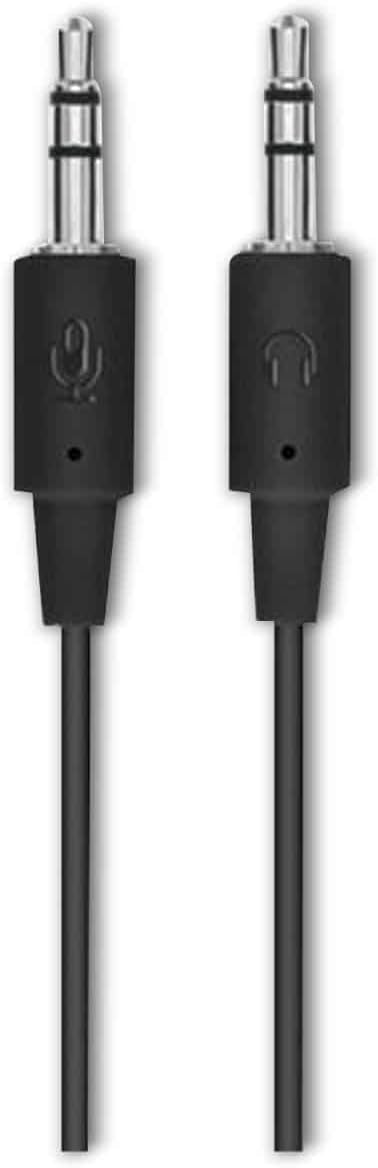
Whakaahua 2: The two 3.5mm audio jacks for the Logitech H110 headset. One jack is for audio output (headphones), and the other is for microphone input.
Tatūnga
- Honoa te Paneoro:
The Logitech H110 headset uses two 3.5mm audio jacks. One jack is typically green for audio output (headphones), and the other is pink for microphone input. Connect the green jack to your computer's audio output port and the pink jack to your computer's microphone input port.
Tuhipoka: Some devices, such as laptops or smartphones, may use a single combined 3.5mm jack for both audio and microphone. An adapter (not included) may be required for compatibility with such devices.
- Adjust the Headset:
Adjust the headband for a comfortable fit on your head. The earcups should rest gently over your ears.
- Whakaturia te hopuoro:
Position the flexible microphone boom so that the microphone is approximately 1-2 inches (2.5-5 cm) from your mouth for optimal voice clarity.
Nga Tohutohu Whakahaere
- Whakahoki Ororongo:
Once connected, your computer should automatically detect the headset as an audio output device. Play any audio (music, video, calls) to test the sound. Adjust the volume using your computer's system volume controls.
- Whakamahinga hopuoro:
For voice communication (e.g., video calls, online gaming), ensure the headset microphone is selected as the input device in your computer's sound settings or within the application you are using. Speak clearly into the microphone.
Te tiaki
- Te horoi:
Wipe the headset surfaces with a soft, dry cloth. Do not use liquid cleaners or abrasive materials. For the foam earpads, gently dab with a slightly damp kakahu ki te tika, ka tuku kia maroke katoa te hau i mua i te whakamahi.
- Rokiroki:
Store the headset in a clean, dry place away from extreme temperatures and direct sunlight. Avoid tangling the cable.
- Tiaki taura:
Do not pull on the cable to disconnect the headset. Always grasp the plug firmly. Avoid sharp bends or kinks in the cable to prevent internal damage.
Raparongoā
| Raruraru | Rongoa pea |
|---|---|
| Kaore he tangi mai i te pane |
|
| Kaore e mahi ana te hopuoro |
|
| He kino te kounga ororongo |
|
Whakatakotoranga
- Tauira: H110
- Tau Wāhanga (P/N): 981-000271
- Hononga: Dual 3.5mm audio jacks (one for audio, one for microphone)
- Ahu (H x W x D): Tata ki te 5.91 x 2.36 x 0.79 inihi (15 x 6 x 2 cm)
- Taumaha: Tata ki te 5.3 hekere (150 karamu)
- hopuoro: Adjustable, noise-cancelling (typical for basic headsets)
- Korooro: Foam padded
Pūtāhui me te Tautoko
Specific warranty information for the Logitech Stereo Headset H110 is typically provided with the product packaging or available on the official Logitech website. For technical support, product registration, or further assistance, please visit the official Logitech support page:
Tuhipoka: Warranty terms and conditions may vary by region and purchase date. Please retain your proof of purchase for warranty claims.


