Kupu Whakataki
He kāmera kounga teitei te Microsoft LifeCam HD-3000 webcam designed for clear video communication and recording. It offers a true HD-quality experience with 720p video chat and cinematic 16:9 widescreen recording. Featuring TrueColor Technology, it automatically adjusts to deliver bright and colorful video in various lighting conditions. Its universal attachment base allows for versatile placement on desktops, laptops, or notebooks.
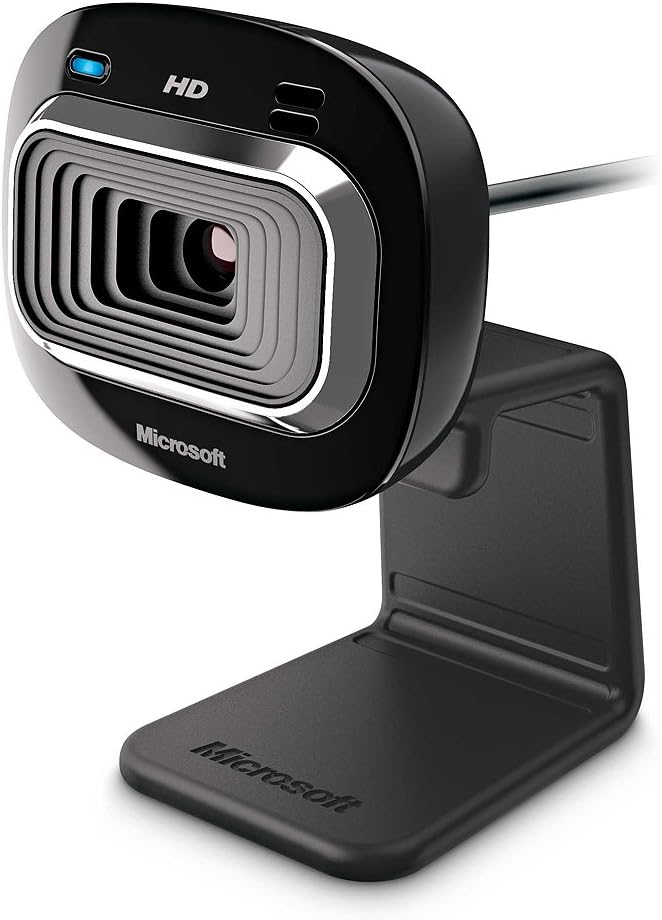
Whakaahua 1: Mua view of the Microsoft LifeCam HD-3000.
Tatūnga me te Tāuta
Setting up your LifeCam HD-3000 is straightforward. Follow these steps for quick installation:
- Wewetehia te Webkāmera: Carefully remove the LifeCam HD-3000 from its packaging. Ensure all components, including the USB cable and mounting buckle, are present.
- Tūhono ki tō Rorohiko: Plug the USB 2.0 connector of the LifeCam into an available USB port on your desktop, laptop, or notebook. The webcam is designed for plug-and-play functionality on compatible Windows operating systems (Windows 8, Windows 7, Windows Vista, Windows XP SP2 or higher).
- Tuhia te Webkāmera: The universal attachment base is flexible and can be securely placed on top of your monitor, laptop screen, or directly on your desk. Adjust the webcam's angle as needed for optimal viewing. The rubberized base helps prevent scratches on your screen.
- Tāuta Atekōkiri (mehemea e tika ana): In most cases, your operating system will automatically detect and install the necessary drivers. If prompted, follow the on-screen instructions to complete the driver installation. You may also visit the official Microsoft support webpae mo nga taraiwa hou.
- Whirihoranga Pūmanawa: For full functionality and advanced settings, it is recommended to install the Microsoft LifeCam software (if not pre-installed or automatically downloaded). This software allows for customization of video settings, photo capture, and special effects.

Figure 2: The flexible base allows for easy mounting on various surfaces.
Operating Your LifeCam HD-3000
Once installed, your LifeCam HD-3000 is ready for use with various communication and recording applications.
- Kōrerorero Ataata: Ko te webcam is optimized for 720p HD video chat, providing clear and vibrant visuals for your online conversations. It is compatible with popular video conferencing applications like Skype, Zoom, and Microsoft Teams.
- Widescreen Recording: Utilize the 16:9 widescreen format for cinematic video recording. This is ideal for creating content for online video platforms.
- TrueColor Technology: The TrueColor Technology automatically adjusts exposure and white balance to ensure your video remains bright and colorful, even in challenging lighting conditions. This feature operates in the background, providing optimal image quality without manual intervention.
- Puoro-roto: The LifeCam HD-3000 includes a digital microphone for clear audio capture during video calls and recordings. Ensure your communication software is configured to use the LifeCam's microphone as the input device.
- Hopu Whakaahua: Use the dedicated LifeCam software or your preferred application to capture still images.
Te tiaki
To ensure the longevity and optimal performance of your Microsoft LifeCam HD-3000, follow these simple maintenance guidelines:
- Te horoi i te Arotahi: Murua ata te webhe kakahu ngohengohe, kore-miro te arotahi kāmera. Mō ngā paru uaua, me āta whakamahiampen the cloth with a small amount of lens cleaning solution. Avoid using abrasive materials or harsh chemicals.
- Tiaki taura: Avoid bending or crimping the USB cable excessively. Store the cable neatly when not in use to prevent damage.
- Rokiroki: Ki te kore e whakamahia mo te wa roa, penapenahia te webka mau ki te waahi hauhautanga, maroke atu i te ra tika me te wera nui.
- Whakahōu Pūmanawa: Periodically check for software and driver updates from the official Microsoft support website to ensure compatibility and access to the latest features and performance improvements.
Raparongoā
Ki te pā mai he raruraru ki tō LifeCam HD-3000, ngana ki ēnei mahi whakatau raruraru:
- WebKore i kitea te kamera:
- Ensure the USB cable is securely plugged into a working USB 2.0 port. Try a different USB port.
- Tīmataria anō tō rorohiko.
- Check Device Manager (Windows) to see if the webcam is listed and if there are any driver issues (indicated by a yellow exclamation mark). Reinstall drivers if necessary.
- Poor Video Quality (Grainy, Dark, Washed Out):
- Ensure adequate lighting in your environment. While TrueColor Technology helps, sufficient ambient light is crucial for best results.
- Check your application's video settings to ensure 720p resolution is selected.
- Manatokohia kei te ma te arotahi me te kore he para.
- Kāore he Oro mai i te Hopuoro:
- Check your computer's sound settings and ensure the LifeCam HD-3000 microphone is selected as the default recording device.
- Verify microphone settings within your video conferencing application.
- Ensure the microphone is not muted in your system settings or application.
- Video Freezes or Lags:
- Close other applications that might be consuming significant system resources (CPU, RAM, network bandwidth).
- Ensure your internet connection is stable and has sufficient bandwidth for HD video streaming.
- Whakahoutia o taraiwa whakairoiro.
Whakatakotoranga
| Āhuahira | Taipitopito |
|---|---|
| Hunga Hua | 1.75 x 1.55 x 4.29 inihi |
| Taumaha Tūemi | 3.2 hekere |
| Tauira Tuemi | T3H-00001 |
| Kaihanga | Microsoft |
| Hangarau Pūoko Whakaahua | CMOS |
| Whakataunga Hopu Ataata | 720p (1280 x 720) |
| Aperture Morahi | 1.2 f |
| Hōputu Hopu Ataata | MP4 |
| Hōputu Ororongo Tautokohia | PCM |
| Hangarau Hononga | USB |
| Tae | Pango |
| Nga Whakaritenga Pūnaha | Windows 8, Windows 7, Windows Vista, Windows XP (with Service Pack 2 (SP2) or higher); VGA video calling: Intel Dual-Core 1.6 GHz or higher, 1 GB of RAM; 720p HD recording: Intel Dual-Core 3.0 GHz or higher, 2GB of RAM; 1.5 GB free space; USB 2.0; Windows-compatible speakers or headphones. |

Figure 3: Dimensions of the LifeCam HD-3000.
Pūtāhui me te Tautoko
Microsoft products typically come with a limited warranty. For detailed warranty information, product registration, and technical support, please visit the official Microsoft support webpae. Puritia to tohu hoko mo nga kereme whakamana.
For further assistance, you can also refer to the Toa Microsoft i runga i a Amazon.
Ataata Hua Whaimana
Karekau he ataata hua whaimana i hangaia e te kaihoko mo te whakauru i tenei wa.


