BlackBerry BB 9900

BlackBerry BB 9900 Bold Touch Smartphone User Manual

Model: BB 9900

1. Kupu Whakataki

This manual provides essential instructions for setting up, operating, and maintaining your BlackBerry BB 9900 Bold Touch smartphone. Please read this guide thoroughly to ensure proper use and to maximize the device's capabilities. The BlackBerry BB 9900 Bold Touch combines a capacitive touchscreen with a full QWERTY keyboard, running on BlackBerry OS 7.

2. Ihirangi mokete

Manatokohia kei roto i to kete nga mea e whai ake nei:

3. Pūrere Neke Atuview

Familiarize yourself with the physical features of your BlackBerry BB 9900 Bold Touch.

3.1 Tuhinga o mua View

BlackBerry BB 9900 Bold Touch front view, showing the screen, QWERTY keyboard, and navigation buttons.

Whakaahua: Mua view of the BlackBerry BB 9900 Bold Touch, highlighting the 2.8-inch touchscreen and the physical QWERTY keyboard below it. The device also features a trackpad and call/end buttons.

  • Whakaatu Mata Paa: 2.8-inch capacitive display for interactive navigation.
  • Papapātuhi QWERTY: Full physical keyboard for efficient typing.
  • Optical Trackpad: For precise navigation and selection.
  • Ngā Pātene Waea/Mutu: Standard telephony controls.

3.2 Whakamuri View

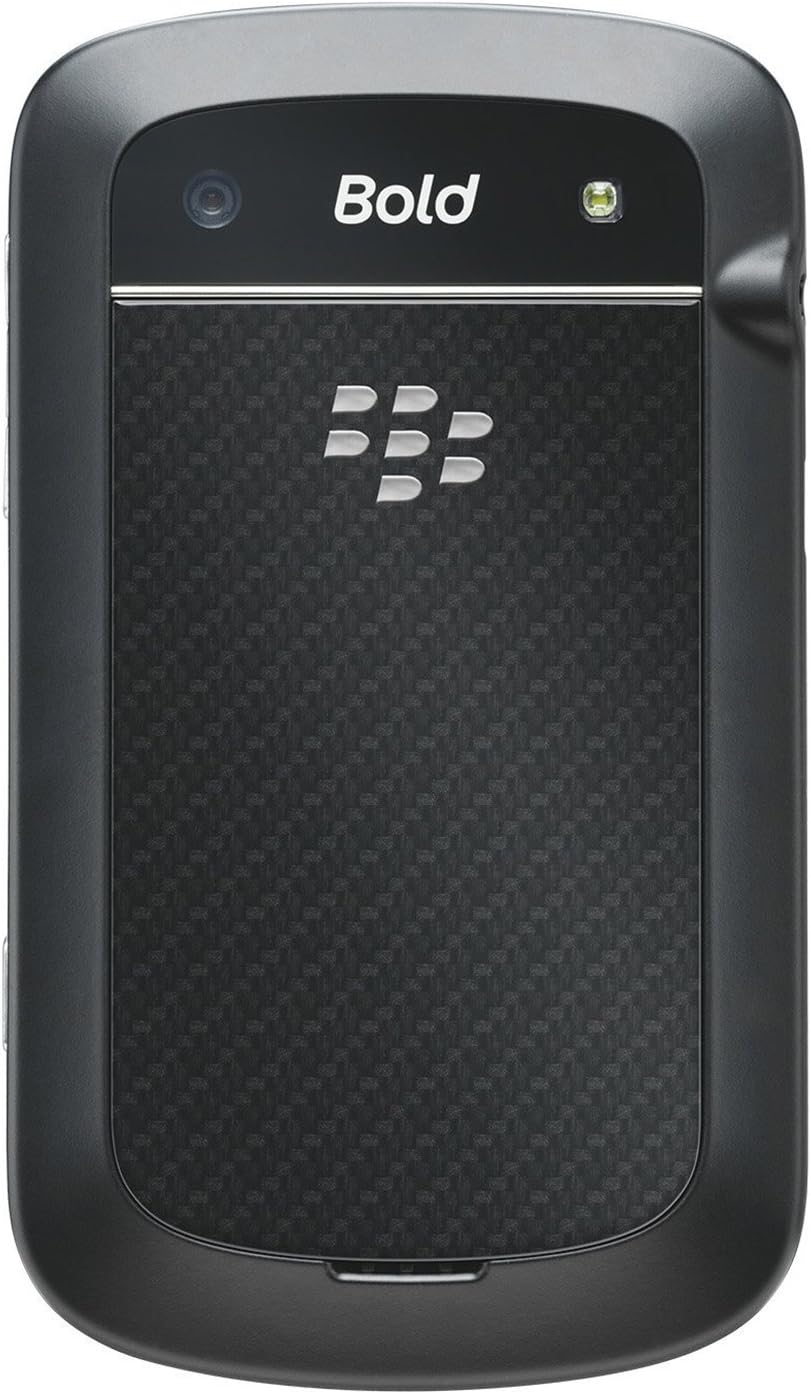
BlackBerry BB 9900 Bold Touch rear view, showing the 5MP camera lens and LED flash.

Whakaahua: Rear view of the BlackBerry BB 9900 Bold Touch, featuring the 5-megapixel camera lens, LED flash, and the BlackBerry logo.

  • Kāmera 5MP: Primary camera with autofocus and LED flash.
  • Uwhi Pūhiko: Removable cover for battery and SIM card access.

3.3 Taha View

BlackBerry BB 9900 Bold Touch side view, showing volume buttons and convenience key.

Whakaahua: Taha view of the BlackBerry BB 9900 Bold Touch, illustrating the placement of the volume control buttons and a customizable convenience key.

  • Pātene Rōrahi: Whakatikatikahia ngā taumata oro.
  • Convenience Key: Customizable shortcut button.

4. Tatūnga

4.1 Te whakauru i te Kaari SIM

  1. Remove the battery cover from the back of the device.
  2. Kimihia te mokamoka kaari SIM.
  3. Whakauruhia te kāri SIM me ngā hononga koura e anga ana ki raro, me te kokonga tapahi e hangai ana ki te mokowā.
  4. Me whakarite kei te mau tonu te kāri SIM i tōna tūranga.

4.2 Te whakauru i te Pūhiko

  1. After inserting the SIM card, align the battery's gold contacts with the contacts in the battery compartment.
  2. Pehia ata te pākahiko kia paato noa.
  3. Whakakapia te uhi pākahiko.

4.3 Te Whakataki i te Pūrere

  1. Connect the USB cable to the charging port on your device.
  2. Plug the other end of the USB cable into the wall charger, then into a power outlet.
  3. Allow the device to charge fully before first use. The battery indicator on the screen will show charging status.

4.4 Kei te Hiko / Weto

  • Hei Whakahiko: Press and hold the Power/Lock button (usually located on the top edge) until the BlackBerry logo appears.
  • Hei Whakaweto: Press and hold the Power/Lock button until the 'Power Off' option appears on the screen. Tap 'Power Off' to confirm.

5. Nga Tohutohu Whakahaere

5.1 Whakatere Mata Pā

  • Tap: Touch the screen briefly to open applications, select items, or activate buttons.
  • Swipe: Drag your finger across the screen to scroll through lists or switch between home screen panels.
  • Whakawiri-ki-Topa: Use two fingers to zoom in or out on photos, web pages, or maps.

5.2 Using the QWERTY Keyboard

The physical QWERTY keyboard allows for fast and accurate text entry. Each key corresponds to a letter, number, or symbol. Use the 'Alt' key for alternate characters and the 'Shift' key for capitalization.

5.3 Waeatanga

  1. From the home screen, tap the Phone icon or press the green Call button.
  2. Enter the phone number using the keyboard.
  3. Pēhia te pātene Karanga matomato hei tīmata i te waea.
  4. Hei whakamutu i tētahi waea, pēhia te pātene whero Whakamutu Waea.

5.4 Te Tuku Karere

  1. Tap the Messages icon from the home screen.
  2. Select 'Compose New' or similar option.
  3. Whakauruhia te nama o te kaiwhiwhi, tohua ranei mai i nga hoapaki.
  4. Type your message using the QWERTY keyboard.
  5. Tap 'Send'.

5.5 Te whakamahi i te kamera

  1. Tap the Camera icon to open the camera application.
  2. Angahia to kopere ma te whakamahi i te mata hei a viewKaituku.
  3. Tap the screen or press the convenience key (if configured) to take a photo.
  4. The 5MP camera features autofocus and an LED flash for improved image quality.

5.6 Te hono ki Wi-Fi

  1. Go to 'Options' > 'Networks and Connections' > 'Wi-Fi'.
  2. Whakakāhia te Wi-Fi. Ka matawai te pūrere mō ngā whatunga e wātea ana.
  3. Tīpakohia to whatunga e hiahia ana koe ka uru ki te kupuhipa mena ka akiakihia.
  4. Once connected, the Wi-Fi indicator will appear in the status bar.

5.7 Using NFC (Near Field Communication)

The BlackBerry BB 9900 Bold Touch supports NFC for short-range wireless communication. This allows for quick pairing with compatible accessories or sharing data with other NFC-enabled devices by tapping them together.

  1. Me mohio kei te whakahohea te NFC ki o tautuhinga taputapu.
  2. Hold your device close to another NFC-enabled device or tag.
  3. Follow on-screen prompts to complete the desired action (e.g., pairing, data transfer).

6. Tiaki

6.1 Te horoi i to taputapu

  • Use a soft, lint-free cloth to wipe the screen and body of the device.
  • A ape i te whakamahi i nga matū kino, te horoi horoi, te rehu aerosol ranei.
  • Kaua e tukuna te taputapu ki te makuku nui.

6.2 Tiaki Pūhiko

  • A ape i nga wera nui, ka taea te whakaheke i te mahi o te pākahiko.
  • Whakamahia anake te rihi taketake, te rihi kua whakaaetia rānei.
  • Kaua e werohia, kaua e pakaru te pākahiko.

6.3 Whakahōu Pūmanawa

Periodically check for software updates to ensure your device has the latest features and security enhancements. Updates can typically be found in the device's 'Options' or 'Settings' menu under 'Software Updates'.

7. Te Raru

7.1 Kaore te Pūrere i te hiko

  • Me whakarite kia tika te whakauru me te utu o te pākahiko.
  • Honoa te pūrere ki te rihi ka tatari mō ētahi meneti i mua i te ngana ki te whakakā anō.
  • If the issue persists, try removing and reinserting the battery.

7.2 Nga Take Hononga Whatunga

  • Check if your SIM card is correctly inserted and activated with your carrier.
  • Verify that cellular data or Wi-Fi is enabled in your device settings.
  • Tīmataria anō te pūrere.
  • If using Wi-Fi, ensure your router is working and you have entered the correct password.

7.3 Touch Screen Unresponsive

  • Tīmataria anō te pūrere.
  • Me whakarite kia ma te mata, kia kore he paru, he makuku rānei.
  • If the issue is intermittent, check for any recent software installations that might be causing conflicts.

8. Whakatakotoranga

Āhuahira Taipitopito
Ingoa Tauira BB 9900
Pūnaha Mahi Pūnaha Whakahaere BlackBerry 7
Whakaatu 2.8-inch Capacitive Touchscreen, 640 x 480 Resolution
Tukatuka Not specified (typically 1.2 GHz for this model)
RAM 768 MB
Rokiroki Roto 8 GB
Kāmera Whakamuri 5 MP, Autofocus, LED Flash
Hononga Wi-Fi 802.11 b/g/n, NFC, Bluetooth, GPS
Tautoko Whatunga Quad-band GSM/GPRS/EDGE, Tri-band HSPA+
Ahu 4.53 x 2.6 x 0.41 inihi (115 x 66 x 10.5 mm)
Taumaha 4.6 hekere (130 karamu)
Jack Ororongo 3.5 mm

9. Tautoko me te Whaimana

9.1 Tautoko Kiritaki

For technical assistance, troubleshooting beyond this manual, or service inquiries, please visit the official BlackBerry support website or contact your local service provider. Refer to the packaging or official webpae mo nga taipitopito whakapā motuhake.

9.2 Nga Korero Whakaputanga

Your BlackBerry BB 9900 Bold Touch is covered by a limited warranty. Please refer to the warranty card included in your product packaging or visit the official BlackBerry webpae mo nga tikanga me nga tikanga, tae atu ki te waa whakamana me nga korero motuhake. Puritia to tohu hoko mo nga kereme whakamana.

Tuhinga e pa ana - BB 9900

Preview Parakipere Q10 Aratohu Kaiwhakamahi Waea atamai
Aratohu matawhānui ki te Parakipere Q10 Waea atamai, e kapi ana i nga ahuatanga penei i te BlackBerry Hub, te papapātuhi, te Ataata BBM, te kamera, te tiri pāpāho, me nga tautuhinga taputapu. Akohia me pehea te whakanui i te hua me te whakarite i to wheako.
Preview Taiao Whakawhanake Java parakipere: GPS me te Aratohu Whakawhanake Mahere Parakipere
Ko tenei aratohu e whakaatu ana i te whakaurunga o nga mahi GPS me nga Mahere Parakipere ki roto i te Taiao Whakawhanake Parakipere Java, hei rauemi hangarau mo nga kaiwhakawhanake e hanga ana i nga tono mohio ki te waahi.
Preview Nga Mahi Parakipere mo te Aratohu Kaiwhakamahi Android | Whakahaere Mahi Haumaru
Ko nga Mahi Parakipere whaimana mo te Aratohu Kaiwhakamahi Android (v3.17) e whakarato ana i nga tohutohu matawhānui mo te whakaurunga, te whakahohe, te whakahaere mahi, nga tautuhinga, me te rapu raruraru mo te tono whakahaere mahi hinonga haumaru a BlackBerry.
Preview Parakipere Q5 Aratohu Kaiwhakamahi Waea atamai: Tatūnga, Ngā Āhuahira, me ngā Mahi
Ko tenei aratohu kaiwhakamahi matawhānui e whakarato ana i nga korero taipitopito me nga tohutohu mo te whakahaere i te Parakipere Q5 Waea atamai. Ka kapi i nga ahuatanga me nga mahi o te BlackBerry 10 OS, putanga 10.2.1, i hangaia hei whakarei ake i te hua me te honohono.
Preview Руководство пользователя BlackBerry Z10: Полное руководство
Полное руководство пользователя для смартфона BlackBerry Z10, охватывающее новые функции BlackBerry 10 OS, настройку устройства, приложения, соединения и многое другое.
Preview Parakipere Z30 Aratohu Kaiwhakamahi Waea atamai: Nga waahanga, te Tatūnga, me te Mahi
Tirohia te aratohu kaiwhakamahi whānui mō te Waea Atamai BlackBerry Z30 (Putanga 10.3.2). Kei roto i tēnei aratohu ngā tohutohu taipitopito mō te tatūnga o te taputapu, te whakatere i ngā āhuatanga, te whakahaere i ngā whakawhitiwhiti kōrero, te whakamahi i ngā āheinga pāpāho, te whakarite tautuhinga, me te whakarei ake i te haumarutanga mō te wheako kaiwhakamahi tino pai.