Kupu Whakataki
This manual provides detailed instructions for the Logilink ID-0062 Flat Style Slim USB Optical Mouse. Please read this manual thoroughly before using the device to ensure proper setup and operation. Keep this manual for future reference.
Ihirangi mōkī:
- 1 x Logilink ID-0062 Flat Style Slim USB Optical Mouse
Tatūnga
The Logilink ID-0062 mouse is designed for easy installation with its Plug and Play functionality. No additional drivers are typically required for basic operation.
Te hono i te Kiore:
- Kimihia he tauranga USB e waatea ana i runga i to rorohiko.
- Insert the USB connector of the Logilink ID-0062 mouse into the USB port.
- Your operating system (Windows or Apple MacOS) will automatically detect and install the necessary drivers. This process may take a few moments.
- Once installation is complete, the mouse is ready for use.
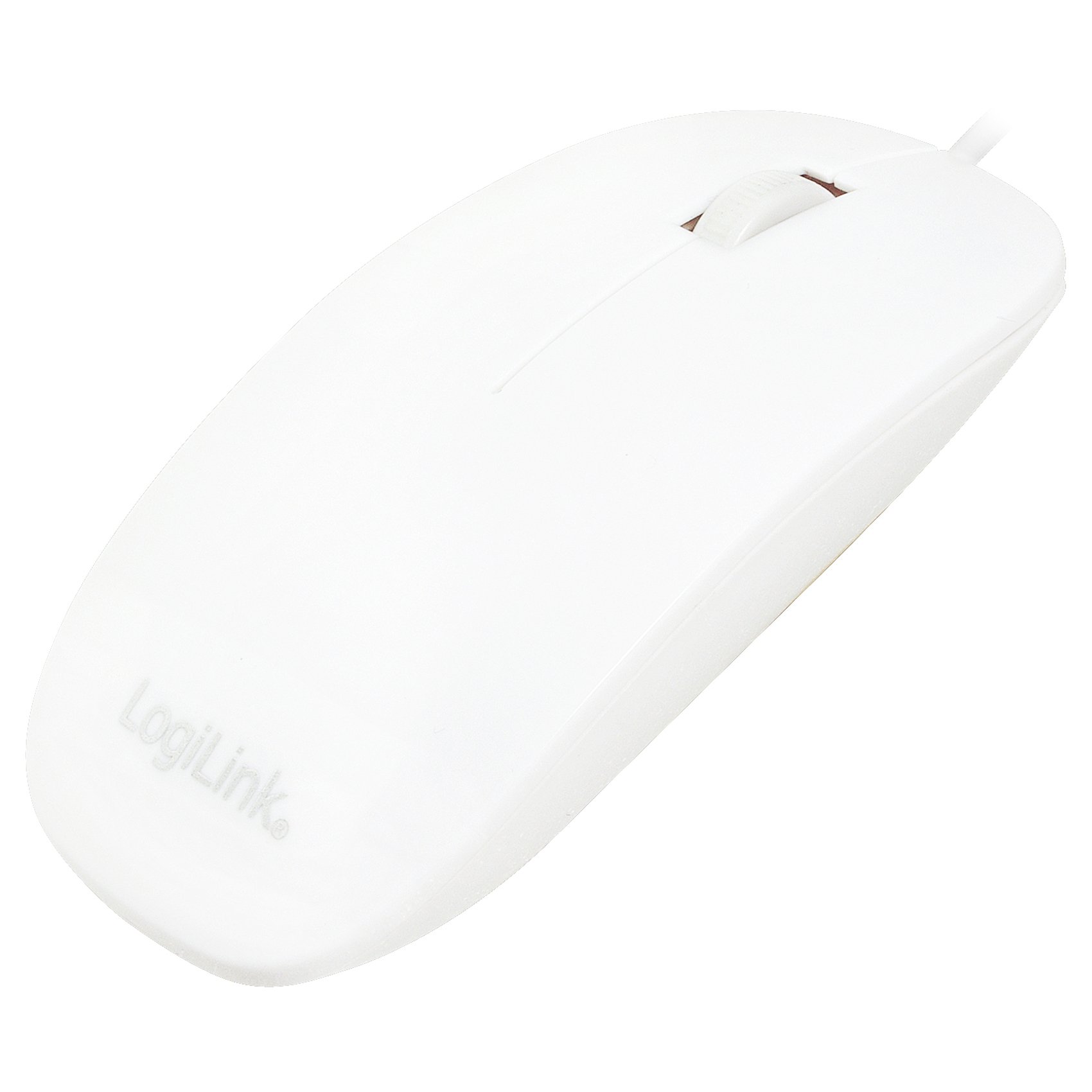
Figure 1: Logilink ID-0062 mouse in its retail packaging, showing the product as received.
Mahi
The Logilink ID-0062 is a standard 3-button optical mouse with a scroll wheel, offering precise 1000 dpi movement resolution.
Nga Mahi Taketake:
- Pātene Mauī: Te mahi pāwhiri matua, e whakamahia ana mō te tīpako i ngā tūemi, te whakatuwheratanga files, te whakahohe hononga rānei.
- Pātene Matau: Secondary click function, typically used to open context menus or access additional options.
- Panuku Wira: Whakamahia mō te panuku poutū i roto i ngā tuhinga me web wharangi. Ka mahi ano te wira panuku hei paatene waenga ina pehia.
- Pūoko Optical: The optical sensor on the underside of the mouse tracks movement on most surfaces, providing accurate cursor control.

Figure 2: The Logilink ID-0062 mouse, showcasing tona kikokore profile me te tahora pātene.
Te tiaki
Proper care and maintenance will extend the lifespan of your Logilink ID-0062 mouse.
Te horoi:
- Momotuhia te kiore mai i to rorohiko i mua i te horoi.
- Whakamahia he ngohengohe, paku damp cloth to wipe the surface of the mouse. Avoid using harsh chemicals, abrasive cleaners, or excessive moisture.
- For the optical sensor, use a dry cotton swab to gently remove any dust or debris. Do not insert any objects into the sensor opening.
Rokiroki:
- Penapenahia te kiore ki tētahi wāhi ma, maroke, kia matara atu i ngā pāmahana tino kino me te rā tika.
- Avoid bending or kinking the USB cable excessively to prevent damage.
Raparongoā
If you encounter issues with your Logilink ID-0062 mouse, refer to the following common problems and solutions.
Kaore te Kiore i te whakautu:
- Tirohia te Hononga USB: Ensure the USB connector is fully inserted into the computer's USB port. Try unplugging and re-plugging the mouse.
- Whakamātauria tētahi atu tauranga USB: Connect the mouse to another USB port on your computer to rule out a faulty port.
- Tīmata anō Rorohiko: Sometimes, a simple computer restart can resolve connectivity issues.
- Whakamātautau ki tētahi atu Rorohiko: If possible, test the mouse on a different computer to determine if the issue is with the mouse or your computer's setup.
Nekehanga Pehu Pohehe:
- Pūoko Optical Clean: Dust or debris on the optical sensor can interfere with tracking. Refer to the Maintenance section for cleaning instructions.
- Change Surface: The optical sensor may not track well on highly reflective, transparent, or uneven surfaces. Try using a mouse pad or a different surface.
Whakatakotoranga
| Āhuahira | Whakaahuatanga |
|---|---|
| Tauira | ID-0062 |
| Hangarau Hononga | Waea, USB |
| Atanga | 1 x USB - 4 PIN USB Type A |
| Huringa Huringa | Optical |
| Whakataunga Nekehanga | 1000 dpi |
| Te Rahinga o ngā Pātene | 3 (Left, Right, Scroll Wheel/Middle) |
| Ngā āhuatanga | Scrolling wheel, Flat Style, Slim Design, Plug and Play |
| Tautukunga Paerewa | Plug and Play, RoHS |
| Tautoko Pūnaha Whakahaere | Apple MacOS, Microsoft Windows |
| Taumaha Tūemi | 2.46 hekere (tata ki te 70 karamu) |
| Rahi Hua (LxWxH) | 2.17 x 5.91 x 0.67 inihi (tata ki te 5.5 x 15 x 1.7 cm) |
| Tae | Mā |
| Puna Mana | Hiko Waea (ma te USB) |
Pūtāhui me te Tautoko
For warranty information, please refer to the documentation provided with your purchase or contact your retailer. For technical support or further assistance, please contact Logilink customer service through their official website or the contact information provided with the product.


