1. Kupu Whakataki
This manual provides essential instructions for the installation, operation, maintenance, and troubleshooting of your Juniper EX2200-C-12T-2G Layer 3 Switch. Please read this manual thoroughly before using the device to ensure proper functionality and safety. The Juniper EX2200-C-12T-2G is a compact, fanless, and power-efficient platform designed for low-density micro branch deployments, commercial access, or enterprise workgroup environments.
2. Hua Neke Atuview
2.1. Nga waahanga matua
- Silent and power-efficient operation.
- Compact and fanless form factor.
- Layer 3 switching capabilities.
- 12 x 1000Base-T RJ-45 ports.
- 2 x SFP ports.
- Runs on Junos Operating System.
2.2. Ihirangi mokete
Manatokona kei roto katoa nga mea kei roto i te kete:
- Juniper EX2200-C-12T-2G Layer 3 Switch
- taura hiko
- 12 x 1000Base-T RJ-45 cables (Ethernet cables)
- 2 x SFP cables
2.3. Whakaahuatanga Tinana
The Juniper EX2200-C-12T-2G switch features a robust design with various ports and indicators on its front panel.
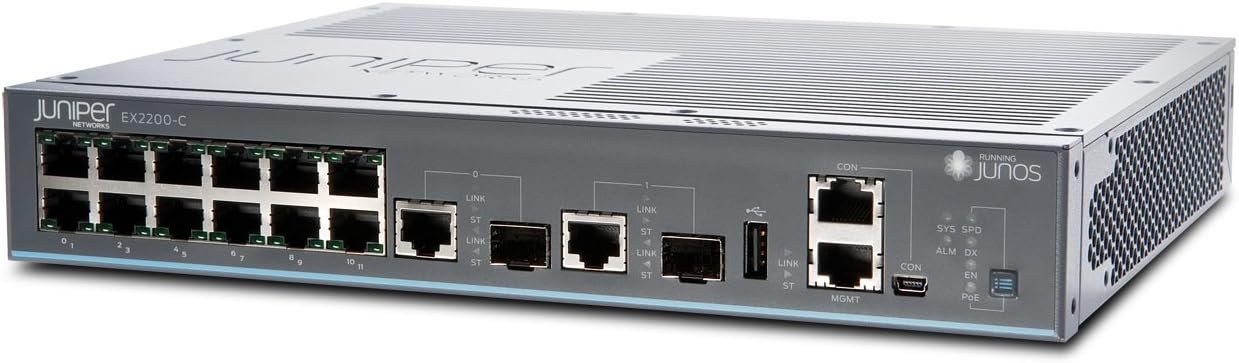
Whakaahua 1: Mua view of the Juniper EX2200-C-12T-2G Layer 3 Switch. This image displays the front panel of the switch, highlighting the 12 RJ-45 Ethernet ports, two SFP uplink ports, console ports (RJ45 and Mini-USB), and various status LEDs including SYS, SPD, ALM, DX, CON, EN, and PoE indicators.

Figure 2: Alternative front view of the Juniper EX2200-C-12T-2G Layer 3 Switch. This perspective offers a clearer view of the port numbering (0-11 for RJ-45 ports) and the labeling of the SFP ports and management interfaces.
3. Tatūnga
3.1. Whakaritenga Pae
- Taiao: Place the switch in a clean, dry, and well-ventilated area. Ensure the ambient temperature does not exceed 40 degrees Celsius.
- Whakapiki: The compact design allows for desktop placement or wall mounting (mounting hardware not included).
- Puna Hiko: Connect the switch to a reliable power outlet using the provided power cable. The switch operates on 230 Volts.
3.2. Connecting the Switch
- Hononga Hiko: Connect the power cable to the switch's power inlet and then to an appropriate electrical outlet.
- Hononga Whatunga:
- Tauranga RJ-45: Use the provided 1000Base-T RJ-45 cables to connect network devices (computers, servers, other switches) to the 12 Ethernet ports (labeled 0-11) on the front panel.
- Tauranga SFP: Insert SFP transceivers (if required) into the two SFP ports and connect fiber optic cables for uplink or high-speed connections.
- Console Connection (Initial Configuration): For initial configuration and management, connect a serial cable from your management workstation to the CON (console) port on the switch. Alternatively, a Mini-USB console port is also available.
4. Nga Tohutohu Whakahaere
4.1. Kei te Hiko Nei
Once the power cable is connected, the switch will automatically power on. The boot process for the Junos OS may take several minutes.
4.2. Tohu LED
Monitor the front panel LEDs for operational status:
- SYS (Pūnaha): Indicates the overall system status. Typically solid green for normal operation.
- SPD (Speed): Indicates the link speed of the connected port.
- ALM (Alarm): Indicates an alarm condition. Refer to the Junos OS documentation for specific alarm codes and troubleshooting.
- DX (Duplex): Indicates the duplex mode of the connected port.
- CON (Console): Indicates activity on the console port.
- EN (Enable): Tohu tūnga.
- PoE (Power over Ethernet): If applicable, indicates PoE status for ports. (Note: This model does not explicitly list PoE as a feature, but the LED is present).
4.3. Whirihoranga
The Juniper EX2200-C-12T-2G switch is managed using the Junos Operating System via a Command Line Interface (CLI). Access the CLI through the console port or via SSH after initial network configuration. Refer to the official Juniper Networks Junos OS documentation for detailed configuration procedures, including VLAN setup, routing protocols, and security settings.
5. Tiaki
5.1. Tiaki Whānui
- Keep the switch clean and free from dust. Use a soft, dry cloth for cleaning.
- Ensure adequate airflow around the device, even though it is fanless, to prevent heat buildup.
- A ape i te tuku i te whakawhiti ki te wera nui, te makuku, te ra tika ranei.
5.2. Whakahoutanga Firmware
Tirohia te tautoko a Juniper Networks i ia wā website for available Junos OS updates. Applying updates can improve performance, add new features, and address security vulnerabilities. Follow the instructions provided by Juniper Networks for safe firmware upgrade procedures.
6. Te Raru
6.1. Ngā Take Mana
- Kore Mana: Verify the power cable is securely connected to both the switch and the power outlet. Check the power outlet with another device.
6.2. Ngā raruraru hononga
- No Link: Check the Ethernet or fiber optic cables for secure connections and damage. Verify the connected device is powered on and functioning correctly. Observe the port's Link/Activity LED.
- Hononga Pōturi: Ensure cables are appropriate for the desired speed (e.g., Cat5e/6 for Gigabit Ethernet). Check for duplex mismatches or network congestion.
6.3. Alarm LED On
If the ALM LED is illuminated, it indicates a system alarm. This could be due to various reasons such as hardware failure, environmental issues, or configuration errors. Access the switch's CLI via the console port to view detailed alarm messages and logs. Consult the Junos OS documentation or Juniper Networks support for specific alarm interpretations and resolution steps.
7. Whakatakotoranga Hangarau
| Āhuahira | Whakatakotoranga |
|---|---|
| Tau tauira | EX2200-C-12T-2G |
| Waitohu | Hononga Juniper |
| Taumaha Tūemi | 4.41 pauna |
| Rahi Hua (LxWxH) | 9 x 11 x 2 inihi |
| Voltage | 230 Volts |
| Rauemi Take | Kirihou |
| Te Whakatauranga Te Pawera o runga | 40 Paetukutuku Celsius |
| Momo Atanga | RJ45, SFP |
| Rere Whakawhiti Raraunga | 1000 Megabits ia Hekona |
| Te maha o nga Tauranga | 12 (RJ-45) + 2 (SFP) |
| RAM | 512 MB |
| Rahi Mahara Kohiko | 1024 MB |
| Pūnaha Mahi | Junos |
8. Pūtāhui me te Tautoko
8.1. Nga Korero Whakaputanga
For detailed warranty information regarding your Juniper EX2200-C-12T-2G switch, please refer to the warranty card included with your product or visit the official Juniper Networks webpae. Ka rereke pea nga tikanga me nga tikanga mo te rohe me te ra hoko.
8.2. Tautoko Hangarau
If you encounter issues that cannot be resolved using the troubleshooting steps in this manual, or require advanced assistance, please contact Juniper Networks technical support. Support resources, including documentation, knowledge bases, and contact information, are available on the official Juniper Networks support portal.


