Kupu Whakataki
The TASCAM DR-100MKII is a high-performance linear PCM recorder designed for professional audio recording. This manual provides essential information for setting up, operating, maintaining, and troubleshooting your DR-100MKII to ensure optimal performance and longevity.
Nga waahanga matua
- High-resolution 24-bit/96kHz linear PCM (WAV) and MP3 recording.
- Robust aluminum chassis for durability in demanding environments.
- Dual XLR/TRS combo inputs with +4dBu line level and +48V phantom power.
- Independent left/right rotary input gain controls for precise level adjustment.
- Four built-in microphones: two unidirectional and two omnidirectional.
- Dedicated line output separate from headphone output for high-quality audio routing.
- Digital input for lossless connection from external playback devices.
- Mechanical switches for reliable and quick operation.
- Supports SD/SDHC memory cards (2GB SD card included).
- Includes RC-10 wired/wireless remote control.
- Dual battery power system (dedicated Li-ion and AA batteries).
Tatūnga
1. Tāuta Pūhiko
The DR-100MKII supports both a dedicated Li-ion rechargeable battery (BP-L2, included) and two AA dry cell batteries. For extended operation, both can be used simultaneously.
- Kimihia te wahanga pākahiko kei muri o te waeine.
- Whakatuwheratia te uhi pākahiko.
- Insert the BP-L2 Li-ion battery into its designated slot, ensuring correct polarity.
- Insert two AA batteries into their respective slots, observing the polarity markings.
- Katia kia mau te taupoki pākahiko.

Whakaahua 1: Whakamuri view of the DR-100MKII, showing the battery compartment and various switches for mic gain, auto/limiter, and speaker.
2. Whakauru Kaari SD
The DR-100MKII uses SD or SDHC memory cards for recording. A 2GB SD card is included.
- Locate the SD card slot on the bottom of the unit.
- Gently push the SD card into the slot until it clicks into place. Ensure the card is inserted with the correct orientation.
- Hei tango, pēhia anō te kāri ki roto kia paku pūwero rā anō ki waho, kātahi ka unuhia ki waho.

Whakaahua 2: Raro view of the DR-100MKII, highlighting the SD card slot and the built-in omnidirectional microphones.
3. Connecting Microphones and Line Inputs
The DR-100MKII offers versatile input options, including XLR/TRS combo jacks and a dedicated line input.
- XLR/TRS Inputs: Located on the bottom of the unit, these inputs support balanced XLR microphones (with +48V phantom power if needed) or 1/4-inch TRS line-level devices. The locking mechanism ensures secure connections.
- Line 2 Input: A 3.5mm stereo mini-jack input is available on the side for connecting external line-level devices.
- Whakauru Mamati: A dedicated digital input terminal allows for lossless connection from compatible digital audio sources.
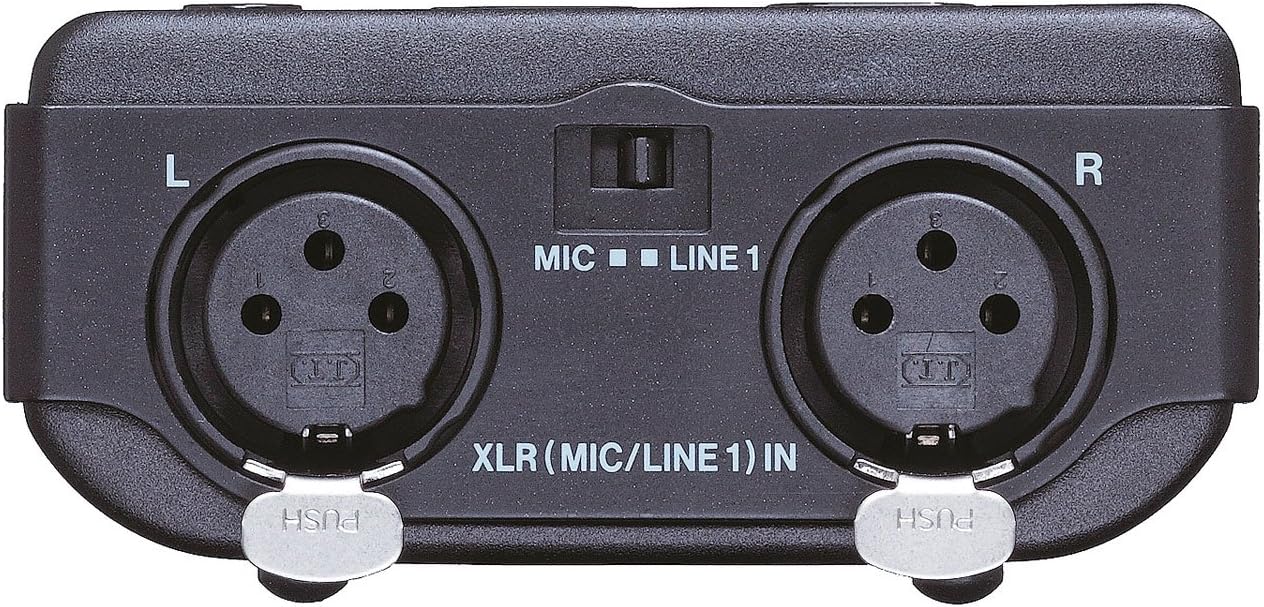
Whakaahua 3: Whakatata view of the DR-100MKII's bottom, showing the locking XLR (MIC/LINE 1) inputs for professional audio connections.

Whakaahua 4: Taha view of the DR-100MKII, displaying the USB port, DC IN 5V, headphone output, and Line 2 input/output jacks.
4. Connecting Headphones and Line Output
- Putanga Puoro: Connect your headphones to the 3.5mm headphone jack on the side for monitoring audio.
- Putanga Raina: A dedicated 3.5mm stereo mini-jack line output is available for connecting the DR-100MKII to external mixers, amplifiers, or other audio devices. This output is independent of the headphone output.
5. Te Whakakaha/Weto
To power on the unit, slide the power switch located on the side. To power off, slide the switch to the OFF position.
Te whakahaere
1. Tuhituhi Taketake
The DR-100MKII can record in WAV (linear PCM) or MP3 formats.
- Tīpako Pūtake Tāuru: Use the INPUT switch to select between the built-in microphones (UNI MIC L/R, OMNI MIC L/R) or external inputs (XLR/LINE 1, LINE 2).
- Whakatikatika Taumata Whakauru: Use the large rotary input volume controls (L and R) on the top of the unit to set the recording level. Monitor the level meters on the LCD to avoid clipping.
- Press RECORD: Pehia te REKOTI button to start recording. The button will illuminate.
- Kati te tuhi: Pehia te KATI pātene hei whakamutu i te tuhi.

Whakaahua 5: Mua view of the DR-100MKII, showing the main display, control buttons, and built-in unidirectional microphones.

Whakaahua 6: Runga view of the DR-100MKII, illustrating the large rotary input volume dials for precise left and right channel gain adjustment.
2. Ngā Mahi Tuhi Matatau
- Auto Gain Control & Limiter: These functions automatically adjust the recording level to prevent distortion. Enable them via the switches on the back of the unit.
- Tuhinga o mua: Captures audio from 2 seconds before the RECORD button is pressed.
- Taarua Rekoata: Delays recording start slightly to avoid capturing button press noise.
- Tātari Tapa-iti: Reduces unwanted low-frequency noise (e.g., wind, rumble). Settings: OFF/40/80/120Hz.
- Te purei taikaha: Allows recording new audio over an existing file, te hanga hou file.
3. Purei ano
- Tīpakohia File: Use the navigation buttons to select the desired audio file mai i te rarangi.
- Press PLAY/PAUSE: Pehia te TAKARO/PAUSE paatene ki te tiimata te purei ano.
- Adjust Playback Volume: Use the volume controls on the side of the unit.
- Repeat/Loop: Access these functions through the menu for continuous playback of a file or a specific section.
- VSA (Variable Speed Audition): Adjust playback speed without changing the pitch, useful for transcription or learning.
4. File Whakahaerenga
- Mark Function: Add marks at specific points in a recording for easy navigation.
- Track Increment: Automatically or manually split recordings into new files. Auto track increment can be based on file size or input level.
- Divide Function: Split a WAV file into two at a desired point.
- Tere Tag: Hohoro tag files for identification.
5. Using the Remote Control (RC-10)
The included RC-10 remote control can be used wirelessly (infrared) or wired for precise operation, minimizing handling noise during recording.
- Mahi Ahokore: Point the remote at the DR-100MKII's IR receiver.
- Mahi Waea: Connect the remote to the REMOTE/DIGITAL IN port on the side of the unit using the provided cable.

Whakaahua 7: Koki view of the DR-100MKII, showing the REMOTE/DIGITAL IN port on the side, used for the RC-10 remote control and digital audio input.
Te tiaki
1. Te horoi
Horoia te waeine ki te kakahu ngohengohe, maroke. Kaua e whakamahi i nga kai horoi, i nga whakarewa ranei, na te mea ka pakaru te mutunga.
2. Tiaki Pūhiko
- Tango pākahiko ki te kore te wae e whakamahia mo te wa roa kia kore ai e pakaru.
- Recharge the Li-ion battery regularly to maintain its capacity.
3. SD Card Care
- Always format new SD cards with the DR-100MKII before first use.
- Avoid removing the SD card during recording or playback to prevent data corruption.
Raparongoā
| Raruraru | Take pea | Rongoā |
|---|---|---|
| Karekau te waeine i te hiko. | Kua pau nga pākahiko, kua he ranei te whakaurunga. | Replace or recharge batteries. Check polarity. |
| No sound during recording/playback. | Input/output levels too low; incorrect input source selected; headphone/line cables not connected properly. | Adjust input/output levels. Verify input source. Check cable connections. |
| Recording level is too low/high. | Input gain not set correctly. | Adjust the rotary input volume controls. Consider using Auto Gain or Limiter. |
| Cannot record to SD card. | SD card full, write-protected, or corrupted. | Mukua kore e tika files, unlock the card, or format the card (will erase all data). |
| Kaore e mahi te mana mamao. | Remote batteries depleted; IR path blocked; wired connection loose. | Replace remote batteries. Ensure clear line of sight for IR. Check wired connection. |
Whakatakotoranga
| Āhuahira | Whakatakotoranga |
|---|---|
| Tau tauira | DR-100MKII |
| Pupuri Puka | SD card (64MB to 2GB), SDHC card (4GB to 32GB) |
| Tuhituhi Tuhituhi | WAV (16/24-bit, 44.1/48/96kHz), MP3 (32-320kbps) |
| Nga whakaurunga | XLR/TRS combo (MIC/LINE 1), 3.5mm stereo mini-jack (LINE 2), Digital In |
| Nga Putanga | 3.5mm stereo mini-jack (LINE OUT), 3.5mm stereo mini-jack (Headphone) |
| Nga hopuorooro | Built-in unidirectional x2, built-in omnidirectional x2 |
| Mana Hiko | +48V (ka taea te whiriwhiri) |
| Tuku Hiko | Dedicated Li-ion battery (BP-L2), 2 x AA batteries, AC adapter (optional PS-P520) |
| Te ora o te Pūhiko (Tāwhiwhi) | 7 hours (digital recording) |
| Ahu (W x H x D) | Approx. 80 x 153 x 35 mm (3.15 x 6.02 x 1.38 inihi) |
| Taumaha | Approx. 860 g (1.9 lbs) including batteries |
| Whakaatu | 128 x 64 backlit dot matrix LCD |
| Tauranga USB | USB 2.0 Mini-B type |
Pūtāhui me te Tautoko
For warranty information, technical support, and service, please refer to the official TASCAM website or contact your local TASCAM distributor. Keep your purchase receipt as proof of purchase for warranty claims.
Online resources, including updated manuals and software, may be available on the TASCAM support page.


