Kupu Whakataki
This manual provides essential information for the proper setup, operation, and maintenance of your Hitachi Touro Desk Dx3 2TB External Hard Drive. Please read these instructions carefully before using the device to ensure optimal performance and longevity.
Ihirangi mokete
Manatokona kei roto katoa nga mea kei roto i te kete:
- Hitachi Touro Desk Dx3 2TB External Hard Drive
- USB 3.0 Tauira Raraunga
- AC Power Adapter (EURO plug)
- Aratohu Timata Tere (mehemea kei roto)
Ka mutu te huaview
The Hitachi Touro Desk Dx3 is a 2TB external desktop hard drive designed for reliable data storage and backup. It features a stylish, stackable design and SuperSpeed USB 3.0 connectivity for fast data transfers, while also being backwards compatible with USB 2.0.

Whakaahua 1: Mua view of the Hitachi Touro Desk Dx3. This image displays the sleek, black, vertically ribbed casing of the external hard drive. A small, rectangular indicator light is visible towards the bottom center of the front panel, signifying power or activity status.
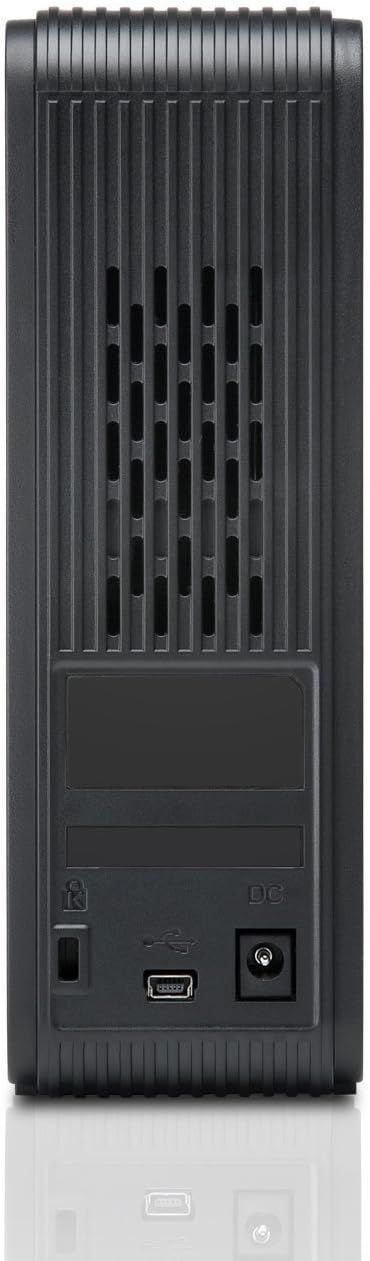
Whakaahua 2: Whakamuri view of the Hitachi Touro Desk Dx3. This image shows the rear panel of the hard drive, which includes the DC power input port on the right, the USB 3.0 data port in the center, and a security lock slot on the left. Ventilation grilles are visible across the top portion of the back panel.
Tatūnga
Whāia ēnei mahi hei whakarite i tō puku mārō o waho:
- Tūhonohia te Pūurutau Hiko: Plug the AC power adapter into the DC power input port on the back of the Touro Desk Dx3. Then, plug the other end of the power adapter into a wall outlet. The drive will power on automatically.
- Honoa te Taura USB: Connect one end of the supplied USB 3.0 data cable to the USB port on the back of the Touro Desk Dx3. Connect the other end of the USB cable to an available USB port on your computer. For optimal performance, use a USB 3.0 port.
- Whakaaetanga Pūnaha Whakahaere: Your computer's operating system (Windows or macOS) should automatically detect and install the necessary drivers for the hard drive. The drive will appear as a new storage device in 'My Computer' (Windows) or 'Finder' (macOS).
- Initial Formatting (Optional): The drive comes pre-formatted. If you wish to reformat the drive or partition it, refer to your operating system's disk management tools. Note: Reformatting will erase all data on the drive.
Te whakahaere
Once connected, your Touro Desk Dx3 is ready for use.
- Whakawhiti Raraunga: Tōia ka taka files or folders to and from the Touro Desk Dx3 icon on your desktop or in your file explorer. The USB 3.0 interface allows for rapid data transfer speeds.
- Pūrua: Use your operating system's built-in backup utilities or third-party software to create backups of your important files on the external drive.
- Tango Haumaru: Always safely eject the hard drive before disconnecting it from your computer. In Windows, right-click the drive icon in the system tray and select 'Eject'. In macOS, drag the drive icon to the Trash or click the Eject button next to the drive in Finder. This prevents data corruption.
Te tiaki
Proper maintenance ensures the longevity of your device.
- Te horoi: Use a soft, dry, lint-free cloth to clean the exterior of the drive. Do not use liquid cleaners or aerosols.
- Nga Tikanga Taiao: Store and operate the drive in a cool, dry environment, away from direct sunlight, extreme temperatures, and high humidity. Avoid placing the drive near strong magnetic fields.
- Te whakahaere a-tinana: Handle the drive with care. Avoid dropping it or subjecting it to strong impacts, as this can damage the internal components.
Raparongoā
Mena ka raru koe, tirohia nga rongoa e whai ake nei:
- Kaore i te Mohiotia te Puku:
- Me whakarite kei te hono tika te urutau hiko ki te puku me te putanga hiko e mahi ana.
- Verify the USB cable is firmly connected to both the drive and your computer. Try a different USB port or cable.
- Tīmataria anō tō rorohiko.
- Check Disk Management (Windows) or Disk Utility (macOS) to see if the drive is detected but not assigned a drive letter or mounted.
- Nga Tere Whakawhiti Puturi:
- Ensure you are connected to a USB 3.0 port on your computer for SuperSpeed performance. USB 2.0 ports will operate at slower speeds.
- A ape i te whakawhiti maha iti files simultaneously; large files transfer more efficiently.
- Katia ētahi atu taupānga e whakamahi ana i ngā rauemi pūnaha, i te pahi USB rānei.
- Drive Light Not On:
- Check the power adapter connection to the drive and the wall outlet.
- Whakamātauria he putanga hiko rerekē.
Whakatakotoranga
| Te Rokiroki Mamati | 2 TB |
| Atanga Kōpae Mārō | USB 3.0 |
| Hangarau Hononga | USB |
| Waitohu | Hitachi |
| Tauwehe Puka Kopae Maama | 3.5 Inihi |
| Pūrere Hototahi | Rorohiko Papamahi |
| Momo Tāuta | Ripanga |
| Tae | Pango |
Nga korero Whakaputanga
This product is covered by a limited warranty. For detailed information regarding warranty terms, conditions, and duration, please refer to the warranty card included in your product packaging or visit the official Hitachi support webpae. Puritia to tohu hoko mo nga kereme whakamana.
Tautoko Kiritaki
For further assistance, technical support, or to inquire about service, please visit the official Hitachi support webpaetukutuku, whakapā atu ranei ki ta raatau tari ratonga kaihoko. Ka kitea nga korero whakapā i runga i te kaiwhakanao webpae, i roto ranei i nga tuhinga hua.


