Kupu Whakataki
Thank you for choosing the Logickeyboard LogicLight Keyboard Lamp. This manual provides detailed instructions for the setup, operation, maintenance, and troubleshooting of your new keyboard lamp. Please read this manual thoroughly to ensure proper use and to maximize the lifespan of your device.
The LogicLight is designed to illuminate your keyboard, reducing eye strain when working in low-light conditions. Its flexible design and dimmable LEDs offer a customizable lighting experience.
Nga waahanga matua
- Dedicated Connectivity: Specifically designed for Logickeyboard 'SlimLine' series keyboards, connecting directly to one of the keyboard's built-in USB ports.
- Whakanuia te whakamarama: Features 10 bright LEDs to provide ample light for your keyboard, reducing eye fatigue.
- Hoahoa Hangawari: Equipped with a flexible gooseneck and a 360-degree rotatable lamp head for precise light positioning.
- Touch-Sensitive Dimmer: An integrated touch-sensitive switch on the lamp head allows for easy on/off control and dimming of the illumination.
- Expandable Lighting: For increased illumination, a second LogicLight lamp can be connected to the second USB port on compatible 'SlimLine' Logickeyboards.
- Kiato me te Mamaa: Designed for portability and minimal desk footprint.
Aratohu Tatūnga
Follow these steps to set up your Logickeyboard LogicLight Keyboard Lamp:
- Wewetehia te Lamp: Carefully remove the LogicLight lamp mai i tana kohinga.
- Identify USB Port: Locate an available USB port on your Logickeyboard 'SlimLine' series keyboard. The LogicLight is designed to plug directly into these specific ports.
- Honoa te Lamp: Insert the USB connector of the LogicLight firmly into the USB port on your keyboard. Ensure a secure connection.
- Tuhia te Lamp: Adjust the flexible gooseneck and rotate the lamp head to direct the light onto your keyboard as desired. The 360-degree rotation allows for optimal positioning.
- Whakahiko: Kia honoa, ka puta te lamp should illuminate. If not, gently tap the touch-sensitive switch located at the end of the lamp upoko hei whakakā.
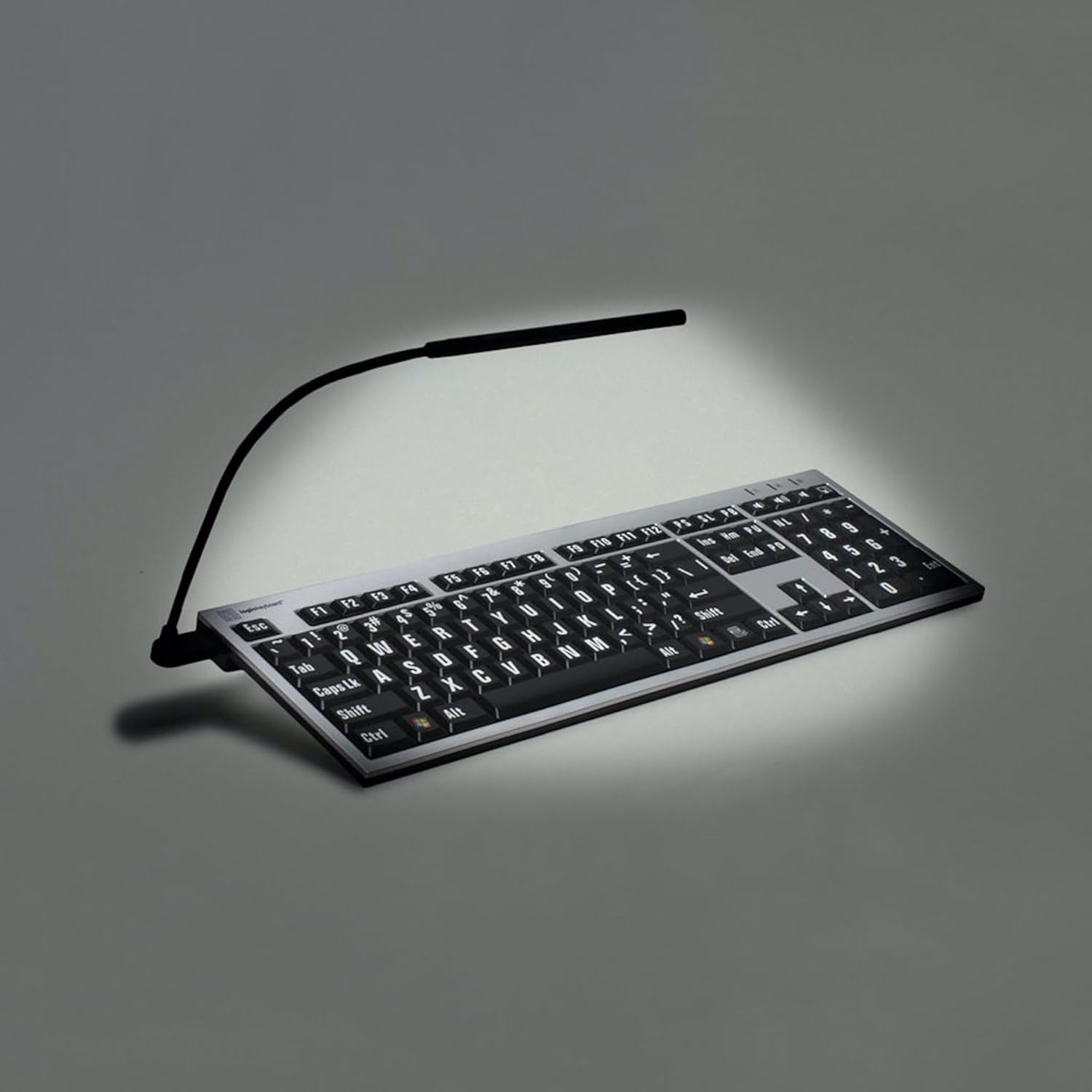
Figure 1: The Logickeyboard LogicLight Keyboard Lamp connected to a keyboard, providing illumination. The flexible gooseneck allows for precise light positioning over the keys.
Nga Tohutohu Whakahaere
The LogicLight Keyboard Lamp is simple to operate:
- Whakakā/Weto: Gently tap the touch-sensitive switch located at the end of the lamp head to toggle the light on or off.
- Taumahi Ngahuru: To dim the illumination, tap and hold the touch-sensitive switch. The light will cycle through its brightness levels. Release your finger when the desired brightness is achieved.
- Whakaritea Turanga: The flexible gooseneck allows you to bend and shape the lamp to direct light exactly where you need it. The lamp head can also be rotated 360 degrees for fine-tuning the light angle.
- Ma te Maha Lamps: If your Logickeyboard 'SlimLine' series keyboard has a second USB port, you can connect an additional LogicLight lamp for enhanced illumination. Both lamps will operate independently or in tandem, depending on your preference.
Tiaki me te Tiaki
To ensure the longevity and optimal performance of your LogicLight Keyboard Lamp, whai i enei aratohu tiaki:
- Te horoi: Whakamahia he kakahu ngohengohe, maroke hei muru i te lamp and gooseneck. Avoid using abrasive cleaners, solvents, or harsh chemicals, as these can damage the finish or internal components.
- Te whakahaere: While the gooseneck is flexible, avoid excessive bending or twisting at the base or lamp head connection points, as this could damage internal wiring.
- Rokiroki: When not in use for extended periods, disconnect the lamp from the keyboard and store it in a clean, dry place away from extreme temperatures.
- Puna Hiko: Always connect the LogicLight to the designated USB ports on compatible Logickeyboard 'SlimLine' series keyboards. Do not attempt to power it from other USB sources unless explicitly stated as compatible by Logickeyboard.
Raparongoā
If you encounter issues with your LogicLight Keyboard Lamp, tirohia nga raruraru me nga otinga e whai ake nei:
| Raruraru | Take pea | Rongoā |
|---|---|---|
| Lamp kaore e huri. | Not properly connected to USB port. Touch switch not activated. | Ensure the USB connector is fully inserted into the keyboard's USB port. Gently tap the touch-sensitive switch on the lamp upoko. |
| Lamp ka koma, ka atarua ranei ohorere. | Hononga wewete. He iti te hiko mai i te tauranga USB. | Check the USB connection and re-insert if necessary. Ensure your keyboard is properly powered. If using multiple USB devices, try disconnecting others temporarily. |
| Kāore te mahi whakaitiiti e mahi. | Incorrect operation of touch switch. | Pato me pupuri the touch-sensitive switch to activate the dimming cycle. Release when desired brightness is reached. |
| Gooseneck or lamp head feels loose. | Te kakahu me te haehae noa. I nui rawa te kaha i pā mai. | Avoid over-bending or twisting the gooseneck. If damage is suspected, contact customer support. |
If the problem persists after trying these solutions, please contact Logickeyboard customer support for further assistance.
Whakatakotoranga
- Tauira: LL-BLACK2
- Waitohu: Logickeyboard
- Hononga: USB (Plug-and-Light)
- Puna Maama: 10 LED
- Mana: Touch-sensitive on/off and dimmer switch
- Ngawari: Flexible gooseneck, 360-degree rotatable lamp upoko
- Tae: Pango
- Rahi Hua: 10 x 2.6 x 0.2 inihi (tata)
- Taumaha Tūemi: 0.353 hekere (tata)
- Ngā Pūrere Hototahi: Logickeyboard 'SlimLine' series keyboards with USB ports
Nga korero Whakaputanga
Logickeyboard products are manufactured to the highest quality standards. For specific warranty terms and conditions applicable to your LogicLight Keyboard Lamp, please refer to the warranty card included with your purchase or visit the official Logickeyboard webpae. Puritia to tohu hoko mo nga kereme whakamana.
Tautoko Kiritaki
For technical support, product inquiries, or warranty service, please contact Logickeyboard customer support:
- Webpae: Tirohia te Logickeyboard Store on Amazon mo nga korero hua me nga rauemi tautoko.
- Mōhiohio Whakapā: Refer to the packaging or the official Logickeyboard website for the most current contact details (phone, email, etc.).
When contacting support, please have your product model (LL-BLACK2) and purchase information ready.


