Kupu Whakataki
The HP H220 Host Bus Adapter (HBA) is a factory-integrated component designed to provide high-performance connectivity for SAS (Serial Attached SCSI) and SATA (Serial Advanced Technology Attachment) storage devices. This adapter facilitates the connection of internal or external storage drives to a server or workstation, enabling data transfer and storage management. It is compatible with various operating systems, including Windows and Linux.
Nga korero haumaru
- Always power off and unplug the computer system before installing or removing any internal components.
- Wear an anti-static wrist strap and work on an anti-static mat to prevent electrostatic discharge (ESD) damage to the HBA and other components.
- Handle the HBA by its edges; avoid touching the gold connectors or integrated circuits.
- Ensure proper ventilation within the computer chassis to prevent overheating.
- Do not attempt to modify or repair the HBA. Refer servicing to qualified personnel.
Ihirangi mokete
Manatokohia kei te noho nga waahanga katoa i mua i te haere ki te whakaurunga:
- HP H220 Host Bus Adapter card
- Pro-itifile bracket (may be pre-installed or included separately)

Image: The HP H220 Host Bus Adapter card shown with both a standard-height bracket and a separate low-profile bracket, illustrating the physical components included.
Tatūnga me te Tāuta
- Whakapaia te Pūnaha: Power down the computer system and disconnect all power cables. Open the computer chassis to access the internal components.
- Select a PCIe Slot: Locate an available PCI Express (PCIe) expansion slot on your motherboard. The H220 HBA requires a PCIe x8 slot for optimal performance, though it may function in a PCIe x16 slot.
- Install the HBA:
- Remove the metal slot cover from the chosen PCIe slot on the computer chassis.
- Carefully align the HBA's PCIe connector with the slot on the motherboard.
- Apply even pressure to both ends of the card until it is fully seated in the slot. Ensure the retention clip (if present) engages.
- Secure the HBA to the chassis with a screw or retention mechanism.

Whakaahua: He runga-iho view of the HP H220 Host Bus Adapter, highlighting the PCIe connector and the two Mini-SAS ports, alongside a separate low-profile tawaho.
- Tūhono Pūrere Rokiroki:
- Connect Mini-SAS to SATA/SAS breakout cables (not included) to the two Mini-SAS ports on the HBA.
- Connect the other end of the breakout cables to your SAS or SATA storage drives. Ensure proper cable routing to avoid obstructing airflow.
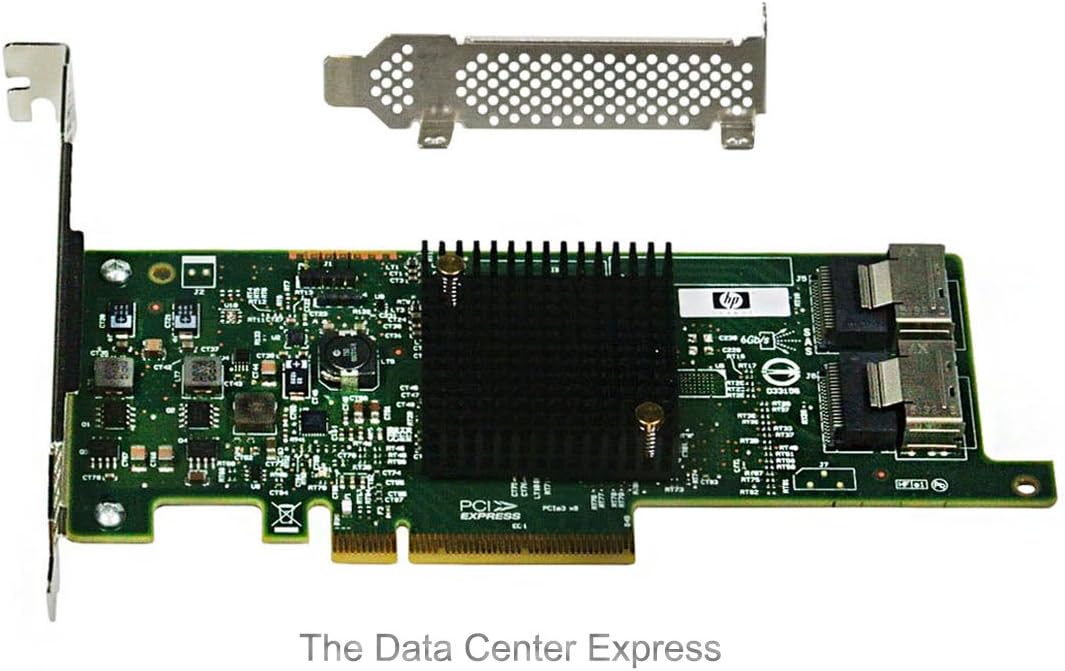
Whakaahua: He koki view of the HP H220 Host Bus Adapter, showing the heatsink, PCIe interface, and the two Mini-SAS connectors for attaching storage devices.
- Close Chassis and Power On: Close the computer chassis, reconnect all power cables, and power on the system.
- Tāuta Atekōkiri:
- Upon first boot, the operating system (Windows or Linux) may automatically detect and install generic drivers.
- For optimal performance and compatibility, download the latest drivers from the official Hewlett Packard Enterprise (HPE) support webpaetukutuku mō tō pūnaha whakahaere motuhake. Rapua "HP H220 HBA drivers".
Nga Tohutohu Whakahaere
Once installed and drivers are loaded, the HP H220 HBA functions as a pass-through controller, presenting connected SAS and SATA drives directly to the operating system. This allows the operating system or software RAID solutions (e.g., ZFS, mdadm) to manage the drives.
- Whirihoranga BIOS/UEFI: In most cases, the HBA will be detected automatically. If necessary, consult your system's BIOS/UEFI settings to ensure the PCIe slot is enabled and configured correctly.
- Whakaaetanga Pūnaha Whakahaere: Verify that the operating system recognizes the HBA and all connected drives. In Windows, check Device Manager under "Storage controllers". In Linux, use commands like
lsscsitirohia ranei/dev/sd*whakaurunga. - Whakahaere Rokiroki: Use your operating system's native disk management tools or third-party software to initialize, partition, and format the connected drives.
Te tiaki
- Tango Puehu: Periodically inspect the HBA and surrounding components for dust accumulation. Use compressed air to gently clean the heatsink and PCB to ensure proper cooling.
- Whakahōu Firmware: Check the HPE support website for any available firmware updates for the H220 HBA. Firmware updates can improve stability, performance, and compatibility. Follow the provided instructions carefully when performing firmware updates.
- Tikanga taura: Ensure all Mini-SAS cables are securely connected and free from damage. Loose or damaged cables can lead to data corruption or connectivity issues.
Raparongoā
| Raruraru | Take pea | Rongoā |
|---|---|---|
| HBA not detected by system. | Card not fully seated; faulty PCIe slot; insufficient power; BIOS/UEFI setting. |
|
| Connected drives not recognized. | Incorrect or missing drivers; faulty cables; drive issues; HBA not functioning. |
|
| He koretake o te punaha, he tukinga ranei. | Driver conflict; overheating; faulty HBA. |
|
Whakatakotoranga
| Āhuahira | Taipitopito |
|---|---|
| Waitohu | HEWLETT PACKARD |
| Tau tauira | 650933-B21 |
| Atanga Pūmārō | PCI Express (PCIe), SAS |
| Pūrere Hototahi | Desktop Computer, Server |
| Tautoko Pūnaha Whakahaere | Windows, Linux |
| Rahi Hua (LxWxH) | 6.61 x 2.7 x 0.63 inihi |
| Taumaha Tūemi | 6.4 hekere (tata ki te 0.4 Pauna) |
| Kaihanga | HP ISS |
| Te Ra Tuatahi Wātea | Akuhata 4, 2012 |
Nga korero Whakaputanga
This HP H220 Host Bus Adapter is covered by the standard manufacturer's warranty provided by Hewlett Packard Enterprise (HPE). The specific terms and duration of the warranty may vary by region and point of purchase. Please retain your proof of purchase for warranty claims. For detailed warranty information, refer to the official HPE webpaetukutuku, whakapā atu ranei ki to kaihoko.
Tautoko
For technical assistance, driver downloads, firmware updates, or further information regarding the HP H220 Host Bus Adapter, please visit the official Hewlett Packard Enterprise (HPE) support webpae:
Tautoko HPE Webpae: https://www.hpe.com/support
When contacting support, please have your product model number (650933-B21) and any relevant system information readily available.


