1. Kupu Whakataki
This manual provides instructions for the installation, operation, and maintenance of your DIGITUS DN-70542 Wireless LAN USB 2.0 Adapter. This device allows your computer to connect to a wireless network using the 802.11n standard, offering data transfer rates of up to 300 Mbps.
The adapter is backward compatible with IEEE 802.11g and 802.11b standards and operates within the 2.4-2.4835GHz frequency range. It also features a Wireless Protected Setup (WPS) function for easy and secure network connection.

Whakaahua 1.1: Runga view of the DIGITUS DN-70542 Wireless LAN USB 2.0 Adapter.

Whakaahua 1.2: Koki view of the DIGITUS DN-70542 adapter, highlighting its compact design.

Whakaatu 1.3: Taipitopito view of the USB 2.0 connector of the DIGITUS DN-70542 adapter.
2. Ihirangi mokete
Tena koa tirohia kei roto nga taonga katoa kei roto i te kete:
- 1 x DIGITUS DN-70542 Mini USB WiFi Adapter
- 1 x Product Support CD-ROM (containing drivers and utilities)
- 1 x Manual Kaiwhakamahi (tenei tuhinga)
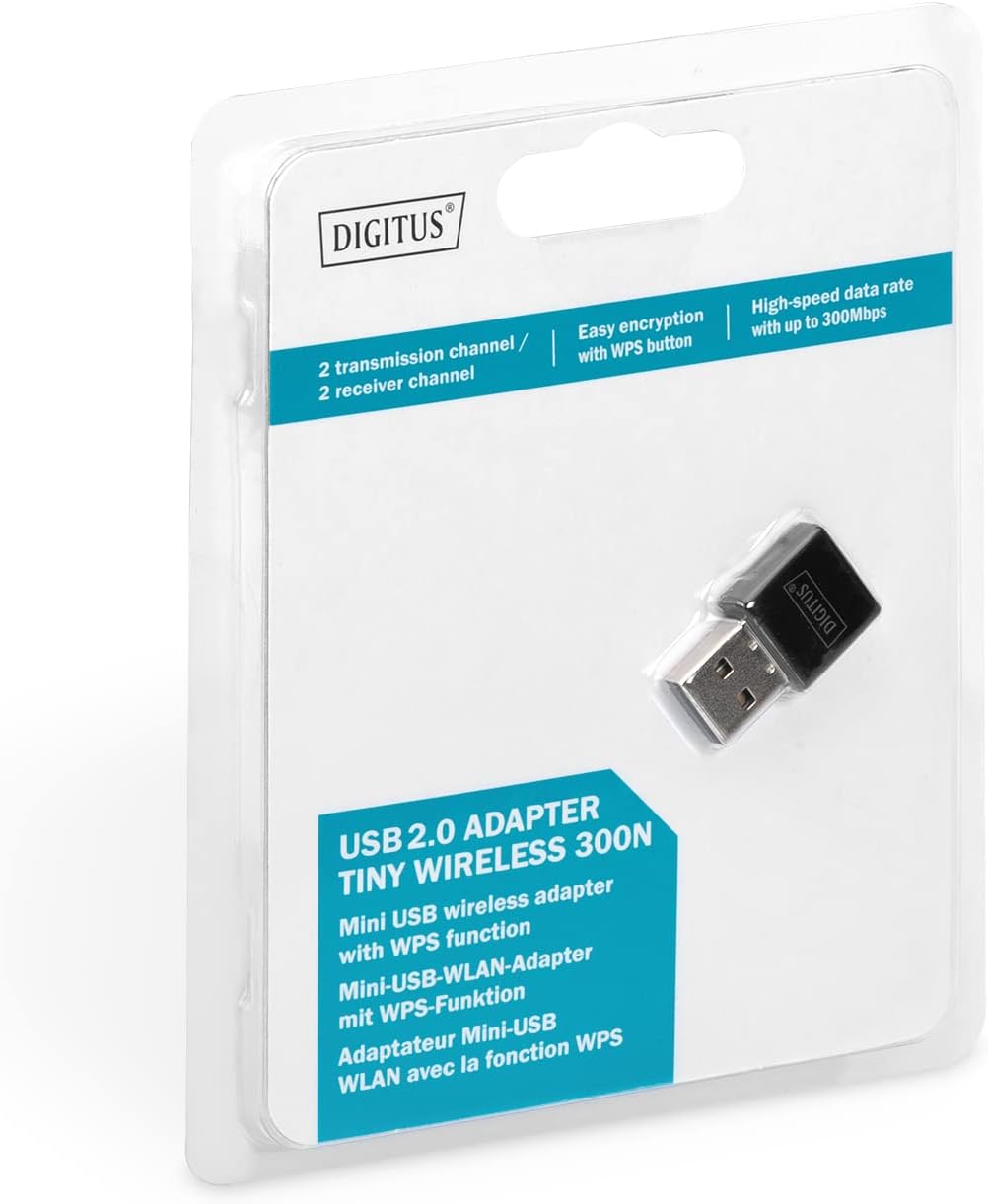
Figure 2.1: Retail packaging of the DIGITUS DN-70542 adapter, showing the adapter and its key features.
3. Aratohu Tatūnga
Follow these steps to install your Wireless LAN USB Adapter:
- Tāuta Atekōkiri: Before connecting the adapter, insert the included Product Support CD-ROM into your computer's optical drive. Follow the on-screen instructions to install the necessary drivers. If your computer does not have an optical drive, or if you encounter issues, please visit the official DIGITUS website to download the latest drivers for your operating system (Windows).
Note: Some operating systems, particularly older versions of Windows, may require driver installation prior to connecting the device. Refer to the Troubleshooting section if you encounter issues during this step.
- Honoa te Pūurutau: Locate an available USB 2.0 port on your computer. Carefully insert the DIGITUS DN-70542 Wireless LAN USB 2.0 Adapter into the USB port.
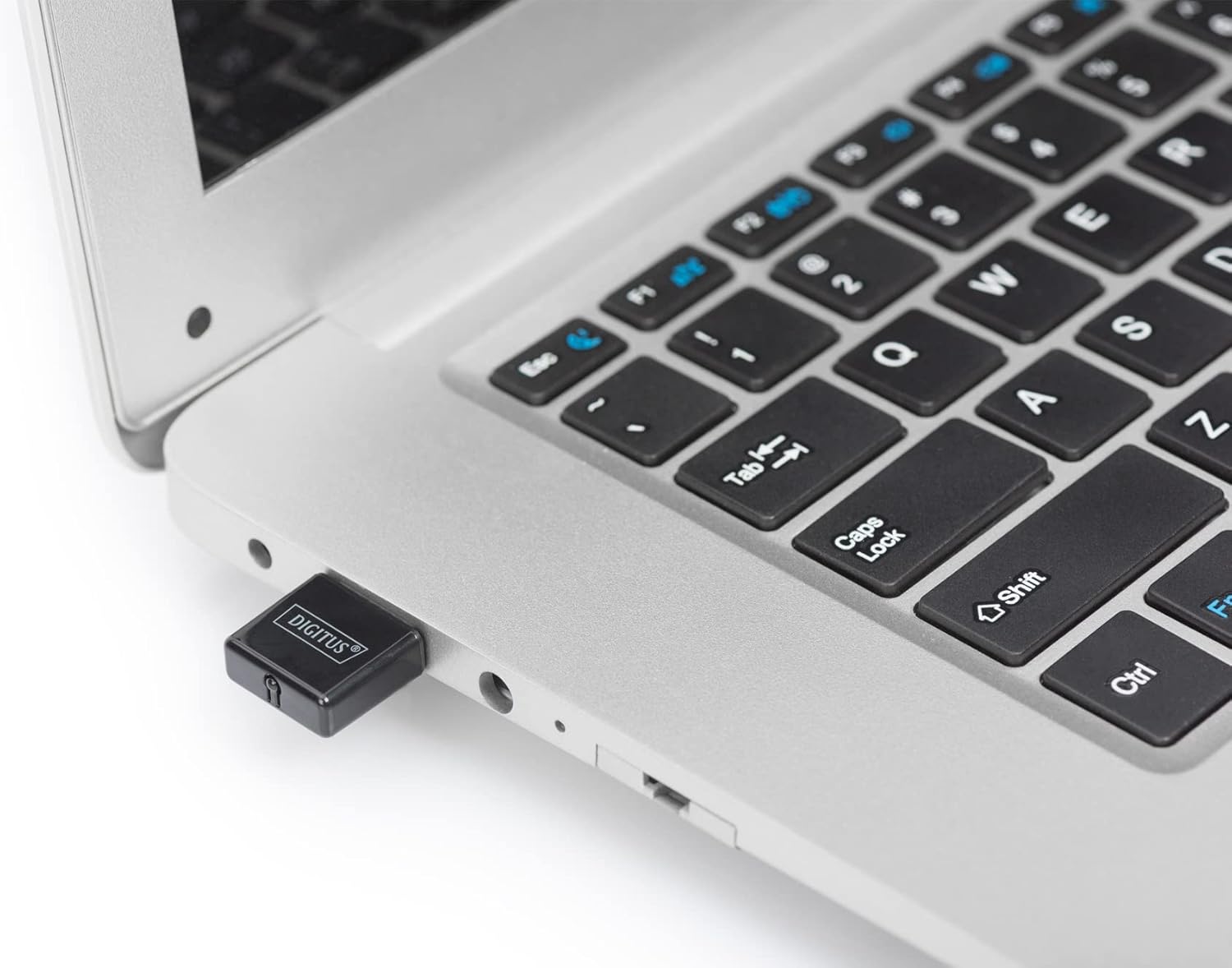
Figure 3.1: The DIGITUS DN-70542 adapter inserted into a laptop's USB port.

Whakaahua 3.2: He tata view of the adapter connected to a laptop, showing its compact size.
- Manatokohia te Tāutatanga: After connecting, your operating system should detect the new hardware and complete the installation. You can verify the installation by checking your computer's Device Manager (for Windows) to ensure the wireless adapter is listed and functioning correctly.
4. Nga Tohutohu Whakahaere
Once the adapter is successfully installed, you can connect to a wireless network.
- Hononga ki te Whatunga Ahokore:
- Whakatuwheratia ngā tautuhinga whatunga ahokore o tō rorohiko.
- Matawai mo nga whatunga ahokore e waatea ana.
- Tīpakohia te whatunga e hiahiatia ana e koe (SSID) mai i te rārangi.
- Whakauruhia te kī haumarutanga whatunga (kupuhipa) mena ka akiakihia.
- Pāwhiritia te "Hono" hei whakatū i te hononga ahokore.
- Ma te whakamahi i te WPS (Tatūnga Parea Wi-Fi):
The adapter supports WPS for a simplified and secure connection to compatible routers.
- Pēhia te pātene WPS ki tō pouara ahokore.
- Within two minutes, press the WPS button on the DIGITUS DN-70542 adapter. The WPS button is a small, recessed button on the side of the adapter.
- Ka whakatū aunoa te urutau me te pouara i tētahi hononga haumaru.

Figure 4.1: The WPS button located on the side of the adapter.
5. Tiaki
To ensure optimal performance and longevity of your DIGITUS DN-70542 adapter, follow these guidelines:
- Kia ma te urutau kia kore e pehu. Whakamahia he kakahu ngohengohe, maroke mo te horoi.
- A ape i te tuku i te urutau ki te tino mahana, te makuku, te ra tika ranei.
- Do not attempt to disassemble or repair the adapter yourself. This will void the warranty.
- Rokirokihia te urutau ki tētahi wāhi haumaru ina kore e whakamahia hei ārai i ngā kino ā-tinana.
6. Te Raru
If you encounter issues with your DIGITUS DN-70542 Wireless LAN USB 2.0 Adapter, refer to the following common problems and solutions:
- Adapter Not Detected / Driver Installation Issues:
- Me whakarite kua whakaurua katoatia te urutau ki roto i tētahi tauranga USB e mahi ana.
- Ngana ki tetahi atu tauranga USB.
- Reinstall the drivers from the provided CD-ROM.
- Download the latest drivers from the official DIGITUS webpae.
- If using Windows 8.1 or newer and encountering issues like "Bluescreen" or "infected file" warnings during driver installation, temporarily disable antivirus software (like Windows Defender) during driver installation, then re-enable it immediately after. Ensure you are downloading drivers from a trusted source (DIGITUS official webpae).
- Check Device Manager to see if the adapter is listed with any error symbols.
- Cannot Connect to Wireless Network:
- Manatokohia kei te whakakāhia tō pouara ahokore, ā, kei te whakapāho tohu hoki.
- Ensure you are entering the correct network security key (password).
- Neke atu ki te pouara ahokore hei whakapai ake i te kaha o te tohu.
- Restart your computer and the wireless router.
- Check if other devices can connect to the same wireless network.
- Tere Hononga Pōturi:
- Ensure your router supports 802.11n for optimal speeds.
- Whakaitihia te pokanoa mai i ētahi atu taputapu hiko (hei tauira, ngā ngaruiti, ngā waea kore aho).
- Whakahōuhia te mārō o tō pouara.
- Tirohia mēnā he pūrere kē atu e whakapau kaha ana ki te whakamahi i te roanga o te hononga i runga i tō whatunga.
7. Whakatakotoranga
| Āhuahira | Whakaahuatanga |
|---|---|
| Tauira | DN-70542 |
| Atanga Pūmārō | USB 2.0 |
| Paerewa Ahokore | IEEE 802.11n, IEEE 802.11g, IEEE 802.11b |
| Rere Whakawhiti Raraunga | Tae atu ki te 300 Mbps |
| Awhe Auautanga | 2.4 - 2.4835 GHz |
| Āhuatanga Haumarutanga | WPS (Wireless Protected Setup) function |
| Tautoko Pūnaha Whakahaere | Matapihi |
| Hunga Hua | 24 x 15 x 2 mm (approximate); 15 g |
| Kaihanga | ASSMANN Electronic GmbH PES - BO DE |
8. Pūtāhui me te Tautoko
For warranty information and technical support, please refer to the documentation included with your product or visit the official DIGITUS webpae. Ko ngā taipitopito whakapā mō te tautoko kiritaki ka kitea i te paetukutuku a te kaihanga webpae.
Tena koa pupurihia to tohu mo te hoko mo etahi kereme whakamana.


