Kupu Whakataki
This manual provides comprehensive instructions for the installation, operation, maintenance, and troubleshooting of your Intel Core i3-3220 Processor. Designed for desktop computing, this processor delivers reliable performance for everyday tasks and multimedia.
Ka mutu te huaview
The Intel Core i3-3220 is a dual-core processor featuring Intel Hyper-Threading Technology, providing 4-way multi-task processing. It operates at a base clock speed of 3.3 GHz and is designed for the LGA 1155 socket. This processor includes 3MB of Intel Smart Cache and supports a 5.0 GT/s DMI (Direct Media Interface).
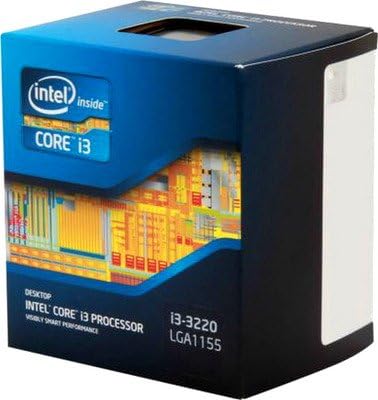
Image: Retail packaging for the Intel Core i3-3220 Processor, showing the Intel Inside Core i3 branding and model number.
Tatūnga me te Tāuta
Proper installation is crucial for optimal performance and longevity of your processor. Always ensure your system is powered off and unplugged before beginning installation.
Rārangi arowhai i mua i te tāutanga:
- Compatible Motherboard (LGA 1155 socket).
- Adequate CPU Cooler (compatible with LGA 1155).
- Thermal Interface Material (thermal paste).
- Anti-static wrist strap or proper grounding procedures.
Hipanga Tāuta:
- Whakapaia te Papa Matua: Whakatuwheratia te taunga turanga PTM ka hikina te pereti uta.
- Whakahaerehia te Tukatuka: Hold the processor by its edges. Avoid touching the gold contacts or the top surface.
- Tiaro ka Kōkuhu: Carefully align the two notches on the processor with the keys on the socket. Gently lower the processor into the socket. Do not force it.
- Tiakina te Tukatuka: Close the load plate and push the lever down until it locks into place.
- Hoatu te Whakapiri Weariki: Tāpirihia he iti o te whakapiri wera (he ira rite te rahi ki te pī) ki waenganui o te taputapu hora wera whakauru (IHS) o te tukatuka.
- Tāutahia te whakamatao CPU: Tāutahia te pouaka whakamatao CPU kia rite ki ngā tohutohu a te kaihanga, kia ōrite ai te tohatoha o te pehanga.
- Tūhono Pā: Connect the CPU cooler fan cable to the designated CPU_FAN header on the motherboard.
Note: Refer to your motherboard's manual for specific CPU installation instructions, as procedures may vary slightly.
Te Whakahaere i te Pūtukatuka
Once installed, the Intel Core i3-3220 processor functions as the central processing unit of your computer system. It executes instructions, performs calculations, and manages the flow of information, enabling your operating system and applications to run.
Te Whakaara Tuatahi me te Tāutanga Atekōkiri:
- After assembling your PC, power it on. The system should recognize the new processor.
- Install the operating system if not already present.
- Install the latest chipset drivers for your motherboard, typically found on the motherboard manufacturer's website. These drivers ensure proper communication between the CPU and other system components.
The processor is designed to operate within specified thermal and power limits. Modern operating systems and motherboards automatically manage CPU frequencies and power states for optimal performance and energy efficiency.
Whakatakotoranga
| Āhuahira | Taipitopito |
|---|---|
| Kaihanga CPU | Intel |
| Tauira PTM | Core i3 |
| Tauira Tuemi | i3 3220 |
| Tere PTM | 3.3 GHz |
| Putunga PTM | LGA 1155 |
| Taumaha Tūemi | 15.8 hekere |
| ASIN | B00AHAV68S |
| Te Ra Tuatahi Wātea | Maehe 10, 2014 |
Te tiaki
Processors generally require minimal direct maintenance. However, maintaining the overall cleanliness and proper thermal environment of your computer system is vital for the processor's longevity and performance.
- Whakahaere Puehu: Regularly clean dust from inside your computer case, especially around the CPU cooler and case fans. Dust accumulation can impede airflow and lead to overheating.
- Whakapiri Weariki: The thermal paste applied between the CPU and cooler may degrade over many years. If you notice consistently high temperatures, reapplying fresh thermal paste might be necessary. This should only be done by experienced users.
- Nga Tikanga Taiao: Ensure your computer operates in a well-ventilated area, away from direct sunlight or heat sources.
Raparongoā
Ki te tūpono koe ki ngā raruraru o tō pūnaha i muri i te tāutanga o te tukatuka, whakaarohia ēnei mahi rapurongoā noa:
- Kore Whakaara/Kore Whakaatu:
- Verify that the CPU is correctly seated in its socket and the lever is locked.
- Ensure the CPU power cable (4-pin or 8-pin EPS) is securely connected to the motherboard.
- Tirohia kei te tika te whakaurunga o te whakamatao CPU, kei te huri haere tana powhiriwhiri.
- Confirm RAM modules are correctly seated.
- Te wera nui:
- Ensure the CPU cooler is making good contact with the CPU and thermal paste is applied correctly.
- Check for proper airflow within the computer case; clean any dust buildup.
- Verify CPU cooler fan is functioning.
- Pūnaha Haukore/Tukinga:
- Update motherboard BIOS to the latest version (if necessary and compatible).
- Whakaritea nga taraiwa katoa, ina koa ko nga taraiwa chipset, kei te hou tonu.
- Run system diagnostics to check for other component failures (RAM, storage).
If issues persist, consult your motherboard's troubleshooting guide or seek professional assistance.
Pūtāhui me te Tautoko
Intel processors typically come with a limited warranty. For specific warranty terms and conditions, please refer to the documentation included with your purchase or visit the official Intel webpae.
Mo te tautoko hangarau, tango taraiwa, me etahi atu rauemi, tirohia koa te tautoko Intel mana webpae:
For information regarding protection plans, please refer to the details provided by your retailer at the time of purchase.