1. Hua Neke Atuview
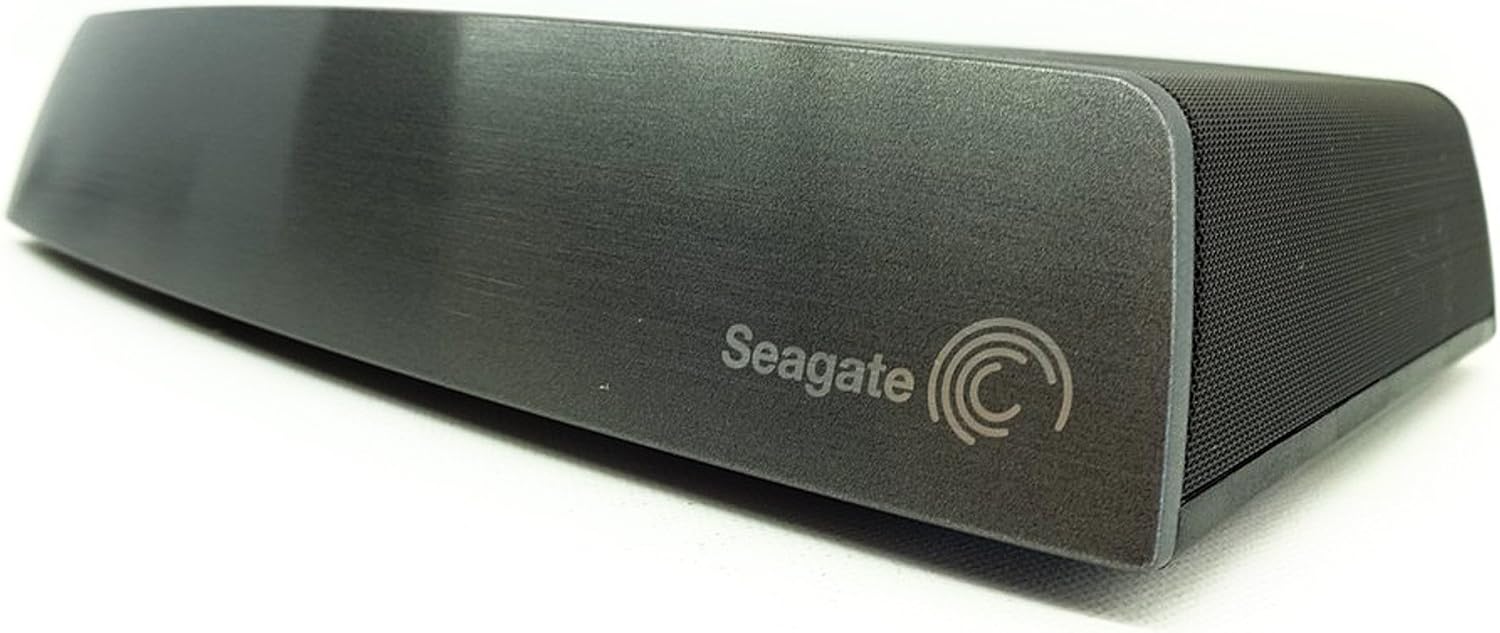
The Seagate Central STCG3000100 is a personal cloud storage device designed to centralize and back up your digital content. It allows access to your files from various devices within your home network or remotely via the internet.
Āhuatanga matua:
- Access your personal cloud from anywhere with a web browser or the free app for tablets and smartphones.
- Automatically back up multiple PC and Mac computers.
- Upload and back up photos/videos from tablets and smartphones anywhere with an internet connection.
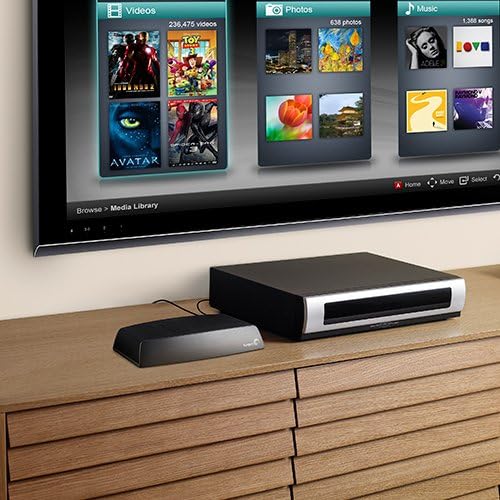
- Wirelessly stream your media library to gaming consoles, media players, Smart TVs, and connected devices.
2. He aha kei roto i te Pouaka
- Seagate Central Shared Storage Device
- Tauira Itarangi
- Tuku Hiko
- Aratohu Timata Tere

3. Tohutohu Tatūnga
Follow these steps to set up your Seagate Central device:
- Honoa te Tauera Itarangi: Plug one end of the provided Ethernet cable into the Ethernet port on the back of your Seagate Central device. Plug the other end into an available LAN port on your wireless router.
- Honoa te Kaihiko hiko: Connect the power supply to the power input on the back of the Seagate Central device. Plug the power adapter into a wall outlet.
- Whakahiko: The device will automatically power on. Wait for the status light on the front of the device to turn solid green, indicating it is ready for use. This may take a few minutes.
- Te Urunga Tuatahi: Mai i tētahi rorohiko e hono ana ki te whatunga kotahi, whakatuwheratia he web pūtirotiro me te whakatere ki www.seagate.com/central/setup to complete the initial setup and create your Seagate Access account.
4. Nga Tohutohu Whakahaere
4.1. Accessing Your Files
Ka taea e koe te uru atu ki to files stored on Seagate Central in several ways:
- Local Network (PC/Mac): The Seagate Central will appear as a network drive on your computer. You can browse and manage files directly through your operating system's file kaihōpara.
- Seagate Media App (Mobile Devices): Download the free Seagate Media app from your device's app store. Log in with your Seagate Access account to browse, stream, and upload content.
- Web Browser (Remote Access): Haerenga access.seagate.com and log in with your Seagate Access account to access your files from any internet-connected device.
- DLNA/UPnP Devices: Stream media to compatible Smart TVs, gaming consoles, and media players that support DLNA or UPnP.

4.2. Tārua Aunoa
Configure automatic backups for your PC and Mac computers using the Seagate Dashboard software (available for download from the Seagate website). This ensures your important files are regularly saved to your Seagate Central.
4.3. Mobile Uploads
Use the Seagate Media app on your smartphone or tablet to automatically upload photos and videos to your Seagate Central, freeing up space on your mobile device and centralizing your memories.
5. Tiaki
- Whakahōu Firmware: Regularly check for and install firmware updates through the Seagate Central administration interface. Updates provide performance improvements, new features, and security enhancements.
- Te horoi: Puritia te taputapu kia ma, kia kore he puehu. Whakamahia he kakahu ngohengohe, maroke hei muru i waho. Kaua e whakamahia nga kai horoi wai, aerosol ranei.
- Whakahau: Ensure the device has adequate ventilation. Do not block the ventilation holes or place the device in an enclosed space that could restrict airflow.
- Tikanga Raraunga: While Seagate Central provides backup capabilities, it is recommended to maintain additional backups of critical data on separate storage devices or cloud services.
6. Te Raru
6.1. Device Not Detected on Network
- Ensure the Ethernet cable is securely connected to both the Seagate Central and your router.
- Verify the power adapter is connected and the device's status light is solid green.
- Restart your router, then restart the Seagate Central device.
- Check your router's settings to ensure DHCP is enabled and the device is receiving an IP address.
6.2. Kāore e taea te uru atu Files Remotely
- Confirm your Seagate Central is connected to the internet and its status light is solid green.
- Ensure you are using the correct Seagate Access account credentials.
- Check your router's firewall settings; some firewalls may block remote access.
6.3. Mahinga Puturi
- Network congestion can affect performance. Try reducing the number of active network devices or streaming activities.
- Ensure your network cables are in good condition and your router supports Gigabit Ethernet for optimal speeds.
- Check for any ongoing background tasks on the Seagate Central, such as large backups or media indexing.
7. Whakatakotoranga Hangarau
| Āhuahira | Taipitopito |
|---|---|
| Waitohu | Seagate |
| Tau tauira | STCG3000100 |
| Te Rokiroki Mamati | 3 TB |
| Tauwehe Puka Kopae Maama | 3.5 Inihi |
| Hangarau Hononga | Itarangi |
| Atanga Kaihautū | USB 2.0 |
| Maximum External Data Transfer Rate | 60 MBps (480 Mbps) |
| Pūmārō Pūmārō | Mac, PC |
| Tae | Pango |
| Rahi Tūemi (LxWxH) | 5.7 x 8.5 x 1.7 inihi |
| Taumaha Tūemi | 2.2 pauna |
8. Pūtāhui me te Tautoko
8.1. Rarangi Whakaiti
The Seagate Central STCG3000100 comes with a 2-Tau Rarangi Rarangi. Please retain your proof of purchase for warranty claims. For full terms and conditions, refer to the warranty documentation included with your product or visit the official Seagate webpae.
8.2. Tautoko Hangarau
For technical assistance, product registration, or to download the latest software and firmware, please visit the official Seagate support webpae:
You may also find helpful resources, FAQs, and community forums on the support page.
9. Rauemi Ataata
Seagate Central External Hard Drive Overview
Ko tenei ataata he korero potoview of the Seagate Central External Hard Drive, highlighting its features and how it can centralize your digital life. It demonstrates how the device organizes and backs up photos, music, movies, and documents, making them accessible from various devices like computers, tablets, smartphones, gaming consoles, and Smart TVs. The video also shows the ease of setup by plugging it into a wireless router and using the Seagate Media app.


