1. Kupu Whakataki
The Fitbit Charge HR is an advanced wireless activity wristband designed to help you track your daily activity, exercise, and sleep patterns. It features continuous, automatic heart rate monitoring directly from your wrist, allowing you to optimize workouts and monitor calorie burn. This manual provides essential information for setting up, operating, maintaining, and troubleshooting your Charge HR device.
2. Te Timata
2.1 Te Whakataki i to Pūrere
Before initial use, fully charge your Fitbit Charge HR. A full charge typically takes one to two hours. We recommend charging your device every few days to ensure continuous tracking.
2.2 Setting Up and Syncing
The Charge HR syncs automatically and wirelessly to compatible devices using Bluetooth 4.0 wireless technology. To set up your device:
- Download the Fitbit app on your smartphone (iOS, Android, Windows) or install the Fitbit Connect software on your computer (Windows Vista and later, Mac OS X 10.6 and up).
- Create a Fitbit account or log in to an existing one.
- Follow the on-screen instructions in the app or software to pair your Charge HR.
Syncing to mobile devices requires Bluetooth and an internet connection. Syncing to computers requires an internet connection and a USB port. The typical syncing range is 20 waewae.
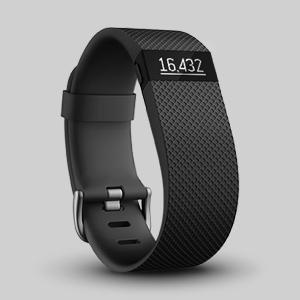
Image: The Fitbit Charge HR syncing with a smartphone and laptop, showing the user dashboard.
2.3 Wearing the Device for Accuracy
Proper placement of your Charge HR is crucial for accurate heart rate readings and overall tracking.
- For daily wear: Wear the band loosely enough that it can move back and forth on your wrist.
- Mo te korikori tinana: To improve the heart rate signal during workouts, wear the tracker higher on your wrist, approximately two to three finger widths above your wrist bone. Ensure the band is secure but not too tight, as this can restrict blood flow.
- During high-intensity activities: Activities that cause your wrist to bend (e.g., push-ups) or vigorous arm movements may interfere with heart rate signals. If you lose a signal, hold your wrist steady for ten seconds during breaks to regain the reading.

Image: A user wearing the Fitbit Charge HR during an activity, demonstrating typical wear.
3. Using Your Charge HR
3.1 Te Whakatere i te Whakaaturanga
The OLED display shows daily stats, time of day, and call notifications. Press the button on the side of the device to cycle through different metrics.

Image: The Fitbit Charge HR display showing a heart rate reading.
3.2 Tracking Heart Rate
The Charge HR provides continuous, automatic, wrist-based heart rate tracking. This feature allows you to:
- Monitor your heart rate 24/7.
- Maximize training by staying within target heart rate zones.
- Accurately measure calorie burn throughout the day and during workouts.

Image: The underside of the Fitbit Charge HR, highlighting the heart rate sensors.
3.3 Tracking Activity
Your Charge HR automatically tracks various activity metrics:
- Hipanga: Total steps taken throughout the day.
- Tawhiti: Te tawhiti i haerea e whakaarohia ana.
- Calories kua tahuna: Total calories expended.
- Papa Piki: Number of floors ascended.
- Ngā Miniti Hohe: Minutes spent in moderate-to-intense activity.
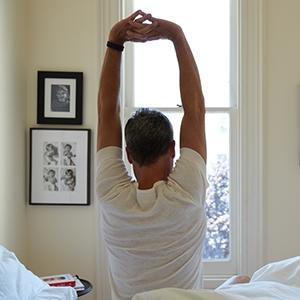
Image: A user engaging in physical activity, demonstrating the tracker's function.
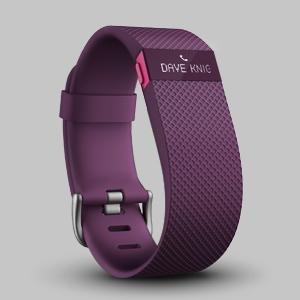
Image: A user running up stairs, illustrating activity tracking.
3.4 Monitoring Sleep
The Charge HR automatically monitors your sleep patterns. It tracks how long and how well you sleep. You can also set a whakaoho wahangu to wake you with a gentle vibration.

Image: A user stretching after sleep, indicating sleep tracking functionality.
3.5 Receiving Call Notifications
When connected to your smartphone, the Charge HR can display call notifications directly on its OLED screen, allowing you to see who is calling without reaching for your phone.

Image: The Fitbit Charge HR displaying an incoming call notification.
4. Tiaki me te Tiaki
Proper care of your Fitbit Charge HR ensures its longevity and maintains skin comfort.
4.1 Nga Tohutohu horoi
- Regularly clean your band and wrist, especially after workouts or sweating.
- Horoihia te roopu ki te wai, horoia ranei ki te iti o te waipiro mirimiri.
- KAUA e whakamahi hand soap, body soap, dish soap, hand sanitizers, cleaning wipes, or household cleaners, as these can get trapped beneath the band and irritate skin.
- Always dry the band thoroughly before putting it back on.
4.2 Ngā Aratohu Ātete Wai
The Fitbit Charge HR is sweat, rain, and splash proof. However, it is not swim proof or shower proof. Avoid prolonged exposure to water.
- If your elastomer band gets wet (e.g., after sweating or showering), rinse and dry it thoroughly before wearing it again.
- Ensure your skin is dry before putting the band back on.
4.3 Skin Care Recommendations
- Avoid wearing the band too tightly. It should be loose enough to move back and forth on your wrist.
- Give your wrist a rest: Prolonged rubbing and pressure can irritate the skin. Remove the band for an hour after extended wear to allow your skin to breathe.
5. Te Raru
If you encounter issues with your Fitbit Charge HR, consider the following common solutions:
- Tukutahi Take: Ensure Bluetooth is enabled on your mobile device or computer, and that you have an active internet connection. Restarting both your Charge HR and the syncing device can often resolve connectivity problems.
- Heart Rate Accuracy: Review the "Wearing the Device for Accuracy" section (2.3). Improper fit or placement is a common cause of inaccurate readings. Ensure the device is clean and the sensors are making good contact with your skin.
- Ora Pūhiko: If your device is not holding a charge as expected (up to 5 days), ensure it is fully charged for 1-2 hours. Excessive notifications or continuous syncing can impact battery performance.
- Whakaatu Kaore i te Whakautu: Try restarting your Charge HR. If the issue persists, ensure the device is charged.
6. Whakatakotoranga
| Tau tauira | FB405TAL |
| Hunga Hua | 8.2 x 0.83 x 0.45 inihi |
| Taumaha | 0.8 hekere |
| Pūhiko | 1 pākahiko Lithium Polymer (kei roto) |
| Ora Pūhiko | Tae atu ki te 5 ra |
| Wā Utu | 1 ki te 2 haora |
| Hototahitanga Pūnaha Whakahaere | Android/iOS, Windows Vista and later, Mac OS X 10.6 and up |
| Hangarau Hononga | Nihokikorangi 4.0, USB |
| Nga waahanga motuhake | Heart Rate Monitor, Pedometer, Sleep Monitor |
| Ātete wai | Sweat, rain, and splash proof (not swim or shower proof) |
7. Tautoko
For further assistance or technical support, please contact Fitbit customer service:
Īmēra: support@fitbit.com
8. Nga Korero Whakaputanga
Warranty information for your Fitbit Charge HR is typically provided with your product purchase. For detailed terms and conditions, please refer to the documentation included with your device or visit the official Fitbit webpae.


