Kupu Whakataki
This manual provides instructions for the LogicKeyboard XL Print Bluetooth Mini Keyboard. This keyboard is designed with large, high-contrast yellow keys and black lettering to enhance visibility and ease of use, particularly for individuals with visual impairments. It offers wireless connectivity via Bluetooth, making it compatible with various devices including Apple iPad, iPhone, iPod, and Android devices.
Nga korero haumaru
- Puritia te papapātuhi kia matara atu i ngā wai me te makuku nui.
- A ape i te tuku i te papapātuhi ki te wera nui.
- Kaua e ngana ki te wetewete, ki te whakatika ranei i te papapātuhi. Tirohia nga kaimahi ratonga whai tohu.
- Whakakorehia nga pākahiko kia rite ki nga ture o te rohe.
Ka mutu te huaview
The LogicKeyboard XL Print features a compact design with clearly visible keys. Below are images illustrating the keyboard's layout and features.

Whakaahua 1: Runga-raro view of the LogicKeyboard XL Print Bluetooth Mini Keyboard, highlighting the large yellow keys with black characters.

Whakaahua 2: Koki view of the keyboard, showing its slim profile me te whakaritenga matua.
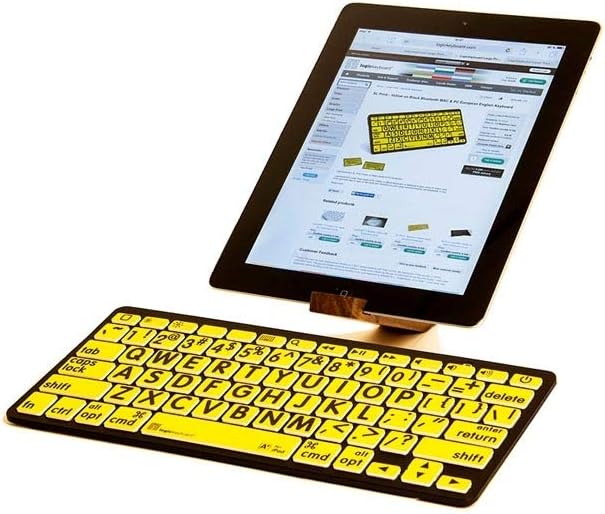
Figure 3: The keyboard in use with an Apple iPad, demonstrating its compact size and compatibility.

Whakaahua 4: Te taha profile of the keyboard, illustrating its ergonomic design for comfortable typing.
Tatūnga
1. Powering On the Keyboard
Locate the power switch, typically on the side or back of the keyboard. Slide the switch to the "ON" position. An indicator light may illuminate briefly.
2. Takirua Nihokikorangi
- Me mohio kei te kaha te papapātuhi.
- On your device (iPad, iPhone, iPod, or Android), navigate to the Tautuhinga tahua.
- Tīpakohia Nihokikorangi ā, kia tino whakahohea te Nihokikorangi.
- The device will scan for available Bluetooth devices. Look for "LogicKeyboard" or a similar name in the list.
- Tap on the keyboard's name to initiate the pairing process.
- Your device may display a pairing code. Type this code on the LogicKeyboard and press Tomo.
- Once paired, the device will show the keyboard as "Connected."
Tuhipoka: The keyboard is designed for easy setup. If you encounter issues, ensure your device's Bluetooth is active and the keyboard has sufficient power.
Nga Tohutohu Whakahaere
Pato Taketake
Once paired, the keyboard functions like a standard QWERTY keyboard. Simply open any text input application on your device and begin typing. The large print keys are designed for enhanced readability.
Kī Mahi Motuhake
The top row of the keyboard includes various function keys (F-keys) that can control media playback, volume, and other system functions on compatible devices. These functions are typically accessed directly or by holding the Fn key (if present) and pressing the desired F-key. Examples of these keys include icons for brightness control (sun icons), media playback (play/pause, stop, previous, next track icons), and volume control (speaker icons).
Tuhipoka: The exact functionality of these keys may vary depending on the connected device and its operating system.
Te tiaki
Te horoi
Hei horoi i te papapātuhi, ata horoia te mata ki te ngohengohe, damp, lint-free cloth. Avoid using harsh chemicals, abrasive cleaners, or excessive moisture, as these can damage the keys or internal components.
Rokiroki
When not in use for extended periods, store the keyboard in a cool, dry place. It is recommended to turn off the keyboard to conserve battery life.
Raparongoā
| Raruraru | Take pea | Rongoā |
|---|---|---|
| Kare te papapātuhi i te hiko. | Ngā pākahiko iti, kua pau rānei. | Replace the batteries with fresh ones. Ensure correct polarity. |
| Kāore te papapātuhi e hono mā te Nihokikorangi. | Bluetooth is off on the device; keyboard not in pairing mode; interference. |
|
| Keys are unresponsive or typing is delayed. | Keyboard entered sleep mode; low battery; connection issue. |
|
| Specific function keys do not work. | Device incompatibility; operating system settings. |
|
Whakatakotoranga
- Tau tauira: LKBU-LPBY-BTON-US
- Hononga: Nihokikorangi, RF
- Ngā Pūrere Hototahi: Apple iPad, iPhone, iPod, Android devices
- Momo papapātuhi: Wireless, Mini Keyboard
- Āhuatanga matua: Large Print, High Contrast (Black on Yellow), Ergonomic
- Tae: Black (keyboard body), Yellow (keys)
- Rahi Hua: 12.8 x 5.5 x 1.3 inihi (32.5 x 14 x 3.3 cm)
- Taumaha: Tata ki te 11.11 hekere (315 karamu)
Nga korero Whakaputanga
LogicKeyboard products typically come with a limited manufacturer's warranty. Please refer to the warranty card included with your purchase or visit the official LogicKeyboard webpae mo nga tikanga me nga tikanga whakamana. Puritia to tohu hoko mo nga kereme whakamana.
Tautoko
For technical assistance, troubleshooting, or product inquiries, please visit the official Logickeyboard webpaetukutuku, whakapā atu ranei ki a raatau tautoko kaihoko.
- Tautoko Aipurangi: Haerenga www.logickeyboard.com for FAQs, drivers, and support resources.
- Whakapā: Tirohia te website for contact information, including email and phone support.


