1. Kupu Whakataki
The Logickeyboard Sabre Travel Reservation Slim Line PC Keyboard is specifically engineered to enhance efficiency and accuracy when interacting with the Sabre Travel Network System on a Windows PC. This keyboard features laser-etched, color-coded keys that correspond to Sabre commands, eliminating the need for extensive memorization and reducing input errors. It is suitable for both experienced Sabre users and those new to the system.
This manual provides essential information for setting up, operating, and maintaining your Logickeyboard Sabre keyboard.
2. Ihirangi mokete
- Logickeyboard Sabre Travel Reservation Slim Line PC Keyboard
- Tuhinga Kaiwhakamahi (tenei pukapuka)
3. Tatūnga
3.1 Whakaritenga Pūnaha
- Pūnaha Mahi: Windows PC
- Putanga USB-A e wātea ana
3.2 Te hono i te Papapātuhi
- Locate an available USB-A port on your Windows PC.
- Plug the USB connector from the Logickeyboard Sabre keyboard into the USB-A port.
- The keyboard is plug-and-play; your operating system should automatically detect and install the necessary drivers. No additional software installation is typically required.
4. Nga Tohutohu Whakahaere
The Logickeyboard Sabre keyboard is designed to streamline your workflow within the Sabre Travel Network System. Its keys are clearly labeled with Sabre commands and color-coded for quick visual identification.
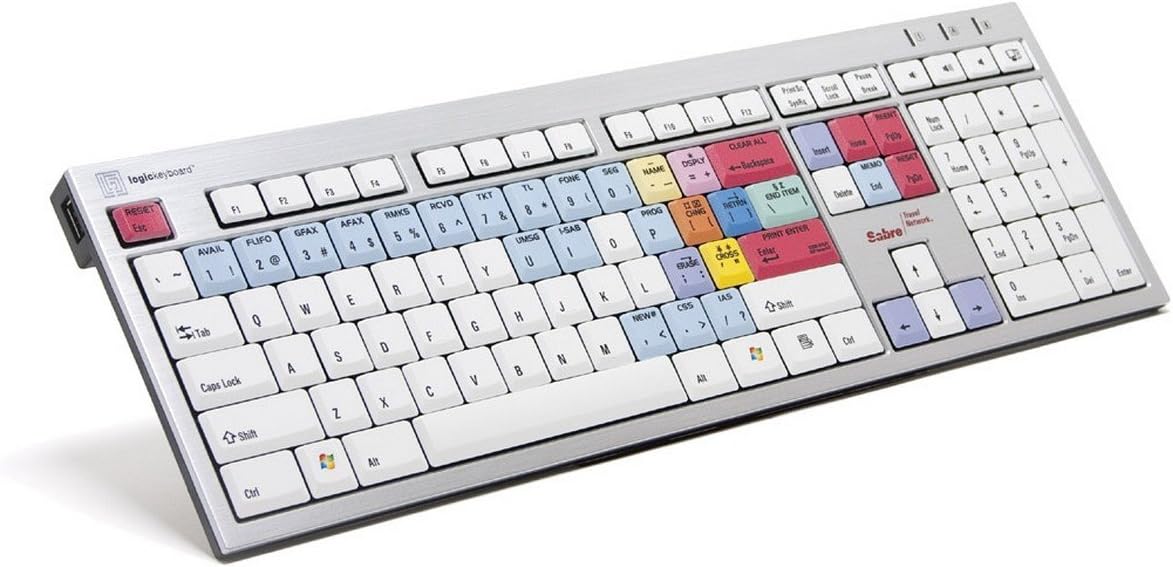
Figure 1: Logickeyboard Sabre Travel Reservation Slim Line PC Keyboard layout, showing various color-coded command keys.
4.1 Understanding Color-Coded Keys
The keyboard features distinct color zones to group related Sabre commands, making them easier to locate and use:
- Blue Keys: Often represent common Sabre functions like WHAWHAI (Availability), FLIFO (Flight Information), GFAX (General Fax), AFAX (Airline Fax), RMKS (Remarks), RCVD (Received), TKT (Ticket), TL (Time Limit), WAHINE (Phone), SEG (Segment), INGOA, DSPLY (Display), MAUI (Program), CHNG (Change), RETRN (Return), HOU, CSS, IAS.
- Red Keys: Typically indicate critical actions or commands such as RESET Esc, WHAKAARAU KATOA, END ITEM, PRINT ENTER, manatu, RESET PNR.
- Yellow Keys: May denote specific actions like KAUPAPA or RIKIpeka.
- Standard White Keys: Function as a regular QWERTY keyboard for text input.
4.2 Mahi Whanui
- To execute a Sabre command, simply press the corresponding labeled key.
- For standard text entry, use the white QWERTY keys as you would on any conventional keyboard.
- The numeric keypad on the right functions identically to a standard numeric keypad.
5. Tiaki
5.1 Te horoi
To maintain the keyboard's performance and appearance:
- Momotuhia te papapātuhi mai i to rorohiko i mua i te horoi.
- Kia ngawari te whakamahi i te kakahu ngohengohe, karekau he ngongo dampka whakakikoruatia ki te wai, ki te wairewa horoi ngawari ranei.
- A ape i te rehu wai ki runga i te papapātuhi.
- Do not use harsh chemicals, solvents, or abrasive cleaners, as these can damage the key legends and surface.
5.2 Ātete ki te maringi
This keyboard features a spill-proof design, offering protection against accidental liquid spills. While designed to resist spills, it is recommended to clean up any liquid immediately to prevent potential damage and ensure longevity.
6. Te Raru
6.1 Papapātuhi Kaore i te Whakautu
- Tirohia te Hononga USB: Ensure the keyboard's USB cable is securely plugged into a functioning USB-A port on your computer. Try a different USB port if available.
- Tīmata anō Rorohiko: I etahi wa ka taea e te whakaara ano te punaha te whakatau i nga take honohono.
- Whakamātautau ki tētahi atu Rorohiko: If possible, connect the keyboard to another computer to determine if the issue is with the keyboard or your original system.
6.2 Specific Keys Not Working
- Tirotiro mo nga aukati: Check if any debris or foreign objects are lodged under the non-functioning keys.
- Clean Keyboard: Follow the cleaning instructions in Section 5.1.
- Taupatupatu Pūmanawa: Kia tino mohio kei te kore he pūmanawa, he taraiwa rānei e whakararuraru ana i te tāuru papapātuhi.
7. Whakatakotoranga
| Tau tauira | LKBU-SABRE-AJPU-US |
| Waitohu | Logickeyboard |
| Hunga Hua | 25 x 6 x 10 inihi |
| Taumaha Tūemi | 5 pauna |
| Pūrere Hototahi | PC |
| Hangarau Hononga | USB-A |
| Momo Papapātuhi | USB |
| Whakamahinga Whakamahinga | Sabre Travel Network System |
| Āhuahira Motuhake | Whakaaetanga Whakataka |
| Key Color Coding | Red, Blue, Yellow for Sabre commands |
| Kāhua | Hou |
| Takotoranga-ringa | Ambidextrous |
8. Pūtāhui me te Tautoko
Logickeyboard products are covered by a manufacturer's warranty. For detailed warranty information, technical support, or to contact customer service, please visit the official Logickeyboard webpaetukutuku tirohia ranei ki te kaari whakamana kei roto i to hua.
Ka kitea e koe etahi atu korero me nga rauemi tautoko i te Logickeyboard Store on Amazon.


