Kupu Whakataki
This manual provides essential instructions for the setup, operation, maintenance, and troubleshooting of your Honeywell Voyager 1452g Wireless Area-Imaging Scanner. Please read this manual thoroughly before using the device to ensure proper functionality and to maximize its lifespan.
The Honeywell Voyager 1452g is a wireless area-imaging scanner designed for efficient 1D and 2D barcode scanning. It connects via Bluetooth to its charge and communication base, which in turn connects to a host system via a USB interface.
Ihirangi mokete
Manatokohia kei roto i to kete nga mea e whai ake nei:
- Honeywell Voyager 1452g Wireless Area-Imaging Scanner (Model: 1452G1D-2 or 1452G2D-2)
- Charge and Communication Base (Model: CCB01-010BT-V7N)
- USB Type A 1.5m Straight Cable (Model: CBL-500-300-S00)
- Aratohu Timata Tere (mehemea kei roto)
Tatūnga
1. Connecting the Charge and Communication Base
- Connect the USB cable (CBL-500-300-S00) to the USB port on the charge and communication base (CCB01-010BT-V7N).
- Plug the other end of the USB cable into an available USB port on your host computer or point-of-sale system.
- The base's indicator light will illuminate, indicating it is powered on.
2. Charging the Scanner
- Place the Voyager 1452g scanner into the charge and communication base. Ensure it is seated correctly.
- The scanner's indicator light will show charging status (typically amber for charging, green for fully charged).
- Allow the scanner to fully charge before initial use. A full charge may take several hours.
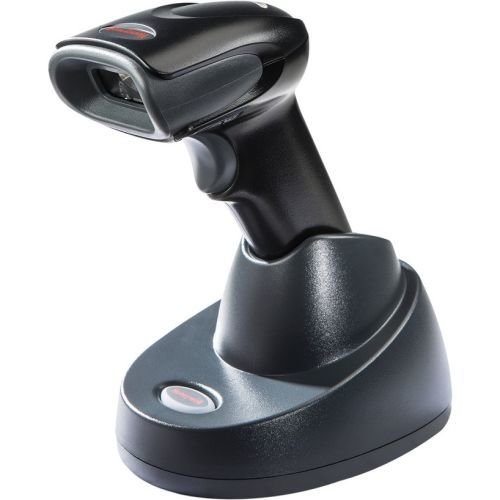
An image showing the Honeywell Voyager 1452g wireless barcode scanner docked in its black charging and communication base. The scanner is black with a gray trigger button and a red indicator light on the top. The base is also black with a white button and a red indicator light.
3. Pairing the Scanner with the Base
The scanner and base are typically pre-paired at the factory. If re-pairing is necessary:
- Ensure the base is powered on and connected to the host.
- Scan the 'Link' barcode (usually found in the quick start guide or on the base itself).
- Place the scanner into the base. The scanner will emit a series of beeps and its indicator light will change, confirming successful pairing.
Te whakahaere i te Matawai
1. Matawai Waehere Pae
- Tohua te matapihi o te matawai ki te tohupae e hiahia ana koe ki te matawai.
- Patohia me te pupuri i te paatene keu. Ka puta mai he kurupae whainga.
- Whakawaea te kurupae whainga ki runga i te waeherepae.
- Once the barcode is successfully read, the scanner will emit a 'good read' beep and the indicator light will flash green.
2. Scanning 1D and 2D Barcodes
The Voyager 1452g is capable of reading both linear (1D) and two-dimensional (2D) barcodes. Ensure the entire barcode is within the scanner's field of view mo te mahi tino pai.
3. Feedback Indicators
- Good Read Indicator: A short green flash and a single beep.
- Tohu Whakatau: Amber light when charging, green when fully charged.
- Tohu Hononga: Blue light on the base indicates a successful Bluetooth connection to the scanner.
Te tiaki
1. Te horoi i te Matawai
To maintain optimal scanning performance, keep the scanner's window clean. Use a soft, lint-free cloth dampka whakakiia ki te wai, ki te otinga horoi ngawari ranei. A ape i te kai horoi, te whakarewa ranei.
2. Tiaki Pūhiko
The scanner uses a rechargeable battery. For best battery life:
- A ape i te wera nui.
- Charge the scanner regularly.
- Mena ka roa te wā e rongoa ana, kia tino whakakīia te pākahiko (tata ki te 50%), ā, rongoatia ki te wāhi hauhautanga, maroke hoki.
Raparongoā
If you encounter issues with your Honeywell Voyager 1452g scanner, refer to the following common problems and solutions:
- Kaore te Matawai i te hiko: Ensure the scanner is properly seated in the charging base and the base is connected to a powered USB port. Allow time for charging.
- Scanner Not Connecting to Base: Verify the base is powered. Try re-pairing the scanner by scanning the 'Link' barcode and placing the scanner in the base. Ensure no other Bluetooth devices are interfering.
- Kaiwaituhi Kaore e Panui Waehere Pae: Check if the scanner window is clean. Ensure the barcode is not damaged and is within the scanner's read range and field of view. Confirm the correct barcode symbologies are enabled in the scanner's configuration (refer to the full programming guide for advanced settings).
- No Data Transmitted to Host: Ensure the USB cable is securely connected to both the base and the host computer. Verify the host system recognizes the scanner as an input device.
For more complex issues, consult the comprehensive user guide available on the Honeywell website or contact Honeywell technical support.
Whakatakotoranga
| Āhuahira | Whakatakotoranga |
|---|---|
| Tau tauira | 1452G2D-2USB-5 |
| Hangarau Hononga | Nihokikorangi, Ahokore |
| Pūrere Hototahi | Papamahi, Pona |
| Puna Mana | Corded Electric (for base) |
| Taumaha Tūemi | 1.4 pauna |
| Rahi Hua (LxWxH) | 1 x 1 x 1 inches (approximate, for scanner) |
| Tae | Pango |
| Kaihanga | HONEYWELL SCANNING |
Pūtāhui me te Tautoko
Mō ētahi atu kōrero taipitopito mō te pūtāhui, tirohia te kāri pūtāhui kei roto i tō hua, tirohia rānei te paetukutuku mana o Honeywell website. Honeywell provides technical support and resources for its products.
Mo etahi atu awhina, tirohia te Honeywell Store or contact Honeywell customer service directly.


