Kupu Whakataki
The Intel Core i5 6500 is a 3.20 GHz Quad Core Skylake Desktop Processor designed for Socket LGA 1151 motherboards. It features 6MB of cache and is engineered to provide intelligent performance, accelerating in response to demanding tasks such as gaming and photo editing. This processor automatically allocates processing power where it's needed most, enabling efficient multitasking for activities like HD video creation, digital music composition, and playing PC games.
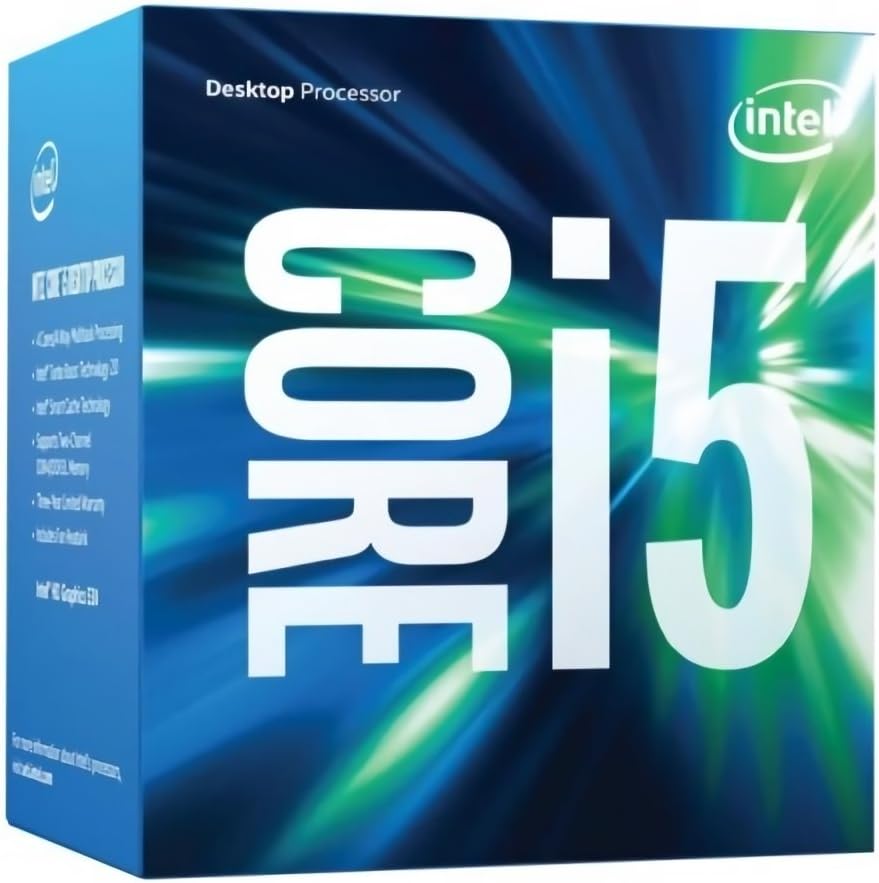
Ihirangi mokete
Upon opening the retail box version of the Intel Core i5 6500 processor, you should find the following components:
- Intel Core i5 6500 Processor
- Fan and Heat Sink (Included)
- Documentation (User Manual, Installation Guide)

Tatūnga me te Tāuta
Proper installation of your Intel Core i5 6500 processor is crucial for optimal performance and system stability. Always ensure your system is powered off and unplugged before beginning installation.
1. Motherboard Compatibility
Verify that your motherboard supports the LGA 1151 socket and is compatible with Intel Skylake processors. Consult your motherboard's manual for specific CPU support lists and BIOS requirements.
2. Preparing the Socket
Gently open the CPU retention lever on the motherboard's LGA 1151 socket. Lift the load plate.
3. Te whakauru i te Tukatuka
Carefully align the triangular arrow on the corner of the processor with the corresponding arrow on the motherboard socket. Lower the processor straight down into the socket without forcing it. The processor should sit flush in the socket.
4. Securing the Processor
Close the load plate over the processor and press down the retention lever until it clicks into place. This secures the processor firmly in the socket.
5. Te Tāpiri i te Whakapiri Wera me te Tāuta i te Pouaka Whakamatao
If your processor did not come with pre-applied thermal paste on the cooler, apply a small amount (pea-sized dot) of thermal paste to the center of the processor's integrated heat spreader (IHS). Then, carefully place the included Intel stock cooler (or an aftermarket cooler) onto the processor, aligning the mounting pins with the holes on the motherboard. Press down firmly on each pin until it clicks, ensuring the cooler is securely attached. Connect the cooler's fan cable to the CPU_FAN header on your motherboard.
For detailed visual instructions, refer to the Manual Tāuta (PDF).
Nga Aratohu Whakahaere
Once installed, the Intel Core i5 6500 processor operates automatically with your system's operating system and applications. Its integrated Intel HD Graphics 530 allows for display output without a dedicated graphics card, though a discrete GPU is recommended for demanding graphical tasks and gaming.
- Mahinga: The processor dynamically adjusts its clock speed (up to 3.6 GHz with Intel Turbo Boost Technology) based on workload to optimize performance and power efficiency.
- Mahi Maha: With four physical cores, the i5-6500 is capable of handling multiple applications simultaneously, providing a smooth user experience.
- Whakairoiro Whakauru: The Intel HD Graphics 530 supports 4K video playback and can handle light gaming and everyday computing tasks.

Te tiaki
The Intel Core i5 6500 processor requires minimal maintenance. The primary concern is ensuring adequate cooling to prevent overheating, which can lead to performance degradation or system instability.
- Tango Puehu: Periodically clean dust from the CPU cooler's fan and heatsink fins using compressed air. Dust accumulation can impede airflow and reduce cooling efficiency.
- Whakapiri Weariki: The thermal paste applied during installation typically lasts for several years. If you notice consistently high temperatures, consider reapplying fresh thermal paste after cleaning the CPU and heatsink surfaces.
- Rererangi: Me whakarite kia pai te rere o te hau i roto i to pouaka rorohiko ma te whakahaere i nga taura me te pupuri kia marama nga hau o roto.
Raparongoā
If you encounter issues with your system after installing the Intel Core i5 6500 processor, consider the following common troubleshooting steps:
No Display/System Not Booting
- Taki Hononga: Ensure all power cables (24-pin ATX, 8-pin CPU) are securely connected to the motherboard. Verify that the CPU cooler fan is connected to the CPU_FAN header.
- Whakanohoia ano nga Wae: Carefully reseat the CPU in its socket. Also, reseat RAM modules and any expansion cards (like a graphics card).
- BIOS/UEFI Update: Some motherboards may require a BIOS/UEFI update to support newer processors. Consult your motherboard's manufacturer webpae.
Nga Take Whakawera
- Whakauru Maamaa: Confirm the CPU cooler is properly seated and making full contact with the processor's IHS. Ensure all mounting pins/screws are tightened.
- Whakapiri Weariki: Me manatoko mēnā i tika, i pai hoki te paninga o te whakapiri wera.
- Te Rerenga Hau: Check for proper case fan configuration and ensure no obstructions are blocking airflow.
- Monitoring Software: Use system monitoring software (e.g., HWMonitor, Core Temp) to check CPU temperatures.
Te Pūmautanga/Ngā Tukinga o te Pūnaha
- Ngā Take RAM: Test your RAM modules using diagnostic tools (e.g., MemTest86).
- Whakahōu Atekōkiri: Ensure your motherboard chipset drivers and integrated graphics drivers (if used) are up to date.
- Tuku Hiko: Verify your power supply unit (PSU) has sufficient wattage and stable power delivery for all system components.
Whakatakotoranga
| Āhuahira | Taipitopito |
|---|---|
| Tauira Tukatuka | Intel Core i5-6500 |
| Momo Taarua | LGA 1151 |
| Koro | 4 |
| Miro | 4 |
| Tere Karaka turanga | 3.2 GHz |
| Max Turbo Auautanga | 3.6 GHz |
| Keteroki | 6 MB Pupuri Atamai |
| Whakairoiro Whakauru | Intel HD Whakairoiro 530 |
| Rahi Mamao Max | 64 GB |
| Momo Wahara | DDR4-1866/2133, DDR3L-1333/1600 @ 1.35V |
| TDP | 65 W |
| Tauira Tuemi | BX80662I56500 |
| Hunga Hua | 4.7 x 4.4 x 3.1 inihi |
| Taumaha Tūemi | 10.4 hekere |
Nga korero Whakaputanga
Intel processors typically come with a limited manufacturer's warranty. For specific details regarding the warranty period, coverage, and terms for your Intel Core i5 6500 processor, please refer to the warranty documentation included in your product packaging or visit the official Intel support webpae.
Puritia to tohu hoko (rihiti, nama nama ranei) na te mea ka hiahiatia mo etahi kereme whakamana.
Tautoko me nga Rauemi
Mō ētahi atu āwhina, tautoko hangarau, uru atu rānei ki ētahi atu rauemi, whakamahia ngā kōwhiringa e whai ake nei:
- Tautoko Intel Mana: Tirohia te Tautoko Intel Webpae for drivers, software, troubleshooting guides, and contact information.
- Pukapuka Kaiwhakamahi (PDF): A comprehensive user manual is available in PDF format for detailed information: Tikiake Manual Kaiwhakamahi.
- Huihuinga Hapori: Intel's community forums can be a valuable resource for peer-to-peer support and solutions to common issues.
Note: No official product videos from the seller were found to be included in this manual.